
What is OneBrowser? It’s a web browser for Windows that often lands on PCs bundled with other free software. Security companies treat it as a potentially unwanted program (PUP). Malwarebytes detects it as “PUP.Optional.OneBrowser”. It’s not a virus, but if you didn’t choose it, you should remove it.
Below I’ll explain what OneBrowser does, how it got on your PC, whether it’s safe, and how to remove it in five easy steps, including the updater that can bring it back.
[ADD PERSONAL EXPERIENCE: one line about finding OneBrowser on your own or a reader’s computer.]
Table of Contents
What Is OneBrowser?
OneBrowser is a Chromium-style web browser for Windows. According to Malwarebytes, it makes changes to Windows that help it stay on your system, which “could lead to malware.” It often arrives as a bundled app, packaged with other software you meant to install.
A Gridinsoft removal guide adds that it can show up under names like “OB” or “OIB”, and that it installs an updater called OneBUpdate, which can stay behind after you remove the browser.
Signs OneBrowser is on your PC
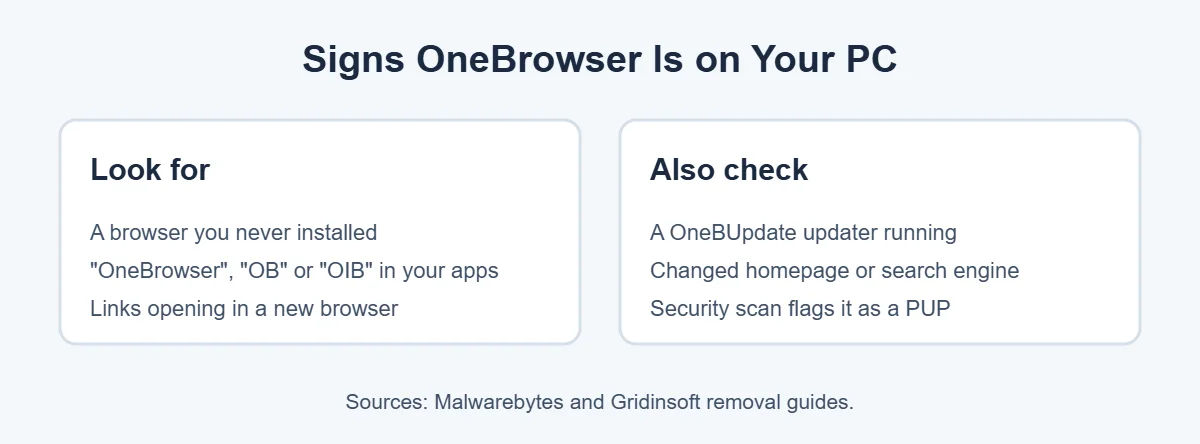
- A browser you don’t remember installing opens your links.
- You see OneBrowser, OB or OIB in your apps list.
- Your homepage or search engine changed.
- A security scan flags it as a PUP.
Is OneBrowser Safe?
So, what is OneBrowser in terms of safety? It isn’t classed as a virus, but it isn’t something most people want. Malwarebytes calls it a potentially unwanted program because of the system changes it makes. If you didn’t knowingly install it, the safest move is to remove it and stick with a browser you trust, like Chrome, Edge or Firefox.
It’s a lot like OneLaunch, another program that often sneaks in with free downloads. If you have that too, follow our guide on how to uninstall OneLaunch.
How to Remove OneBrowser: 5 Easy Steps
Now that you know what OneBrowser is, here’s how to get rid of it for good.
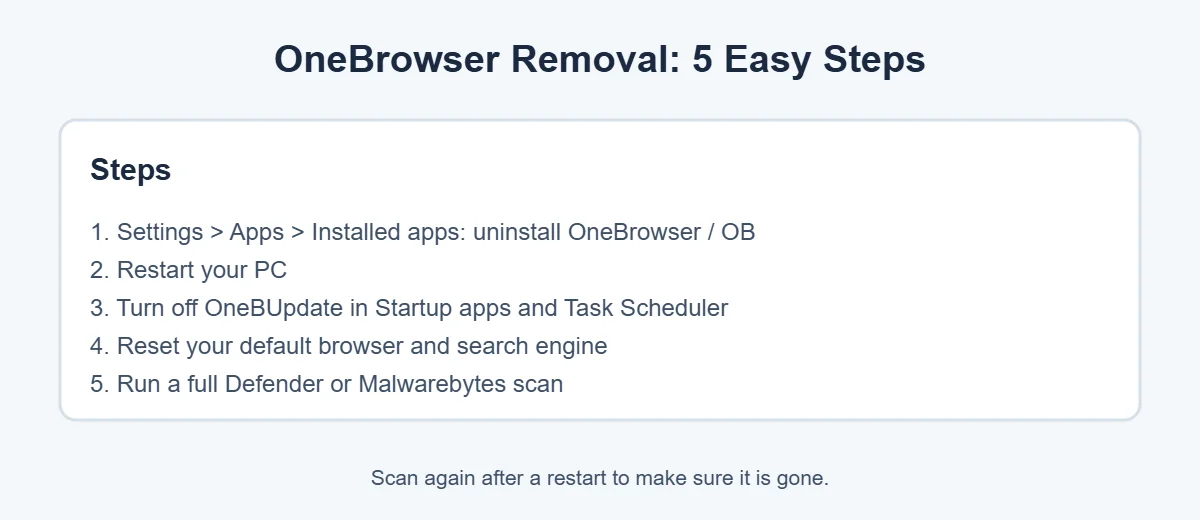
1. Uninstall it from Windows Settings
Open Settings, go to Apps, then Installed apps. Search for OneBrowser, OB or OIB, click the three dots and choose Uninstall. Follow the prompts.
2. Restart your PC
Restarting closes anything still running in the background and finishes the uninstall.
3. Turn off the OneBUpdate leftovers
Gridinsoft warns that OneBrowser’s updater can stay behind. Open Settings, then Apps, then Startup, and turn off anything named OneBrowser, OB or OneBUpdate. Then open Task Scheduler from Start and delete any task named OBUpdate or similar. Only remove items you’re sure belong to OneBrowser.
4. Reset your browser settings
Open Settings, then Apps, then Default apps, and choose your normal browser. In that browser, check your homepage, search engine and extensions, and remove anything you don’t recognize.
5. Run a full security scan
Run a Full scan with Microsoft Defender (Windows Security, then Virus and threat protection, then Scan options). Malwarebytes also detects OneBrowser and removes it when you quarantine the detection. Restart, then scan once more to confirm it’s gone.
How to Keep OneBrowser From Coming Back
Knowing what OneBrowser is helps you avoid it next time. Most unwanted browsers ride in on free software.
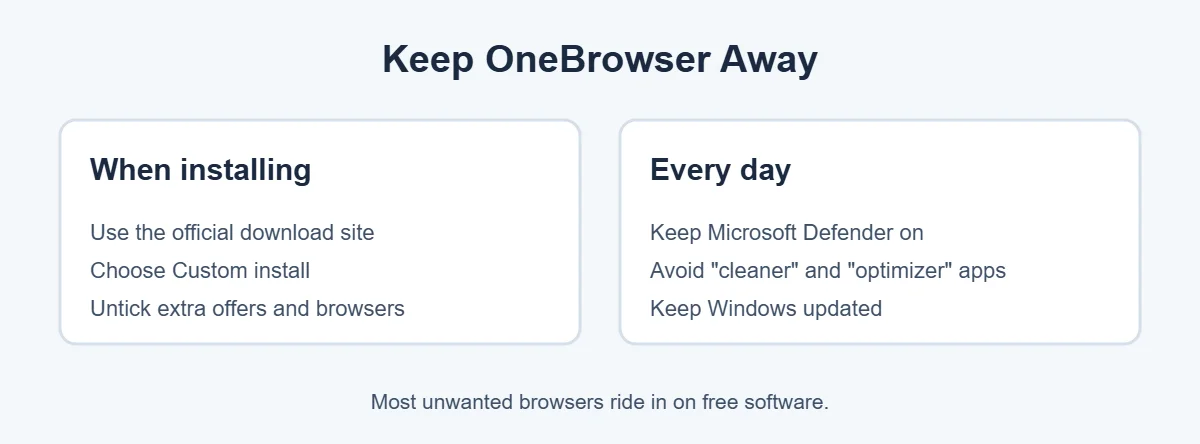
- Download apps only from the developer’s official website.
- Always pick Custom or Advanced install, and untick extra offers.
- Be careful with free “PC cleaner” and “optimizer” tools, which Gridinsoft links to OneBrowser installs.
- Keep Microsoft Defender turned on and Windows up to date.
If your PC still feels slow after cleanup, it may simply be getting old. Here’s how long laptops really last.
Frequently Asked Questions
Is OneBrowser a virus?
No, it isn’t classed as a virus, but security companies treat it as a potentially unwanted program. Malwarebytes detects it as PUP.Optional.OneBrowser and says it makes changes to Windows that could lead to malware. If you didn’t choose to install it, removing it is a good idea.
How did OneBrowser get on my computer?
Usually it came bundled with other free software. Malwarebytes says it often arrives packaged with other programs, and Gridinsoft notes it may come with cleaners, optimizers or bundle installers. An extra offer was probably ticked during a setup screen.
Is OneBrowser the same as OneLaunch?
No, they’re different programs, though both are often treated as potentially unwanted and both can arrive bundled with free software. If you have both, remove each one. Our OneLaunch guide walks you through that one step by step.
Why does OneBrowser come back after I uninstall it?
Gridinsoft says OneBrowser can leave its OneBUpdate updater behind after you remove the browser, which can bring files back after a restart. Turn off leftover startup items and scheduled tasks, then run a full security scan.
Is it safe to remove OneBrowser?
Yes. Removing it won’t harm Windows. It’s a separate program, so uninstalling it only removes the browser and its updater. After removal, set Chrome, Edge or Firefox as your default browser again in Windows Settings.
Can Microsoft Defender remove OneBrowser?
Run a full scan with Microsoft Defender, which is built into Windows, and it may flag unwanted apps. Malwarebytes also detects OneBrowser and removes it automatically when you quarantine the detection. Restart and scan again to confirm it’s gone.
The Bottom Line
What is OneBrowser? It’s a browser that often gets bundled with free software and is flagged as a potentially unwanted program. It isn’t a virus, but you’re better off without it if you never chose it.
Uninstall it from Settings, restart, turn off the OneBUpdate leftovers, reset your browser and run a full scan. Then use Custom install from now on, so it doesn’t sneak back in.