

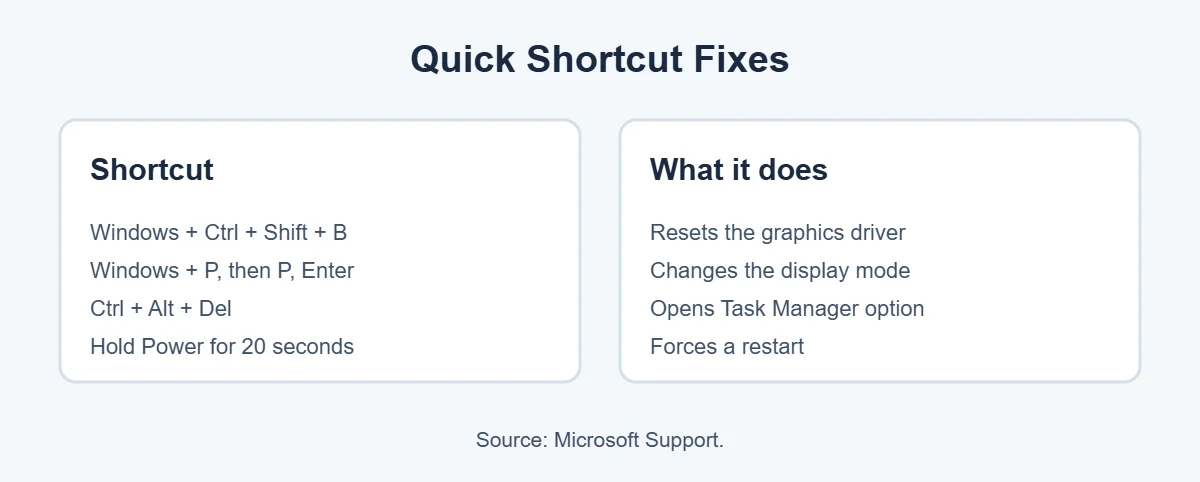
Laptop stuck on black screen? First, press Windows + Ctrl + Shift + B to restart the graphics driver. If that doesn’t work, press Windows + P, then P, then Enter to switch display modes. Still black? Hold the power button for 20 seconds to force a restart.
Below are nine easy fixes for a laptop stuck on black screen, from two-second shortcuts to Safe Mode and System Restore. They’re based on Microsoft’s and Dell’s official troubleshooting guides.
[ADD PERSONAL EXPERIENCE: one line about when your laptop got stuck on a black screen and what you tried first.]
Table of Contents
First, Look for Clues
Before fixing a laptop stuck on black screen, check what still works. Dell suggests looking for power lights and listening for fan noise.
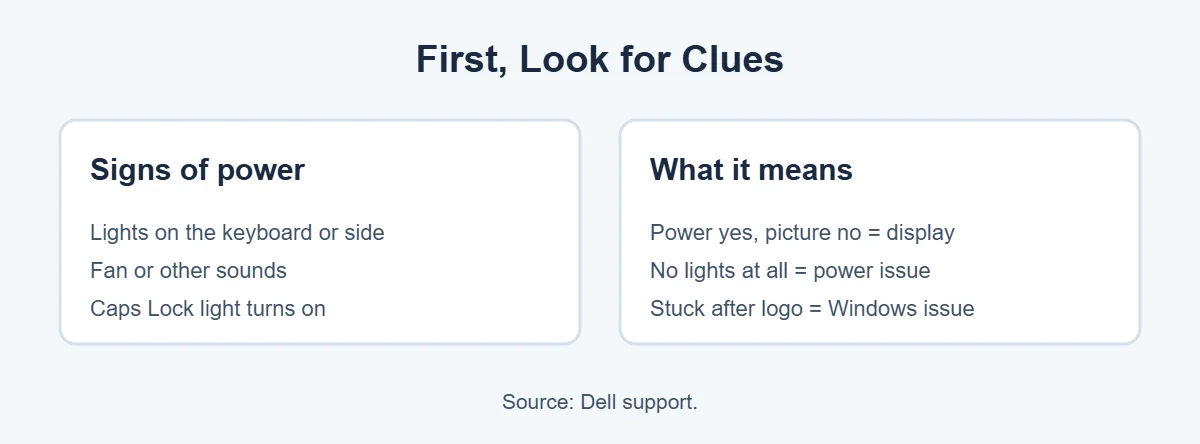
- Lights and fan noise, but no picture: likely a display or driver problem.
- No lights at all: likely a power, charger or battery problem.
- Logo shows, then black: likely a Windows or driver problem.
9 Easy Fixes for a Laptop Stuck on Black Screen
These steps follow Microsoft’s guide to blank screens in Windows. Try them in order.
1. Restart the graphics driver
Press Windows + Ctrl + Shift + B. A beep or a quick flicker means it worked. This fixes many cases of a laptop stuck on black screen in seconds.
2. Switch the display mode
If you’ve used a projector or second monitor, Windows may be sending the picture elsewhere. Press Windows + P, then P, then Enter to cycle modes. Repeat a few times if needed.
3. Check power and connections
A dead or loose charger can look like a laptop stuck on black screen. Plug in the charger and make sure it’s working. Disconnect external monitors, docks and USB devices, then try again.
4. Restart Windows Explorer
Can you see the mouse but nothing else? Press Ctrl + Alt + Del and open Task Manager, or press Ctrl + Shift + Esc. Right-click Windows Explorer and choose Restart. If it isn’t listed, choose File, Run new task, type explorer.exe and press Enter.
5. Force a restart
If your laptop is stuck on black screen and nothing responds, hold the power button for about 20 seconds until the laptop turns off. Wait a moment, then turn it back on.
6. Do a power reset
Shut down, unplug the charger, remove the battery if you can, and disconnect everything. Dell recommends holding the power button for 15 to 20 seconds, then reconnecting power and turning it on.
7. Test with an external monitor
Connect a TV or monitor and press Windows + P. If the external screen shows a picture, your laptop stuck on black screen problem is in the laptop’s own display or its cable. On a Dell, you can also run the built-in screen test by holding D and pressing Power.
8. Use Safe Mode to fix the graphics driver
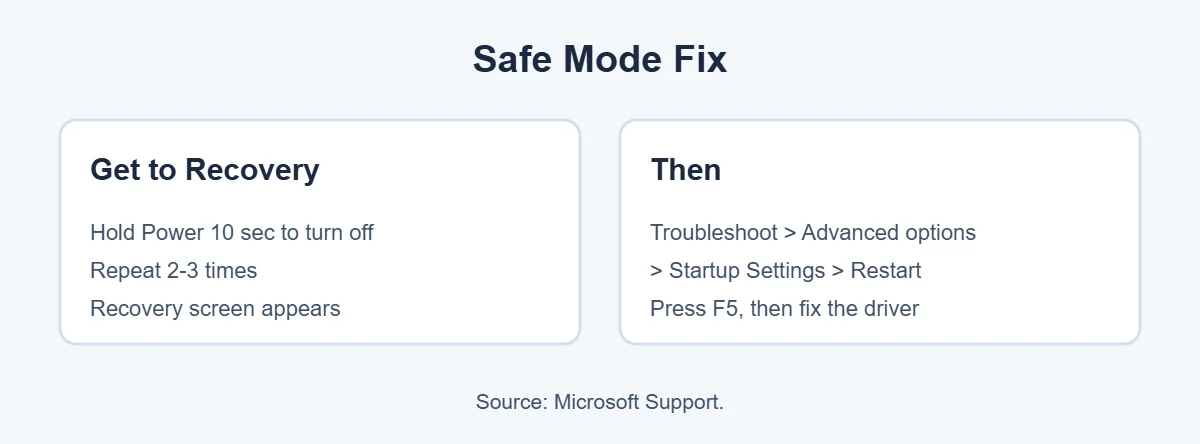
Hold the power button for 10 seconds to turn off the laptop, then turn it on. Repeat two or three times until Recovery appears. Choose Troubleshoot, Advanced options, Startup Settings, Restart, then press F5 for Safe Mode with Networking. Open Device Manager, expand Display adapters, right-click your graphics card and choose Update driver or Roll back driver.
9. Run System Restore
If your laptop stuck on black screen started after a recent update or new program, go back in time. From Recovery, choose Troubleshoot, Advanced options, System Restore, and pick a restore point from before the problem began. Your personal files stay safe.
When It’s a Hardware Problem
If your laptop stuck on black screen won’t respond to any fix, or there are no lights at all, the screen, its cable, the battery or the motherboard may have failed. Contact your laptop maker, especially if it’s under warranty. If the laptop is old, compare the repair cost with a new one. Here’s how long laptops usually last, and where to sell an old laptop.
Frequently Asked Questions
Why is my laptop stuck on a black screen?
The most common causes are a graphics driver glitch, a wrong display mode, a failed update, or Windows Explorer not starting. If there are no lights or sounds at all, it may be a power or battery problem instead. Dell suggests checking for lights and fan noise first.
How do I fix a black screen on my laptop with the cursor showing?
Press Ctrl + Alt + Del, open Task Manager, and restart Windows Explorer. If it isn’t listed, choose File, then Run new task, type explorer.exe and press Enter. Microsoft lists this as a fix for a blank screen with a working cursor.
What does Windows + Ctrl + Shift + B do?
It restarts your graphics driver without restarting the laptop. Microsoft says you’ll hear a beep or see the screen flicker when it works. It’s safe to try and often brings a black screen back to life in seconds.
My laptop is on but the screen is black. Is it broken?
Not necessarily. Plug in an external monitor and press Windows + P. If the external screen works, the laptop screen or its cable may be faulty. If neither shows a picture, it’s more likely a driver, Windows or power problem.
How do I get into Safe Mode from a black screen?
Hold the power button for 10 seconds to turn the laptop off, then turn it on and repeat two or three times until the Recovery screen appears. Choose Troubleshoot, Advanced options, Startup Settings, Restart, then press F5.
When should I take my laptop in for repair?
If the black screen continues after a power reset, external monitor test, Safe Mode and System Restore, or if there are no lights at all, contact your laptop maker. A failing screen, cable, motherboard or battery may need a technician.
The Bottom Line
A laptop stuck on black screen is usually a driver, display mode or Windows problem. Start with Windows + Ctrl + Shift + B and Windows + P, then force a restart and do a power reset.
If it’s still black, use Safe Mode to fix the graphics driver or run System Restore. If there are no lights at all, or the screen test fails, it’s time for a repair.
{“@context”:”https://schema.org”,”@type”:”FAQPage”,”mainEntity”:[{“@type”:”Question”,”name”:”Why is my laptop stuck on a black screen?”,”acceptedAnswer”:{“@type”:”Answer”,”text”:”The most common causes are a graphics driver glitch, a wrong display mode, a failed update, or Windows Explorer not starting. If there are no lights or sounds at all, it may be a power or battery problem instead. Dell suggests checking for lights and fan noise first.”}},{“@type”:”Question”,”name”:”How do I fix a black screen on my laptop with the cursor showing?”,”acceptedAnswer”:{“@type”:”Answer”,”text”:”Press Ctrl + Alt + Del, open Task Manager, and restart Windows Explorer. If it isn’t listed, choose File, then Run new task, type explorer.exe and press Enter. Microsoft lists this as a fix for a blank screen with a working cursor.”}},{“@type”:”Question”,”name”:”What does Windows + Ctrl + Shift + B do?”,”acceptedAnswer”:{“@type”:”Answer”,”text”:”It restarts your graphics driver without restarting the laptop. Microsoft says you’ll hear a beep or see the screen flicker when it works. It’s safe to try and often brings a black screen back to life in seconds.”}},{“@type”:”Question”,”name”:”My laptop is on but the screen is black. Is it broken?”,”acceptedAnswer”:{“@type”:”Answer”,”text”:”Not necessarily. Plug in an external monitor and press Windows + P. If the external screen works, the laptop screen or its cable may be faulty. If neither shows a picture, it’s more likely a driver, Windows or power problem.”}},{“@type”:”Question”,”name”:”How do I get into Safe Mode from a black screen?”,”acceptedAnswer”:{“@type”:”Answer”,”text”:”Hold the power button for 10 seconds to turn the laptop off, then turn it on and repeat two or three times until the Recovery screen appears. Choose Troubleshoot, Advanced options, Startup Settings, Restart, then press F5.”}},{“@type”:”Question”,”name”:”When should I take my laptop in for repair?”,”acceptedAnswer”:{“@type”:”Answer”,”text”:”If the black screen continues after a power reset, external monitor test, Safe Mode and System Restore, or if there are no lights at all, contact your laptop maker. A failing screen, cable, motherboard or battery may need a technician.”}}]}