

Seeing horizontal lines on laptop screen? First, connect an external monitor and run your laptop’s built-in screen test. If the lines don’t show up there, it’s a driver or settings problem you can fix at home. If they do, the screen panel or its cable is damaged and needs a repair.
Below I’ll explain what causes horizontal lines on laptop screen, whether they’re black, white, green, purple or red, plus a two-minute test and seven easy fixes.
[ADD PERSONAL EXPERIENCE: one line about when lines showed up on your own screen and what caused them.]
Table of Contents
What Causes Horizontal Lines on Laptop Screen?
According to Dell’s display guide, lines on screen are often either a driver issue or an LCD panel problem. Here are the usual causes:
- Graphics driver: an old or broken driver can draw lines across the picture.
- Refresh rate or resolution: wrong settings can cause flickering lines.
- Loose display cable: the cable through the hinge can wear or come loose.
- Damaged panel: a drop, pressure or liquid can leave permanent lines.
What the line color can tell you
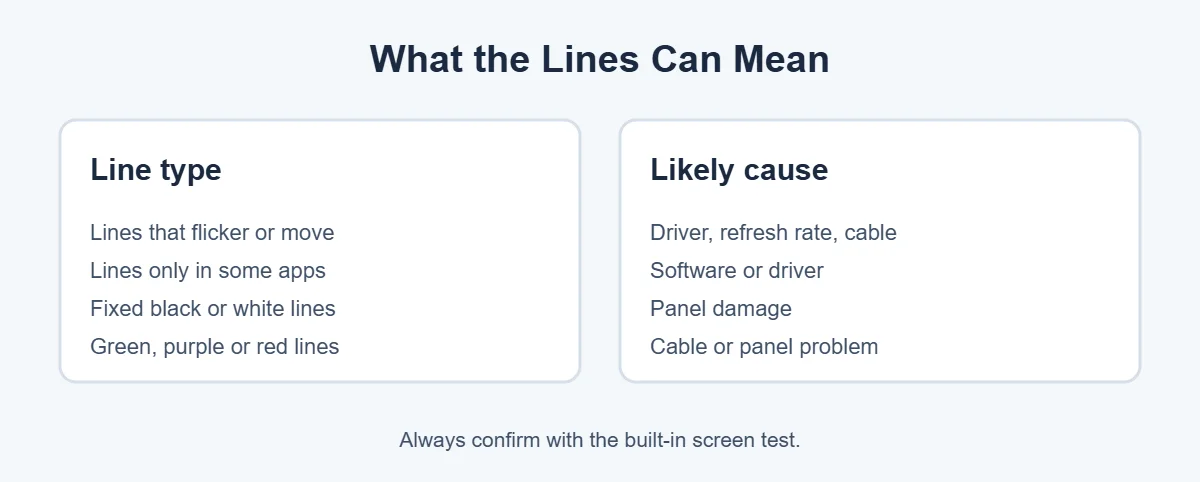
When it comes to horizontal lines on laptop screen, color is only a clue. Black or white lines that never move usually mean panel damage. Green, purple or red lines often point to a cable or panel problem. Lines that flicker or only appear in certain apps are more likely software. The test below gives you the real answer.
Hardware or Software? A 2-Minute Test
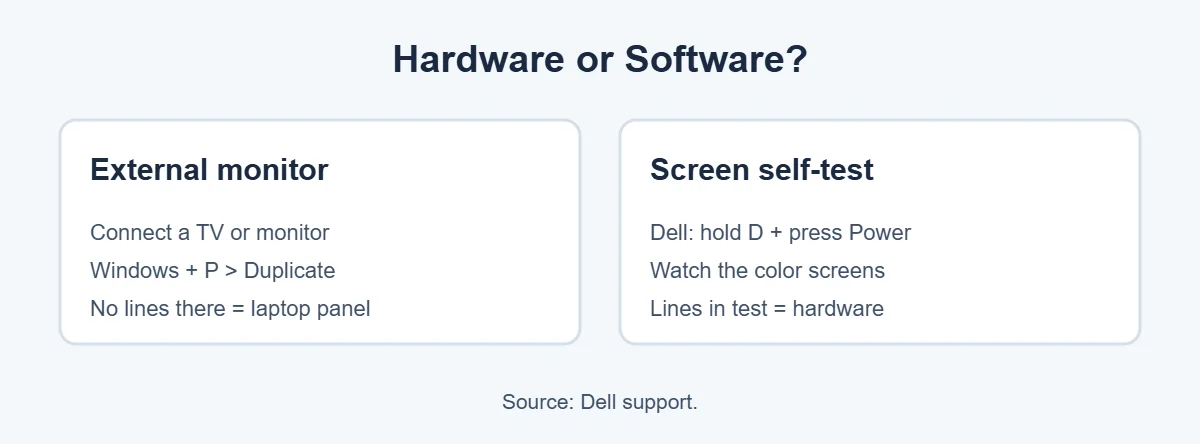
1. Connect an external monitor
Plug in a TV or monitor, press Windows + P and choose Duplicate. If the external screen is clean but you still see horizontal lines on laptop screen, the laptop’s own panel or cable is the problem.
2. Run the built-in screen test
On a Dell, turn the laptop off, hold D and press Power. The LCD built-in self-test shows solid colors. Dell says that if you see lines during the test, the screen may need professional service. If the colors are clean, the problem is software. HP, Lenovo and others have their own diagnostics too.
7 Easy Fixes for Horizontal Lines on Laptop Screen
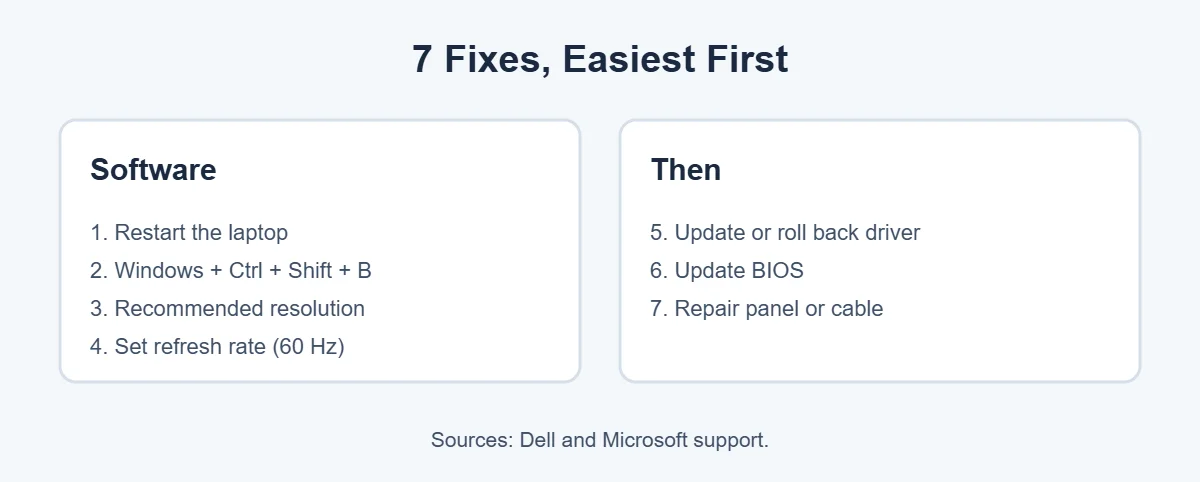
1. Restart your laptop
A restart clears temporary glitches that can cause horizontal lines on laptop screen. It sounds simple, but Dell lists it as one of the first steps for lines on screen.
2. Reset the graphics driver
Press Windows + Ctrl + Shift + B. Microsoft says you’ll hear a beep or see a flicker when it works.
3. Set the recommended resolution
Go to Settings, System, Display, and choose the resolution marked Recommended.
4. Check the refresh rate
Under Advanced display, set the refresh rate. Dell says it’s usually 60 Hz on standard screens. A wrong rate can cause flickering horizontal lines on laptop screen.
5. Update or roll back the graphics driver
Open Device Manager, expand Display adapters, right-click your graphics card and choose Update driver. If the horizontal lines on laptop screen started right after an update, choose Roll back driver instead.
6. Update the BIOS
Dell recommends updating both the graphics driver and the BIOS. Download the latest BIOS for your exact model from your laptop maker’s support site, keep the charger plugged in, and follow their steps carefully.
7. Repair the panel or cable
If the lines show in the screen test, or they change when you move the lid, it’s hardware. Back up your files and contact your laptop’s support team or a trusted repair shop. A loose cable is often cheaper to fix than a full screen.
Lines That Change When You Move the Lid
Open and close your laptop slowly while watching the screen. If horizontal lines on laptop screen appear, disappear or move as you tilt the lid, the display cable in the hinge is the likely cause. Don’t keep flexing it, because that can make the damage worse.
If your laptop is old and the repair isn’t worth it, here’s how long laptops usually last and where to sell or recycle an old laptop.
Frequently Asked Questions
What causes horizontal lines on a laptop screen?
The most common causes are a graphics driver problem, a wrong refresh rate, a loose display cable or a damaged screen panel. Dell says lines on screen are often either a driver issue or an LCD panel problem, and its built-in self-test helps tell them apart.
Can horizontal lines on a laptop screen be fixed?
If they’re caused by drivers or settings, yes, usually at home for free. If the lines appear in your laptop’s built-in screen test, the panel or its cable is damaged, and a repair is the only fix.
Why are there green or purple lines on my laptop screen?
Colored lines often point to a problem with the display cable or the panel itself, especially if they appear after a drop or when you move the lid. Run the screen self-test. If the colored lines show up there, the laptop needs a repair.
Do horizontal lines on a laptop screen get worse?
Hardware-related lines often get worse over time as the cable or panel wears out further. Software lines usually stay the same or come and go. If the lines are spreading, back up your files and get a repair quote soon.
Why do lines appear when I move my laptop screen?
If lines appear or change when you open, close or tilt the lid, the display cable that runs through the hinge is probably loose or damaged. A technician can reseat or replace it, which is often cheaper than replacing the whole screen.
Will a graphics driver update fix lines on my screen?
It can, if the lines come from software. Dell recommends updating drivers and restarting as a first step. If the lines started right after a driver update, rolling back the driver in Device Manager often helps instead.
The Bottom Line
Horizontal lines on laptop screen are either software or hardware. Run an external monitor test and your laptop’s built-in screen test first. If the test is clean, restart, reset the driver, set the recommended resolution and refresh rate, and update your driver and BIOS.
If the lines show in the test or move with the lid, the panel or cable needs a repair.
{“@context”:”https://schema.org”,”@type”:”FAQPage”,”mainEntity”:[{“@type”:”Question”,”name”:”What causes horizontal lines on a laptop screen?”,”acceptedAnswer”:{“@type”:”Answer”,”text”:”The most common causes are a graphics driver problem, a wrong refresh rate, a loose display cable or a damaged screen panel. Dell says lines on screen are often either a driver issue or an LCD panel problem, and its built-in self-test helps tell them apart.”}},{“@type”:”Question”,”name”:”Can horizontal lines on a laptop screen be fixed?”,”acceptedAnswer”:{“@type”:”Answer”,”text”:”If they’re caused by drivers or settings, yes, usually at home for free. If the lines appear in your laptop’s built-in screen test, the panel or its cable is damaged, and a repair is the only fix.”}},{“@type”:”Question”,”name”:”Why are there green or purple lines on my laptop screen?”,”acceptedAnswer”:{“@type”:”Answer”,”text”:”Colored lines often point to a problem with the display cable or the panel itself, especially if they appear after a drop or when you move the lid. Run the screen self-test. If the colored lines show up there, the laptop needs a repair.”}},{“@type”:”Question”,”name”:”Do horizontal lines on a laptop screen get worse?”,”acceptedAnswer”:{“@type”:”Answer”,”text”:”Hardware-related lines often get worse over time as the cable or panel wears out further. Software lines usually stay the same or come and go. If the lines are spreading, back up your files and get a repair quote soon.”}},{“@type”:”Question”,”name”:”Why do lines appear when I move my laptop screen?”,”acceptedAnswer”:{“@type”:”Answer”,”text”:”If lines appear or change when you open, close or tilt the lid, the display cable that runs through the hinge is probably loose or damaged. A technician can reseat or replace it, which is often cheaper than replacing the whole screen.”}},{“@type”:”Question”,”name”:”Will a graphics driver update fix lines on my screen?”,”acceptedAnswer”:{“@type”:”Answer”,”text”:”It can, if the lines come from software. Dell recommends updating drivers and restarting as a first step. If the lines started right after a driver update, rolling back the driver in Device Manager often helps instead.”}}]}