

Why won’t my laptop turn on? In most cases, it’s a power problem: a dead outlet, a faulty charger or a drained battery. Plug the charger straight into a working wall outlet, leave it for 30 minutes, then try again. If that doesn’t work, do a power reset: unplug everything, hold the power button for 15 to 20 seconds, then reconnect the charger and press Power.
Below are nine easy fixes, from simple power checks to reading light codes, so you can figure out why your laptop won’t turn on before you pay for a repair.
[ADD PERSONAL EXPERIENCE: one line about a time your laptop wouldn’t start and what the problem turned out to be.]
Table of Contents
Read the Clues First
Before asking “why won’t my laptop turn on,” look at what does happen when you press Power. Dell suggests pressing Power and Caps Lock to see if any lights respond.
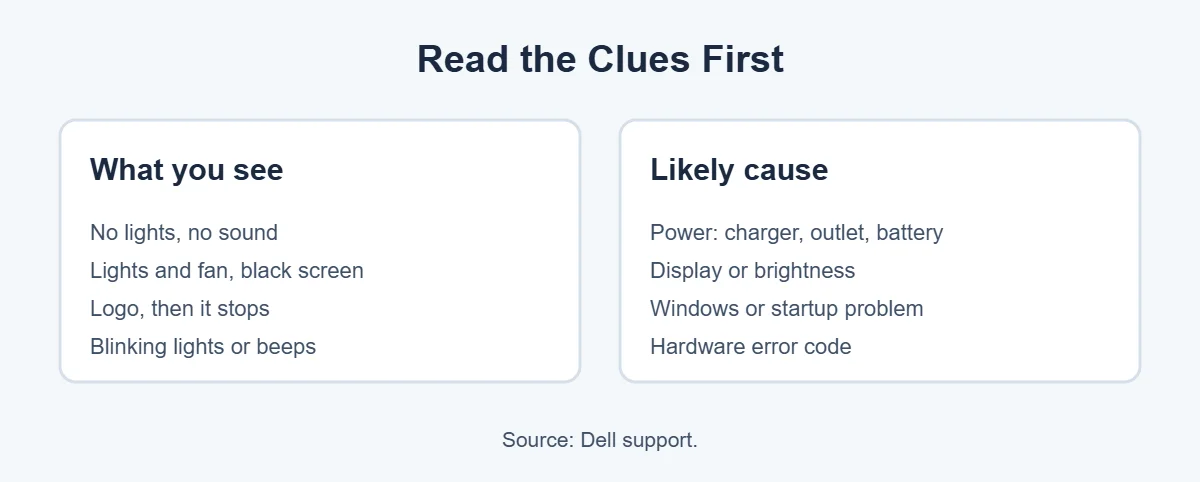
- No lights, no sound: power isn’t reaching the laptop.
- Lights or fan noise, but a black screen: the laptop is on, but the display isn’t showing anything.
- Logo appears, then it stops: a Windows or startup problem.
- Blinking lights or beeps: a hardware error code.
9 Easy Fixes When Your Laptop Won’t Turn On
1. Check the outlet
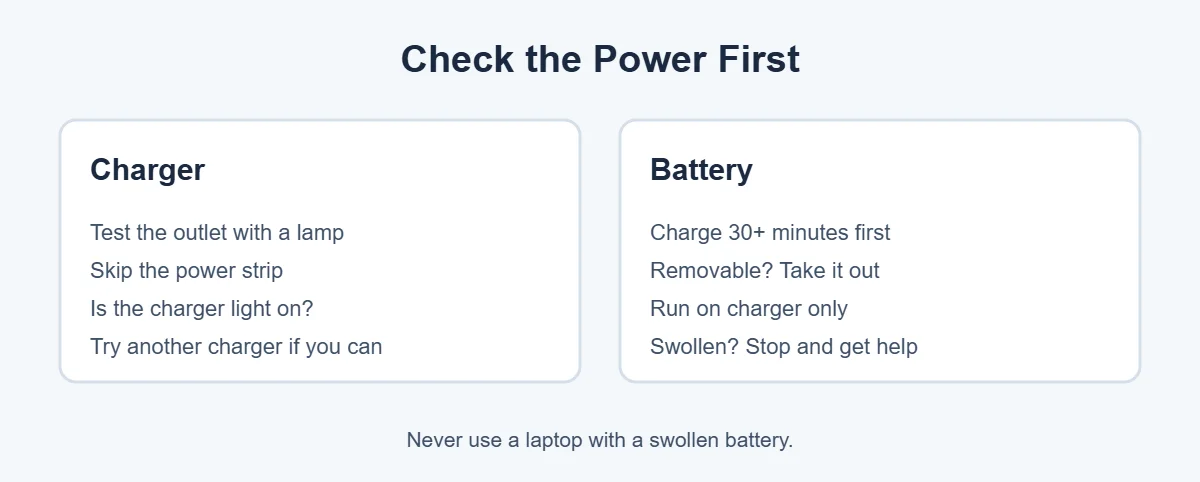
Plug a lamp or phone charger into the same outlet. Dell recommends skipping power strips and surge protectors and plugging straight into the wall.
2. Check the charger
Look for damage on the cable and make sure both ends are firmly connected. Many chargers have a small light. Dell says if the charger’s light is off, reseat the cable, and if it stays off, replace the charger. If you can, try another compatible charger.
3. Let it charge
A fully drained battery may need time. Leave the laptop on the charger for at least 30 minutes, then press Power. Dell suggests charging directly with the charger first, not through a dock.
4. Remove the battery (if you can)
If your laptop has a removable battery, take it out and try starting with only the charger connected. If it starts, the battery may be the problem. If the battery looks swollen, stop using it and get it replaced.
5. Do a power reset
This is the fix that works most often when people wonder why their laptop won’t turn on.
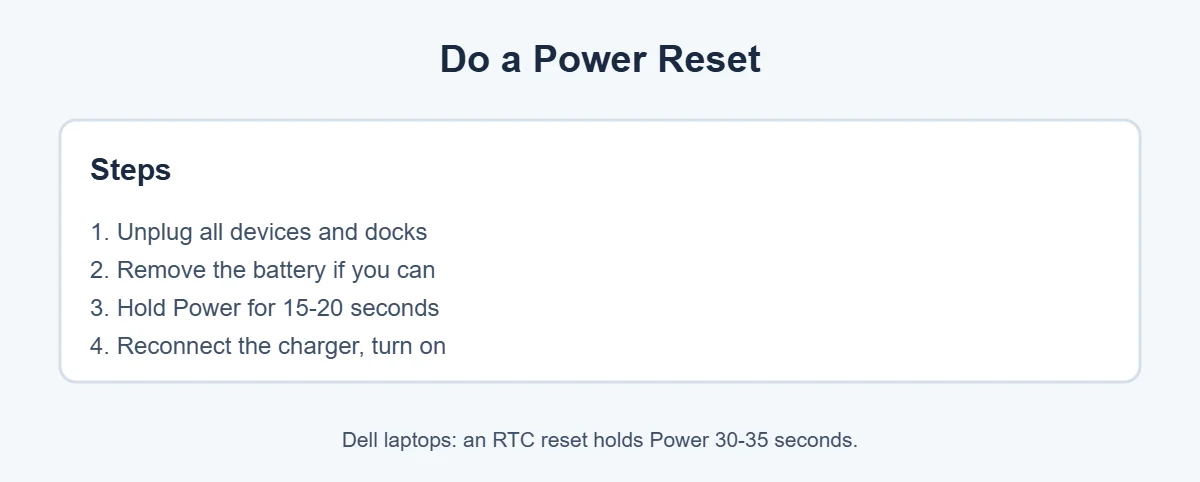
- Unplug the charger, USB devices and docks.
- Remove the battery if it’s removable.
- Hold the power button for 15 to 20 seconds.
- Reconnect only the charger and press Power.
On Dell laptops, Dell also lists an RTC reset: with the charger connected, hold Power for 30 to 35 seconds until the power light blinks three times, then try again.
6. Check the screen, not just the power
If you hear the fan or see lights, the laptop may be on with a black screen. Press the brightness-up key (with Fn if needed). Then connect an external monitor and press Windows + P. If you get a picture, the laptop’s screen is the issue.
7. Look for overheating
Some laptops refuse to start when they’re too hot. Let it cool down. Dell suggests clearing dust from the vents with compressed air, and warns against blowing with your mouth or using a vacuum.
8. Note any light codes or beeps
Blinking lights or beeps are error codes. Count the pattern and look it up in your laptop’s manual. On Dell laptops, pressing F12 at startup and choosing Diagnostics runs a hardware test.
9. Get it repaired
If your laptop still won’t turn on, contact the maker, especially if it’s under warranty. Tell them what you tried and any light codes you saw.
Laptop Won’t Turn On After a Spill?
Unplug it, remove the battery if possible, and let it dry for at least a day or two before trying again. Don’t charge it while wet. If it still won’t start, take it to a technician before corrosion spreads.
If your laptop is old and the repair costs too much, here’s how long laptops usually last and where to sell or recycle a broken laptop.
Frequently Asked Questions
Why won’t my laptop turn on even when plugged in?
Usually the charger, outlet or battery is the problem. Test the outlet with another device, check the charger’s light, and try another charger if possible. A fully drained battery may need 30 minutes or more on the charger before it starts.
What do I do if my laptop won’t turn on but the lights are on?
If you see lights or hear the fan, the laptop has power, so the screen may be the issue. Press the brightness-up key, connect an external monitor, and press Windows + P. Dell says this helps tell a screen problem apart from a power problem.
How do I do a hard reset on a laptop that won’t turn on?
Unplug the charger and all devices, remove the battery if it’s removable, and hold the power button for 15 to 20 seconds. Then reconnect only the charger and turn it on. Dell laptops also support an RTC reset by holding Power for 30 to 35 seconds.
Can a dead battery stop a laptop from turning on?
Yes. If the battery is completely drained or faulty, the laptop may not start even when plugged in at first. Charge it for a while, or remove a removable battery and try the charger alone. If the battery looks swollen, stop using it and get it replaced.
Why won’t my laptop turn on after a spill?
Liquid can short parts inside. Unplug it, remove the battery if you can, and let it dry for at least a day or two before trying again. Don’t charge it while wet. If it still won’t start, take it to a repair shop.
When should I take my laptop to a repair shop?
If it still won’t turn on after testing the outlet, charger and battery, doing a power reset and checking for blinking light codes, it’s time for a technician. Note any light patterns or beeps, because they help diagnose the fault.
The Bottom Line
Why won’t my laptop turn on? Usually because of the outlet, the charger or a drained battery. Test the outlet, check the charger light, charge for 30 minutes and do a power reset.
If you see lights but no picture, it’s the screen. If you see blinking lights or hear beeps, note the pattern and contact the maker. Most laptops that “won’t turn on” come back with one of these simple fixes.
{“@context”:”https://schema.org”,”@type”:”FAQPage”,”mainEntity”:[{“@type”:”Question”,”name”:”Why won’t my laptop turn on even when plugged in?”,”acceptedAnswer”:{“@type”:”Answer”,”text”:”Usually the charger, outlet or battery is the problem. Test the outlet with another device, check the charger’s light, and try another charger if possible. A fully drained battery may need 30 minutes or more on the charger before it starts.”}},{“@type”:”Question”,”name”:”What do I do if my laptop won’t turn on but the lights are on?”,”acceptedAnswer”:{“@type”:”Answer”,”text”:”If you see lights or hear the fan, the laptop has power, so the screen may be the issue. Press the brightness-up key, connect an external monitor, and press Windows + P. Dell says this helps tell a screen problem apart from a power problem.”}},{“@type”:”Question”,”name”:”How do I do a hard reset on a laptop that won’t turn on?”,”acceptedAnswer”:{“@type”:”Answer”,”text”:”Unplug the charger and all devices, remove the battery if it’s removable, and hold the power button for 15 to 20 seconds. Then reconnect only the charger and turn it on. Dell laptops also support an RTC reset by holding Power for 30 to 35 seconds.”}},{“@type”:”Question”,”name”:”Can a dead battery stop a laptop from turning on?”,”acceptedAnswer”:{“@type”:”Answer”,”text”:”Yes. If the battery is completely drained or faulty, the laptop may not start even when plugged in at first. Charge it for a while, or remove a removable battery and try the charger alone. If the battery looks swollen, stop using it and get it replaced.”}},{“@type”:”Question”,”name”:”Why won’t my laptop turn on after a spill?”,”acceptedAnswer”:{“@type”:”Answer”,”text”:”Liquid can short parts inside. Unplug it, remove the battery if you can, and let it dry for at least a day or two before trying again. Don’t charge it while wet. If it still won’t start, take it to a repair shop.”}},{“@type”:”Question”,”name”:”When should I take my laptop to a repair shop?”,”acceptedAnswer”:{“@type”:”Answer”,”text”:”If it still won’t turn on after testing the outlet, charger and battery, doing a power reset and checking for blinking light codes, it’s time for a technician. Note any light patterns or beeps, because they help diagnose the fault.”}}]}