
Want to turn on the MacBook Pro keyboard light? Open the Apple menu, choose System Settings, click Keyboard, and drag the Keyboard brightness slider to the right. You can also use the Keyboard Brightness button in Control Center, or the brightness keys if your model has them.
Below are five easy ways to control the MacBook Pro keyboard light, how to keep it from turning off by itself, and what to do when it won’t light up at all.
[ADD PERSONAL EXPERIENCE: one line about using your MacBook in a dark room and how you set the keyboard light.]
Table of Contents
How to Turn On the MacBook Pro Keyboard Light: 5 Easy Ways
These steps come from Apple Support.
1. System Settings
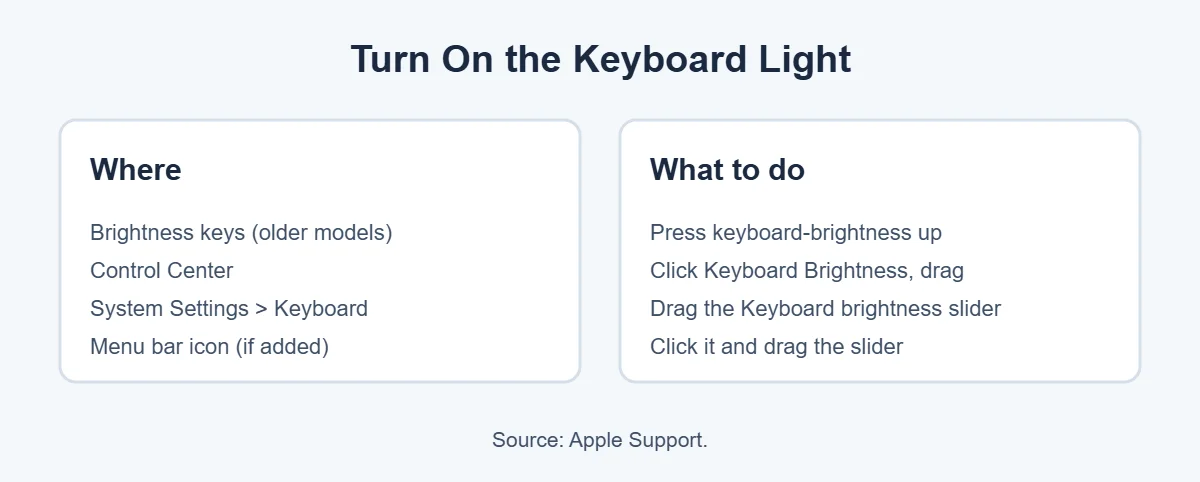
Choose Apple menu, then System Settings. Click Keyboard in the sidebar (scroll down if needed) and drag the Keyboard brightness slider. Drag it fully left to turn the MacBook Pro keyboard light off.
2. Control Center
Click the Control Center icon in the menu bar, click Keyboard Brightness and drag the slider. If the button isn’t there, Apple says you can add it with Customize Control Center.
3. Brightness keys
Some MacBook models have keyboard brightness keys on the top row. Press the increase key to turn the light up, and keep pressing the decrease key to turn it off. Many newer models don’t have these keys, so use Control Center instead.
4. Menu bar icon
If you add Keyboard Brightness to the menu bar, you can click its icon anytime and drag the slider. This is the fastest way to adjust the MacBook Pro keyboard light on newer models.
5. Let it adjust automatically
Your Mac can change the light for you based on the room. That’s covered in the next section.
Automatic Keyboard Light Settings
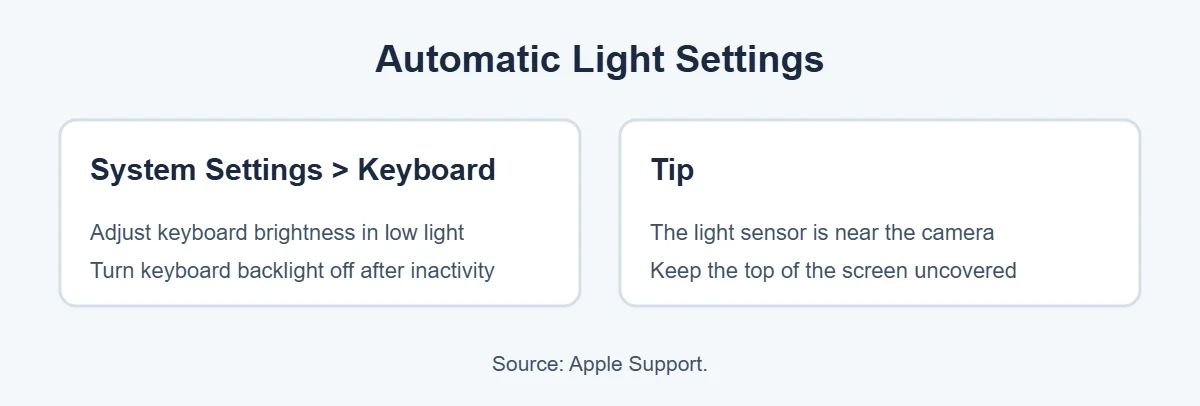
In System Settings, then Keyboard, you’ll find two settings:
- Adjust keyboard brightness in low light: turns the light up in dark rooms and down in bright ones.
- Turn keyboard backlight off after inactivity: choose how long the light stays on after you stop typing.
Apple notes that the light sensor sits at the top of the screen near the camera. Keep that area uncovered, or the automatic setting won’t work properly.
MacBook Pro Keyboard Light Not Working? Fixes
If the MacBook Pro keyboard light won’t come on, try these in order.
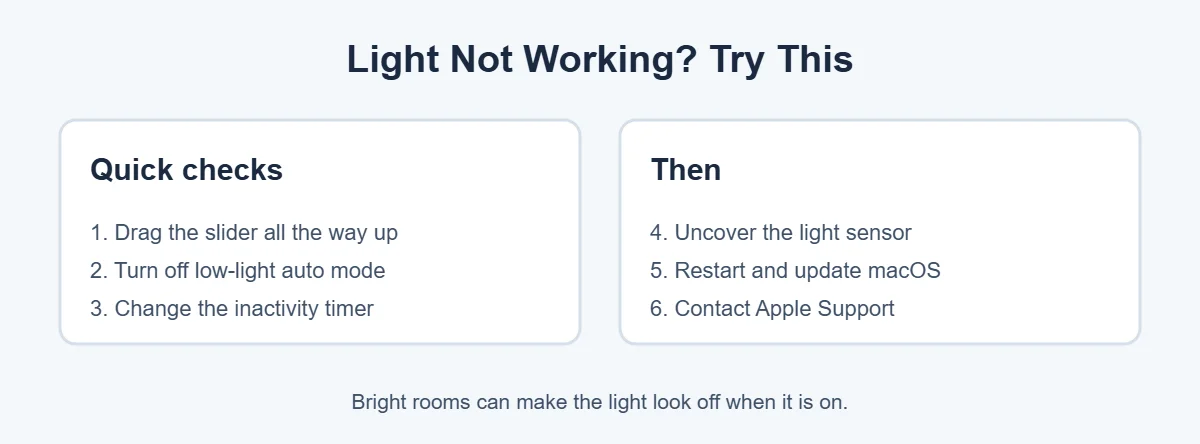
- Turn the slider up. It may simply be set to zero.
- Turn off low-light auto mode. In a bright room, auto mode can keep the light off.
- Change the inactivity timer. A short timer makes the light switch off quickly.
- Uncover the sensor. Stickers or camera covers near the top of the screen can confuse it.
- Restart and update macOS. Open System Settings, General, Software Update.
- Contact Apple Support if the slider is missing or the light never turns on.
A quick test: turn off the room lights. In a bright room, the light can be on and still hard to see.
Keyboard Light Tips
- Lower the light to save a little battery when you’re unplugged.
- Keep the keys clean so the light shines evenly. Apple has a guide on cleaning a MacBook keyboard.
- Pair a low light with Night Shift for comfortable late-night work.
More MacBook tips: how to make your MacBook aesthetic and why MacBooks are so expensive.
Frequently Asked Questions
How do I turn on the keyboard light on my MacBook Pro?
Open the Apple menu, choose System Settings, click Keyboard, and drag the Keyboard brightness slider to the right. You can also use Control Center’s Keyboard Brightness button, or the brightness keys on models that have them, according to Apple.
Why is my MacBook Pro keyboard light not working?
The most common reasons are a slider set to zero, the low-light auto setting turning it off in bright rooms, or a short inactivity timer. Apple also says the light sensor near the camera must be uncovered for automatic adjustment to work.
How do I keep my MacBook keyboard light on all the time?
Go to System Settings, Keyboard, and change “Turn keyboard backlight off after inactivity” to Never, if available, or the longest time. Turn off “Adjust keyboard brightness in low light” if you want full manual control.
Where is the keyboard brightness key on a MacBook Pro?
Some MacBook models have keyboard brightness keys on the top row. Many newer models don’t, so use Control Center or System Settings instead. You can also add Keyboard Brightness to the menu bar from Control Center settings.
Why does my MacBook keyboard light turn off by itself?
Two settings do this. “Adjust keyboard brightness in low light” can dim it when the room is bright, and the inactivity timer turns it off after you stop typing. Change both in System Settings, then Keyboard.
Does every MacBook Pro have a keyboard light?
Modern MacBook Pro models have backlit keyboards. If yours seems to have none, check System Settings, Keyboard for the brightness slider. If the slider is missing or the light never turns on, contact Apple Support.
The Bottom Line
To turn on the MacBook Pro keyboard light, go to System Settings, then Keyboard, and drag the brightness slider, or use Control Center. If it turns off by itself, change the low-light and inactivity settings.
Still dark? Uncover the light sensor, restart, update macOS, and contact Apple Support if nothing works.
{“@context”:”https://schema.org”,”@type”:”FAQPage”,”mainEntity”:[{“@type”:”Question”,”name”:”How do I turn on the keyboard light on my MacBook Pro?”,”acceptedAnswer”:{“@type”:”Answer”,”text”:”Open the Apple menu, choose System Settings, click Keyboard, and drag the Keyboard brightness slider to the right. You can also use Control Center’s Keyboard Brightness button, or the brightness keys on models that have them, according to Apple.”}},{“@type”:”Question”,”name”:”Why is my MacBook Pro keyboard light not working?”,”acceptedAnswer”:{“@type”:”Answer”,”text”:”The most common reasons are a slider set to zero, the low-light auto setting turning it off in bright rooms, or a short inactivity timer. Apple also says the light sensor near the camera must be uncovered for automatic adjustment to work.”}},{“@type”:”Question”,”name”:”How do I keep my MacBook keyboard light on all the time?”,”acceptedAnswer”:{“@type”:”Answer”,”text”:”Go to System Settings, Keyboard, and change \”Turn keyboard backlight off after inactivity\” to Never, if available, or the longest time. Turn off \”Adjust keyboard brightness in low light\” if you want full manual control.”}},{“@type”:”Question”,”name”:”Where is the keyboard brightness key on a MacBook Pro?”,”acceptedAnswer”:{“@type”:”Answer”,”text”:”Some MacBook models have keyboard brightness keys on the top row. Many newer models don’t, so use Control Center or System Settings instead. You can also add Keyboard Brightness to the menu bar from Control Center settings.”}},{“@type”:”Question”,”name”:”Why does my MacBook keyboard light turn off by itself?”,”acceptedAnswer”:{“@type”:”Answer”,”text”:”Two settings do this. \”Adjust keyboard brightness in low light\” can dim it when the room is bright, and the inactivity timer turns it off after you stop typing. Change both in System Settings, then Keyboard.”}},{“@type”:”Question”,”name”:”Does every MacBook Pro have a keyboard light?”,”acceptedAnswer”:{“@type”:”Answer”,”text”:”Modern MacBook Pro models have backlit keyboards. If yours seems to have none, check System Settings, Keyboard for the brightness slider. If the slider is missing or the light never turns on, contact Apple Support.”}}]}