
Do you need antivirus for Windows 11? For most people, you don’t need to buy one. Windows 11 already includes Microsoft Defender Antivirus, which runs all the time, updates itself and protects against viruses, ransomware and other malware for free. Paid antivirus mainly adds extras like a VPN, password manager or identity monitoring.
Below I’ll explain what Windows 11 includes, when paid antivirus is worth it, and the settings you should turn on today.
[ADD PERSONAL EXPERIENCE: one line about which antivirus you use on your own PC and why.]
Table of Contents
What Antivirus Does Windows 11 Include?
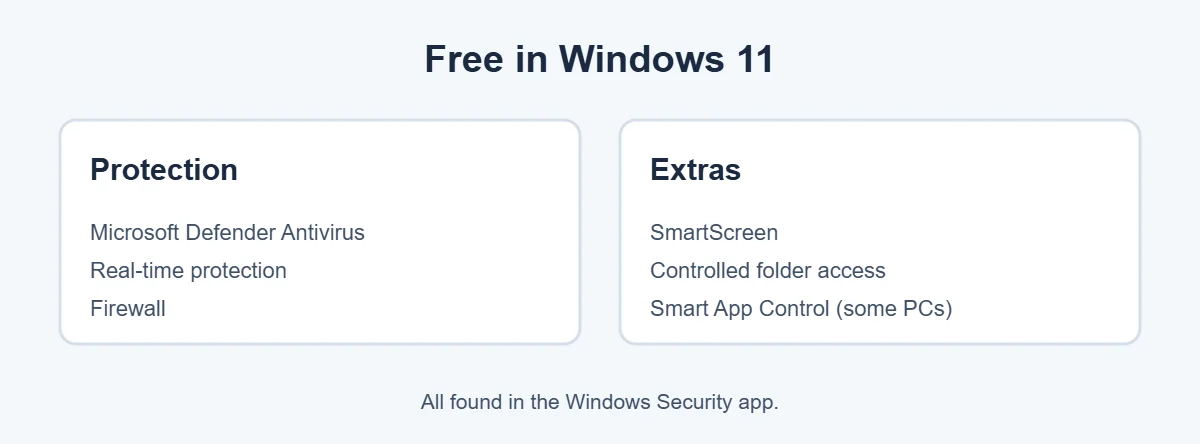
Every Windows 11 PC comes with the Windows Security app. Inside it:
- Microsoft Defender Antivirus: scans files and apps in real time and blocks known threats.
- Cloud-delivered protection: checks new, unknown files against Microsoft’s cloud for faster detection.
- Firewall & network protection: blocks unwanted network connections.
- SmartScreen: warns you about dangerous websites and downloads.
- Controlled folder access: an optional ransomware shield for your important folders.
- Smart App Control: blocks untrusted apps on supported, clean installs of Windows 11.
You’ll find it in Settings, Privacy & security, Windows Security, or by searching “Windows Security” in Start.
Is Microsoft Defender Good Enough?
For most home users, yes. As built-in antivirus for Windows 11, Microsoft Defender has scored well in independent tests from labs like AV-TEST, which regularly test Windows antivirus products for protection, speed and false alarms. Results change from test to test, so check the latest reports if you want details.
Defender also has big practical advantages: it’s free, has no ads or pop-ups asking you to upgrade, and updates through Windows Update.
When Paid Antivirus for Windows 11 Is Worth It
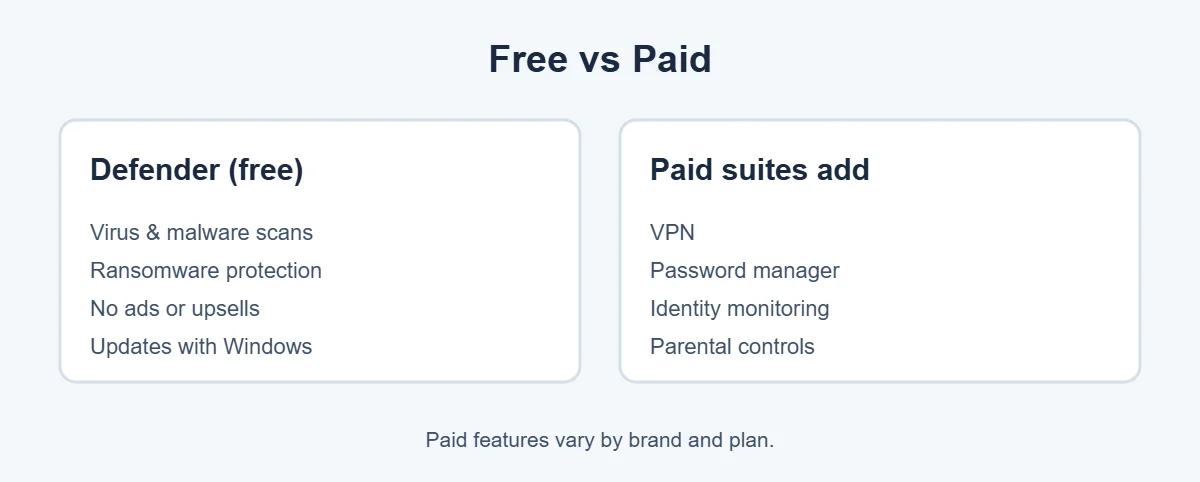
Paying for antivirus for Windows 11 makes sense if you want extras on one subscription:
- A VPN for public Wi-Fi.
- A password manager.
- Identity theft or dark web monitoring, mainly offered in the US, UK, Canada and Australia.
- Parental controls for kids’ devices.
- Protection for phones and Macs in the same plan.
- Phone or chat support if something goes wrong.
If you don’t need these, you probably don’t need paid antivirus for Windows 11.
Settings to Turn On Today
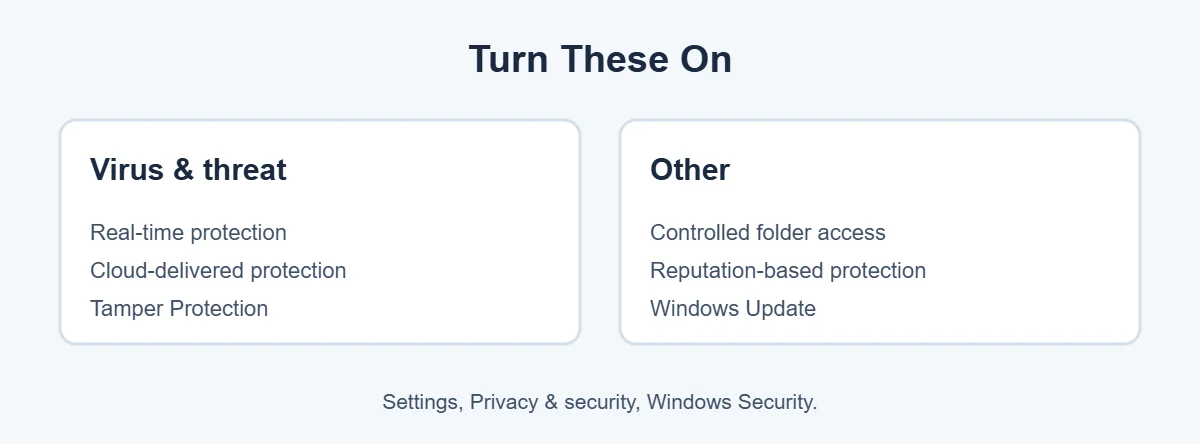
- Open Windows Security, Virus & threat protection, Manage settings. Make sure Real-time protection, Cloud-delivered protection and Tamper Protection are on.
- On the same page, under Ransomware protection, click Manage ransomware protection and turn on Controlled folder access. If a trusted app gets blocked, you can allow it.
- In App & browser control, open Reputation-based protection settings and turn on the options, including potentially unwanted app blocking.
- Keep Windows Update on and install updates when asked.
What If You’re Still on Windows 10?
Microsoft ended regular support for Windows 10 on October 14, 2025. That means no free security updates unless you’re enrolled in Extended Security Updates. Antivirus alone can’t fix missing security updates, so upgrading to Windows 11 or enrolling in ESU matters more than which antivirus you choose.
For more easy guides, visit TrickieTech.
Antivirus for Windows 11: Who Might Need More?
| You are… | Defender alone? | Why |
|---|---|---|
| Home user, email, browsing, streaming | Yes | Defender plus updates covers common threats |
| Family with kids | Maybe add more | Parental controls help; Microsoft Family Safety is a free option |
| Freelancer or small business | Consider more | Central management, support and backup matter |
| Frequent public Wi-Fi user | Defender + a VPN | A VPN protects traffic on shared networks |
| Worried about identity theft | Defender + monitoring | Identity services watch for leaked personal data |
| Gamer | Yes | Defender has low impact; turn on Game Mode |
What Antivirus Can’t Protect You From
No antivirus for Windows 11, free or paid, stops everything. It can’t protect you if:
- You type your password into a fake login page (phishing).
- You give a scammer remote access to your PC.
- You reuse the same password on many sites and one gets leaked.
- You skip Windows updates for months.
- You install cracked software that you allow to run.
That’s why good habits matter as much as software. Use a password manager, turn on two-factor authentication, and never trust a pop-up with a phone number.
How to Run a Scan in Windows 11
- Open Windows Security.
- Choose Virus & threat protection.
- Click Quick scan for a fast check, or Scan options for a Full scan or Microsoft Defender Offline scan.
Defender also scans automatically in the background, so you don’t need to run scans every day. A full scan once in a while, or when something seems wrong, is enough.
How to Switch Back to Defender From Paid Antivirus
If your paid antivirus for Windows 11 subscription ends, or you’re tired of pop-ups, switching back is easy:
- Go to Settings, Apps, Installed apps.
- Find the antivirus program, click the three dots and choose Uninstall. Some brands offer a removal tool on their website for a cleaner uninstall.
- Restart the PC.
- Open Windows Security and check that Real-time protection is on. It usually turns on by itself.
Watch Out for Fake Antivirus
Be careful when shopping for antivirus for Windows 11. Scammers make fake antivirus programs and pop-ups that claim your PC is infected, then ask for money. Warning signs:
- A website, not an app, says it found viruses on your PC.
- It shows a phone number to call.
- It demands payment straight away to “fix” problems.
- You’ve never heard of the brand.
Only download security software from the company’s official website or the Microsoft Store. Real antivirus doesn’t appear as a website pop-up.
Does Antivirus Slow Down Windows 11?
All antivirus for Windows 11 uses some resources. Defender is designed to have low impact during normal use, but a full scan can make an older PC feel slower while it runs. Heavier paid suites with many extra features can use more memory. If your PC feels slow, check Task Manager to see which program is using the most CPU and memory.
Simple Words You’ll See
- Antivirus: software that finds and blocks malware.
- Real-time protection: scanning files as you open or download them.
- Ransomware: malware that locks your files and demands money.
- Firewall: a filter for network connections in and out of your PC.
- SmartScreen: Microsoft’s warning system for unsafe sites and downloads.
- Phishing: fake messages or sites that steal passwords.
Quick Checklist
- Keep Microsoft Defender’s real-time protection on.
- Turn on Cloud-delivered protection and Tamper Protection.
- Turn on Controlled folder access.
- Turn on reputation-based protection.
- Install Windows updates.
- Use a password manager and 2FA.
- Pay for a suite only if you need its extras.
How Microsoft Defender Protects You, Step by Step
It helps to know what the built-in antivirus for Windows 11 actually does in the background, since good antivirus for Windows 11 works quietly. Here’s what happens when you download a file:
- SmartScreen checks the download. If the file or website has a bad reputation, you’ll see a warning before anything runs.
- Defender scans the file as it’s saved, using virus definitions that update several times a day through Windows Update.
- Cloud protection steps in for new files it hasn’t seen before. Defender can send details to Microsoft’s cloud to check them in seconds.
- Behavior monitoring watches what programs do after they start. If a program starts acting like ransomware, for example by encrypting lots of files quickly, Defender can stop it.
- Controlled folder access, if turned on, blocks untrusted apps from changing files in protected folders like Documents and Pictures.
All of this happens automatically. You’ll only see a notification when Defender finds or blocks something.
What to Do When Defender Finds a Threat
When you see a “Threats found” notification:
- Click the notification, or open Windows Security, Virus & threat protection, Protection history.
- Read the threat name and the file location.
- Choose Remove or Quarantine. Quarantine moves it somewhere safe in case it was a false alarm.
- Run a full scan afterwards to make sure nothing else is hiding.
If Defender blocks a program you trust, such as a game mod or work tool, check that you downloaded it from the official website before you allow it. False alarms happen, but malware often pretends to be a harmless program.
Free Tools That Add Extra Protection
You don’t need a paid suite to get more than basic antivirus for Windows 11. Free tools can round out your antivirus for Windows 11. These free options work well alongside Defender:
- Microsoft Family Safety: free parental controls for screen time, web filtering and app limits on Windows, Xbox and Android.
- Your browser’s password manager, such as Microsoft Edge or Google Password Manager, to create and save strong, unique passwords.
- Two-factor authentication on your Microsoft, Google, Apple, bank and email accounts.
- OneDrive folder backup, which keeps copies of Desktop, Documents and Pictures and has file restore if ransomware strikes.
- Microsoft Safety Scanner, a free one-time scanner for a second opinion.
How to Choose a Paid Antivirus (If You Want One)
If you decide paid antivirus for Windows 11 is right for you, use these tips to choose the best antivirus for Windows 11 for your needs:
- Check independent test results from labs like AV-TEST and AV-Comparatives, not just the company’s own claims.
- Count your devices. Plans usually cover 1, 3, 5 or 10 devices. Make sure phones and Macs are included if you need them.
- Look at the renewal price. First-year prices are often heavily discounted, and the price can jump when it renews.
- Turn off auto-renew if you want to decide again next year.
- Only buy from the official website or a trusted store, never from a pop-up.
- Try before you buy. Most brands offer a free trial or a money-back period.
Common Myths About Antivirus
“Free antivirus is weak”
Not in Windows 11’s case. The free antivirus for Windows 11, Defender, is a full antivirus, not a trial version, and it’s included with Windows at no extra cost.
“More antivirus programs mean more protection”
No. Two real-time antivirus programs can clash, slow your PC and even cause crashes. Use one main antivirus.
“Macs and phones don’t need protection, so Windows doesn’t either”
Every system has some built-in protection, and every system can be attacked. On Windows, keeping Defender on and updates installed is the minimum.
“If I have antivirus, I can’t be scammed”
Many modern attacks trick people rather than computers. Antivirus can’t stop you from giving away a password or paying a fake invoice, so stay alert to phishing and scam calls.
Real-Life Examples
“My new laptop keeps nagging me to renew antivirus”
It came with a trial of a paid suite. Uninstalling the trial switched Microsoft Defender back on, and the pop-ups stopped.
“My files were saved by Controlled folder access”
A fake invoice attachment tried to change files in Documents. Controlled folder access blocked it and showed a notification.
[ADD PERSONAL EXPERIENCE: add a short example of your own antivirus setup or a threat it caught.]
Antivirus for Windows 11 on Shared and Family PCs
If several people use one computer, the risk goes up, because one person’s risky download affects everyone. A few simple steps help:
- Give each person their own account in Settings, Accounts, Other users. Kids should use a standard account, not an administrator account.
- Keep one admin account with a strong password, so nobody can install software without it.
- Turn on Microsoft Family Safety for children’s accounts to filter websites and limit apps.
- Teach everyone the basics: don’t download “free” games or movies from random sites, and ask before installing anything.
The built-in antivirus for Windows 11 protects every account on the PC at once, so you don’t need separate antivirus for each user.
Frequently Asked Questions
Is Windows Defender enough for Windows 11?
For most home users, yes. Microsoft Defender Antivirus is built into Windows 11, runs in real time, updates automatically and has scored well in independent lab tests. Pair it with safe habits, Windows updates and a few extra settings like Controlled folder access, and you’re well protected.
Do I need to buy antivirus for my new laptop?
Usually not. New Windows 11 laptops come with Microsoft Defender turned on. Many also include a free trial of a paid antivirus, which can pester you to subscribe. You can uninstall the trial, and Defender turns back on automatically.
Can I use two antivirus programs at once?
Don’t run two real-time antivirus programs. They can clash and slow your PC. When you install another antivirus, Microsoft Defender usually switches off its real-time protection automatically. You can still use a second-opinion scanner occasionally, like Microsoft Safety Scanner.
What does paid antivirus give me that Defender doesn’t?
Mostly extras: a VPN, a password manager, identity or dark web monitoring, parental controls, and protection for phones and Macs on one subscription. Some also offer phone support. The core virus protection is similar to Defender for most people.
Is free antivirus from other brands safe?
Some free antivirus apps from well-known brands are fine, but many show ads and push upgrades. A few free brands have been criticized for collecting and selling user data. Since Defender is already free and ad-free, there’s little reason to add another free antivirus.
Do I need antivirus if I’m careful online?
Yes, keep Defender on. Careful habits prevent most problems, but malware can arrive through hacked websites, fake updates or infected files from people you trust. Built-in antivirus is a free safety net, so never turn it off permanently.
The Bottom Line
Most people don’t need to buy antivirus for Windows 11. Microsoft Defender is built in, free and good at stopping common threats, especially with Controlled folder access and reputation-based protection turned on.
Pay for a security suite only if you want extras like a VPN, password manager, identity monitoring or protection for every device in your home.
{“@context”:”https://schema.org”,”@type”:”FAQPage”,”mainEntity”:[{“@type”:”Question”,”name”:”Is Windows Defender enough for Windows 11?”,”acceptedAnswer”:{“@type”:”Answer”,”text”:”For most home users, yes. Microsoft Defender Antivirus is built into Windows 11, runs in real time, updates automatically and has scored well in independent lab tests. Pair it with safe habits, Windows updates and a few extra settings like Controlled folder access, and you’re well protected.”}},{“@type”:”Question”,”name”:”Do I need to buy antivirus for my new laptop?”,”acceptedAnswer”:{“@type”:”Answer”,”text”:”Usually not. New Windows 11 laptops come with Microsoft Defender turned on. Many also include a free trial of a paid antivirus, which can pester you to subscribe. You can uninstall the trial, and Defender turns back on automatically.”}},{“@type”:”Question”,”name”:”Can I use two antivirus programs at once?”,”acceptedAnswer”:{“@type”:”Answer”,”text”:”Don’t run two real-time antivirus programs. They can clash and slow your PC. When you install another antivirus, Microsoft Defender usually switches off its real-time protection automatically. You can still use a second-opinion scanner occasionally, like Microsoft Safety Scanner.”}},{“@type”:”Question”,”name”:”What does paid antivirus give me that Defender doesn’t?”,”acceptedAnswer”:{“@type”:”Answer”,”text”:”Mostly extras: a VPN, a password manager, identity or dark web monitoring, parental controls, and protection for phones and Macs on one subscription. Some also offer phone support. The core virus protection is similar to Defender for most people.”}},{“@type”:”Question”,”name”:”Is free antivirus from other brands safe?”,”acceptedAnswer”:{“@type”:”Answer”,”text”:”Some free antivirus apps from well-known brands are fine, but many show ads and push upgrades. A few free brands have been criticized for collecting and selling user data. Since Defender is already free and ad-free, there’s little reason to add another free antivirus.”}},{“@type”:”Question”,”name”:”Do I need antivirus if I’m careful online?”,”acceptedAnswer”:{“@type”:”Answer”,”text”:”Yes, keep Defender on. Careful habits prevent most problems, but malware can arrive through hacked websites, fake updates or infected files from people you trust. Built-in antivirus is a free safety net, so never turn it off permanently.”}}]}