
To turn on two-factor authentication, open the Security settings of each account and look for 2-Step Verification, Two-factor authentication or Login verification. Choose an authenticator app, passkey or security key if offered, since they’re safer than text messages, and save your backup codes. Start with your email, Apple, Google or Microsoft account, and your bank.
Below is a simple guide to two-factor authentication, which type to choose, and exactly where to turn it on for eight popular apps.
[ADD PERSONAL EXPERIENCE: one line about a time 2FA stopped someone getting into one of your accounts.]
Table of Contents
What Is Two-Factor Authentication?
Two-factor authentication (2FA) means proving it’s you in two different ways when you sign in:
- Something you know, like your password.
- Something you have, like your phone or a security key, or something you are, like your fingerprint.
If a criminal steals your password in a data breach or phishing email, they still can’t get in without the second step. It’s like having two locks on your front door. The US Cybersecurity and Infrastructure Security Agency (CISA) calls multi-factor authentication one of the most important steps you can take to stay safe online.
Types of Two-Factor Authentication
| Type | How it works | Safety |
|---|---|---|
| Passkey | Unlock your device with face, fingerprint or PIN | Strongest, can’t be phished |
| Hardware security key | Plug in or tap a small USB or NFC key | Strongest, can’t be phished |
| App prompt | Tap Approve in an app like Google or Microsoft Authenticator | Strong (watch for fake prompts) |
| Authenticator app code | Type a 6-digit code that changes every 30 seconds | Strong |
| Text message (SMS) code | Type a code sent by text | Weakest, but better than none |
How to Turn On Two-Factor Authentication for 8 Popular Apps
1. Google
Go to myaccount.google.com, choose Security, then 2-Step Verification, and follow the steps. Add Google prompts, an authenticator app, a passkey and backup codes.
2. Apple Account
Most Apple Accounts already use two-factor authentication. Check on iPhone in Settings, your name, Sign-In & Security. You can also add security keys there.
3. Microsoft
Go to account.microsoft.com, then Security, and open sign-in or advanced security options. Turn on two-step verification and add the Microsoft Authenticator app or a passkey.
4. Facebook
Open Settings, Accounts Center, Password and security, Two-factor authentication, pick your account and choose an authentication app or security key.
5. Instagram
Instagram uses the same Accounts Center, Password and security, Two-factor authentication page. Save the backup codes it gives you.
6. WhatsApp
Go to Settings, Account, Two-step verification, turn it on and create a 6-digit PIN. Add an email address so you can reset the PIN if you forget it. You can also add a passkey under Settings, Account, Passkeys.
7. Amazon
Go to Your Account, Login & security, then 2-step verification, and choose an authenticator app or phone number. Amazon also supports passkeys.
8. Your bank
Most banks turn on extra checks by default. Open your banking app’s security settings and choose app approvals or a security key if offered.
Use an Authenticator App
Free authenticator apps include Google Authenticator, Microsoft Authenticator and others built into password managers. When you turn on two-factor authentication, the website shows a QR code; scan it with the app, then type the code it shows to confirm. Turn on the app’s backup or sync option so you don’t lose your codes with your phone.
The Strongest Option: Security Keys
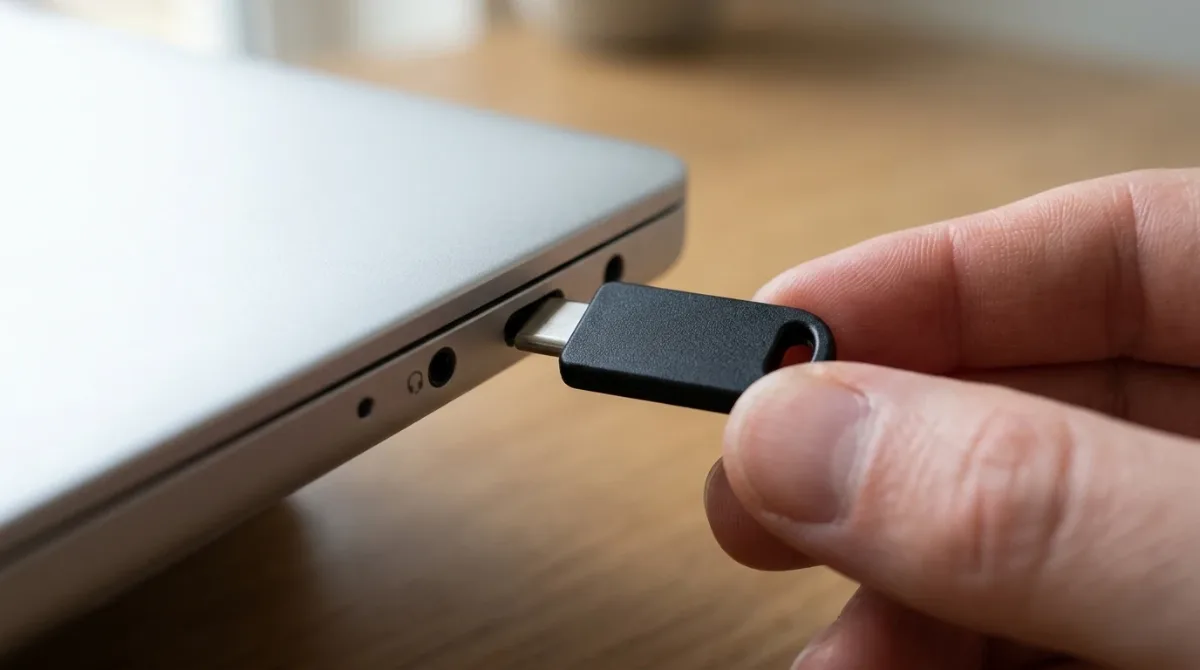
A hardware security key is a small USB or NFC device you plug in or tap to sign in. It can’t be phished and is ideal for high-risk people and important accounts. Buy two and register both, keeping one as a backup.
For more simple guides, visit TrickieTech.
Save Your Backup Codes the Right Way
When you set up the extra sign-in step, most services give you a list of one-time backup codes. Each one works once if you lose your phone. Keep them safe:
- Print them and store the paper with important documents at home.
- Or save them in your password manager’s secure notes.
- Don’t save them as a photo in your camera roll or in an unprotected file on your desktop.
- When you use one, cross it off. Make new ones when you run low.
Moving to a New Phone
This is when most people get locked out. Before you wipe or trade in your old phone:
- Check your authenticator app’s backup. Google Authenticator can sync codes to your Google account, and Microsoft Authenticator offers cloud backup.
- Install the app on the new phone and sign in, or use the app’s transfer option.
- Test a few accounts on the new phone before erasing the old one.
- Update phone numbers on accounts that send texts, if your number changes.
- Re-register security keys or device approvals if a service asks you to.
Watch Out for Prompt Bombing
Some attackers who already have your password send sign-in approval prompts again and again, late at night, hoping you’ll tap Approve just to make them stop. This is called prompt bombing or MFA fatigue. If you get approval requests you didn’t start:
- Tap Deny or No, it’s not me every time.
- Change your password straight away from a safe device.
- Check the account’s recent activity and sign out other sessions.
Many apps now show a number on your computer that you must match on your phone, which makes this trick much harder.
Never Share Your Codes
A common scam is a call or message saying, “We’ve sent you a code, please read it back to confirm your identity.” Real banks, delivery companies and tech companies will never ask for a sign-in code. Anyone who asks is trying to get into your account. Hang up or ignore the message, and if you’re worried, contact the company using its official app or website.
Protect Your Phone Number
If you still use text-message codes for some accounts, protect your number from SIM-swap fraud. Ask your carrier to add an account PIN or passcode, and turn on a number lock or port-out protection if they offer one. Then switch your most important accounts, starting with email and banking, to an app, a security key or the new device-based sign-in method.
Locked Out? What to Do
- Use a backup code or another method you set up, like a backup phone or security key.
- Try a trusted device that’s still signed in, such as your laptop or tablet.
- Use the account recovery process on the official website. Have your ID and old passwords handy. Recovery can take a few days on purpose, to stop criminals.
- Avoid “recovery services” that contact you or advertise on social media. They’re usually scams.
Help Your Family Set It Up
Older parents and teenagers are often targeted because their accounts are less protected. Spend 20 minutes with them to turn on the extra step for email, WhatsApp, Facebook and banking. Choose the simplest option they can manage, often app prompts or text codes to start, write the backup codes on paper together, and explain the golden rule: never read a code to anyone who calls.
Real-Life Examples
“Someone had my password from an old breach”
The login attempt stopped at the second step. A security alert showed the attempt, and changing the password closed the door completely.
“My new phone didn’t have my codes”
Backup codes saved in a password manager got the person back into each account within minutes.
[ADD PERSONAL EXPERIENCE: add a short real example from your own accounts.]
Simple Words You’ll See
- MFA (multi-factor authentication): using two or more ways to prove it’s you.
- Authenticator app: an app that creates codes that change every 30 seconds.
- Backup codes: one-time codes for when you can’t use your phone.
- Security key: a small physical device used to sign in.
- SIM swap: a scam that moves your phone number to a criminal’s SIM.
Which Accounts Matter Most
If you only have ten minutes today, protect these first, in this order:
- Main email: it can reset nearly every other account.
- Apple, Google or Microsoft account: it controls your phone, backups, photos and saved logins.
- Banking and payment apps: PayPal, Venmo, Cash App, Zelle and your bank.
- WhatsApp and social media: criminals hijack these to scam your friends.
- Shopping accounts with saved cards, like Amazon.
- Cloud storage with personal documents.
Then add the extra step to other accounts whenever you sign in and see the option.
Does It Make Signing In Slower?
Only a little, and usually only once per device. Most services let you mark a phone or computer as trusted, so you won’t be asked every time on your own devices. The extra check appears mainly when you sign in somewhere new, which is exactly when it’s most useful. With app prompts or the device-based sign-in method, it takes a second: look at your phone and tap.
Travelling Abroad
If you rely on text codes, they may not arrive when you’re roaming or using a local SIM. Before you travel, switch important accounts to an authenticator app or app prompts, which work without mobile signal, and pack your backup codes. Also bring your security key if you use one.
Quick Checklist
- Turn on the extra sign-in step for your main email first.
- Add it to Apple, Google or Microsoft, banking and social media.
- Choose app prompts, an authenticator app, a passkey or a security key over texts.
- Save backup codes safely.
- Back up your authenticator app.
- Add a carrier PIN to protect your number.
- Never approve prompts or share codes you didn’t request.
Why Passwords Alone Aren’t Enough Anymore
Billions of usernames and passwords have leaked in data breaches over the years, and criminals use automated tools to try them on thousands of websites. This is called credential stuffing. If you’ve ever reused a password, there’s a good chance it’s already on a list somewhere. On top of that, phishing emails and fake login pages have become very convincing, especially now that scammers use AI to write them without spelling mistakes.
The extra sign-in step changes the math. A stolen password on its own stops being enough, so most automated attacks simply fail. Microsoft has reported that accounts with multi-factor sign-in are far less likely to be compromised than those protected by a password alone.
What If a Site Doesn’t Offer It?
Some smaller websites still don’t support an extra sign-in step. For those:
- Use a long, unique password created by your password manager.
- Don’t save your card details on the site if you can avoid it.
- Use a separate email alias for sign-ups, so a breach doesn’t expose your main inbox.
- Check the site’s security settings again later, since many add the option over time.
You can also check whether a site supports it on community-run lists like 2fa.directory, which show which services offer which methods.
Is It Worth Paying for a Security Key?
For most people, a free authenticator app or the device-based sign-in method is enough. A hardware key makes sense if you’re a journalist, run a business, manage money for others, have been targeted before, or simply want the strongest protection for your email. Keys usually cost about the same as a nice lunch, and you’ll want two so one can be a backup.
How to Turn It Off (and Why You Shouldn’t)
You can usually turn the extra step off in the same security settings where you turned it on. But think twice. Turning it off removes your best protection against stolen passwords. If it feels annoying, switch to an easier method, like app prompts or a fingerprint-based sign-in, or mark your own devices as trusted, instead of switching it off completely.
Frequently Asked Questions
What is two-factor authentication?
Two-factor authentication (2FA) adds a second step when you sign in. After your password, you also confirm with something you have, like a code from your phone, a prompt in an app, or a security key. Even if someone steals your password, they can’t get in without that second step.
Which type of 2FA is the safest?
Passkeys and hardware security keys are the safest because they can’t be phished. Authenticator apps and app prompts come next. Text message codes are the weakest option, because of SIM swaps and phishing, but they are still much better than no 2FA at all.
What happens if I lose my phone with 2FA on it?
Use the backup codes you saved when you set up 2FA, or a second method like a security key or backup phone number. Many authenticator apps also offer encrypted cloud backup. Without any backup, you’ll need the account’s recovery process, which can take days.
Is SMS two-factor authentication still safe?
It’s better than nothing, but it’s the weakest type. Scammers can trick you into sharing codes, and SIM-swap fraud can redirect your texts. For important accounts like email and banking, switch to an authenticator app, passkey or security key when you can.
Should I approve a 2FA prompt I didn’t request?
Never. If you get a sign-in prompt or code you didn’t ask for, someone may have your password. Tap Deny or ignore it, then change your password straight away. Scammers sometimes send many prompts hoping you’ll tap Approve by mistake.
Do I need 2FA on every account?
Turn it on for your most important accounts first: email, Apple, Google or Microsoft, banking, payment apps and social media. Then add it to shopping and other accounts as you go. Your email matters most, because it can reset everything else.
The Bottom Line
Turning on two-factor authentication is one of the easiest ways to stop hackers. Start with your email, then Apple, Google or Microsoft, your bank and social media.
Choose passkeys, security keys or an authenticator app over text messages, save your backup codes, and never approve a sign-in you didn’t start.
{“@context”:”https://schema.org”,”@type”:”FAQPage”,”mainEntity”:[{“@type”:”Question”,”name”:”What is two-factor authentication?”,”acceptedAnswer”:{“@type”:”Answer”,”text”:”Two-factor authentication (2FA) adds a second step when you sign in. After your password, you also confirm with something you have, like a code from your phone, a prompt in an app, or a security key. Even if someone steals your password, they can’t get in without that second step.”}},{“@type”:”Question”,”name”:”Which type of 2FA is the safest?”,”acceptedAnswer”:{“@type”:”Answer”,”text”:”Passkeys and hardware security keys are the safest because they can’t be phished. Authenticator apps and app prompts come next. Text message codes are the weakest option, because of SIM swaps and phishing, but they are still much better than no 2FA at all.”}},{“@type”:”Question”,”name”:”What happens if I lose my phone with 2FA on it?”,”acceptedAnswer”:{“@type”:”Answer”,”text”:”Use the backup codes you saved when you set up 2FA, or a second method like a security key or backup phone number. Many authenticator apps also offer encrypted cloud backup. Without any backup, you’ll need the account’s recovery process, which can take days.”}},{“@type”:”Question”,”name”:”Is SMS two-factor authentication still safe?”,”acceptedAnswer”:{“@type”:”Answer”,”text”:”It’s better than nothing, but it’s the weakest type. Scammers can trick you into sharing codes, and SIM-swap fraud can redirect your texts. For important accounts like email and banking, switch to an authenticator app, passkey or security key when you can.”}},{“@type”:”Question”,”name”:”Should I approve a 2FA prompt I didn’t request?”,”acceptedAnswer”:{“@type”:”Answer”,”text”:”Never. If you get a sign-in prompt or code you didn’t ask for, someone may have your password. Tap Deny or ignore it, then change your password straight away. Scammers sometimes send many prompts hoping you’ll tap Approve by mistake.”}},{“@type”:”Question”,”name”:”Do I need 2FA on every account?”,”acceptedAnswer”:{“@type”:”Answer”,”text”:”Turn it on for your most important accounts first: email, Apple, Google or Microsoft, banking, payment apps and social media. Then add it to shopping and other accounts as you go. Your email matters most, because it can reset everything else.”}}]}