

Password manager or browser? For most people, either is far safer than reusing passwords. Your browser’s built-in manager (Chrome, Edge, Safari, Firefox) is free, easy and secure enough for everyday use. A dedicated password manager like Bitwarden, 1Password or Proton Pass adds stronger separation, works across every browser and device, and makes sharing and emergency access easy.
Below I’ll compare a password manager vs browser passwords in seven simple ways, so you can pick the right one.
[ADD PERSONAL EXPERIENCE: one line about which one you use and why you chose it.]
Table of Contents
What Is a Password Manager?
A password manager is an app that creates, stores and fills strong, unique passwords for all your accounts. You remember one strong master password (or use your fingerprint or face), and it handles the rest. Your passwords are kept in an encrypted “vault.”
There are two kinds:
- Built-in browser managers: Google Password Manager (Chrome and Android), Apple Passwords (Safari, iPhone, Mac), Microsoft Edge, and Firefox.
- Dedicated password managers: separate apps like Bitwarden, 1Password, Dashlane and Proton Pass.
Password Manager vs Browser: 7 Key Differences
| Browser passwords | Dedicated password manager | |
|---|---|---|
| 1. Cost | Free | Free plans and paid plans |
| 2. Works across browsers | Mostly within one browser family | Works in every major browser |
| 3. Works across devices | Good within one ecosystem (Google or Apple) | Windows, Mac, iPhone, Android, Linux |
| 4. Security separation | Tied to your browser and account | Separate encrypted vault that locks on its own |
| 5. Sharing | Limited (some family sharing) | Easy shared vaults for family or teams |
| 6. Extras | Breach alerts, passkeys | Secure notes, cards, files, emergency access, passkeys |
| 7. Ease of use | Already built in | One app to install and learn |
Is It Safe to Save Passwords in Your Browser?
Yes, for most people. Modern browsers encrypt saved passwords, sync them through your account, and warn you when a password appears in a data breach. The main risks are:
- Someone using your unlocked computer or account.
- Info-stealing malware that targets browsers.
- A weak or reused password on the Google, Apple or Microsoft account that syncs everything.
Protect your account with two-factor authentication, keep your device locked and updated, and run antivirus.
Why Choose a Dedicated Password Manager?
- You use different browsers, like Chrome at work and Safari at home.
- You have mixed devices, like a Windows PC and an iPhone.
- You share passwords with family or coworkers.
- You want extra features like secure notes, emergency access and travel modes.
- You want separation so a browser problem doesn’t expose your vault.
The Real Danger: Reused and Written-Down Passwords
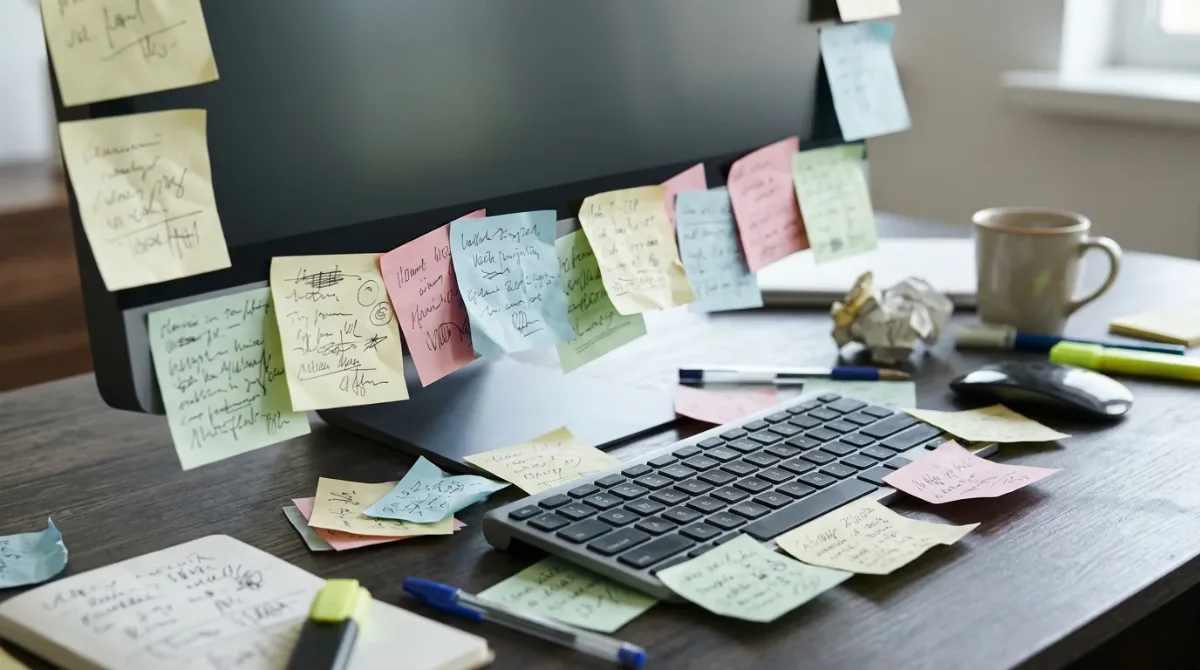
The biggest risk isn’t choosing the “wrong” password manager. It’s reusing the same password everywhere, or keeping passwords on sticky notes and in unprotected files. When one site leaks your password in a data breach, criminals try it on your email, bank and shopping accounts. Any password manager, built-in or dedicated, fixes that by giving every account its own strong password. The US Cybersecurity and Infrastructure Security Agency (CISA) recommends using a password manager for exactly this reason.
For more simple guides, visit TrickieTech.
Password Manager vs Browser on iPhone and Android
On phones, the choice often depends on your ecosystem.
- iPhone: Apple Passwords (the Passwords app in iOS 18 and later) saves passwords and passkeys, fills them in Safari and apps, and syncs through iCloud Keychain. You can also set a dedicated password manager as your AutoFill provider in Settings, General, AutoFill & Passwords.
- Android: Google Password Manager is built in and fills passwords in Chrome and apps. To use another password manager, go to Settings and search for autofill service or Passwords, passkeys and autofill, then choose your app.
If you use an iPhone with a Windows PC, Apple offers iCloud for Windows with a browser extension, but many people find a dedicated password manager simpler in mixed setups.
What Changed With Microsoft Authenticator
Microsoft Authenticator used to save and fill passwords, but Microsoft retired that feature in 2025 and moved password autofill to the Microsoft Edge browser. If you relied on it, your passwords are kept with your Microsoft account and available in Edge, or you can export them to another password manager. Authenticator still works for sign-in approvals and two-factor codes.
How to Switch From Browser Passwords to a Password Manager
- Pick a password manager with independent security audits and two-factor authentication.
- Create a strong master password, such as a long phrase of four or more random words. Write it down once and keep it somewhere safe at home.
- Export your browser passwords. In Chrome, open Google Password Manager settings and choose Export passwords. In Edge and Firefox, use the Passwords settings. On Apple devices, use the Passwords app’s export option.
- Import the file into your new password manager.
- Delete the exported file straight away. It isn’t encrypted.
- Turn off the browser’s password saving so you don’t end up with two copies.
- Install the password manager’s app and extension on all your devices.
How to Make Browser Passwords Safer
If you stay with your browser, a few settings make it much stronger:
- Turn on two-factor authentication for your Google, Apple or Microsoft account.
- Use the built-in password checkup to fix weak, reused and leaked passwords.
- Set your computer to lock quickly when you step away.
- Turn on any option that asks for your device PIN or fingerprint before showing or filling passwords.
- Keep your browser and operating system updated, and use antivirus.
- Use passkeys wherever sites offer them.
Free vs Paid Password Managers
| Free plans | Paid plans | |
|---|---|---|
| Unlimited passwords | Often yes (varies) | Yes |
| Sync across devices | Some free plans | Yes |
| Family or team sharing | Limited | Yes |
| Emergency access | Rare | Often |
| Breach monitoring | Basic | More detailed |
Prices and features change often, so check the provider’s current plans before you sign up.
Real-Life Examples
“I use Chrome on my PC and Safari on my iPhone”
Passwords were split between two places. A dedicated password manager brought them together on both devices.
“My whole family shares streaming and utility logins”
A family plan with a shared vault replaced passwords sent by text message.
“I only use an iPhone and a Mac”
Apple Passwords was all that was needed. Turning on two-factor authentication for the Apple Account made it secure.
[ADD PERSONAL EXPERIENCE: add a short real example from your own setup.]
How Strong Should Your Logins Be?
Whatever tool you choose, it’s only as good as the logins inside it. Security agencies such as CISA and the UK’s National Cyber Security Centre give simple advice:
- Long beats complex. A phrase of three or four random words, like “river-candle-orbit-mango,” is easier to remember and harder to crack than a short jumble.
- Unique for every account. Never reuse one login on two sites.
- Let the tool create them. Generated logins of 16 or more characters are ideal for sites you never type by hand.
- Add a second step. Turn on two-factor authentication for email, banking and social media.
Which Accounts to Protect First
If you’re starting from scratch, don’t try to fix everything in one evening. Start with the accounts that unlock everything else:
- Your main email, because it can reset almost every other account.
- Your Apple, Google or Microsoft account, which syncs your phone, photos and saved logins.
- Banking and payment apps, like PayPal.
- Social media, which scammers love to hijack.
- Shopping sites with saved cards.
Fix two or three each day, and within a week your most important accounts will be safe.
Is It Safe to Keep Everything in One Place?
It’s a fair question. Putting every login in one vault sounds like putting all your eggs in one basket. Here’s why experts still recommend it:
- Your vault is encrypted on your device before it syncs, so the company can’t read it with good providers.
- The alternative, reusing a few easy logins, is far riskier, because one leak opens many doors.
- Two-factor authentication on the vault means a stolen master phrase alone isn’t enough.
Breaches at password companies have happened, LastPass in 2022 being the best-known example. That’s why it matters to choose a provider with independent audits, use a long master phrase, and turn on every protection it offers.
Sharing Logins Safely With Family
Families often share streaming, utility and Wi-Fi logins by text message or on paper, which is risky. Better options:
- Apple Passwords lets you create shared groups with family members on Apple devices.
- Google Password Manager can share a saved login with members of your Google family group.
- Dedicated apps offer family plans with shared vaults, plus individual private vaults for each person.
When someone leaves the household, change the shared logins they had access to.
Plan for Emergencies
If something happened to you, could your family get into important accounts? Many dedicated apps offer an emergency access feature that lets a trusted person request access after a waiting period. Apple offers a Legacy Contact for your Apple Account, and Google has an Inactive Account Manager. Setting these up takes a few minutes and can save your family a lot of stress.
Simple Words You’ll See
- Vault: the encrypted storage that holds your logins.
- Master password: the one login that unlocks your vault.
- Autofill: filling in usernames and logins for you on websites and apps.
- Passkey: a newer sign-in method that uses your fingerprint, face or PIN instead of typing.
- Breach alert: a warning that a saved login was found in a leak.
Quick Checklist
- Pick one tool: your browser’s built-in option or a dedicated app.
- Turn on two-factor authentication for it.
- Fix weak, reused and leaked logins, starting with email.
- Use long, unique logins everywhere.
- Switch to passkeys where sites support them.
- Share family logins through the tool, not by text.
- Set up emergency or legacy access.
Signs It’s Time to Upgrade Your Setup
Not sure if your current approach is good enough? Watch for these signs:
- You get breach alerts but never get around to fixing them.
- You keep clicking “forgot login” because you can’t find what you saved.
- Some logins are in Chrome, some in Safari and some in a notebook.
- You share accounts with family by sending messages back and forth.
- You’ve changed phones or computers and lost saved logins along the way.
If two or more of these sound familiar, spend an hour this weekend moving everything into one tool and switching on two-factor authentication. It’s one of the best things you can do for your online safety, and it saves time every single day afterward.
What About Writing Logins in a Notebook?
A paper notebook kept safely at home isn’t hacked over the internet, which is why some people like it. The problems are that it can be lost, read by visitors, or destroyed, and it pushes people to choose short, reused logins that are easy to write. If you prefer paper, keep it locked away, use long unique logins, and still turn on two-factor authentication. For most people, a digital vault with a paper backup of only the master phrase is the best balance.
Will Passkeys Replace All This?
Slowly, yes. Passkeys let you sign in with your fingerprint, face or device PIN, and they can’t be phished or leaked like typed logins. Apple, Google and Microsoft all support them, and most modern vault apps store them too. For the next few years you’ll likely use a mix of passkeys and traditional logins, so keeping one tool that handles both is the simplest path. Check that the tool you pick supports passkeys on all of your devices.
Frequently Asked Questions
Is it safe to save passwords in my browser?
For most people, yes. Google Password Manager, Apple Passwords and Microsoft Edge encrypt your passwords, sync them securely and warn you about leaked ones. Protect the account with a strong password and two-factor authentication, and keep your device locked and updated.
Is a password manager safer than a browser?
A dedicated password manager is usually a bit safer and more flexible. It keeps passwords in an encrypted vault separate from the browser, works across every browser and device, and adds features like secure sharing and emergency access. Both are far safer than reusing passwords.
Can hackers steal passwords saved in my browser?
Malware on your computer can try to steal saved browser passwords, which is why antivirus and updates matter. Browsers have added stronger protections, but a dedicated password manager that locks automatically adds another layer. The biggest risk is still reused and weak passwords.
What is the best free password manager?
Good free options include your browser’s built-in manager, Apple Passwords on Apple devices, and the free plan of Bitwarden, which works across browsers and devices. Choose a well-known service with independent security audits and two-factor authentication.
Do I still need a password manager if I use passkeys?
Yes, for now. Many websites still use passwords. Most password managers and browsers now store passkeys too, so one app can handle both. Over time, as more sites support passkeys, you’ll type fewer passwords.
What happens if I forget my password manager’s master password?
With most dedicated password managers, the company can’t see or reset your master password, so you could lose access. Set up recovery options, like a recovery kit, emergency contact or account recovery, when you create the account, and store them somewhere safe.
The Bottom Line
In the password manager vs browser debate, both are good choices and far better than reusing passwords. Browser passwords are free and easy, especially if you stay in one ecosystem.
A dedicated password manager is better if you use mixed devices or browsers, share passwords, or want the strongest separation. Whichever you pick, turn on two-factor authentication.
{“@context”:”https://schema.org”,”@type”:”FAQPage”,”mainEntity”:[{“@type”:”Question”,”name”:”Is it safe to save passwords in my browser?”,”acceptedAnswer”:{“@type”:”Answer”,”text”:”For most people, yes. Google Password Manager, Apple Passwords and Microsoft Edge encrypt your passwords, sync them securely and warn you about leaked ones. Protect the account with a strong password and two-factor authentication, and keep your device locked and updated.”}},{“@type”:”Question”,”name”:”Is a password manager safer than a browser?”,”acceptedAnswer”:{“@type”:”Answer”,”text”:”A dedicated password manager is usually a bit safer and more flexible. It keeps passwords in an encrypted vault separate from the browser, works across every browser and device, and adds features like secure sharing and emergency access. Both are far safer than reusing passwords.”}},{“@type”:”Question”,”name”:”Can hackers steal passwords saved in my browser?”,”acceptedAnswer”:{“@type”:”Answer”,”text”:”Malware on your computer can try to steal saved browser passwords, which is why antivirus and updates matter. Browsers have added stronger protections, but a dedicated password manager that locks automatically adds another layer. The biggest risk is still reused and weak passwords.”}},{“@type”:”Question”,”name”:”What is the best free password manager?”,”acceptedAnswer”:{“@type”:”Answer”,”text”:”Good free options include your browser’s built-in manager, Apple Passwords on Apple devices, and the free plan of Bitwarden, which works across browsers and devices. Choose a well-known service with independent security audits and two-factor authentication.”}},{“@type”:”Question”,”name”:”Do I still need a password manager if I use passkeys?”,”acceptedAnswer”:{“@type”:”Answer”,”text”:”Yes, for now. Many websites still use passwords. Most password managers and browsers now store passkeys too, so one app can handle both. Over time, as more sites support passkeys, you’ll type fewer passwords.”}},{“@type”:”Question”,”name”:”What happens if I forget my password manager’s master password?”,”acceptedAnswer”:{“@type”:”Answer”,”text”:”With most dedicated password managers, the company can’t see or reset your master password, so you could lose access. Set up recovery options, like a recovery kit, emergency contact or account recovery, when you create the account, and store them somewhere safe.”}}]}