
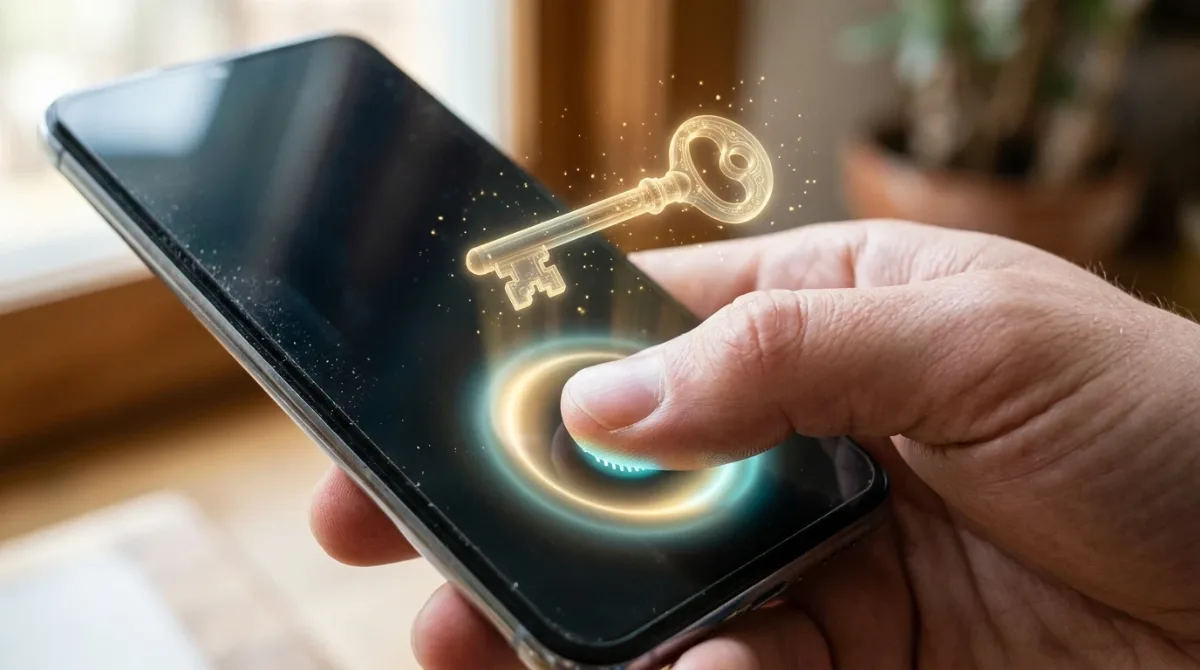
Passkeys are a new way to sign in without typing a password. Instead, you unlock your phone or computer with your fingerprint, face or PIN, and it signs you in. Passkeys are safer than passwords because they can’t be guessed, reused or stolen by fake websites. To set one up, open the security settings of an account like Google, Apple, Microsoft or Amazon and choose Create a passkey.
Below I’ll explain what passkeys are in simple words, why they’re safer, and how to set them up in five easy steps.
[ADD PERSONAL EXPERIENCE: one line about the first account you switched to a passkey and how it felt.]
Table of Contents
What Is a Passkey?
A passkey is a digital sign-in key that your device creates for one website or app. It has two parts:
- A private key that stays locked on your device and never leaves it.
- A public key that the website stores. On its own, it’s useless to hackers.
When you sign in, your device proves it has the private key, after you confirm with your fingerprint, face or PIN. Passkeys are built on open standards from the FIDO Alliance, a group that includes Apple, Google and Microsoft.

Why Passkeys Are Safer Than Passwords
- No phishing: a passkey only works on the real website it was made for, so fake login pages can’t steal it.
- Nothing to leak: websites only store a public key, so a data breach doesn’t expose your sign-in.
- No reuse: every site gets its own passkey automatically.
- Nothing to forget: you don’t need to remember anything new.
- Built-in second factor: you need your device and your fingerprint, face or PIN.
How to Set Up Passkeys in 5 Easy Steps
1. Update your devices
Passkeys need iOS 16 or later on iPhone, Android 9 or later, Windows 10 or 11 with Windows Hello, or a recent macOS. Install updates first.
2. Turn on a screen lock
Your device needs a PIN, passcode, fingerprint or face unlock, because that’s how you approve a passkey.
3. Open the account’s security settings
- Google: myaccount.google.com, Security, Passkeys and security keys.
- Microsoft: account.microsoft.com, Security, then sign-in options.
- Amazon, PayPal and others: look in Login & Security or Security settings for “Passkey.”
4. Choose “Create a passkey”
Your device asks where to save it, such as iCloud Keychain, Google Password Manager, Windows or your password manager. Confirm with your fingerprint, face or PIN.
5. Sign in with your passkey
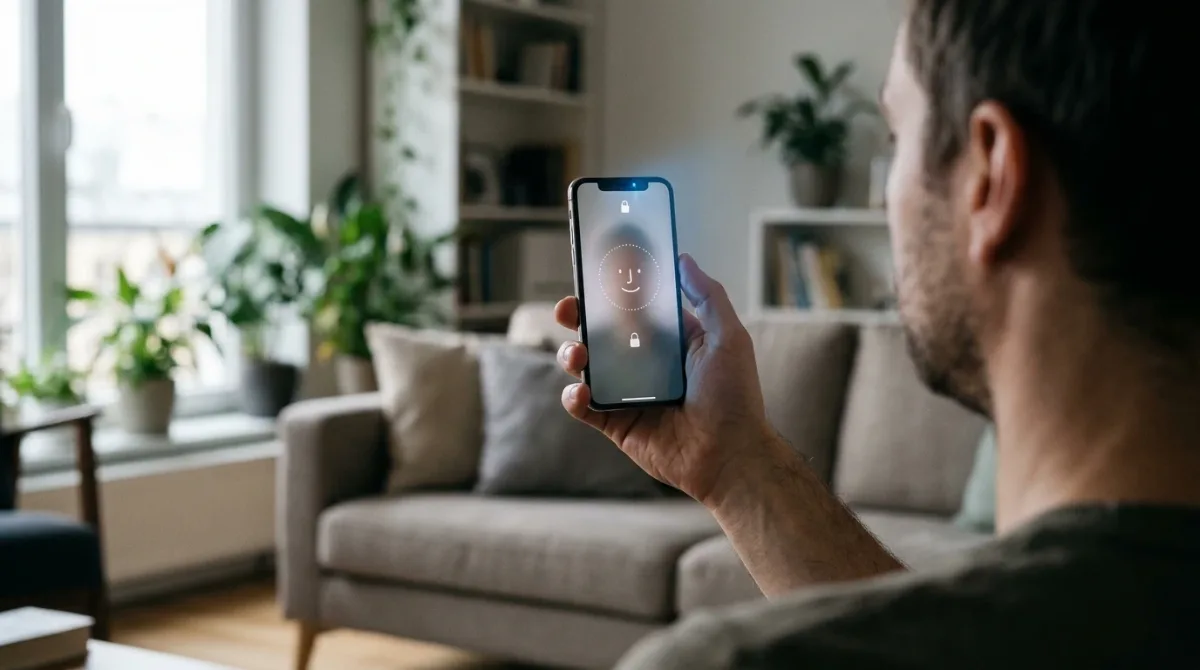
Next time, choose Sign in with a passkey or just tap your username, then confirm with your face or fingerprint. That’s it.
Using Passkeys on Another Device
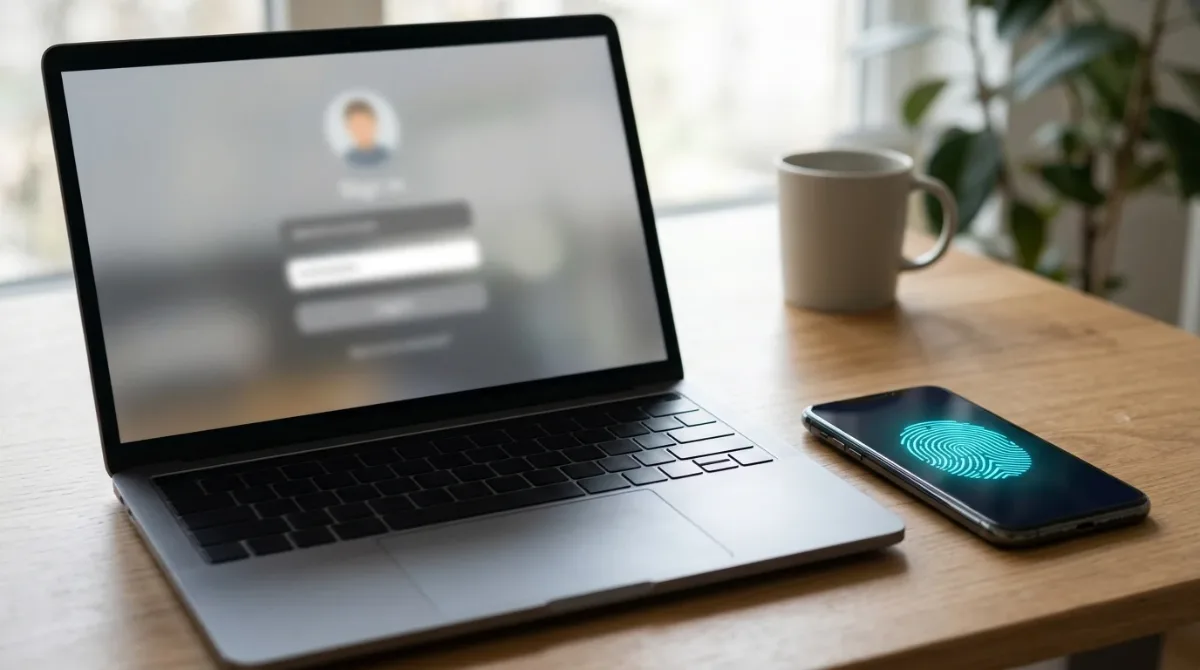
Signing in on a computer without your passkey saved? Choose Use a passkey from another device. A QR code appears. Scan it with your phone’s camera, confirm with your fingerprint or face, and you’re in. Your phone must be close by, because Bluetooth checks that the devices are near each other. This stops someone far away from using your passkey.
Where Are Passkeys Saved?
| Where | Syncs to |
|---|---|
| Apple Passwords (iCloud Keychain) | Your iPhone, iPad and Mac |
| Google Password Manager | Your Android phones and Chrome on any computer |
| Windows Hello | Your Windows PC (sync options are expanding) |
| Password managers (1Password, Bitwarden, Proton Pass and others) | All your devices, across brands |
| Hardware security key | Stays on the key itself |
For more simple guides, visit TrickieTech.
How It Works on Each Device
iPhone, iPad and Mac
Apple stores these sign-in keys in the Passwords app and iCloud Keychain. When a website offers one, your iPhone shows a small sheet asking to save it. Approve with Face ID or Touch ID. To see what you’ve saved, open the Passwords app and look under the item for that website. Make sure iCloud Keychain is turned on in Settings, your name, iCloud, Passwords, so everything syncs to your other Apple devices.
Android phones
Android saves them in Google Password Manager. When you create one, you approve with your fingerprint, face or screen lock. They sync across Android devices signed in to the same Google account, and Chrome on Windows and Mac can use them too. You can review them in Google Password Manager from the Settings app or Chrome.
Windows PCs
Windows uses Windows Hello, which means your face, fingerprint or PIN. Set it up first in Settings, Accounts, Sign-in options. When a website asks to create a new sign-in key, Windows Hello pops up to confirm. You can manage saved keys in Settings, Accounts.
What Is a Hardware Security Key?
A hardware security key is a small USB or NFC device, about the size of a car key, that holds sign-in keys physically. You plug it in or tap it on your phone to sign in. They’re popular with journalists, executives and anyone at high risk, because the key can’t be copied from a distance. Brands include YubiKey and Google Titan. Most people don’t need one, but buying two (one as a backup) is a good idea if you do.
Plan a Backup Before You Rely on It
The new sign-in method is very safe, but you should still plan for a lost or broken phone:
- Use a synced option like iCloud Keychain, Google Password Manager or a dedicated vault, so your keys survive a lost device.
- Keep a recovery email and phone number up to date on important accounts.
- Save recovery codes where sites offer them, in a safe place.
- Add a second device or a hardware key to accounts that matter most.
- Don’t delete your old password straight away on sites that let you keep both, until you’re comfortable.
Common Problems and Easy Fixes
| Problem | Fix |
|---|---|
| The site doesn’t offer the option | Not every site supports it yet. Keep using a strong unique password and two-factor authentication. |
| QR code sign-in doesn’t work | Turn on Bluetooth on both devices and keep your phone close to the computer. |
| “No saved key found” | Check you’re using the same Apple or Google account, or the right password manager, where you saved it. |
| Device asks for a PIN you forgot | Reset your device PIN or screen lock, then try again. |
| Work computer blocks it | Your IT team may manage sign-in settings. Ask them. |
Is It Okay for Older Relatives?
Often it’s easier for them than passwords, because there’s nothing to remember. Set it up together on their main accounts, make sure their phone has a screen lock they can use reliably, and confirm their recovery email and phone number are correct. Then show them that signing in now means “look at the phone” or “touch the sensor.”
Real-Life Examples
“I kept getting phishing emails pretending to be Amazon”
After switching to the new sign-in method, a fake login page couldn’t do anything, because there was no password to type in.
“I signed in on a library computer”
Choosing the option to use a phone, scanning the QR code and confirming with a fingerprint worked in seconds, without typing anything on the shared computer.
[ADD PERSONAL EXPERIENCE: add a short real example from your own setup.]
Simple Words You’ll See
- Private key: the secret half that stays on your device.
- Public key: the half the website stores, which can’t be used to sign in on its own.
- FIDO2 and WebAuthn: the open standards behind the technology.
- Windows Hello: Windows’ face, fingerprint and PIN sign-in.
- Phishing-resistant: can’t be tricked into working on a fake website.
Quick Checklist
- Update your devices.
- Turn on a screen lock with fingerprint or face.
- Start with Google, Apple, Microsoft and your bank.
- Save keys somewhere that syncs.
- Keep recovery details up to date.
- Use a phone QR code to sign in on other computers.
Why Big Tech Is Pushing This Change
Stolen and reused logins are behind a large share of account takeovers. Apple, Google and Microsoft have all said they want people to move away from typed secrets. In 2025, Microsoft began making the new sign-in method the default option for new Microsoft accounts, and Google now prompts many users to create one when they sign in. Banks, shops and social networks are following, because fewer hijacked accounts means fewer support calls and less fraud.
For you, the change mostly means less typing and fewer reset emails. The setup takes a minute per account, and once it’s done, signing in is usually faster than before.
Should You Delete Your Old Password?
Some websites let you remove your typed login once the new method is set up; most keep it as a fallback for now. If a site offers to remove it, do so only after you’ve signed in successfully a few times on different devices and confirmed your recovery options. For your main email account, keeping a strong unique password plus two-factor authentication as a backup is perfectly fine while you get used to the new way of signing in.
Does It Work Offline?
Your device can unlock the key without internet, but the website still needs an internet connection to check it, just like any sign-in. Syncing new keys between devices also needs internet. If you’re somewhere with no signal, you won’t be able to sign in to online services either way.
A Quick Comparison of Sign-In Methods
| Method | Phishing-proof? | Easy to use? | Notes |
|---|---|---|---|
| Password only | No | Medium | Easy to reuse, guess and steal |
| Password + text code | No | Medium | Better, but codes can be phished or SIM-swapped |
| Password + authenticator app | Partly | Medium | Strong, though codes can still be typed into fake sites |
| Device-based key (fingerprint, face, PIN) | Yes | Easy | Works only on the real site; nothing to remember |
| Hardware security key | Yes | Medium | Strongest; needs the physical key with you |
As the table shows, the device-based method gives you the best mix of safety and convenience for everyday accounts.
Which Accounts to Switch First
- Your main email, because it can reset everything else.
- Your Apple, Google or Microsoft account, which holds photos, backups and saved logins.
- Banking and payment apps that support it.
- Amazon and other shops with saved cards.
- Social media and WhatsApp, which scammers often target.
Doing just these five gives you most of the benefit. Add others whenever a site invites you to create one.
Privacy: What Do Websites Learn?
Very little. The website gets a public key unique to that site, so different sites can’t use it to track you across the web. Your fingerprint and face data never leave your device; the website only learns that you unlocked your device successfully, not what your fingerprint or face looks like.
Using It at Work
Many companies now use the same technology for staff sign-ins, often through Microsoft Entra, Okta or Google Workspace. If your employer offers it, setup usually happens through your company’s sign-in portal or the Microsoft Authenticator app, and your IT team decides which devices are allowed. Follow their instructions rather than setting up a personal method on a work account.
For small businesses, turning it on for email and admin accounts is one of the cheapest ways to block phishing, which is still one of the most common ways criminals break into business systems.
What If Someone Steals Your Phone?
A thief would still need to unlock your phone with your face, fingerprint or PIN to use your sign-in keys. That’s why a strong screen lock matters. If your phone is stolen, use Find My (Apple) or Find Hub (Google) to lock or erase it, and sign out of the device from your Apple or Google account on another device. Your synced keys stay safe in your account and return when you set up a new phone.
Frequently Asked Questions
What is a passkey in simple words?
A passkey is a way to sign in without typing a password. Your phone or computer creates a secret key for each website and keeps it safe. To sign in, you just unlock your device with your fingerprint, face or PIN. The website never sees or stores a password that can be stolen.
Are passkeys safer than passwords?
Yes. Passkeys can’t be guessed, reused or typed into a fake website, so they protect you from phishing and data breaches. The secret part never leaves your device, and websites only store a public key that is useless to hackers on its own.
What happens to my passkeys if I lose my phone?
If your passkeys are saved in iCloud Keychain, Google Password Manager or another password manager, they sync to your other devices and come back when you sign in on a new phone. Keep at least one backup sign-in method, like a recovery email or a second device.
Can I use passkeys on a computer that isn’t mine?
Yes. On the sign-in page, choose to use a passkey from another device. A QR code appears; scan it with your phone and confirm with your fingerprint or face. Your phone must be nearby, because Bluetooth checks that the two devices are close together.
Which websites support passkeys?
Many big services support passkeys, including Google, Apple, Microsoft, Amazon, PayPal, WhatsApp and many banks and shops. The list keeps growing. Look for a “passkeys” or “sign-in options” section in a site’s security settings.
Do passkeys work on both iPhone and Android?
Yes. Passkeys work on iPhone and iPad with iOS 16 or later, Android 9 or later, Windows 10 and 11, and recent Mac versions. They sync within your ecosystem, and password managers like Bitwarden or 1Password can sync them across iPhone, Android and Windows.
The Bottom Line
Passkeys let you sign in with your fingerprint, face or PIN instead of a password, and they’re much harder to steal. Start with your most important accounts, like Google, Apple, Microsoft and your bank.
Keep a backup sign-in method, save your passkeys somewhere that syncs, and enjoy fewer passwords to remember.
{“@context”:”https://schema.org”,”@type”:”FAQPage”,”mainEntity”:[{“@type”:”Question”,”name”:”What is a passkey in simple words?”,”acceptedAnswer”:{“@type”:”Answer”,”text”:”A passkey is a way to sign in without typing a password. Your phone or computer creates a secret key for each website and keeps it safe. To sign in, you just unlock your device with your fingerprint, face or PIN. The website never sees or stores a password that can be stolen.”}},{“@type”:”Question”,”name”:”Are passkeys safer than passwords?”,”acceptedAnswer”:{“@type”:”Answer”,”text”:”Yes. Passkeys can’t be guessed, reused or typed into a fake website, so they protect you from phishing and data breaches. The secret part never leaves your device, and websites only store a public key that is useless to hackers on its own.”}},{“@type”:”Question”,”name”:”What happens to my passkeys if I lose my phone?”,”acceptedAnswer”:{“@type”:”Answer”,”text”:”If your passkeys are saved in iCloud Keychain, Google Password Manager or another password manager, they sync to your other devices and come back when you sign in on a new phone. Keep at least one backup sign-in method, like a recovery email or a second device.”}},{“@type”:”Question”,”name”:”Can I use passkeys on a computer that isn’t mine?”,”acceptedAnswer”:{“@type”:”Answer”,”text”:”Yes. On the sign-in page, choose to use a passkey from another device. A QR code appears; scan it with your phone and confirm with your fingerprint or face. Your phone must be nearby, because Bluetooth checks that the two devices are close together.”}},{“@type”:”Question”,”name”:”Which websites support passkeys?”,”acceptedAnswer”:{“@type”:”Answer”,”text”:”Many big services support passkeys, including Google, Apple, Microsoft, Amazon, PayPal, WhatsApp and many banks and shops. The list keeps growing. Look for a \”passkeys\” or \”sign-in options\” section in a site’s security settings.”}},{“@type”:”Question”,”name”:”Do passkeys work on both iPhone and Android?”,”acceptedAnswer”:{“@type”:”Answer”,”text”:”Yes. Passkeys work on iPhone and iPad with iOS 16 or later, Android 9 or later, Windows 10 and 11, and recent Mac versions. They sync within your ecosystem, and password managers like Bitwarden or 1Password can sync them across iPhone, Android and Windows.”}}]}