
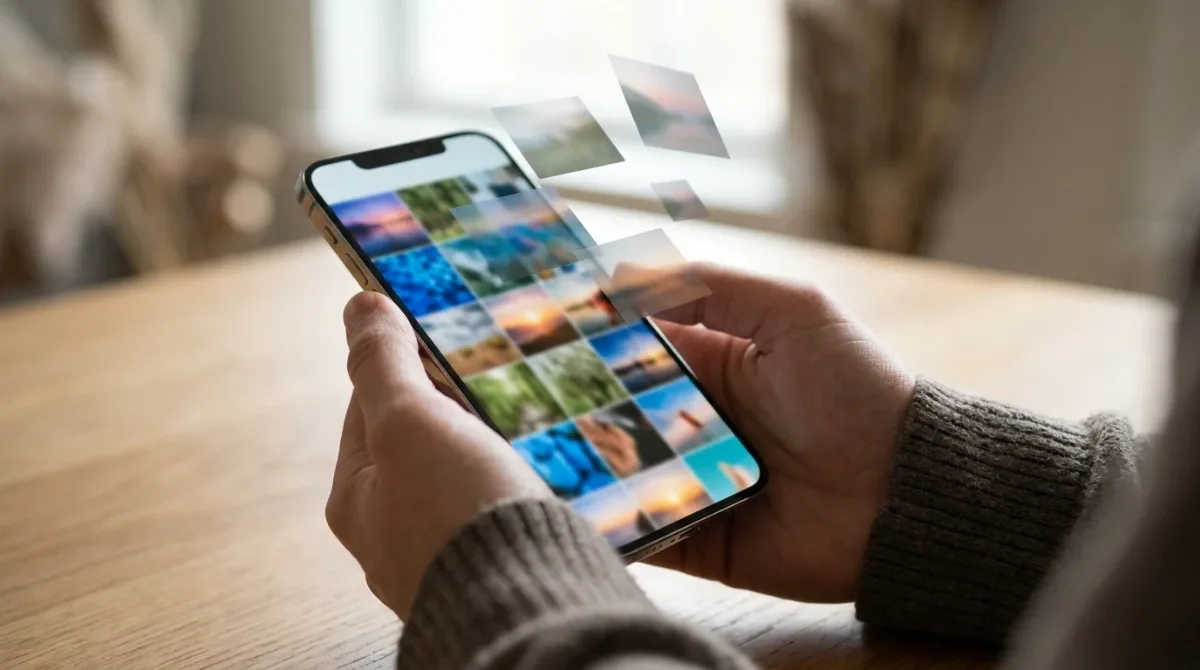
To recover deleted photos on iPhone, open the Photos app, scroll down to Utilities (or Albums on older iOS) and tap Recently Deleted. Unlock with Face ID, tap Select, choose your photos and tap Recover. Deleted photos stay there for 30 days. After that, check iCloud.com, Google Photos, your other devices, or an iPhone backup.
Below are six easy ways to recover deleted photos on iPhone, starting with the fastest.
[ADD PERSONAL EXPERIENCE: one line about a photo you once deleted by mistake and how you got it back.]
Table of Contents
1. Check the Recently Deleted Album

This works for almost everyone who deleted photos in the last month.
- Open Photos.
- On iOS 18 and later, scroll down to Utilities and tap Recently Deleted. On older iOS, tap Albums and scroll to the bottom.
- Unlock with Face ID, Touch ID or your passcode.
- Tap Select, choose the photos or videos, then tap Recover.
Apple keeps deleted photos in this album for 30 days. Each item shows how many days are left. Recovered photos go back to your library and their original albums.
2. Check the Hidden Album
Sometimes photos aren’t deleted, just hidden. In Photos, scroll to Utilities and tap Hidden. If you find them, select the photos and tap Unhide.
3. Recover Deleted Photos on iCloud.com
If iCloud Photos is on, go to icloud.com/photos on a computer, sign in, and click Recently Deleted in the sidebar. Select the photos and click Recover. This is useful if your iPhone is lost or broken.
4. Check Google Photos, OneDrive or Other Apps
If you use Google Photos, open the app and check Library, Trash (called Bin in some countries). Backed-up items stay there for 60 days. Also check:
- OneDrive or Dropbox camera upload folders and their recycle bins.
- WhatsApp, Messages or email, if you sent the photo to someone.
- Shared Albums in the Photos app.
- Your iPad or Mac, especially if iCloud Photos was off on one of them.
5. Restore From a Computer Backup

If you backed up your iPhone to a Mac or Windows PC before you deleted the photos, you can restore that backup. Connect the iPhone, open Finder (Mac) or the Apple Devices app (Windows), select your iPhone and click Restore Backup.
Warning: restoring replaces everything on your iPhone with the backup. Photos and messages you added since then will be lost unless they’re saved elsewhere, so save new photos to iCloud or a computer first.
6. Restore From an iCloud Backup
If iCloud Photos was off but iCloud Backup was on, your photos may be inside an iCloud backup. To restore it, you must erase the iPhone (Settings, General, Transfer or Reset iPhone, Erase All Content and Settings), then choose Restore from iCloud Backup during setup and pick a backup made before the deletion. Back up your current data elsewhere first.
Why Some Deleted Photos Can’t Be Recovered
iPhones encrypt their storage. Once a photo leaves Recently Deleted, the encrypted data is effectively unreadable, so recovery apps can rarely find it on the device itself. That’s why backups matter so much.
For more simple guides, visit TrickieTech. Apple explains the steps in its iPhone User Guide.
Recover Deleted Videos, Screenshots and Live Photos
Videos, screenshots, Live Photos and screen recordings all go to the same Recently Deleted album as photos. Use the same steps to recover them. Long videos may take a little longer to reappear in your library, especially if they need to download from iCloud first. Make sure you’re on Wi-Fi and give it a few minutes.
Recover Deleted Photos From Messages and WhatsApp
Photos sent or received in chats are saved separately from your main library.
- Messages: if you deleted a conversation in the last 30 days, open Messages, tap Edit or Filters, then Show Recently Deleted, and recover the conversation. Its photos come back with it.
- WhatsApp: open the chat and look at the contact’s media. If you deleted the chat, you may need to restore WhatsApp from its iCloud backup by reinstalling the app.
- Ask the sender: the person who sent the photo usually still has it.
If You Deleted Photos From a Shared Album
Photos removed from a shared album don’t go to Recently Deleted. If you uploaded them, check your main library, since shared albums usually hold copies. If someone else added them, ask them to share again.
Turn On iCloud Photos to Protect Future Pictures
Go to Settings, your name, iCloud, Photos and turn on Sync this iPhone (called iCloud Photos on older versions). Your photos are then stored in iCloud and on your other Apple devices. Remember that deleting a photo on one device deletes it everywhere, but you still get 30 days to recover it.
The free iCloud plan includes 5GB of storage, which fills up quickly with photos. Upgrading to iCloud+ gives you more space.
Other Ways to Back Up Your iPhone Photos
- Google Photos: free app that can back up photos automatically.
- Computer backup: import photos to a Mac with the Photos app, or to Windows with the Photos app or File Explorer.
- External drive: copy photos from your computer to a USB drive every few months.
- Second cloud: OneDrive, Dropbox or Amazon Photos for an extra copy.
Keeping photos in two places means one mistake never wipes out your memories.
What Not to Do
- Don’t restore an old backup without saving your newer photos first.
- Don’t pay for “recovery” apps that ask for money before showing what they found.
- Don’t share your Apple Account password with recovery services.
- Don’t factory reset your iPhone in a panic. It makes recovery harder.
Real-Life Examples
“I deleted holiday photos while clearing space”
They were still in Recently Deleted, with 24 days left. Select, Recover, done.
“My iPhone broke and I need old photos”
iCloud Photos was on. Signing in at iCloud.com showed every photo, ready to download.
“I deleted them 2 months ago”
They were gone from Recently Deleted, but Google Photos had backed them up. Its Trash still had them because they’d been deleted there more recently.
[ADD PERSONAL EXPERIENCE: add a short real example if you have one.]
Simple Words You’ll See
- Recently Deleted: the Photos album that keeps deleted items for 30 days.
- iCloud Photos: Apple’s service that stores your photos in the cloud and syncs them.
- iCloud Backup: a full backup of your iPhone stored in iCloud.
- Restore: putting a backup back onto your iPhone, which replaces current data.
Recover Deleted Photos From a Lost or Broken iPhone
If your iPhone is lost, stolen or won’t turn on, you can still get your photos back if they were backed up:
- iCloud Photos on: sign in at iCloud.com on any computer, or sign in to a new iPhone with the same Apple Account. Your library downloads automatically.
- iCloud Backup on: set up a new or repaired iPhone and choose Restore from iCloud Backup.
- Computer backup: connect the new iPhone to the computer and use Restore Backup in Finder or Apple Devices.
- Google Photos: sign in on any phone or computer.
If the iPhone won’t turn on and wasn’t backed up, an Apple Store or Apple Authorized Service Provider may be able to repair it so you can access the photos. Some specialist repair shops also offer board-level data recovery for badly damaged phones.
Free Up Space Without Losing Photos
Many people delete photos by accident while trying to free up storage. Safer ways to get space back:
- Turn on Optimize iPhone Storage in Settings, your name, iCloud, Photos. Full-size photos stay in iCloud and smaller versions stay on your phone.
- Delete duplicates using the Duplicates album in Photos, which merges copies safely.
- Review large videos in Settings, General, iPhone Storage, Photos.
- Offload apps you don’t use in iPhone Storage instead of deleting photos.
How to Avoid Deleting Photos by Mistake
- Use Favorites (tap the heart) for photos you never want to lose, then double-check before bulk deleting.
- Be careful with “Select All” when cleaning up albums.
- Remember that iCloud Photos syncs deletions to every device.
- Keep a second backup in Google Photos or on a computer for important memories.
- Check Recently Deleted before it empties if you’ve just done a big cleanup.
How Long Do Different Services Keep Deleted Photos?
| Service | Where to look | Kept for |
|---|---|---|
| iPhone Photos | Utilities, Recently Deleted | 30 days |
| iCloud.com | Photos, Recently Deleted | 30 days |
| Google Photos | Library, Trash | 60 days for backed-up items |
| OneDrive (personal) | Recycle bin | 30 days |
| Messages | Recently Deleted conversations | Up to 30 days |
These periods can change, so recover deleted photos as soon as you notice they’re missing.
Recover Deleted Photos on iPad and Mac
The same steps work on other Apple devices, which is handy if your iPhone isn’t with you.
- iPad: open Photos, find Recently Deleted in the sidebar or under Utilities, unlock it, select items and tap Recover.
- Mac: open the Photos app, click Recently Deleted in the sidebar, enter your password or use Touch ID, select the photos and click Recover.
With iCloud Photos on, recovering on any device brings the photos back on all of them.
Check Your Storage Plan Before It’s Too Late
If your iCloud storage is full, new photos may stop backing up without you noticing. Open Settings, your name, iCloud and look at the storage bar. If it’s nearly full, upgrade your plan, move older photos to a computer, or delete old device backups you no longer need. A backup that stopped months ago won’t help you recover deleted photos from last week.
Talk to Apple Support if You’re Stuck
If photos vanished and you didn’t delete them, for example after an update or after signing in with a different Apple Account, contact Apple Support. Make sure you’re signed in to the right Apple Account first: check the name at the top of Settings. Many “missing photo” cases turn out to be a different account or iCloud Photos turned off on that device.
Recover Deleted Photos on iPad and Mac
The same steps work on other Apple devices, which is handy if your iPhone isn’t with you.
- iPad: open Photos, find Recently Deleted in the sidebar or under Utilities, unlock it, select items and tap Recover.
- Mac: open the Photos app, click Recently Deleted in the sidebar, enter your password or use Touch ID, select the photos and click Recover.
With iCloud Photos on, recovering on any device brings the photos back on all of them.
Check Your Storage Plan Before It’s Too Late
If your iCloud storage is full, new photos may stop backing up without you noticing. Open Settings, your name, iCloud and look at the storage bar. If it’s nearly full, upgrade your plan, move older photos to a computer, or delete old device backups you no longer need. A backup that stopped months ago won’t help you recover deleted photos from last week.
Talk to Apple Support if You’re Stuck
If photos vanished and you didn’t delete them, for example after an update or after signing in with a different Apple Account, contact Apple Support. Make sure you’re signed in to the right Apple Account first: check the name at the top of Settings. Many “missing photo” cases turn out to be a different account or iCloud Photos turned off on that device.
Frequently Asked Questions
How long do deleted photos stay in Recently Deleted on iPhone?
Apple says photos and videos stay in the Recently Deleted album for 30 days, then they are removed permanently. You can recover them any time before that. The album shows how many days are left on each item.
How do I recover permanently deleted photos on iPhone?
Check iCloud.com Photos, Google Photos or other apps that back up your pictures, and look on your other devices. If you have an iPhone backup made before you deleted the photos, you can restore it, but restoring replaces what’s on your iPhone now, so save new photos first.
Why can’t I find the Recently Deleted album?
On iOS 18 and later, open Photos, scroll down to Utilities, and tap Recently Deleted. On older versions, it’s at the bottom of the Albums tab. You’ll need Face ID, Touch ID or your passcode to open it.
Can I recover deleted photos without a backup?
Only if they are still in Recently Deleted, on another device or in another app or cloud service. Once photos are removed from Recently Deleted and there’s no backup, they usually can’t be recovered. Be cautious with apps that promise to recover them.
Does deleting photos on iPhone delete them from iCloud?
Yes, if iCloud Photos is turned on. Deleting a photo on one device deletes it from iCloud and all your devices. It goes to Recently Deleted everywhere, so you can still recover it for 30 days.
Are iPhone photo recovery apps safe?
Some well-known computer programs can read old iPhone backups, but many apps make big promises they can’t keep. Apple’s security means third-party tools can rarely find photos that are truly gone from the device. Try Apple’s own options and your backups first.
The Bottom Line
Most deleted photos are easy to get back from the Recently Deleted album within 30 days. Check Hidden, iCloud.com and Google Photos next.
If they’re gone from all of those, a backup from before the deletion is your best chance. Turn on iCloud Photos or another backup today, so you’re never in this spot again.
