

To recover deleted files on Windows 11, first open the Recycle Bin, right-click the file and choose Restore. If it’s not there, check OneDrive’s recycle bin, then File History or Previous Versions. As a last step, use Microsoft’s free Windows File Recovery tool. Most importantly, stop saving new files on that drive, so the deleted data isn’t overwritten.
Below are seven free, easy ways to recover deleted files on Windows 11, from quickest to most advanced.
[ADD PERSONAL EXPERIENCE: one line about a file you once deleted by mistake and how you got it back.]
Table of Contents
Do This First: Stop Using the Drive
When you delete a file, Windows usually marks its space as free but doesn’t wipe it straight away. New files can overwrite that space at any time. So, until you recover deleted files:
- Don’t download, install or save anything on the same drive.
- Close programs that save files in the background, like downloads or video editors.
- If it’s a USB drive or memory card, unplug it and don’t use it.
7 Free Ways to Recover Deleted Files on Windows 11
1. Check the Recycle Bin
Double-click Recycle Bin on your desktop. Find the file (you can search or sort by Date Deleted), right-click it and choose Restore. It goes back to its original folder.
Files skip the Recycle Bin if you used Shift + Delete, deleted them from a USB drive or network folder, or they were too large.
2. Press Ctrl + Z right away
If you just deleted something in File Explorer, press Ctrl + Z straight away to undo it. This only works immediately after the delete.
3. Check OneDrive’s recycle bin
If your Desktop, Documents or Pictures folders sync with OneDrive, go to onedrive.live.com, sign in, and open Recycle bin. Select the files and click Restore. For personal accounts, OneDrive keeps deleted items for 30 days.
4. Restore from File History
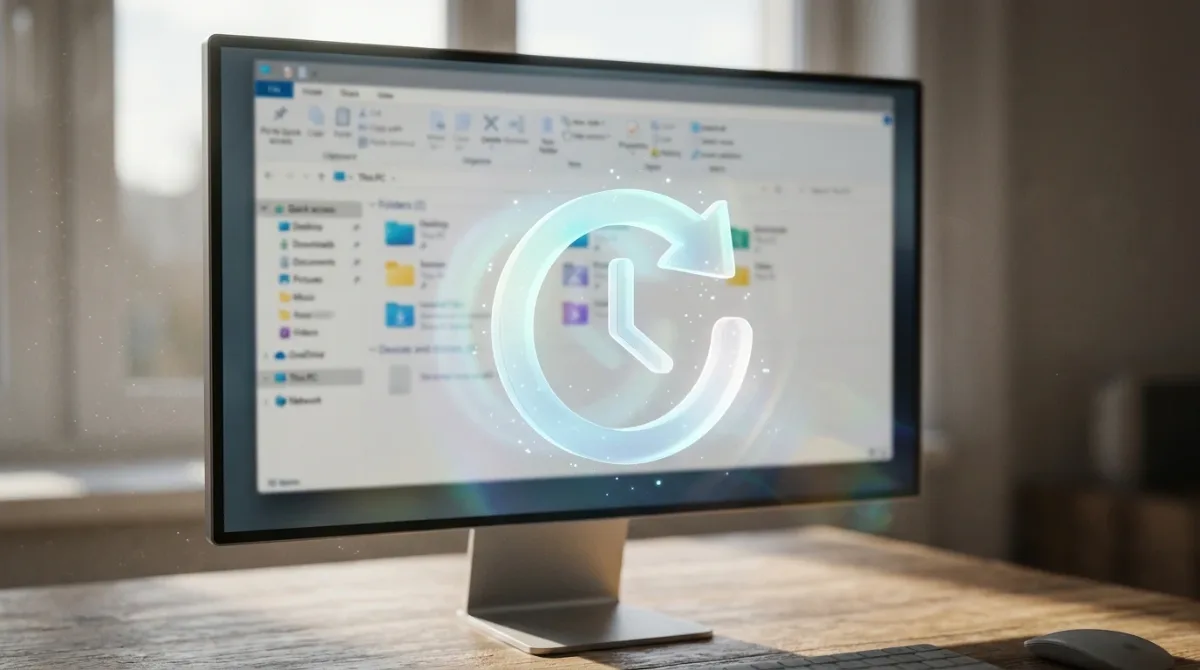
If you turned on File History with an external drive:
- Connect the backup drive.
- Search the Start menu for Restore your files with File History.
- Browse to the folder and date you need.
- Select the file and click the green Restore button.
5. Use Previous Versions
Right-click the folder that held the file, choose Properties, then the Previous Versions tab. If you see older versions, open one and copy the file out. This only works if File History or restore points were saving copies.
6. Restore from another backup
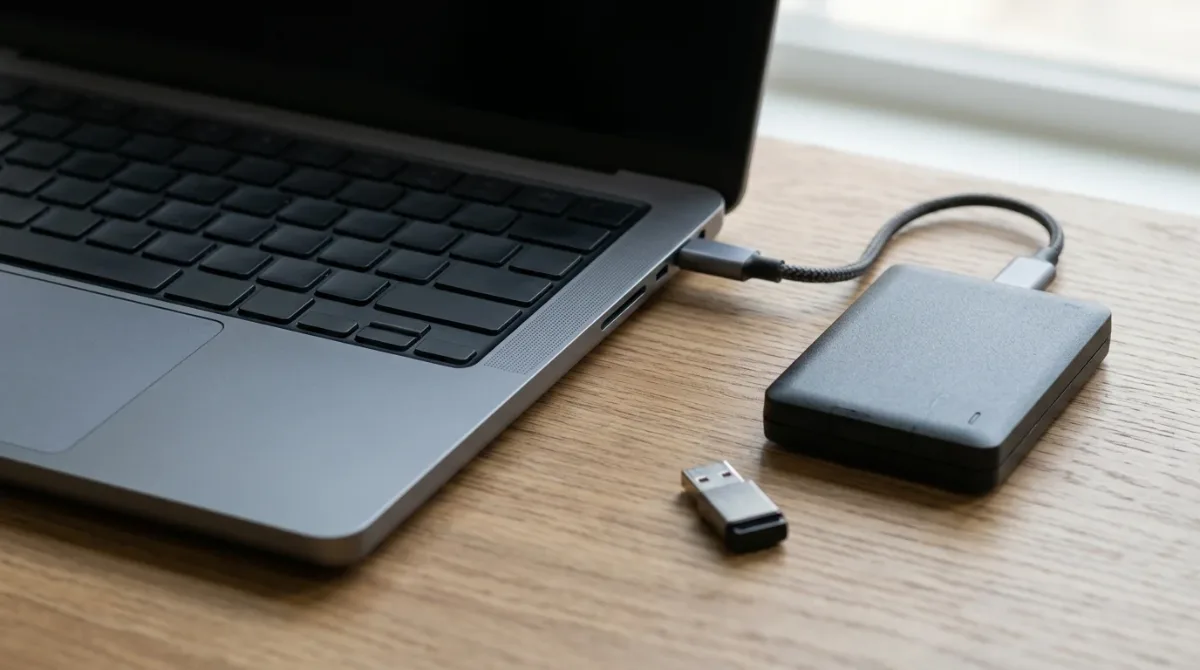
Check other places you might have a copy: an external drive, a USB stick, email attachments you sent yourself, Google Drive, Dropbox, or the device you originally got the file from.
7. Use Windows File Recovery
Microsoft’s free Windows File Recovery tool, available in the Microsoft Store, can scan a drive for deleted files. It’s a command-line tool, so you type commands:
- Install Windows File Recovery from the Microsoft Store.
- Open it from the Start menu and click Yes to allow it.
- Type a command like
winfr C: D: /regular /n \Users\YourName\Documents\report.docx, where C: is the drive you lost the file from and D: is a different drive to save recovered files to. - Press Y to start, then check the recovery folder on D:.
Use /regular for recently deleted files on NTFS drives, and /extensive for older deletions, formatted drives or memory cards.
Recover Deleted Files From an SSD
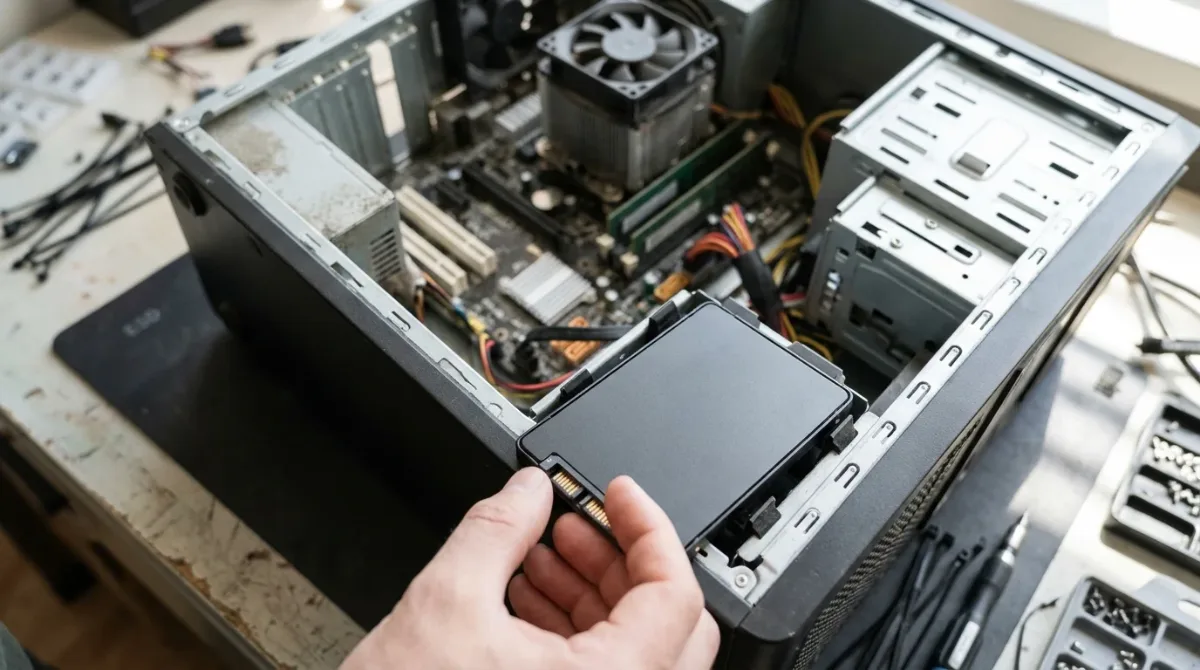
Most new laptops use SSDs. They use a feature called TRIM that clears deleted data quickly to keep the drive fast. That means recovery tools often find nothing on an SSD after a short time. Act fast, and rely on backups like OneDrive or File History for SSD drives.
For more simple guides, visit TrickieTech.
Recover Deleted Files From a USB Drive or SD Card
Files deleted from USB sticks, external drives and memory cards don’t go to the Recycle Bin. To recover deleted files from them:
- Stop using the drive and don’t format it, even if Windows asks.
- Install Windows File Recovery on your main drive.
- Run it with the /extensive mode and the USB drive as the source, saving recovered files to your PC’s drive. For example:
winfr E: C: /extensive. - Look through the recovery folder it creates.
Camera cards often use the FAT or exFAT format, which works best with extensive mode.
Recover an Older Version of a File
Sometimes the file isn’t gone, but you saved over it. You may be able to get the older copy back:
- Microsoft Word, Excel and PowerPoint: if the file is in OneDrive or SharePoint, click the file name at the top and choose Version History.
- OneDrive: right-click the file on onedrive.live.com and choose Version history.
- Unsaved Office files: in Word, go to File, Info, Manage Document, Recover Unsaved Documents.
- Google Docs: File, Version history, See version history.
- Windows: Previous Versions on the file’s Properties, if backups were on.
When to Use a Professional Recovery Service
If the drive is clicking, making grinding noises, not showing up at all, or was dropped or got wet, stop and don’t run recovery software. Software can make physical damage worse. A professional data recovery lab can open the drive in a clean room. It can be expensive, so it’s worth it for irreplaceable photos or business files. Get a quote first and choose a well-reviewed company.
How to Never Lose a File Again
- Turn on OneDrive folder backup: open OneDrive settings, choose Sync and back up, Manage back up, and turn on Desktop, Documents and Pictures.
- Turn on File History: connect an external drive, search for File History in the Start menu, and turn it on.
- Follow the 3-2-1 rule: keep 3 copies of important files, on 2 different types of storage, with 1 copy off-site or in the cloud.
- Make Recycle Bin bigger: right-click Recycle Bin, Properties, and raise the maximum size.
- Turn on delete confirmation: in Recycle Bin Properties, tick Display delete confirmation dialog.
Which Method Fits Your Situation?
| What happened | Best method |
|---|---|
| Deleted a minute ago | Ctrl + Z, then Recycle Bin |
| Deleted normally this week | Recycle Bin |
| Emptied the Recycle Bin | OneDrive recycle bin, File History, Windows File Recovery |
| Saved over a file | Version history or Previous Versions |
| Deleted from a USB or SD card | Windows File Recovery /extensive |
| Drive clicking or not detected | Professional recovery service |
Real-Life Examples
“I emptied the Recycle Bin by mistake”
The Documents folder was backed up to OneDrive, and the file was still in OneDrive’s recycle bin. One click restored it.
“I deleted photos from my camera’s SD card”
Windows File Recovery in extensive mode found most of them, because the card hadn’t been used since.
“I saved over my report”
Version History in Word brought back the version from that morning.
[ADD PERSONAL EXPERIENCE: add a short real example if you have one.]
Simple Words You’ll See
- Recycle Bin: where Windows keeps deleted files until you empty it.
- File History: Windows’ backup tool for your personal folders.
- Previous Versions: older copies of files saved by backups or restore points.
- TRIM: an SSD feature that clears deleted data to keep the drive fast.
- NTFS / FAT / exFAT: different ways drives organize files.
Recover Deleted Files From Email and Cloud Apps
Lost files aren’t always on your PC. Many apps keep their own trash folders:
- Outlook: check Deleted Items, then Recover items deleted from this folder.
- Gmail: check the Trash folder, which keeps messages for 30 days.
- Google Drive: open Trash in the left menu. Items stay there for 30 days.
- Dropbox: open Deleted files. How long they’re kept depends on your plan.
- Teams, Slack and WhatsApp: files you shared may still be in the chat. Search the conversation.
If you sent the file to someone, they may still have a copy. A quick message can save hours of searching.
Recover Deleted Files on a Mac
On a Mac, open the Trash in the Dock, right-click the file and choose Put Back. If you use Time Machine, open the folder in Finder, click the Time Machine icon in the menu bar, browse back in time and click Restore. iCloud Drive also keeps a Recently Deleted folder for 30 days, which you can find in Finder or on iCloud.com.
Mistakes That Lower Your Chances
- Installing recovery software on the same drive you’re recovering from.
- Saving recovered files back to the same drive, which can overwrite other deleted files.
- Running disk cleanup or defrag tools after deleting something important.
- Formatting a drive because Windows says it needs to be formatted.
- Waiting days before trying, while continuing to use the PC normally.
Avoid these and your chances to recover deleted files go up a lot.
Can You Recover Files After Resetting Windows?
If you used Reset this PC with Keep my files, your personal files should still be in your user folders. Apps will be gone, but a folder called Windows.old may hold some older data for a short time after major updates. If you chose Remove everything, especially with the option to clean the drive, recovery is very unlikely without a backup. That’s why backing up before any reset is so important.
What About Files Lost After a Windows Update?
Sometimes files seem to disappear after an update, but they’ve only moved. Check these places:
- Search: type the file name in the Start menu search or in File Explorer’s search box.
- Temporary profile: if your desktop looks empty and different, Windows may have signed you into a temporary profile. Restart the PC to get back to your normal account.
- OneDrive: your Desktop and Documents folders may now be inside the OneDrive folder after setup.
- Windows.old: after a major upgrade, look in C:\Windows.old\Users\YourName for older copies.
Try a Trusted Third-Party Tool Carefully
If Windows File Recovery feels too technical, well-known recovery programs offer a point-and-click interface and a free scan that shows what can be found before you pay. Download only from the developer’s official website, avoid “free full version” downloads, and install the program on a different drive or a USB stick so it doesn’t overwrite the files you want to recover. Preview the files the scan finds before buying a license, so you know the program can actually get them back.
Set a Reminder to Check Your Backups
A backup only helps if it’s working. Once a month, open File History or OneDrive and check the last backup date, and try restoring one test file. It takes two minutes and makes sure that, the next time something goes wrong, you can recover deleted files in seconds instead of hoping a recovery tool finds them.
Quick Checklist
- Stop saving new files on the drive.
- Press Ctrl + Z if you just deleted it.
- Check the Recycle Bin and restore.
- Check OneDrive’s recycle bin and version history.
- Restore from File History or Previous Versions.
- Look for copies in email, cloud apps and other devices.
- Try Windows File Recovery, saving to a different drive.
- Use a professional lab for physically damaged drives.
- Turn on OneDrive backup and File History so it never happens again.
Work through the list from top to bottom. Most people find their file in the first four steps, and the rest are there for the harder cases.
Remember, every minute counts. The sooner you start, the better your chances, because Windows keeps writing small files in the background even when you aren’t doing anything. If the file really matters, shut the computer down and use another device to read these steps first.
Is Paid Recovery Software Worth It?
Paid programs can be worth it for important photos or work documents, especially if you’re not comfortable with command-line tools. They usually offer a preview of found files, filters by file type and date, and support for many drive types. But no software can recover files that have already been overwritten, so a free scan first is the best way to decide. If the scan can’t see your files, paying won’t help.
Frequently Asked Questions
How do I recover permanently deleted files on Windows 11?
Check OneDrive’s recycle bin, File History and Previous Versions first. If none of those have the file, try Microsoft’s free Windows File Recovery tool from the Microsoft Store. Stop using the drive straight away, because new files can overwrite the deleted data.
Where do deleted files go in Windows 11?
Files you delete normally go to the Recycle Bin on your desktop, where you can restore them. Files deleted with Shift + Delete, from USB drives, or that were too large for the Recycle Bin skip it and need other recovery methods.
Can I recover files deleted from the Recycle Bin?
Sometimes. If you had File History or OneDrive turned on, restore from there. Otherwise, recovery tools like Windows File Recovery may find the data if it hasn’t been overwritten. Your chances are better on hard drives than on SSDs.
How long does OneDrive keep deleted files?
For personal Microsoft accounts, OneDrive keeps deleted files in its recycle bin for 30 days. Work or school accounts usually keep them for 93 days, depending on settings. After that, they’re removed permanently.
Is it possible to recover files from an SSD?
It’s harder. Most SSDs use a feature called TRIM that clears deleted data quickly to keep the drive fast. If you act immediately, recovery tools may still find something, but backups are the only reliable way to get files back from an SSD.
Are free data recovery programs safe?
Use only trusted tools, like Microsoft’s Windows File Recovery or well-known brands from their official websites. Avoid cracked or unknown software, which can contain malware. Install recovery tools on a different drive from the one you’re recovering, if possible.
The Bottom Line
To recover deleted files on Windows 11, check the Recycle Bin and OneDrive first, then File History and Previous Versions. Use Windows File Recovery only if those don’t have your file.
Stop using the drive straight away, and turn on a backup today, so next time recovery takes seconds.
