
To back up iPhone to computer, connect it with a cable. On a Mac, open Finder, click your iPhone in the sidebar and click Back Up Now. On Windows, open the free Apple Devices app, select your iPhone, go to Backup and click Back Up Now. Tick Encrypt local backup to also save passwords, Wi-Fi settings and Health data.
Below are five easy steps to back up iPhone on a Mac or Windows PC, plus where backups are saved and how to restore one.
[ADD PERSONAL EXPERIENCE: one line about when a computer backup saved you, like when you changed phones.]
Table of Contents
Why Back Up iPhone to a Computer?
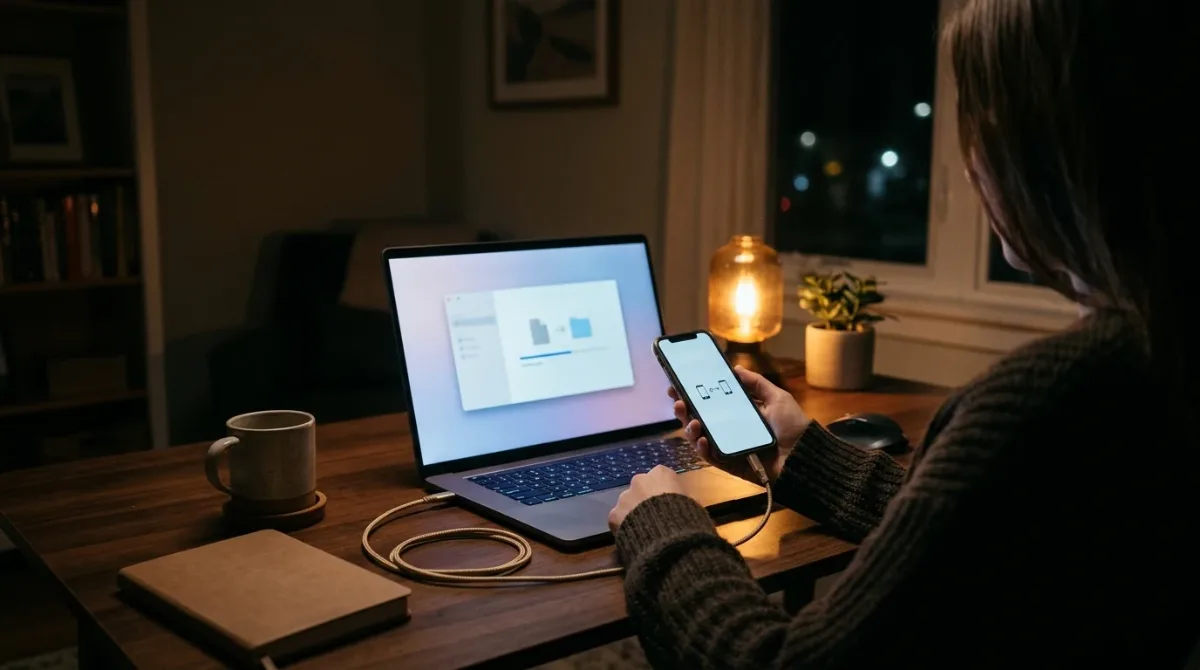
- It’s free. It doesn’t use iCloud storage.
- It’s fast to restore over a cable.
- It can be encrypted and include passwords and Health data.
- It’s a second copy if something goes wrong with iCloud.
How to Back Up iPhone to a Mac
- Connect your iPhone to the Mac with a USB or USB-C cable.
- Open Finder and click your iPhone under Locations in the sidebar.
- If asked, tap Trust on the iPhone and enter your passcode.
- In the General tab, choose Back up all of the data on your iPhone to this Mac.
- Tick Encrypt local backup, create a password you’ll remember, and click Back Up Now.
On macOS Mojave or older, use iTunes instead of Finder.
How to Back Up iPhone to a Windows PC
- Install the Apple Devices app from the Microsoft Store (Windows 10 and 11). Older PCs can use iTunes.
- Connect your iPhone and tap Trust on it if asked.
- Open Apple Devices and select your iPhone in the sidebar.
- Click Backup, then choose Back up all of the data on your iPhone to this computer.
- Tick Encrypt local backup, set a password, and click Back Up Now.
Apple explains this in its guide to backing up iPhone with Windows.
What’s Included in a Computer Backup?
A backup includes almost everything on your iPhone: settings, app data, messages, Home Screen layout, call history and photos (if iCloud Photos is off). An encrypted backup also includes saved passwords, Wi-Fi settings, website history and Health data. It doesn’t include things already in iCloud, like iCloud Photos or iCloud Drive files, or Face ID and Apple Pay details.
Copy the Backup to an External Drive
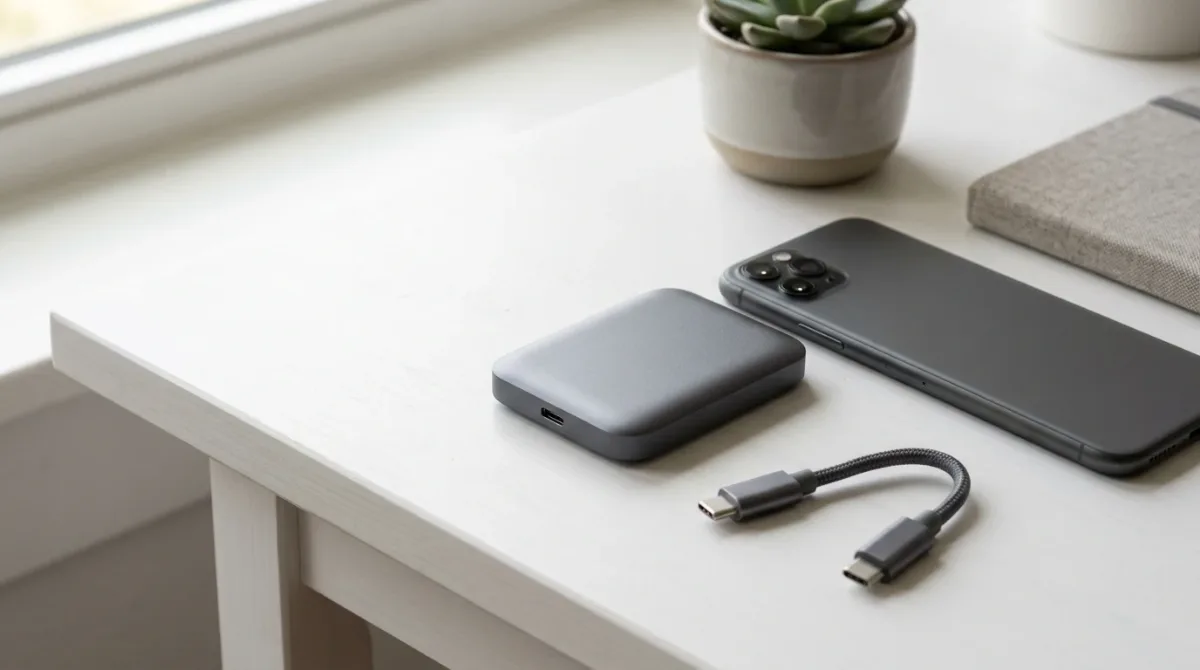
For extra safety, copy your backup folder to an external drive now and then. On a Mac, backups are in your user Library, Application Support, MobileSync, Backup. On Windows, look in your user folder under Apple, MobileSync, Backup. Copy the whole folder, and don’t rename or edit the files inside.
Computer Backup vs iCloud Backup

| Computer backup | iCloud Backup | |
|---|---|---|
| Cost | Free | Needs enough iCloud storage |
| Automatic | No, you start it | Yes, when charging on Wi-Fi |
| Restore speed | Fast over cable | Depends on internet speed |
| Works without the computer | No | Yes, anywhere with Wi-Fi |
For more simple guides, visit TrickieTech.
How to Restore iPhone From a Computer Backup
- Connect the iPhone to the computer that has the backup.
- Open Finder (Mac) or Apple Devices (Windows) and select the iPhone.
- If Find My is on, turn it off first in Settings, your name, Find My.
- Click Restore Backup, choose the backup by date, and enter the encryption password if asked.
- Keep the iPhone connected until it restarts and finishes syncing.
Restoring replaces what’s on the iPhone now with the backup, so make sure you’ve saved any newer photos or files first.
When to Back Up iPhone
- Before an iOS update, especially a big one.
- Before a repair or battery replacement.
- Before switching to a new iPhone.
- Before selling or trading in your iPhone.
- Once a month as a habit, if you rely on computer backups.
Problems and Easy Fixes
| Problem | Fix |
|---|---|
| Computer doesn’t see the iPhone | Unlock the iPhone, tap Trust, try another cable or USB port, and update the Apple Devices app or macOS. |
| “Not enough space on computer” | Free up space on the computer or delete old backups in Finder or Apple Devices (Manage Backups). |
| Backup stops partway | Restart both devices, use an Apple or MFi-certified cable, and turn off security software briefly if it blocks the backup. |
| Forgot the encryption password | You can’t restore that backup. On the iPhone, go to Settings, General, Transfer or Reset iPhone, Reset, Reset All Settings, then make a new encrypted backup with a new password. |
| Backup says it’s corrupt | Delete that backup and make a new one. |
How to Delete Old Backups
Old backups can take up many gigabytes. On a Mac, open Finder, select your iPhone, click Manage Backups, choose an old backup and click Delete. In the Apple Devices app on Windows, open the backup settings for your iPhone and use the manage or delete option. Keep at least your most recent backup.
Back Up iPhone Photos Separately
If iCloud Photos is on, your photos aren’t in the computer backup. To keep your own copy:
- Mac: open the Photos app, select the iPhone under Devices, and click Import.
- Windows: open the Photos app or File Explorer, select the iPhone and import pictures. Set iPhone photos to transfer in compatible format in Settings, Apps, Photos if Windows struggles with HEIC files.
Real-Life Examples
“I switched to a new iPhone without iCloud space”
An encrypted backup to a laptop moved everything, including saved passwords and WhatsApp chats, in under an hour.
“My iPhone needed a screen repair”
Backing up iPhone the night before meant nothing was lost when the shop reset the phone.
[ADD PERSONAL EXPERIENCE: add a short real example if you have one.]
Simple Words You’ll See
- Local backup: a backup stored on your computer, not in iCloud.
- Encrypted backup: a password-protected backup that includes sensitive data.
- Finder: the Mac’s file browser, which manages iPhones on newer macOS.
- Apple Devices app: Apple’s Windows app for backing up and updating iPhones.
- Restore: putting a backup back onto an iPhone.
Back Up iPhone Over Wi-Fi to Your Computer
After the first cable backup, you can let your computer find the iPhone over Wi-Fi. In Finder or Apple Devices, select the iPhone and tick Show this iPhone when on Wi-Fi (or a similar option). When both are on the same network, you can start a backup without plugging in. A cable is still faster and more reliable for big backups.
How Much Space Does a Backup Need?
A computer backup is usually smaller than the storage used on your iPhone, because apps themselves aren’t included, only their data. Check how much your iPhone uses in Settings, General, iPhone Storage. As a rule of thumb, make sure your computer has at least that much free space before the first backup. If photos are in iCloud Photos, the backup will be much smaller.
Is My Backup Safe on My Computer?
An encrypted backup is protected with your password, so someone who copies the files can’t read your messages, passwords or Health data without it. Unencrypted backups can be read by anyone with access to your computer and the right software. That’s why encrypting is the best choice, especially on shared or work computers. Also protect the computer itself with a password and keep it updated.
Back Up Before You Sell or Trade In
Before you hand over an old iPhone:
- Make a fresh encrypted backup to your computer and, if you use it, to iCloud.
- Unpair your Apple Watch, which backs up its data to the iPhone.
- Sign out of your Apple Account in Settings, your name, Sign Out.
- Erase the iPhone in Settings, General, Transfer or Reset iPhone, Erase All Content and Settings.
- Remove the SIM card, or delete the eSIM if you’re keeping your number on a new phone.
Back Up Your Computer Too
An iPhone backup that only lives on one laptop isn’t fully safe: if the laptop fails, the backup goes with it. Mac users can turn on Time Machine with an external drive to back up the whole Mac, including iPhone backups. Windows users can use File History or copy the MobileSync folder to an external drive now and then. That way you have a backup of your backup.
Back Up iPhone Messages and WhatsApp
iMessage and text messages are included in your computer backup, unless you use Messages in iCloud, which stores them in iCloud instead. WhatsApp is different: its chats are included in a full iPhone computer backup, but WhatsApp’s own backup goes to iCloud. To be safe, open WhatsApp, go to Settings, Chats, Chat Backup and tap Back Up Now too, especially before switching phones.
Back Up iPhone Without iTunes on Older Windows PCs
If your PC runs Windows 10 or 11, the Apple Devices app is the easiest option. On older versions of Windows that can’t install it, download iTunes from Apple’s website. The steps are similar: connect, click the small iPhone icon near the top left, choose This Computer under Backups, tick Encrypt local backup and click Back Up Now.
Quick Checklist
- Update macOS, or install the Apple Devices app on Windows.
- Connect the iPhone with a good cable and tap Trust.
- Choose to back up all data to this computer.
- Tick Encrypt local backup and save the password safely.
- Click Back Up Now and wait until it finishes.
- Check the backup date shows today.
- Copy the backup to an external drive now and then.
- Keep iCloud Backup on too, for automatic copies.
How to Check That Your Backup Worked
Don’t just assume it finished. In Finder or Apple Devices, look under the backup section for Latest backup to this computer and check that it shows today’s date and time. On a Mac you can also click Manage Backups to see every saved backup with its date; a padlock icon means it’s encrypted. If the date is old, run the backup again and keep the iPhone unlocked and connected until it completes.
It’s also worth checking iCloud at the same time: on the iPhone, go to Settings, your name, iCloud, iCloud Backup and look at the last successful backup. If both are recent, your data is protected in two places.
How Often Should You Back Up?
If iCloud Backup is on, it runs daily when your iPhone is charging, locked and on Wi-Fi, so a computer backup once a month is a good extra layer. If you don’t use iCloud Backup, back up iPhone to your computer at least once a week, and always before updates, repairs or travel. Setting a calendar reminder makes it easy to remember.
How to Check That Your Backup Worked
Don’t just assume it finished. In Finder or Apple Devices, look under the backup section for Latest backup to this computer and check that it shows today’s date and time. On a Mac you can also click Manage Backups to see every saved backup with its date; a padlock icon means it’s encrypted. If the date is old, run the backup again and keep the iPhone unlocked and connected until it completes.
It’s also worth checking iCloud at the same time: on the iPhone, go to Settings, your name, iCloud, iCloud Backup and look at the last successful backup. If both are recent, your data is protected in two places.
How Often Should You Back Up?
If iCloud Backup is on, it runs daily when your iPhone is charging, locked and on Wi-Fi, so a computer backup once a month is a good extra layer. If you don’t use iCloud Backup, back up iPhone to your computer at least once a week, and always before updates, repairs or travel. Setting a calendar reminder makes it easy to remember.
Frequently Asked Questions
How do I back up my iPhone to my computer?
On a Mac, connect your iPhone, open Finder, select the iPhone in the sidebar and click Back Up Now. On Windows, install the Apple Devices app, connect the iPhone, select it, open Backup and click Back Up Now. Tick Encrypt local backup to include passwords and Health data.
Does backing up iPhone to computer save photos?
Yes, unless iCloud Photos is turned on. When iCloud Photos is on, your photos are stored in iCloud instead, so they aren’t included in the computer backup. To keep a separate copy, import photos to your computer with the Photos app or File Explorer.
Should I encrypt my iPhone backup?
Yes. An encrypted backup protects your data with a password and also includes things a normal backup leaves out, like saved passwords, Wi-Fi settings, website history, call history and Health data. Write the password down, because you can’t restore the backup without it.
Where are iPhone backups stored on my computer?
On a Mac, they’re in your user Library, under Application Support, MobileSync, Backup. On Windows, they’re usually in your user folder under Apple, MobileSync, Backup, or in AppData for older iTunes installs. You can see and delete backups from Finder or the Apple Devices app.
How long does an iPhone backup to computer take?
The first backup can take from a few minutes to over an hour, depending on how much data you have and your cable. Later backups are faster. Keep the iPhone connected and unlocked when asked until it finishes.
Is iCloud backup or computer backup better?
Both are good. iCloud backs up automatically over Wi-Fi but needs enough iCloud storage. Computer backups are free, fast to restore and can be encrypted, but you must remember to do them. Many people use both for extra safety.
The Bottom Line
To back up iPhone to a computer, use Finder on a Mac or the Apple Devices app on Windows, tick Encrypt local backup and click Back Up Now.
Do it before updates, repairs or switching phones, and pair it with iCloud Backup so you always have two copies.
