
Short answer: To recover a hacked Gmail account, go to Google’s account recovery page (accounts.google.com/signin/recovery) from a device and Wi-Fi network you normally use, and answer every question as best you can. Once you’re back in, change your password, sign out unknown devices, fix any settings the hacker changed, and turn on 2-Step Verification or a passkey.
Speed matters here. Your Gmail address is usually the master key to your bank, Amazon, social media and cloud photos, because every “forgot password” link lands in that inbox. This guide walks you through recovery in the order that limits the damage, including what to do if the hacker already changed your phone number and recovery email.
Steps and menu names checked against Google Help and the FTC on November 8, 2026. Google changes its menus from time to time.
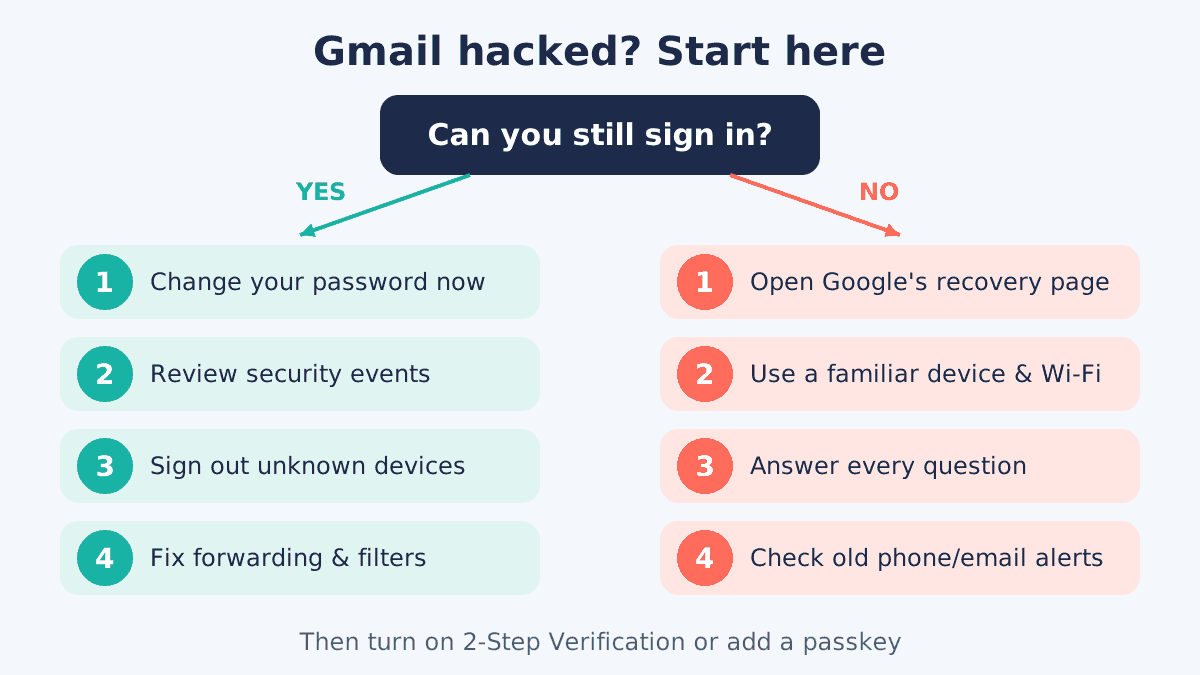
First: can you still sign in to your Gmail?
Your next step depends on one question: does your password still work? A hacked Gmail account is one where someone else has signed in without your permission, and they may or may not have locked you out.
- You can still sign in: skip to “Kick the hacker out” below. Move fast, because the attacker may change your password next.
- You can’t sign in: start with the recovery process in the next section.
- You’re not sure it’s a hack: look for the signs the FTC and Google list: sent emails you didn’t write, messages missing from your inbox but not in Trash, friends getting spam “from you”, or alerts about sign-ins from devices or places you don’t recognize.
[ADD PERSONAL EXPERIENCE: Describe a real case you've helped with (yours, a family member's or a reader's): what the first warning sign was and which step got them back in.]
How to recover a hacked Gmail account you can’t sign in to
Google account recovery is the official process Google uses to confirm you own an account when you can’t sign in. It works the same whether the hacker changed your password, your recovery phone, or even deleted the account. There is no other back door, so this is the route to use.
Step 1: Start Google’s recovery page
- Go to accounts.google.com/signin/recovery.
- Enter your Gmail address. If you’re not sure which address was hacked, Google’s username recovery page (accounts.google.com/signin/usernamerecovery) can help you find it.
- Answer each question. When you can’t answer one, choose Try another way.
Step 2: Use Google’s own recovery tips
Google’s “Tips to complete account recovery steps” page gives advice that noticeably improves your chances. In plain terms:
- Use a familiar device and browser: ideally a phone or computer you’ve signed in on before.
- Use a familiar place: your home or work Wi-Fi, not a café or a VPN.
- Answer as many questions as you can. Google says wrong guesses won’t kick you out of the process.
- Old passwords count. If asked for your last password, enter the most recent one you remember, typed carefully with the right capitals.
- Check every inbox you control. Google may send a code to a recovery email. Also check spam for a message titled “Your Google support inquiry”.
If Google replies that it couldn’t verify the account belongs to you, you can try again. It’s worth retrying from a different familiar device before giving up.
Step 3: If the hacker changed your phone number and recovery email
This is the most common worry, and you may still have options. When someone changes your recovery details, Google sends a security alert to your previous phone and recovery email. Those alerts often include a link to secure the account; tap it from your phone or recovery inbox.
Also check whether you’re still signed in to Gmail somewhere: an old tablet, a second laptop, or the Gmail app on your phone. Google’s security-hold guidance says to try recovering from the device that’s still signed in, because that device helps prove it’s you.
How long does Google account recovery take?
Recovery can finish in minutes, but Google sometimes adds a deliberate delay. Google’s help page on security holds says requests may be delayed for a few hours or a number of days, depending on risk factors, and 2-Step Verification can make the wait longer. During that window Google notifies the account so the real owner can deny a fake request.
Two other timings are worth knowing:
| Situation | Google’s stated timing |
|---|---|
| Recovery request under a security hold | A few hours to several days |
| Recovery phone or email you just changed | Can take up to 7 days before Google uses it for recovery |
| A suspicious new sign-in method or passkey that Google disables | You have 30 days to confirm it, or it’s deleted |
Timings from Google Help, checked November 8, 2026.
Kick the hacker out of your Gmail account
Once you’re signed in, your goal is to remove every way the attacker can get back in. Do these steps in order and on a device you trust.
Change your password immediately
Change your Google password to a strong one you’ve never used anywhere else. Google’s guidance also says to change the password on any other app or site that shares it, and on accounts that use your Gmail address to sign in. A password manager makes this realistic. You can see reused or leaked passwords at passwords.google.com/checkup/start.
Review security events and sign out unknown devices
- Go to myaccount.google.com and open Security & sign-in.
- Under Recent security events, select Review security events. For anything you didn’t do, choose No, it wasn’t me and follow the prompts.
- Under Your devices, select Manage devices. Sign out of any phone, PC or browser you don’t recognize, or choose Don’t recognize a device?
The FTC’s checklist also recommends signing out of all devices after a hack, then signing back in only on your own.
Remove third-party apps you didn’t approve
Hackers sometimes connect an app to your account so they keep access even after a password change. Visit myaccount.google.com/permissions and remove anything unfamiliar, especially email clients, “backup” tools or browser extensions you never installed.
Check the hidden Gmail settings hackers change
Changing your password doesn’t undo settings the attacker left behind. Some of them quietly copy your mail to the hacker for weeks. Google’s hacked-account page tells you to correct these immediately.
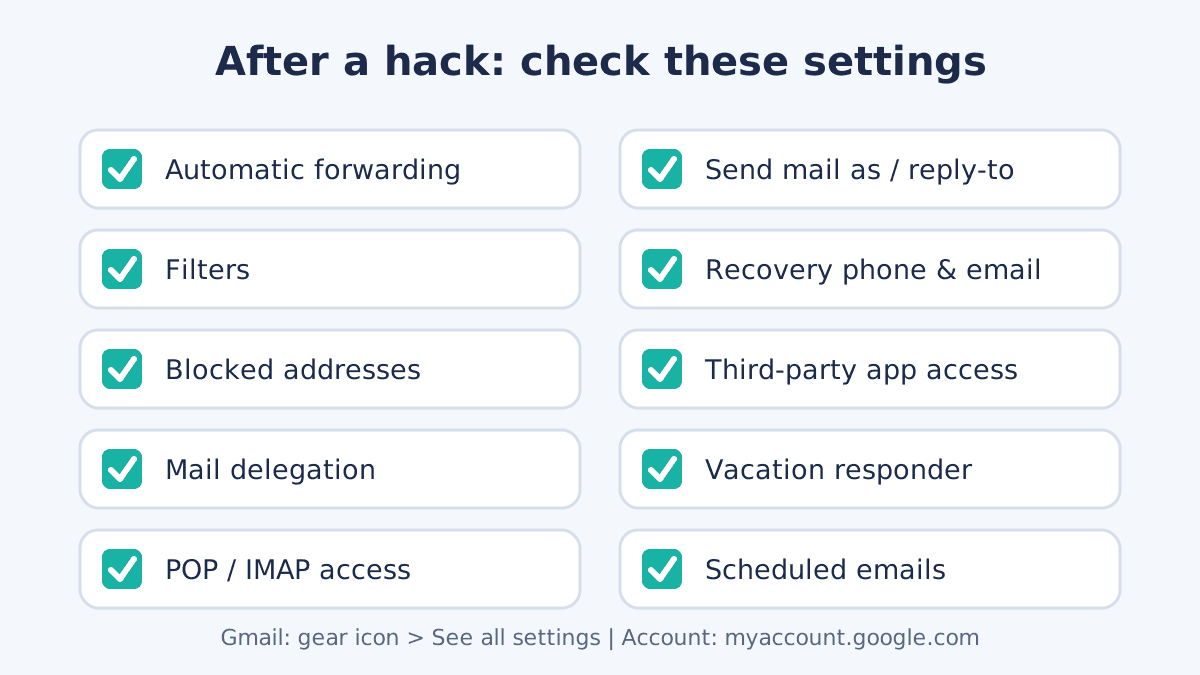
Open Gmail on a computer, click the gear icon > See all settings, and go through this checklist:
| Gmail setting | Where to find it | What to look for |
|---|---|---|
| Automatic forwarding | Forwarding and POP/IMAP | Any address you don’t recognize. Delete it. |
| Filters | Filters and Blocked Addresses | Rules that forward, delete or archive mail, often from your bank |
| Blocked addresses | Filters and Blocked Addresses | Your bank, PayPal or Google security alerts being blocked |
| Mail delegation | Accounts and Import (“Grant access to your account”) | Anyone with access you didn’t add |
| POP / IMAP access | Forwarding and POP/IMAP | Turned on when you don’t use an email app |
| Send mail as / reply-to | Accounts and Import | An unfamiliar “from” or reply-to address |
| Vacation responder | General | Scam messages sent automatically |
| Signature and name | General | Links or text you didn’t add |
| Scheduled emails | “Scheduled” folder in the left sidebar | Messages queued to send later |
Also check your Sent folder and Trash for emails you didn’t write or delete. Hackers often send phishing to your contacts, then delete the evidence.
Check your recovery info and turn on 2-Step Verification
Your recovery phone and email are how Google proves it’s you next time, so they must be yours. Check and fix:
- Recovery phone: myaccount.google.com/signinoptions/rescuephone
- Recovery email: myaccount.google.com/recovery/email
- Your name and contact email: myaccount.google.com/name and myaccount.google.com/email
Then turn on 2-Step Verification (myaccount.google.com/signinoptions/two-step-verification). 2-Step Verification (2SV) is a sign-in method that asks for something you know, your password, plus something you have, like your phone. Remove any 2SV phone number or authenticator you didn’t set up. A hacker who added their own is counting on you missing it.
Clean up the damage beyond Gmail
A hacked Gmail account rarely stays a Gmail-only problem. Work through these next:
- Scan your devices. Google and the FTC both recommend running trusted security software and removing anything suspicious. Malware that stole your password once can steal the new one.
- Secure linked accounts. Search your inbox for “password reset”, “verify” and “new sign-in” to see which services the hacker may have touched. Change those passwords first, starting with banking and shopping.
- Warn your contacts. Tell friends and family not to click links or send money in response to recent emails from you. The FTC recommends this step.
- Contact your bank if your Gmail held financial, tax or ID documents. Google’s own guidance says to alert banks or authorities when sensitive information might be involved.
- Check Google Pay, Photos and Drive for purchases, shared albums or shared files you didn’t create.
Beware of fake “Google support” when your account is hacked
You can’t call Google to get back into your account. Google’s account recovery help page says this directly, and adds that Google doesn’t work with any service claiming to offer account or password support.
That matters because scammers buy search ads and post fake “Gmail recovery” phone numbers, betting that a locked-out user will call. They’ll ask for verification codes, payment or remote access to your PC. Google says it never asks for your password or verification codes by email, phone call or message. If anyone does, it’s a scam: hang up.
How to stop your Gmail from being hacked again
The strongest protection is replacing your password with something a scammer can’t phish. Two Google features do that.
Add a passkey
A passkey is a sign-in method that uses your phone’s or computer’s screen lock (fingerprint, face or PIN) instead of a password. Google says passkeys can’t be shared, copied, written down, or given away by accident, which makes most phishing useless.
Set one up at myaccount.google.com/signinoptions/passkeys and select Create a passkey. Adding a passkey doesn’t remove your other recovery options, according to Google.
Consider Google’s Advanced Protection Program
Advanced Protection is Google’s strongest account security, built for people at higher risk such as journalists, activists and anyone who has been targeted repeatedly. It requires a passkey or security key to sign in. Enroll at myaccount.google.com/advanced-protection/landing. It adds friction, so it suits people who’ve been hacked before or hold sensitive accounts.
Simple habits that help
- Run Google’s Security Checkup from the Security & sign-in page every few months.
- Keep your recovery phone and email current, especially after changing numbers.
- Never enter your Google password after clicking a link in an email or text; type the address yourself.
- Keep your phone, browser and apps updated.
What to do if Google account recovery fails
If recovery keeps failing, wait a few days and retry from your most familiar device and network. Repeated attempts from the same trusted setup often succeed later, especially after a security hold ends.
If you still can’t get in, Google suggests creating a new account and moving forward from there. Then update your new address with your bank, phone carrier and key services. Report the hack to the FTC at ReportFraud.ftc.gov if money or your identity is involved, and to IdentityTheft.gov if someone opens accounts in your name.
Note on old accounts: Google may delete accounts that haven’t been used for at least two years. A recently deleted account may still be recoverable through the same recovery page, but Google warns that accounts deleted a while ago may not be.
FAQ
Can I recover my Gmail if the hacker changed my phone number and recovery email?
Often, yes. Google sends a security alert to your previous phone and recovery email when they change, and those alerts usually let you secure the account. Use the recovery page from a device and network you’ve used before, and try from any device where you’re still signed in. Answer every question, including old passwords.
How long does it take to recover a hacked Gmail account?
It can take minutes if Google verifies you right away. If Google places a security hold, the request may be delayed for a few hours or several days so the real owner can deny a fraudulent attempt. Recovery details you only just changed can take up to 7 days to work for recovery.
Can I call Google to recover my Gmail account?
No. Google states that you can’t call Google for help signing in to your account, and that it doesn’t work with any service claiming to provide password support. Phone numbers advertising Gmail recovery are scams. Use only Google’s official recovery page at accounts.google.com/signin/recovery and never share verification codes.
How do I know if someone else is using my Gmail?
Check Recent security events and Your devices on the Security & sign-in page at myaccount.google.com. Warning signs include sent emails you didn’t write, missing messages, unfamiliar forwarding addresses or filters, and friends reporting odd emails from you. Google also emails alerts about new sign-ins and setting changes.
What should I do first if my Gmail is hacked?
If you can still sign in, change your password straight away, then review security events and sign out of unknown devices. If you’re locked out, start Google’s account recovery page from a familiar device and Wi-Fi. After that, check forwarding, filters and recovery details, and turn on 2-Step Verification or a passkey.
Bottom line
To recover a hacked Gmail account, go through Google’s official recovery page from a familiar device. Don’t call any “support” number. Once you’re in, work through the order in this guide: password, devices, connected apps, hidden Gmail settings, recovery info, then 2-Step Verification. Finish by adding a passkey so a stolen password can’t lock you out again. Bookmark this page so you have the checklist ready if a family member ever needs it.
