
Windows Recall is a Windows 11 feature on Copilot+ PCs that saves snapshots of your screen every few seconds so you can search your past activity later. It is off until you opt in. If you’ve turned it on and want it gone, open Settings > Privacy & security > Recall & snapshots and switch off Save snapshots, or remove the feature entirely through Turn Windows features on or off.
That’s the short version. Recall is useful for some people and unsettling for others, so this guide explains what it records, how Microsoft protects that data, where security researchers still see gaps, and every way to pause, limit or remove it.
What is Windows Recall?
Windows Recall is an AI-powered timeline of everything you’ve seen on your PC. It takes a snapshot of your active screen every few seconds and whenever the content of a window changes, then uses the PC’s built-in AI chip to make those snapshots searchable by text and by image.
In practice, it lets you type something like “blue sofa from that furniture site” or “the spreadsheet with Q3 numbers” and jump straight back to the moment you saw it. You open Recall with Windows key + J, from the Start menu, or from its taskbar icon, then scroll a timeline or search in plain language. Results are split into text matches and visual matches.
A snapshot is a saved image of your screen at one moment, plus the text Windows reads from it. Microsoft still labels Recall a preview feature, and it works best in English, Chinese (Simplified), French, German, Japanese and Spanish (per Microsoft Support, updated September 2026).
Recall pairs with Click to Do, a related feature that lets you act on text or images on screen (copy, summarize, look up) by holding the Windows key and clicking. Click to Do also works inside Recall snapshots.
[ADD PERSONAL EXPERIENCE: If you've used Recall on a Copilot+ PC, describe one search that found something useful, and anything it captured that surprised you.]
Which PCs have Windows Recall?
Only Copilot+ PCs running Windows 11 version 24H2 or later get Windows Recall. Standard Windows 11 laptops and desktops don’t have it, because Recall depends on a dedicated AI processor and specific security hardware.
Copilot+ PC requirements for Recall
According to Microsoft’s documentation, your PC needs all of the following:
- A Copilot+ PC that meets Microsoft’s Secured-core standard
- A neural processing unit (NPU) rated at 40+ TOPS (trillion operations per second)
- 16 GB of RAM and at least 8 logical processors
- 256 GB of storage, with at least 50 GB free to turn Recall on (it pauses saving if free space drops below 25 GB)
- BitLocker or Device Encryption turned on
- Windows Hello Enhanced Sign-in Security with a face or fingerprint sign-in
Microsoft began rolling Recall out to Copilot+ PCs on April 25, 2025, with update KB5055627 (OS build 26100.3915). It reached PCs in the European Economic Area in mid-2025. Industry reporting in April 2026 estimated that fewer than 10% of Windows 11 PCs can run it.
How to check if your PC has Recall
The quickest check is to open Settings > Privacy & security and look for a “Recall & snapshots” entry. If it’s there, your PC supports Recall. You can also press Windows key + J, or search Start for “Turn Windows features on or off” and look for a Recall checkbox.
If none of those appear, your PC doesn’t have Recall and there’s nothing to turn off.
Is Windows Recall on by default?
No. Windows Recall doesn’t save anything until you choose to turn it on. During setup of a Copilot+ PC, Windows asks whether you want to save snapshots, and if you decline, Recall stays off.
On a shared PC, each Windows user has to opt in separately, and one person’s snapshots aren’t visible to another account. That opt-in design came after strong criticism in 2024, which is worth knowing about before you decide.
How Windows Recall protects your data (and where it falls short)
Microsoft says Recall snapshots stay on your PC, are always encrypted, and can only be opened after you verify your identity with Windows Hello. No internet connection is needed, and snapshots aren’t sent to Microsoft or used to train AI.
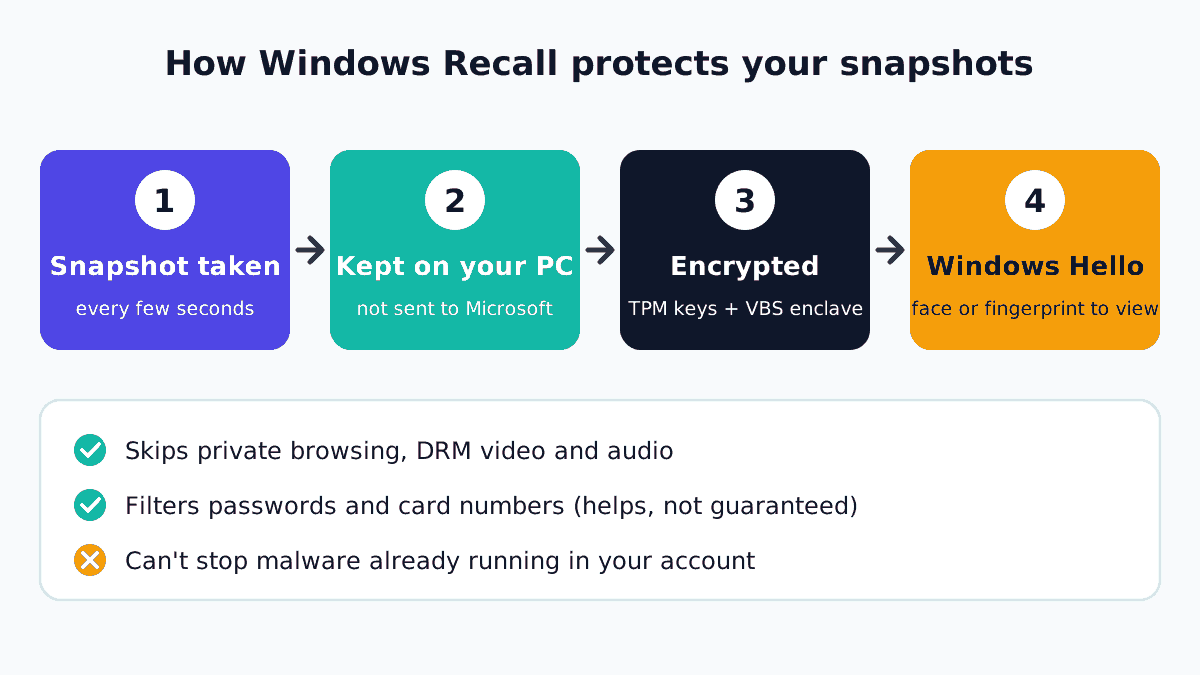
Here’s what Microsoft’s design includes, based on its privacy documentation (updated September 2026) and its 2024 security architecture post:
- Local storage only. Snapshots and the search index live on your device.
- Encryption. Snapshots and the search database are encrypted, with keys protected by your PC’s TPM security chip and tied to your Windows Hello identity.
- VBS enclave. Recall’s sensitive processing runs inside a virtualization-based security (VBS) enclave, an isolated memory area that other software isn’t supposed to reach.
- Windows Hello gate. You must confirm your face or fingerprint to open Recall, view snapshots or change its settings.
- Sensitive information filtering. On by default, it tries to skip snapshots showing passwords, credit card numbers and national ID numbers.
- Built-in exclusions. Recall doesn’t save private browsing windows in Edge, Chrome, Firefox, Opera and other Chromium browsers, DRM-protected content such as streaming video, audio, or games running in Game Mode.
The criticism, in brief
The concerns aren’t hypothetical. When Microsoft announced Recall in May 2024, security researcher Kevin Beaumont showed that early test builds stored the captured text in an unencrypted database, and researcher Alexander Hagenah released a tool called TotalRecall that could extract it. Microsoft pulled the June 2024 launch, made Recall opt-in, added encryption and the Windows Hello requirement, and shipped it nearly a year later.
In April 2026, Hagenah published “TotalRecall Reloaded,” showing that malware already running under your account could pull decrypted Recall data from a Windows process without admin rights. CSO Online reported that Microsoft closed his report and described the behavior as by design.
The takeaway: Recall’s protections are much stronger than in 2024, but if your PC is already infected, a searchable history of your screen makes that infection more damaging. Sensitive-info filtering also “helps” rather than guarantees, so treat it as a safety net, not a lock.
How to turn off Windows Recall
You can pause Recall for a while, stop it saving snapshots, wipe what it has saved, limit which apps it records, or remove it from Windows entirely. Pick the level that matches your comfort. All steps below apply to Windows 11 24H2 and later on Copilot+ PCs as of November 2026; menu names may shift in future updates.
Option 1: Pause Recall temporarily
- Click the Recall icon in the system tray (bottom-right of the taskbar).
- Choose Pause.
Use this when you’re about to handle something private, like banking or medical records, and plan to resume later.
Option 2: Turn off snapshot saving
- Open Settings > Privacy & security > Recall & snapshots.
- Switch Save snapshots to Off.
Recall stops capturing your screen and the tray icon disappears. Existing snapshots stay until you delete them.
Option 3: Delete snapshots or reset Recall
- In Recall & snapshots, use the delete option to remove all saved snapshots.
- To wipe everything, including settings, go to Advanced settings > Reset Recall and confirm with Windows Hello.
You can also delete all snapshots from a single app or website directly from Recall’s search results.
Option 4: Filter apps and websites
- In Recall & snapshots, find the filter lists for apps and websites.
- Add the apps (for example, your password manager or banking app) and sites you never want captured.
Website filtering only works in supported browsers and only for the active tab, so an app filter is the safer choice for anything critical.
Option 5: Remove Recall completely
Removing Recall uninstalls the feature and deletes every saved snapshot. This is the strongest option for home users.
- Click Start and search for Turn Windows features on or off.
- Scroll to Recall and clear its checkbox.
- Click OK and restart your PC.
Prefer a command? Open Terminal (Admin) and run Microsoft’s documented PowerShell command, then restart:
Disable-WindowsOptionalFeature -Online -FeatureName "Recall" -Remove
To bring Recall back later, tick the same checkbox again.
Option 6: Block Recall with Group Policy or the registry (Windows 11 Pro)
On Windows 11 Pro, Enterprise or Education, Group Policy can stop Recall being turned on at all. Windows 11 Home doesn’t include the Group Policy editor.
- Press Windows key + R, type
gpedit.mscand press Enter. - Go to Computer Configuration > Administrative Templates > Windows Components > Windows AI.
- Set Allow Recall to be enabled to Disabled, or enable Turn off saving snapshots for use with Recall.
These policies map to registry values under HKLM\SOFTWARE\Policies\Microsoft\Windows\WindowsAI (AllowRecallEnablement = 0, or DisableAIDataAnalysis = 1). Editing the registry by hand carries risk, so back it up first or stick with the steps above. Microsoft says these policies need Windows 11 24H2 with the April 2025 update or later.
Pause vs. turn off vs. remove: which should you pick?
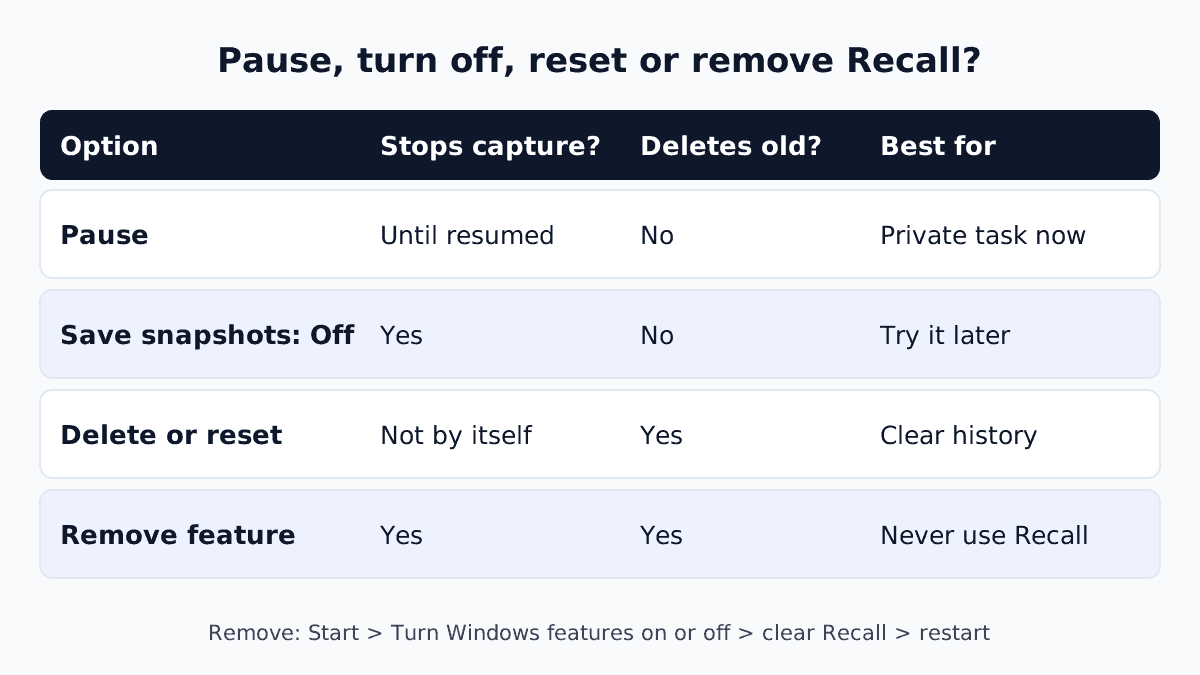
Pausing is temporary, turning off stops new snapshots, and removing deletes the feature and all its data. This table sums up the trade-offs.
| Option | Stops new snapshots? | Deletes old snapshots? | Easy to undo? | Best for |
|---|---|---|---|---|
| Pause | Yes, until resumed | No | Yes, one click | A private task right now |
| Turn off Save snapshots | Yes | No (delete separately) | Yes | Trying Recall later |
| Delete snapshots / Reset Recall | Not by itself | Yes (reset also clears settings) | No | A clean slate |
| Remove via Windows features | Yes | Yes | Yes, re-tick the box | Never using Recall |
| Group Policy (Pro) | Yes | Depends on policy | Admin only | Shared or family PCs |
Windows Recall on work and school PCs
On PCs managed by an employer or school, Microsoft disables and removes Recall by default. IT can allow it, but it can’t switch on snapshot saving for you, and your snapshots are encrypted to your own Windows Hello sign-in.
IT admins can block Recall, set app and website filters, and limit how long snapshots are kept (30, 60, 90 or 180 days). If you send Microsoft feedback from inside Recall, any screenshots you attach go with it, so check before you submit.
Apps that block Windows Recall
Some privacy-focused apps now stop Recall from capturing their windows, even if Recall is on. That gives you protection in specific apps without changing Windows settings.
- Signal Desktop turned on a “Screen security” setting by default on Windows 11 in May 2025, which marks its window as protected content so Recall skips it.
- Brave browser blocks Recall from capturing its tabs by default (announced July 2025), with a toggle in settings.
- AdGuard for Windows added a similar Recall block in version 7.21.
These blocks only cover those apps. Everything else on screen can still be captured if Recall is on.
Should you turn off Windows Recall?
Turn it off if you share your PC, handle sensitive work, or don’t expect to use a searchable screen history. Keep it on, with filters, if you often lose track of things you’ve seen and you’re comfortable with the security model.
A practical middle ground for most people:
- Keep Recall on only if you’ll actually use it weekly.
- Filter your password manager, banking, health and messaging apps.
- Lower Recall’s storage limit in Settings so it keeps less history.
- Pause it before sensitive sessions.
- Remove it if you haven’t opened it in a month.
FAQ
What is Windows Recall?
Windows Recall is a Windows 11 feature on Copilot+ PCs that saves snapshots of your screen every few seconds and makes them searchable with AI. You can type a description of something you saw and jump back to it. It runs locally, needs Windows Hello to open, and is off until you opt in.
Is Windows Recall on by default?
No. Recall doesn’t save any snapshots until you choose to turn it on, usually during setup of a new Copilot+ PC. Each user on a shared PC must opt in separately. On work or school PCs managed by IT, Microsoft disables and removes Recall by default unless the organization allows it.
Does Windows Recall send my data to Microsoft?
According to Microsoft, no. Snapshots are stored and processed only on your PC, encrypted, and aren’t shared with Microsoft or third parties or used to train AI. The exception is feedback: if you send feedback from Recall and attach screenshots, those go to Microsoft with your report.
Can Windows Recall see my passwords?
Recall’s sensitive-information filter is on by default and tries to skip snapshots showing passwords, credit card numbers and ID numbers, but Microsoft describes it as helping, not guaranteeing. For real protection, add your password manager and banking apps to Recall’s app filter list, or turn Recall off entirely.
How much storage does Windows Recall use?
By default, Recall caps itself at 25 GB on a 256 GB drive, 75 GB on 512 GB and 150 GB on 1 TB or larger drives. You can choose 10 to 150 GB in Settings; the oldest snapshots are deleted first. Recall needs 50 GB free to start and pauses below 25 GB.
How do I know if my PC has Windows Recall?
Open Settings > Privacy & security and look for “Recall & snapshots.” If it isn’t there, and Windows features has no Recall checkbox, your PC doesn’t support it. Recall only runs on Copilot+ PCs with a 40+ TOPS NPU, 16 GB RAM and Windows 11 24H2 or later.
The bottom line
Windows Recall is clever, but it’s also a detailed record of everything on your screen, so it deserves a deliberate choice rather than a default. If you don’t plan to use it, the cleanest move is to remove Windows Recall through Turn Windows features on or off, which also deletes saved snapshots. If you do use it, filter sensitive apps, cap storage and pause it when privacy matters. Check your settings again after major Windows updates, since Microsoft is still changing how Recall works.
