
To switch to eSIM, tap Convert to eSIM in Settings > Cellular on an iPhone or in your SIM settings on Android, or use your carrier’s app to issue a new eSIM. The whole process usually takes 5 to 15 minutes over Wi-Fi, and in most cases you never need to visit a store.
That is the short version. The right steps depend on whether you are keeping the same phone, moving to a new one, crossing between iPhone and Android, or changing carriers. This guide walks through every route, with US carrier notes for Verizon, AT\&T and T-Mobile, so you can switch to eSIM without losing service.
Steps and requirements below were checked on November 8, 2026. Phone makers and carriers change menus and policies often, so if a screen looks different, look for the closest matching option.
What is an eSIM?
An eSIM (embedded SIM) is a SIM card built into your phone as a chip, which your carrier programs over the air instead of mailing you a plastic card. It does the same job as a physical SIM: it tells the network which phone number and plan belong to your device.
Because nothing has to be inserted, you can add, move or delete an eSIM from your phone’s settings. Most phones can also store several eSIM profiles at once. Apple says an iPhone can manage up to eight or more eSIMs, with two active at the same time (Apple Support).
| Physical SIM | eSIM | |
|---|---|---|
| Form | Removable plastic card | Chip built into the phone |
| How you get it | Store, mail or kiosk | Download over Wi-Fi |
| Switching phones | Move the card | Transfer in settings or carrier app |
| Several numbers | Usually one card | Several profiles stored, two active |
| If phone is stolen | Thief can remove the card | Can’t be pulled out |
Many new phones no longer have a SIM tray at all. Every iPhone 14 and later model bought in the US is eSIM-only (Apple Support), and Google’s Pixel 10, 10 Pro and 10 Pro XL are eSIM-only in the US (Google Pixel Help). So for many people, learning to switch to eSIM is no longer optional.
Before you switch to eSIM: quick checklist
Check five things before you switch to eSIM: a compatible phone, an unlocked phone (if you are changing carriers), Wi-Fi, access to your carrier account, and any carrier security lock turned off. Skipping one of these is the most common reason a switch stalls halfway.
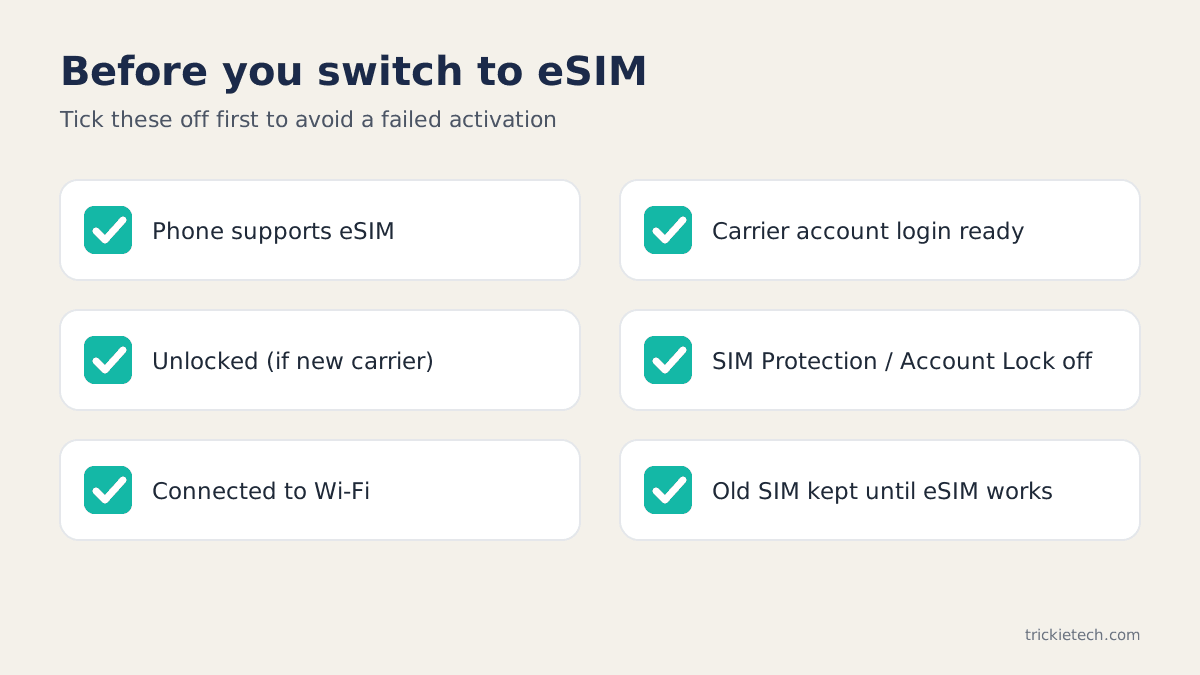
- Compatible phone. iPhone XS, XR or later supports eSIM (Apple Support). On Android, converting a physical SIM works on Pixel 7 or later (Google Pixel Help), and most Samsung Galaxy S, Z and recent A models support eSIM.
- Carrier-unlocked phone (only if changing carriers). On iPhone, go to Settings > General > About > Carrier Lock. “No SIM restrictions” means the phone is unlocked (Apple Support).
- Wi-Fi. Apple, Google and all three big carriers ask you to be on Wi-Fi during activation, because your old SIM may stop working before the new eSIM connects.
- Account access. Have your carrier login handy. Some carriers only let the account owner or an authorized manager issue an eSIM.
- Security locks off (for now). T-Mobile’s SIM Protection and AT\&T’s Wireless Account Lock block SIM changes. Turn them off before you start, then turn them back on afterward.
Also keep your old phone or old SIM until the new eSIM can make a call and use mobile data.
Which way to switch to eSIM is right for you?
Pick your method based on what is changing: the SIM type, the phone, the phone platform or the carrier. The chart below matches each situation to the fastest route.
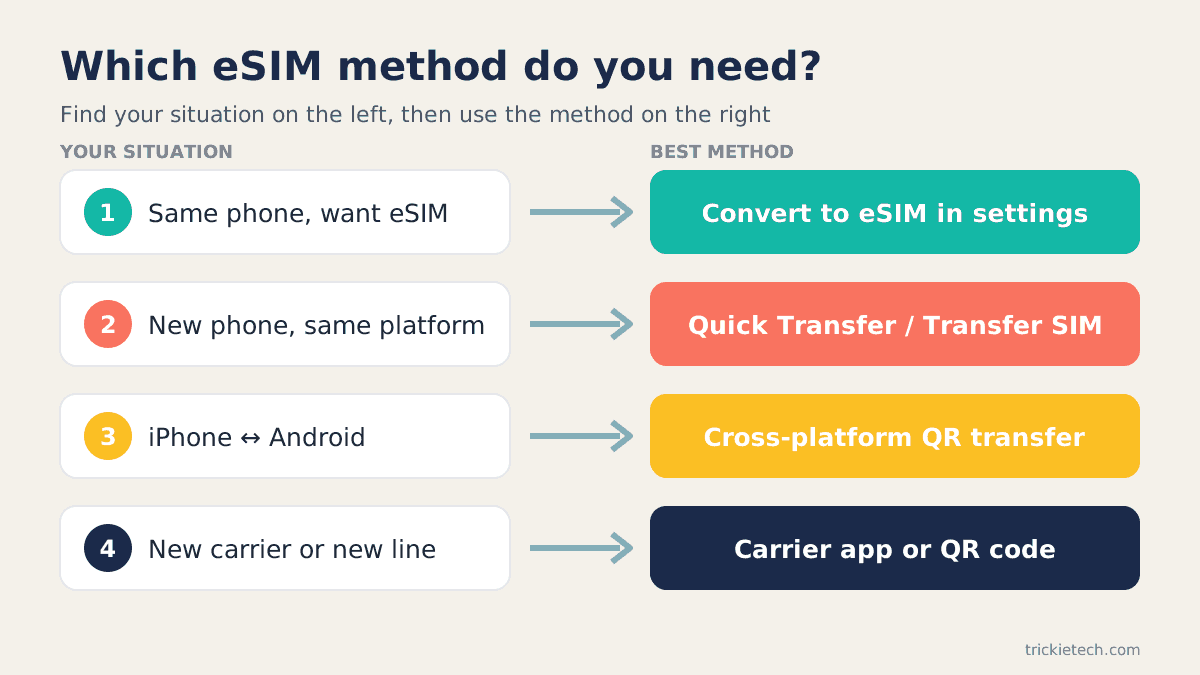
| Your situation | Best method | Where to start |
|---|---|---|
| Same phone, same carrier, want eSIM instead of a card | Convert to eSIM | Phone settings |
| New iPhone, coming from an iPhone | eSIM Quick Transfer | iPhone setup or Settings > Cellular |
| New Pixel or Galaxy, coming from Android | Transfer SIM from another device | Phone setup or SIM settings |
| Moving between iPhone and Android | Cross-platform eSIM transfer (QR code) | New phone’s SIM settings |
| Changing carriers or adding a new line | Carrier activation or QR code | Carrier app or website |
How to switch to eSIM on iPhone
On iPhone, most switches happen in Settings > Cellular, where you can convert your current SIM, transfer an eSIM from a nearby iPhone, or add a carrier eSIM. Make sure you are on the latest iOS version first.
Convert your physical SIM to eSIM on the same iPhone
The simplest way to switch to eSIM is to convert the card you already have. Apple supports converting a physical SIM to an eSIM on the same iPhone if your carrier allows it (Apple Support). AT\&T’s iPhone guide lists the steps (AT\&T Support):
- Connect to Wi-Fi.
- Go to Settings > Cellular.
- Tap Convert to eSIM, then confirm.
- When prompted, double-click the side button to finish.
- Once the eSIM shows as active, remove the old SIM card.
Your physical SIM stops working as soon as the eSIM activates. AT\&T suggests keeping the old card for about 14 days in case you need to troubleshoot.
Move your eSIM to a new iPhone with eSIM Quick Transfer
eSIM Quick Transfer is Apple’s tool for moving your number from one iPhone to another over Bluetooth, without calling your carrier. Both iPhones need iOS 18.4 or later, the same Apple Account and Bluetooth turned on (Apple Support).
- Keep your old iPhone unlocked and nearby.
- On the new iPhone, go to Settings > Cellular > Set Up Cellular (or Add eSIM).
- Choose your number, or tap Transfer From Nearby iPhone.
- Approve the transfer on the old iPhone, or enter the code shown on the new one.
The old iPhone’s line deactivates when the transfer completes. With iOS 26 or later, you can move several numbers at once.
Add a new carrier eSIM on iPhone
If you are joining a new carrier or adding a second line, your carrier will either push the eSIM to your phone or give you a QR code (Apple Support):
- Carrier activation: tap the “Carrier Cellular Plan Ready to Be Installed” notification and follow the prompts.
- QR code during setup: choose Use QR Code and scan it.
- QR code after setup: open the Camera app, point it at the code and tap Cellular Plan Detected.
- QR code in an email or web page (iOS 17.4 and later): touch and hold the code, then tap Add eSIM.
[ADD PERSONAL EXPERIENCE: Describe your own eSIM switch: which phone and carrier you used, how long activation took, and any screen or step that confused you.]
How to switch to eSIM on Android
On Android, look in your SIM settings for “Convert to eSIM” or “Transfer SIM from another device.” The exact menu names differ between Google Pixel and Samsung Galaxy phones.
Google Pixel
To switch to eSIM by converting a physical SIM on a Pixel 7 or later (Google Pixel Help):
- Connect to Wi-Fi.
- Go to Settings > Network & internet > SIMs.
- Select your SIM and tap Convert to eSIM.
- Follow the prompts, then remove the old card once the eSIM works.
To move an eSIM to a new Pixel, both phones need Android 12 or later, an up-to-date Google Play Services and a screen lock. Do it during setup, or later in Settings > Network & internet > SIMs > Add SIM > Transfer SIM from another device (Google Pixel Help).
Pixel 7 and later can also run two eSIMs at the same time if your carrier allows it.
Samsung Galaxy
On US Galaxy phones, eSIM options live under Settings > Connections > SIM manager (Samsung US Support):
- Convert: select your current SIM and tap Convert to eSIM.
- New eSIM: tap Add eSIM, then scan a QR code or let the phone look up your carrier.
- From another Galaxy: choose Transfer SIM from another phone.
Samsung lists AT\&T, Verizon, T-Mobile, Boost, Cricket, Mint, Spectrum, US Cellular and Xfinity Mobile as supporting Galaxy-to-Galaxy transfers.
Moving an eSIM between iPhone and Android
You can now move an eSIM directly between iPhone and Android, without calling your carrier, as long as both phones run recent software and your carrier supports it. This is new: it arrived with iOS 26 and Android 16, and many older guides still say you must contact your carrier.
Android to iPhone
Apple’s requirements are an iPhone 11 or later on iOS 26 or later, an Android phone on Android 16 or later, and both phones on Wi-Fi with Bluetooth on (Apple Support). The iPhone shows a QR code; you scan it with the Android phone, pick the number and confirm.
US carriers supported, per Apple: AT\&T, Cricket, FirstNet, T-Mobile, Verizon and Xfinity Mobile.
iPhone to Pixel or Galaxy
On a Pixel, go to Add SIM, choose to transfer from another phone, select iPhone and scan the QR code shown on the iPhone, which needs iOS 26 or later (Google Pixel Help). Google lists AT\&T, Xfinity, Cricket, FirstNet, Google Fi, T-Mobile and Verizon, among others.
On a Galaxy, choose Transfer SIM from iPhone in SIM manager. Samsung lists AT\&T, FirstNet, T-Mobile and Verizon for this route.
If your carrier is not on these lists (Visible and Mint, for example, use their own apps), use the carrier’s app or support instead.
Switching to eSIM with Verizon, AT\&T and T-Mobile
Each big US carrier lets you switch to eSIM yourself, but each has its own app path and a security step you need to clear first.
| Carrier | Self-serve route | Watch out for | Cost |
|---|---|---|---|
| Verizon | My Verizon app, Mobile tab, “Get SIM” | Account Owner or Manager only; single-line accounts need the old phone to verify | Free in the app (Verizon) |
| AT\&T | Phone settings, or “Switch the device used on my line” online | Turn off Wireless Account Lock; prepaid customers call 800-901-9878 | Not stated; check your account (AT\&T) |
| T-Mobile | T-Life app > Account > your line > SIM transfer or activation | Turn off SIM Protection first; have your IMEI and EID ready | Not stated; check your account (T-Mobile) |
Two terms you may be asked for: the IMEI is your phone’s unique hardware ID, and the EID is the ID of its eSIM chip. On most phones, dial #06#* to see both, or find them under About phone or Settings > General > About**.
If you want to switch to eSIM with a new carrier, make sure your phone is unlocked first. Verizon, for example, now unlocks postpaid phones automatically once they are paid off and prepaid phones after 365 days of paid service (Verizon unlocking policy).
Is an eSIM safer than a physical SIM?
An eSIM is safer against physical theft, because a thief cannot pull it out and drop it into another phone, but it does not stop SIM-swap fraud on its own. In a SIM swap, a scammer convinces or tricks your carrier into moving your number to their device, then intercepts your text-message login codes.
The FCC adopted rules in November 2023 requiring carriers to use secure authentication before SIM changes and to notify customers about SIM-change and port-out requests (FCC). The carrier locks mentioned above are your best extra layer.
Once you switch to eSIM, lock things down:
- Turn SIM Protection (T-Mobile) or Wireless Account Lock (AT\&T) back on.
- Set a strong carrier account PIN.
- Move important accounts from text-message codes to an authenticator app or passkeys where you can.
- Treat any unexpected “your SIM was changed” message as urgent and call your carrier right away.
What to do if the switch to eSIM fails
If activation hangs, stay on Wi-Fi, restart the phone and wait a few minutes before trying again; do not delete the eSIM unless your carrier tells you to. Apple notes that deleting an eSIM does not cancel your plan, but you would need your carrier to issue a new one (Apple Support).
Common problems and fixes:
- “No service” after converting: toggle Airplane Mode on and off, then restart. Check that the line is turned on under your SIM settings.
- Transfer option missing: update both phones, confirm the same account is used (for iPhone Quick Transfer) and check that your carrier supports that route.
- Error during carrier setup: check that SIM Protection or Wireless Account Lock is off, and that you are the account owner.
- New carrier eSIM won’t install: confirm the phone is unlocked and that you are scanning the code once; most eSIM QR codes work only one time.
- Still stuck after 30 minutes: contact your carrier’s support and ask them to reissue the eSIM.
FAQ
Can I switch to eSIM without going to a store?
Yes. Most people can switch to eSIM from their phone’s settings or their carrier’s app in a few minutes. You need Wi-Fi, a compatible phone and access to your carrier account. A store visit is only needed if your carrier does not support self-service activation or your account needs identity checks.
Does it cost money to switch to eSIM?
Usually not. Verizon says moving your line to eSIM in the My Verizon app is free, and converting on your own phone is typically free with other carriers too. Fees can apply if a store rep does it for you or you add a new line, so check your carrier’s terms before you start.
Can I transfer an eSIM from Android to iPhone?
Yes, on recent software. Apple supports moving an eSIM from an Android phone running Android 16 or later to an iPhone 11 or later on iOS 26 or later. Both phones need Wi-Fi and Bluetooth. Supported US carriers include AT\&T, Cricket, FirstNet, T-Mobile, Verizon and Xfinity Mobile.
What happens to my physical SIM after I convert to eSIM?
It stops working as soon as the eSIM activates, so the old card cannot be used in another phone. Keep it for a couple of weeks while you confirm calls, texts and data work, then dispose of it. If you later need a physical SIM again, you will have to get a new one from your carrier.
Do I need Wi-Fi to activate an eSIM?
In most cases, yes. Apple, Google, Verizon, AT\&T and T-Mobile all ask you to connect to Wi-Fi during setup, because your old SIM may disconnect before the new eSIM goes live. Apple says some eSIM-only iPhones can activate without Wi-Fi in certain countries, but it is safest to use Wi-Fi.
Can I use two eSIMs at the same time?
Yes, on most modern phones. iPhones can store eight or more eSIMs and keep two active at once, for example a personal and a work number, or your home line plus a travel eSIM. Pixel 7 and later can also run two eSIMs together if your carrier allows it. Mobile data uses one line at a time.
Is an eSIM safer than a physical SIM?
Partly. A thief cannot remove an eSIM and use your number in another phone, which helps if your phone is stolen. But an eSIM does not prevent SIM-swap fraud through your carrier. Turn on your carrier’s SIM lock, set an account PIN and use an authenticator app instead of text codes.
Can I switch back from eSIM to a physical SIM?
Yes, if your phone has a SIM tray. Ask your carrier for a new physical SIM, insert it and activate it through the carrier’s app, website or support line. The eSIM line will stop working once the card is active. Phones without a tray, such as US iPhone 14 and later models, can only use eSIM.
Bottom line
To switch to eSIM, start with your phone’s cellular or SIM settings: convert on the same phone, use Quick Transfer or “Transfer SIM” for a new phone, or use the new cross-platform QR transfer between iPhone and Android. Before you begin, connect to Wi-Fi, turn off any carrier SIM lock and keep your old SIM until everything works. Then turn your security lock back on, and you are done.
