
If Word won’t print since your PC installed the November 10, 2026 Windows security update, you are probably hitting a bug Microsoft has confirmed: printing can fail for documents that contain invisible, zero-size images. There is no official fix yet (as of November 16, 2026), but printing to PDF or removing the hidden image gets most documents out of the printer today.
When Word won’t print only for certain files, the cause is usually inside the document rather than your printer. This guide explains what changed, how to tell whether the update is your problem, and five workarounds that do not require uninstalling a security patch. It also covers the separate activation error 0x80041008 that the same update cycle caused, and the emergency fix Microsoft shipped for it.
Contents
- Why Word won’t print after the November update
- Is it the update or something else?
- 5 quick fixes when Word won’t print
- Should you uninstall the November update?
- Windows activation error 0x80041008: the other November bug
- What to expect next
- FAQ
Why Word Won’t Print After the November Update
Word won’t print because the November 2026 security updates changed how Windows renders images for the printer, and documents with images that end up 0 pixels wide or tall at your print resolution can fail to print. Microsoft says it saw the problem in Word using the Windows Graphics Device Interface (GDI), the older drawing engine many desktop apps still use to talk to printers.
A zero-size image is a picture or graphic object whose height or width works out to zero once Word scales it for the printer. You can’t see these objects, which is why Word won’t print a file that looks completely normal on screen. They are common. Templates use them as layout anchors, some watermarks contain them, and documents pasted from web pages or email often carry tracking pixels or spacer graphics.
Here is what is confirmed so far, as of November 16, 2026:
| Detail | What we know | Source |
|---|---|---|
| Updates involved | November 10, 2026 Patch Tuesday security updates (for example KB5132061 on Windows 11 26H2 and KB5131096 on Windows 10 22H2) | Microsoft message center and release notes |
| Who is affected | Windows 10 and later clients and Windows Server 2016 and later | BleepingComputer, The Register |
| Main app | Microsoft Word printing through GDI; other apps “might also be affected” | Microsoft, quoted by The Register |
| Fix | None published yet; Microsoft says it is investigating | BleepingComputer, Nov 13, 2026 |
BleepingComputer’s report carries Microsoft’s wording on the trigger, and The Register adds that the bug spans Windows 11 26H2 back to Windows 10 Enterprise LTSC 2016. Microsoft has not shared a specific error message, so when Word won’t print, many people simply see a job that never prints or a page that comes out missing content.
Is It the Update, or Is Something Else Wrong?
The quickest test is to print a different, plain document. If a fresh blank document with one line of text prints fine but your original file does not, the November bug is the likely cause; if nothing prints from any app, the problem is your printer or connection instead.
Run these three checks in order:
- Open a new blank Word document, type a sentence and print it. If that prints but your original Word won’t print, something inside the original file is the trigger.
- Print a web page from your browser. If that fails too, Word is not the issue; the printer or connection is.
- Check your update history in Settings > Windows Update > Update history. A security update dated November 10, 2026 or later confirms you have the update involved.
If Word won’t print and nothing else prints either, work through our guide on how to get a printer back online first. Offline printers, stuck print queues and the Print Spooler service cause far more “Word won’t print” complaints in a normal month than any Windows update does.
[ADD PERSONAL EXPERIENCE: Describe what happened when you printed a template-based Word file (for example a letterhead or invoice) on a PC with the November 2026 update: did the job vanish, sit in the queue or print blank, and which of the fixes below worked for you?]
5 Quick Fixes When Word Won’t Print
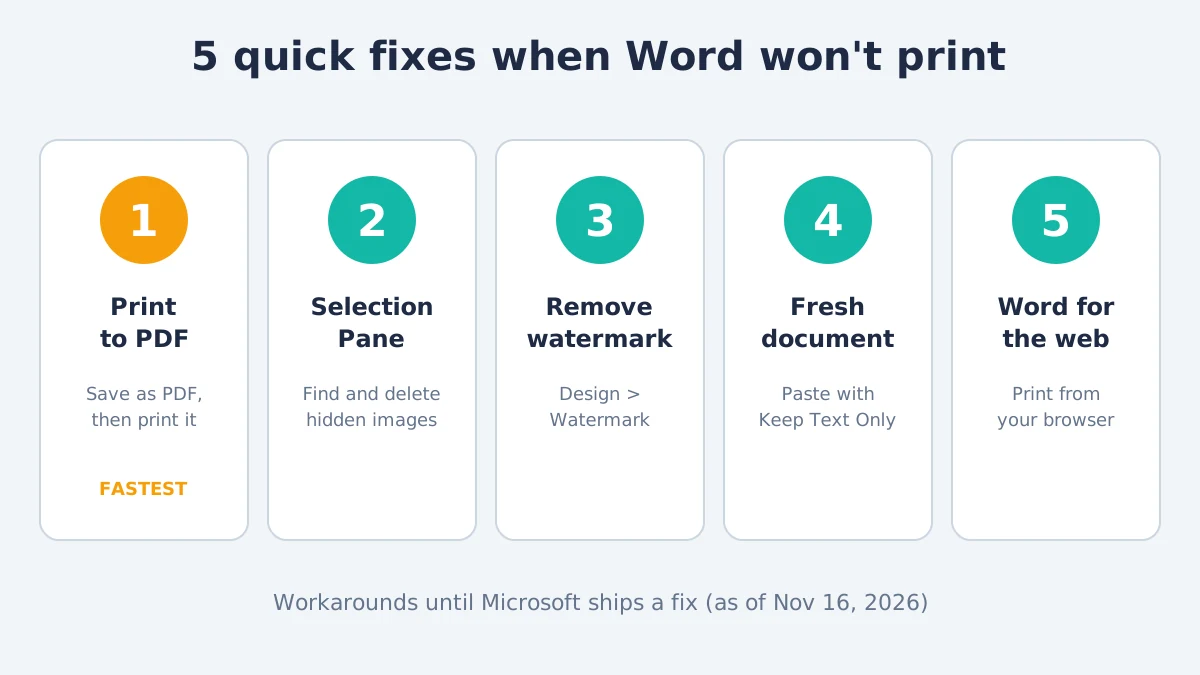
The fastest fix is to save the document as a PDF and print the PDF, because that sends the page to the printer through a different path. If you need to print straight from Word, find and delete the hidden zero-size object instead. None of these steps are official Microsoft fixes; they are practical workarounds used while Microsoft prepares a patch.
Fix 1: Print to PDF, Then Print the PDF
Turning the document into a PDF first sidesteps the Word-to-printer step where the bug sits. This is the best option if Word won’t print and you need a printout right now.
- In Word, go to File > Save As (or File > Save a Copy) and choose PDF as the file type.
- Open the PDF in Microsoft Edge or another PDF reader.
- Press Ctrl + P and print it to your normal printer.
Alternatively, choose Microsoft Print to PDF as the printer inside Word’s print dialog. The layout should match your original exactly.
Fix 2: Find and Delete Invisible Images With the Selection Pane
The Selection Pane lists every object in the document, including ones you can’t see on the page. Deleting the zero-size item usually fixes it when Word won’t print a specific file.
- On the Home tab, click Select > Selection Pane.
- Look for pictures, shapes or text boxes you don’t recognize, especially ones named “Picture” with no visible content.
- Click an item in the pane; if nothing visible on the page gets highlighted, it is probably the culprit. Press Delete.
- Click the ¶ button on the Home tab to show formatting marks, which reveals anchor symbols for hidden objects.
- Save, then try printing again.
Check headers and footers too: double-click the top of the page to open them, because letterheads often hide spacer images there.
Fix 3: Remove the Watermark or Switch Templates
Watermarks and company templates are the most common source of invisible graphics. If Word won’t print a letterhead or branded document, removing them is a fast test.
- Go to Design > Watermark > Remove Watermark, then print.
- If the document uses a custom template, create a new blank document, copy your text across, and print that version.
If removing the watermark fixes printing, you can add it back after Microsoft ships a fix, or keep the PDF route for watermarked files in the meantime.
Fix 4: Paste the Content Into a Fresh Document
Copying only the text into a new file leaves hidden objects behind. This works well for letters, essays and simple reports.
- Select everything with Ctrl + A and copy it.
- Open a new blank document.
- Right-click and choose Paste Options > Keep Text Only.
- Re-apply headings or bold where needed, then print.
You will lose images and some formatting this way, so use it for text-heavy files.
Fix 5: Print From Word for the Web
Word for the web, the free browser version at office.com, prepares documents for printing as a PDF, so it does not use the same desktop printing path. Upload the file to OneDrive, open it in Word for the web, and choose File > Print. This may help when Word won’t print a file you can’t edit, such as one shared by a colleague; it is a reasonable workaround rather than a Microsoft-tested one.
Should You Uninstall the November Update?
For most people, no, even if Word won’t print anything with images. The November 2026 update includes security fixes, and removing it to work around a printing bug leaves your PC open to the flaws it patched. The PDF workaround above is safer and faster.
If your business depends on printing specific Word templates and none of the fixes work, talk to your IT team before removing anything. On a home PC, the uninstall option lives at Settings > Windows Update > Update history > Uninstall updates, but Windows will try to reinstall the update later and you lose the security protection while it is gone. Keeping your PC patched matters more than one print job; see our Windows 11 speed and maintenance guide for safe ways to keep updates running smoothly.
Windows Activation Error 0x80041008: The Other November Bug
Error 0x80041008 is a separate problem from the same Patch Tuesday: after the November 10 updates, commands that activate Windows or change product keys can fail with “Invalid parameter (SWbemObjectEx).” Microsoft says devices that are already activated stay activated, and it released emergency fixes on November 13, 2026.
This bug mainly hits businesses that activate Windows with scripts or the slmgr.vbs tool (for example slmgr /ipk to install a key or slmgr /skms to point at a KMS server). Microsoft describes it as affecting “a limited number of enterprise devices.” A typical home PC that is already activated should see no change.
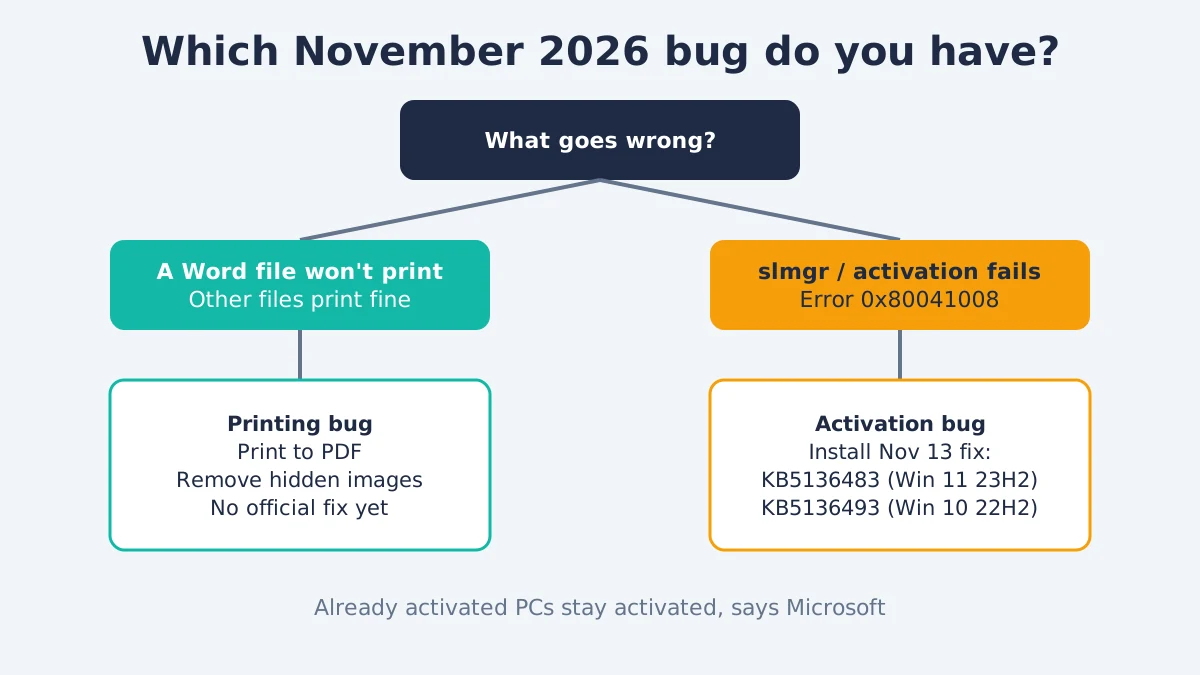
According to Microsoft’s Windows message center, these out-of-band (OOB) updates fix the activation error:
| Windows version | Fix update (Nov 13, 2026) | Where to get it |
|---|---|---|
| Windows 11, version 23H2 | KB5136483 | Windows Update (Optional updates) or Microsoft Update Catalog |
| Windows 10 22H2 (ESU) and Enterprise LTSC 2021 | KB5136493 | Microsoft Update Catalog |
| Windows Server 2019 and Windows 10 Enterprise LTSC 2019 | KB5136490 | Microsoft Update Catalog |
| Windows Server 2022 | KB5136487 | Microsoft Update Catalog |
| Windows Server 2025 | KB5136489 | Microsoft Update Catalog |
To install the Windows 11 23H2 fix, open Settings > Windows Update > Advanced options > Optional updates, tick KB5136483 and select Download & install. For the other versions, search the KB number at the Microsoft Update Catalog and install the package for your system. These fixes do not mention the printing bug, so if Word won’t print, installing them will not change that.
What to Expect Next
Microsoft usually fixes confirmed update bugs in a later cumulative update, sometimes with a Known Issue Rollback that turns off the faulty change automatically. As of November 16, 2026, no fix date has been published for the printing issue, so expect a patch either as an optional update later in November or in the December 8, 2026 Patch Tuesday release.
Until then, if Word won’t print a document:
- Use the PDF route for anything urgent.
- Clean up templates you print often by removing hidden objects.
- Leave Windows Update switched on so the fix arrives automatically.
- Watch for Microsoft’s status update; we will update this article when the fix ships.
This information can change quickly; check the date stamps above against Microsoft’s message center before acting.
Frequently Asked Questions
Why won’t my Word document print but other files will?
Your document probably contains an invisible image or object that becomes zero pixels tall or wide at print resolution. Since the November 10, 2026 Windows update, Microsoft has confirmed such documents can fail to print through Word. Other files print because they don’t contain that hidden object. Removing it or printing via PDF usually solves it.
Did Microsoft confirm the Word printing problem?
Yes. Microsoft acknowledged in a service alert (reported on November 12–13, 2026) that printing might fail for documents containing images rendered with zero height or width. It said the issue appeared with Word printing through GDI and other apps might also be affected. As of November 16, 2026, Microsoft lists the issue as under investigation, with no fix date.
Will uninstalling the update fix it when Word won’t print?
It might, but it isn’t recommended. The November update contains security fixes, and removing it exposes your PC to the vulnerabilities it closed. Windows will also try to reinstall it. Printing the document as a PDF or deleting the hidden image is safer, quicker and keeps your computer protected while you wait for Microsoft’s fix.
Does this bug affect Excel or Outlook?
Microsoft has only named Word, but says printing from other applications “might also be affected.” Any app that prints through the older GDI path and includes zero-size images could hit it. If Word won’t print but Excel works, the hidden-image bug is the likely cause. If an Excel sheet or email won’t print, try printing it to PDF first and then printing the PDF from Edge or another reader.
What is error 0x80041008 in Windows?
Error 0x80041008 means “Invalid parameter (SWbemObjectEx).” After the November 2026 updates, it appears when activation or product-key commands such as slmgr /ipk run on Windows 10, Windows 11 23H2 and Windows Server 2019–2025. Already activated PCs stay activated. Microsoft fixed it with out-of-band updates released on November 13, 2026.
Is my PC no longer activated after the November update?
Almost certainly it is still activated. Microsoft says devices that were already activated remain activated. The bug only stops activation or key-change commands from running, which mostly affects businesses setting up new PCs with scripts. Check Settings > System > Activation; if it says Windows is activated, you don’t need to do anything.
When will Microsoft fix the printing bug?
Microsoft hasn’t given a date as of November 16, 2026, so Word won’t print some documents until then. Confirmed bugs like this are usually fixed in an optional update later in the month or in the next Patch Tuesday, which falls on December 8, 2026. Keep Windows Update on so the fix installs automatically once it is released.
The Bottom Line
If Word won’t print after the November 2026 Windows update, the cause is most likely a confirmed bug with zero-size images, not your printer. Print to PDF for anything urgent, remove hidden images or watermarks from files you print often, and keep the security update installed while Microsoft works on a fix. If you manage business PCs that use slmgr, install the November 13 out-of-band update for your Windows version to clear error 0x80041008.
