
To get printer back online, turn the printer off and on, make sure it’s on the same Wi-Fi as your PC, clear the print queue and restart the Print Spooler service. If it still says offline, remove the printer in Windows and add it again.
Below are eight easy fixes in order, from quickest to deepest, based on Microsoft’s offline printer guide. They work for HP, Canon, Epson, Brother and most other printers.
[ADD PERSONAL EXPERIENCE: one line about the printer you use and when it last showed offline.]
Table of Contents
Why Does My Printer Say Offline?
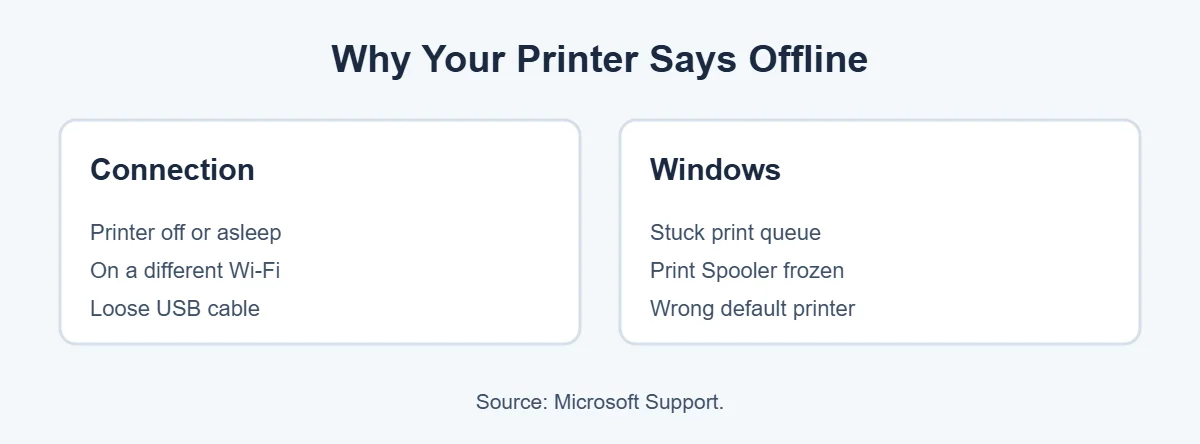
“Offline” means Windows can’t talk to the printer right now. It doesn’t mean the printer is broken. The usual reasons are:
- The printer is off, asleep or showing an error (paper jam, low ink).
- The printer and PC are on different Wi-Fi networks.
- A print job is stuck in the queue.
- The Print Spooler service has frozen.
- A loose USB cable, for wired printers.
8 Ways to Get Printer Back Online
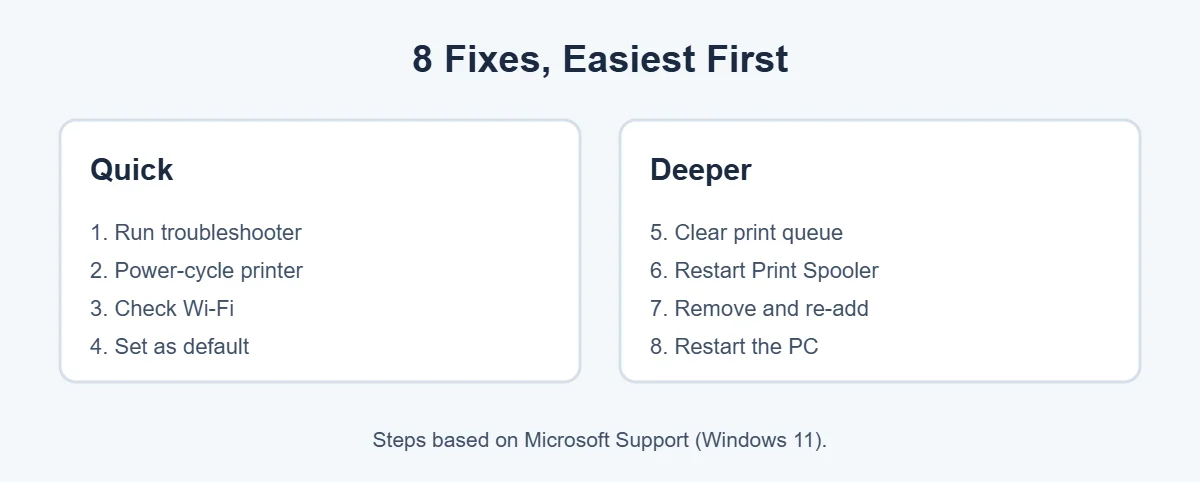
1. Run the printer troubleshooter
Windows 11 has a built-in fix. Open the Get Help app and run the printer troubleshooter. It checks common problems for you.
2. Power-cycle the printer
Turn the printer off, unplug it, wait 30 seconds, plug it back in and turn it on. This simple step is often enough to get printer back online.
3. Check the Wi-Fi connection
Make sure the printer is connected to the same Wi-Fi network as your PC. Check the printer’s screen or menu. If you changed your router or Wi-Fi password recently, connect the printer again.
4. Set it as the default printer
Go to Start, Settings, Bluetooth & devices, Printers & scanners. Select your printer and choose Set as default. If you don’t see that option, turn off “Let Windows manage my default printer.”
5. Clear the print queue
In Printers & scanners, select the printer and choose Open print queue. Click the three dots (…) and choose Cancel all. If “Use Printer Offline” is ticked in the queue’s Printer menu, untick it.
6. Restart the Print Spooler
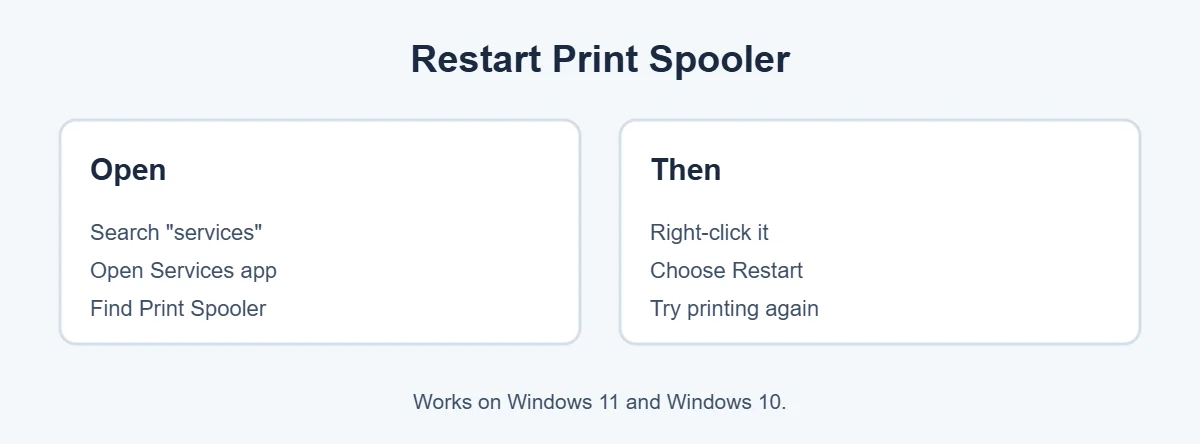
Search the taskbar for services and open it. Find Print Spooler, right-click it and choose Restart. This clears jobs that are stuck and is one of the fastest ways to get printer back online.
7. Remove and re-add the printer
In Printers & scanners, select the printer and choose Remove. Then select Add device next to “Add a printer or scanner” and follow the steps. Windows will usually install the driver for you.
8. Restart your PC
A full restart resets the network and printing services together, which can get printer back online when nothing else works. Try printing again once Windows has loaded.
If Your Printer Keeps Going Offline
If you can get printer back online but it drops again later, the cause is usually the network. Move the printer closer to your router, update its firmware with the maker’s app, and download the latest driver from the maker’s site, such as HP drivers.
On some routers, the printer’s address changes over time. Giving the printer a reserved IP address in your router settings can stop it going offline again.
Still stuck? Browse more simple tech fixes on TrickieTech, or try the steps again to get printer back online.
Find Your Printer’s IP Address
Many offline problems come down to the PC looking for the printer at the wrong address. Knowing the printer’s IP address helps you check and fix this.
- On the printer’s screen, open the Wi-Fi or Network menu. The IP address is usually listed there.
- No screen? Print a network configuration page. On many printers you hold the Wi-Fi or Info button for a few seconds. Your manual has the exact button.
- Type that IP address into a web browser on your PC. If the printer’s own web page opens, the network connection is fine.
If the page doesn’t open, the PC and printer can’t see each other, which is why Windows shows it offline. Check that both are on the same network, and turn off any VPN for a moment.
Advanced Fix: Use a Standard TCP/IP Port
Windows sometimes adds network printers with a “WSD” port, which can lose track of the printer. Switching to a fixed TCP/IP port can get printer back online for good.
- Open Control Panel, Devices and Printers (or search “printers” and open the classic Printers page).
- Right-click your printer and choose Printer properties.
- Open the Ports tab and click Add Port.
- Choose Standard TCP/IP Port, click New Port, and type the printer’s IP address.
- Finish the steps, make sure the new port is ticked, and click Apply.
This works best if the printer keeps the same IP address. You can reserve one for it in your router’s settings (often called DHCP reservation).
Brand Tools That Help
Most printer makers have a free app that finds and fixes connection problems for their own printers.
| Brand | Tool | What it does |
|---|---|---|
| HP | HP Smart app, HP Print and Scan Doctor (Windows) | Finds the printer, fixes connection and driver problems |
| Canon | Canon PRINT app | Wi-Fi setup and printer status |
| Epson | Epson Smart Panel, Epson Connect | Setup, status and network checks |
| Brother | Brother Mobile Connect, iPrint&Scan | Setup, status and printing |
Download these only from the official app store or the maker’s own website.
Get Printer Back Online on a Mac
Macs can show printers as offline too. Try these steps:
- Open System Settings, Printers & Scanners and select your printer.
- Open the print queue and click Resume if printing is paused.
- Remove the printer with the minus button or Remove Printer, then add it again with Add Printer.
- If nothing works, Control-click the printer list and choose Reset printing system. This removes all printers, so you’ll need to add yours again.
Printing From a Phone
If your phone can’t find the printer, it’s usually the same network problem.
- iPhone and iPad use AirPrint. Make sure the printer supports it and both are on the same Wi-Fi.
- Android uses the built-in print service or the maker’s plugin. Search Settings for “printing” to check the service is on.
- Restart the printer and the phone, then try again.
Check the Printer Itself
Sometimes “offline” is just the printer telling you it needs something. Look at the printer’s screen or lights for:
- A paper jam or empty paper tray.
- Empty or missing ink or toner.
- An open cover or door.
- A sleep or auto-off setting. Some printers turn themselves off after a set time. You can change this in the printer’s settings menu.
Fix the message on the printer first, then try to get printer back online from your PC.
Printer Offline After a Windows Update?
If the problem started right after an update, the driver may need a refresh. To get printer back online after an update:
- Restart the PC once more. Some updates finish only after a second restart.
- Open Settings, Windows Update and check for more updates, including optional driver updates under Advanced options.
- Download the newest driver for your exact printer model from the maker’s website.
- Remove the printer and add it again so Windows uses the new driver.
If a specific update keeps breaking printing, you can check Microsoft’s Windows release health page to see if it’s a known issue.
How to Get Printer Back Online With a USB Cable
Wired printers can go offline too. If yours is connected by USB:
- Unplug the cable at both ends and plug it back in firmly.
- Try a different USB port, ideally one directly on the PC, not on a hub or dock.
- Try a different USB cable. Old printer cables wear out.
- Check Device Manager. If you see the printer with a yellow warning sign, update or reinstall its driver.
A USB connection is also a good test. If the printer works by cable but not on Wi-Fi, the printer is fine and the problem is the wireless network.
Security Software and VPNs
Some antivirus programs, firewalls and VPNs block devices on your home network, including printers. If you use one:
- Turn off the VPN and try printing.
- In your security app, check if the home network is set as “private” or “trusted.”
- On Windows, make sure your Wi-Fi network is set to Private in Settings, Network & internet, Wi-Fi, your network. Public networks hide devices like printers.
Real-Life Examples
“It went offline after I got a new router”
The printer is still trying to join the old Wi-Fi. Use the printer’s Wi-Fi setup menu or the maker’s app to join the new network. That alone should get printer back online.
“It works for my phone but my laptop says offline”
The printer is fine. The laptop has an old port or driver. Remove the printer on the laptop and add it again, or set up a Standard TCP/IP port as shown above.
“It goes offline every morning”
The printer is probably going into deep sleep or getting a new IP address overnight. Change the auto-off setting and reserve an IP address for it in the router.
[ADD PERSONAL EXPERIENCE: add a short example of an office or home printer you got back online.]
Tips to Keep Your Printer Online
- Keep the printer within good Wi-Fi range of the router.
- Reserve a fixed IP address for it in the router.
- Update the printer’s firmware through its app or web page.
- Use the latest driver from the maker’s website.
- Turn off auto-off, or set a longer sleep time.
- Avoid using a VPN on the PC when printing at home.
Quick Checklist
- Restart the printer, then the PC.
- Check the printer is on the same Wi-Fi.
- Clear the print queue.
- Restart Print Spooler.
- Remove and re-add the printer.
- Use a TCP/IP port and reserved IP if it keeps dropping.
Follow this list and you can get printer back online in a few minutes in most cases.
Printer Offline at the Office?
Office printers are often shared through a print server or managed by IT. If an office printer is offline for you but works for coworkers, the fix is usually on your PC: remove and re-add the printer, or ask IT for the right printer path or driver. Don’t change settings on the printer itself without asking, since other people depend on it.
If the printer is offline for everyone, it’s the printer or the network. Check the printer’s screen for errors and let your IT team know.
Simple Words You’ll See
- Print queue: the waiting list of documents sent to the printer.
- Print Spooler: the Windows service that sends jobs from the queue to the printer.
- Driver: the software that tells Windows how to talk to your printer model.
- IP address: the printer’s address on your home network, like 192.168.1.25.
- Firmware: the software inside the printer itself.
- WSD and TCP/IP ports: two ways Windows can find a network printer. TCP/IP with a fixed address is usually more stable.
Knowing these words makes the steps above easier to follow and helps when you talk to support. With them, you can get printer back online faster the next time it happens.
When to Get Help or Replace the Printer
If you’ve tried every step and still can’t get printer back online, it may be time for outside help.
- Contact the maker’s support if the printer is under warranty, shows a hardware error code, or won’t join any Wi-Fi network at all.
- Ask your internet provider if the problem started with a new router they supplied. Some routers have settings that keep devices apart, often called client isolation or AP isolation.
- Think about replacing it if the printer is very old, no longer gets driver updates for Windows 11, or repairs cost more than a new one.
If you buy a new printer, setting a reserved IP address and installing the maker’s latest driver from day one will save you from most offline problems later.
Frequently Asked Questions
Why does my printer say offline when it is on?
Usually the PC can’t reach it. The printer may be on a different Wi-Fi network, asleep, or have a stuck print job. Restart the printer, check that it’s on the same network as your PC, clear the print queue and restart the Print Spooler service.
How do I change my printer from offline to online?
Open Settings, Bluetooth & devices, Printers & scanners, select the printer and open the print queue. If Use Printer Offline is checked in the Printer menu, uncheck it. Then cancel stuck jobs and power-cycle the printer.
Why does my printer keep going offline?
Common reasons are a weak Wi-Fi signal, the printer’s sleep mode, or a changing IP address on your network. Move the printer closer to the router, update its firmware and driver, and if it still drops, ask your router to give it a fixed (reserved) IP address.
How do I restart the Print Spooler?
Search the taskbar for services and open the Services app. Find Print Spooler in the list, right-click it and choose Restart. This clears jobs that are stuck and often brings the printer back online right away.
Do I need to reinstall my printer driver?
Only if the simple fixes don’t work. Remove the printer in Printers & scanners, then add it again with Add device. Windows will usually install the right driver. You can also download the latest driver from your printer maker’s website.
Does a USB printer go offline too?
Yes. A loose cable, a bad USB port or the PC’s power saving can make a USB printer show offline. Try a different cable and port, plug straight into the PC instead of a hub, and restart both the printer and the PC.
The Bottom Line
To get printer back online, start simple: restart the printer, check Wi-Fi, set it as default and clear the queue. If that fails, restart the Print Spooler and re-add the printer.
Most offline problems are a connection hiccup, not a broken printer, so one of these eight fixes should get you printing again.
{“@context”:”https://schema.org”,”@type”:”FAQPage”,”mainEntity”:[{“@type”:”Question”,”name”:”Why does my printer say offline when it is on?”,”acceptedAnswer”:{“@type”:”Answer”,”text”:”Usually the PC can’t reach it. The printer may be on a different Wi-Fi network, asleep, or have a stuck print job. Restart the printer, check that it’s on the same network as your PC, clear the print queue and restart the Print Spooler service.”}},{“@type”:”Question”,”name”:”How do I change my printer from offline to online?”,”acceptedAnswer”:{“@type”:”Answer”,”text”:”Open Settings, Bluetooth & devices, Printers & scanners, select the printer and open the print queue. If Use Printer Offline is checked in the Printer menu, uncheck it. Then cancel stuck jobs and power-cycle the printer.”}},{“@type”:”Question”,”name”:”Why does my printer keep going offline?”,”acceptedAnswer”:{“@type”:”Answer”,”text”:”Common reasons are a weak Wi-Fi signal, the printer’s sleep mode, or a changing IP address on your network. Move the printer closer to the router, update its firmware and driver, and if it still drops, ask your router to give it a fixed (reserved) IP address.”}},{“@type”:”Question”,”name”:”How do I restart the Print Spooler?”,”acceptedAnswer”:{“@type”:”Answer”,”text”:”Search the taskbar for services and open the Services app. Find Print Spooler in the list, right-click it and choose Restart. This clears jobs that are stuck and often brings the printer back online right away.”}},{“@type”:”Question”,”name”:”Do I need to reinstall my printer driver?”,”acceptedAnswer”:{“@type”:”Answer”,”text”:”Only if the simple fixes don’t work. Remove the printer in Printers & scanners, then add it again with Add device. Windows will usually install the right driver. You can also download the latest driver from your printer maker’s website.”}},{“@type”:”Question”,”name”:”Does a USB printer go offline too?”,”acceptedAnswer”:{“@type”:”Answer”,”text”:”Yes. A loose cable, a bad USB port or the PC’s power saving can make a USB printer show offline. Try a different cable and port, plug straight into the PC instead of a hub, and restart both the printer and the PC.”}}]}