
Want to remove dead pixels from laptop screen? First, find out if the pixel is stuck (a colored dot) or dead (a black dot). Stuck pixels can often be fixed at home with a pixel-flashing tool. Truly dead pixels usually can’t, but your warranty may cover a free screen.
Below you’ll learn how to test your screen, five safe fixes to try in order, which methods to avoid, and exactly when to ask for a warranty repair.
[ADD PERSONAL EXPERIENCE: one or two lines about a dead or stuck pixel you noticed on your own screen and what you tried.]
Table of Contents
Dead Pixel or Stuck Pixel? Know the Difference
Every pixel on your screen is made of three tiny parts called subpixels: red, green and blue. When one of them fails, you see a dot that doesn’t change.
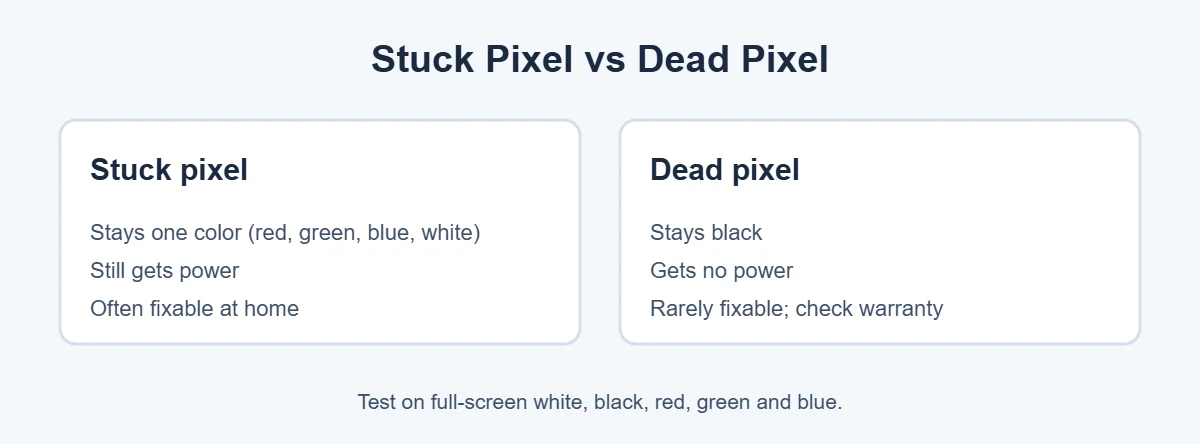
- Stuck pixel: stays one bright color, like red, green, blue or white. It’s still getting power, so it can often be “woken up”. Dell calls this a bright pixel.
- Dead pixel: stays black. It isn’t getting power, so it’s much harder to fix. Dell calls this a dark pixel.
Apple explains that these “pixel anomalies” happen when a tiny transistor fails, and that dust or debris can sometimes look like a bad pixel too.
How to test your laptop screen
- Clean the screen gently with a dry microfiber cloth.
- Open a full-screen image or web page in one solid color: white, black, red, green and blue.
- Look closely for a dot that stays in the same spot on every color.
- A dot that’s black on white is likely dead. A dot that’s bright on black is likely stuck.
Many free “dead pixel test” websites show these solid colors for you. Just press F11 in your browser to go full screen.
How to Remove Dead Pixels From Laptop Screen: 5 Safe Fixes
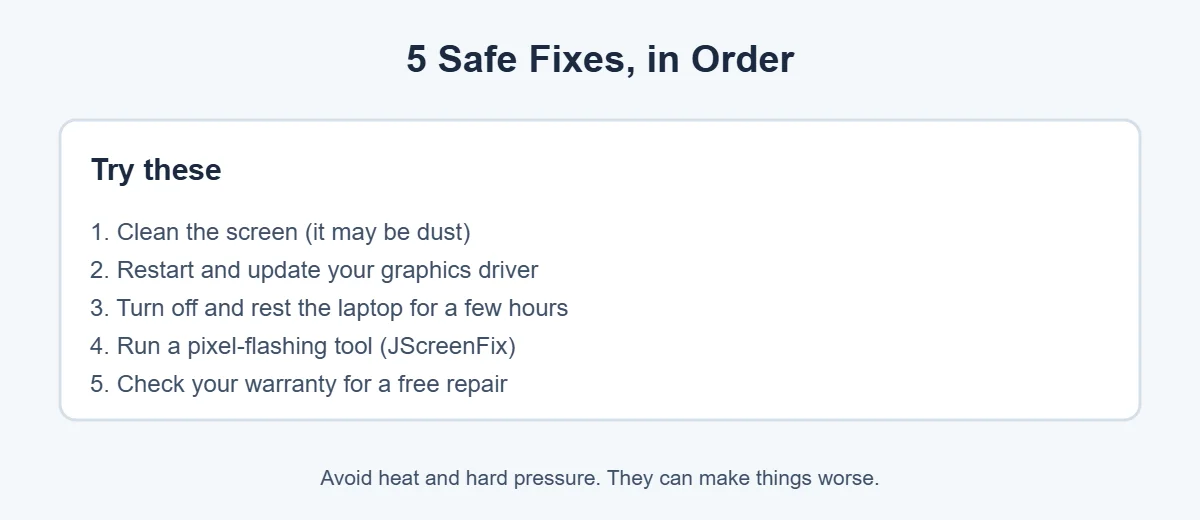
Here’s the honest truth: you can often fix stuck pixels, but you rarely can remove dead pixels from laptop screen panels for good. Still, these steps are safe, so try them in order before you book a repair.
1. Clean the screen first
A speck of dust or dried spray can look just like a bad pixel. Turn the laptop off, then wipe the screen with a dry, lint-free microfiber cloth. Apple suggests the same for material sitting on the front of the glass.
2. Restart and update your graphics driver
If the dot moves, flickers or disappears after a restart, it’s a software glitch, not a pixel. On Windows, open Windows Update and install any driver updates, or get the latest graphics driver from your laptop maker’s support page.
3. Rest the laptop
Turn the laptop off and leave it unplugged for a few hours, or overnight. Some stuck pixels go back to normal after a long rest. It costs nothing, so it’s worth a try.
4. Use a pixel-flashing tool
Pixel-flashing tools quickly cycle colors over the bad spot to “unstick” it. A popular free one is JScreenFix, a website you open in your browser. According to a guide from Skylum, you drag the flashing square over the pixel and leave it running for about 10 minutes to an hour, then repeat after a rest if needed.
This works best on stuck pixels. It rarely helps a fully dead pixel, but it’s safe to try. Don’t use flashing tools if you have photosensitive epilepsy, and don’t stare at the flashing square.
5. Check your warranty
If the pixel is still there, your warranty is the best fix. Most brands have a “pixel policy” that says how many bad pixels they allow before replacing the screen.
Methods to Avoid
You’ll find riskier tips online. Skip these:
- Hard pressure: pushing on the screen can crack the panel and may void your warranty. Skylum’s guide warns about this too.
- Heat: warm cloths or hair dryers can damage the screen layers.
- Tapping or rubbing hard: this can create more dead pixels, not fewer.
If you still want to try pressure, do it only as a last resort: screen off, a soft cloth over your fingertip, and very gentle pressure on that one spot. Honestly, a warranty claim is safer.
When Will the Warranty Replace Your Screen?
Each brand sets its own rules. Here are two examples from official sources.
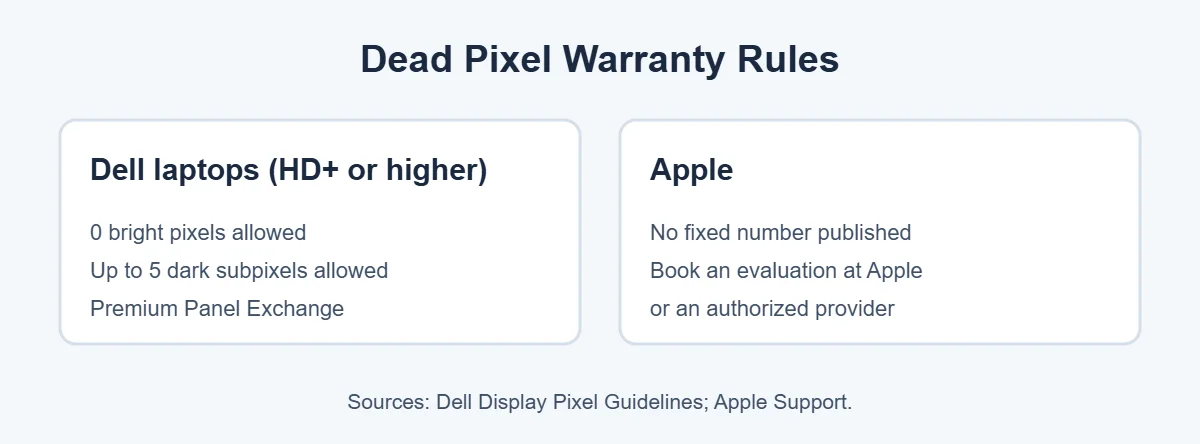
- Dell: According to Dell’s pixel guidelines, laptops with HD+ (1600 x 900) or higher screens allow zero bright pixels and up to five dark subpixels. Dell’s Premium Panel Exchange replaces the screen during the warranty if even one bright pixel appears.
- Apple: Apple doesn’t publish a fixed number. It asks you to take the device to an Apple Store or an authorized service provider for an evaluation, which may have a charge.
For other brands like HP, Lenovo or ASUS, search their support site for “pixel policy” with your model name. Take a clear photo of the dot on a solid color before you contact support. It makes your claim much easier.
Is It Worth Replacing the Screen?
One dead pixel near the edge is easy to ignore. A bright stuck pixel in the middle, or a cluster of dead pixels, is harder to live with. If your laptop is out of warranty and old, compare the repair quote with the cost of a new laptop. This guide on how long laptops last can help you decide, and if you upgrade, here’s what to do with your old laptop.
Frequently Asked Questions
Can dead pixels fix themselves?
A truly dead pixel almost never fixes itself, because it isn’t getting power. A stuck pixel is different. It sometimes comes back on its own after the laptop rests, or after running a pixel-flashing tool. That’s why it’s worth testing which kind you have before giving up.
Is one dead pixel covered by warranty?
It depends on the brand. Dell’s guidelines allow zero bright pixels on laptops with HD+ or higher screens, but up to five dark subpixels before replacement. Apple doesn’t publish a number and asks you to book an evaluation. Check your laptop maker’s pixel policy.
Do dead pixels spread?
Usually not. A single dead pixel is normally a one-off fault in one tiny transistor. But if you see more appearing over time, or lines and dark patches, the screen or its cable may be failing. In that case, back up your files and contact your laptop’s support team.
Is it safe to use JScreenFix?
For most people, yes. It’s a website that flashes colors over the pixel and doesn’t touch your hardware. Don’t use flashing tools if you have photosensitive epilepsy, and don’t stare at the flashing area. Run it for 10 to 60 minutes, then check the pixel.
Should I press on a dead pixel to fix it?
We don’t recommend it. Pressing on the screen can damage the panel permanently and may void your warranty. If you try it anyway, the screen should be off, your finger covered with a soft microfiber cloth, and the pressure very gentle. Warranty first is the safer path.
How much does it cost to replace a laptop screen?
Costs vary a lot by brand, size and screen type, so get a quote from the maker or a local repair shop. If the laptop is still under warranty and has more dead pixels than the maker allows, the replacement may be free.
The Bottom Line
To remove dead pixels from laptop screen, start by testing whether the dot is stuck or dead. Clean the screen, restart, let the laptop rest, and run a pixel-flashing tool like JScreenFix. Those steps often fix stuck pixels.
A truly dead pixel rarely comes back, so check your maker’s pixel policy. If you’re within warranty and over the limit, a free screen replacement is your best fix.