
To remove malware from an Android phone, restart it in safe mode, uninstall any app you don’t recognize or recently installed, revoke admin rights from apps that won’t uninstall, then run a Google Play Protect scan. If problems continue after that, back up your photos and contacts and factory reset the phone. Finish by changing your important passwords from a different device.
That’s the short version. The rest of this guide walks through each step in order, explains what to do when an app fights back, and shows how to tell real malware from the fake “your phone is infected” pop-ups that scammers use. You won’t need to buy anything: every step uses tools already built into Android.
What is Android malware?
Android malware is any app or code installed on your phone without your informed consent that steals data, shows unwanted ads, spies on you or takes control of the device. The FTC defines malware simply as harmful software installed “without your knowledge” (FTC).
Android malware almost always arrives as an app. The common types are:
- Adware: floods your screen with pop-ups, sometimes even on the home screen or lock screen.
- Banking trojans: pose as useful apps, then steal banking logins or one-time codes. In Q3 2026 they made up 56.4% of detected Android malware, according to Point Wild’s threat report (Android Headlines, Oct 2026).
- Spyware and stalkerware: quietly record messages, location or calls.
- Backdoors: give attackers remote access. Kaspersky’s Q2 2026 report found the Triada backdoor was its single most-detected mobile threat (Securelist, Aug 2026).
- Subscription fraud apps: sign you up for premium services or send paid texts.
The scale is large. Kaspersky alone blocked more than 1.99 million mobile malware attacks on Android in Q2 2026 and logged over 304,000 new malicious installation packages in that quarter. Those are one vendor’s figures, but they show the threat is real and current.
Signs your Android phone has malware
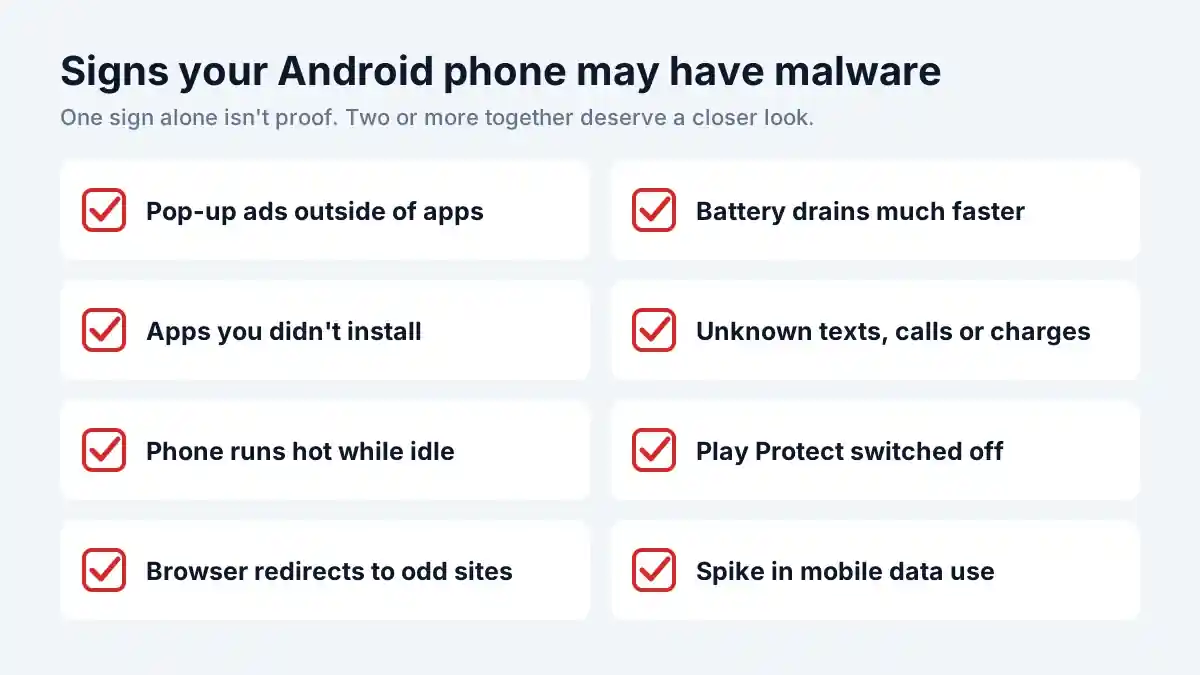
The most common signs of Android malware are pop-up ads outside of apps, apps you didn’t install, unexplained charges or texts, and a battery or data plan that drains much faster than usual. One sign alone is rarely proof; two or more together deserve a closer look.
Watch for:
- Full-screen ads appearing on your home screen or as soon as you wake the phone
- New apps or icons you don’t remember installing, or apps with no name or a blank icon
- Battery draining far faster than normal, or the phone getting hot while idle
- A sudden jump in mobile data use
- Texts or calls you didn’t make, or unexpected charges on your phone bill
- Your browser redirecting to odd sites or changing its home page
- Google Play Protect switched off when you didn’t do it
- Friends receiving strange messages or links “from you”
A slow, ageing phone with a full storage chip can show some of these symptoms too. If the trouble started right after you installed an app, though, Android malware is the more likely explanation, and it’s time to remove it.
[ADD PERSONAL EXPERIENCE: Describe a real case you've dealt with (yours or a family member's): what the first warning sign was, which app turned out to be the culprit, and which step below finally fixed it.]
How to remove malware from Android in 7 steps
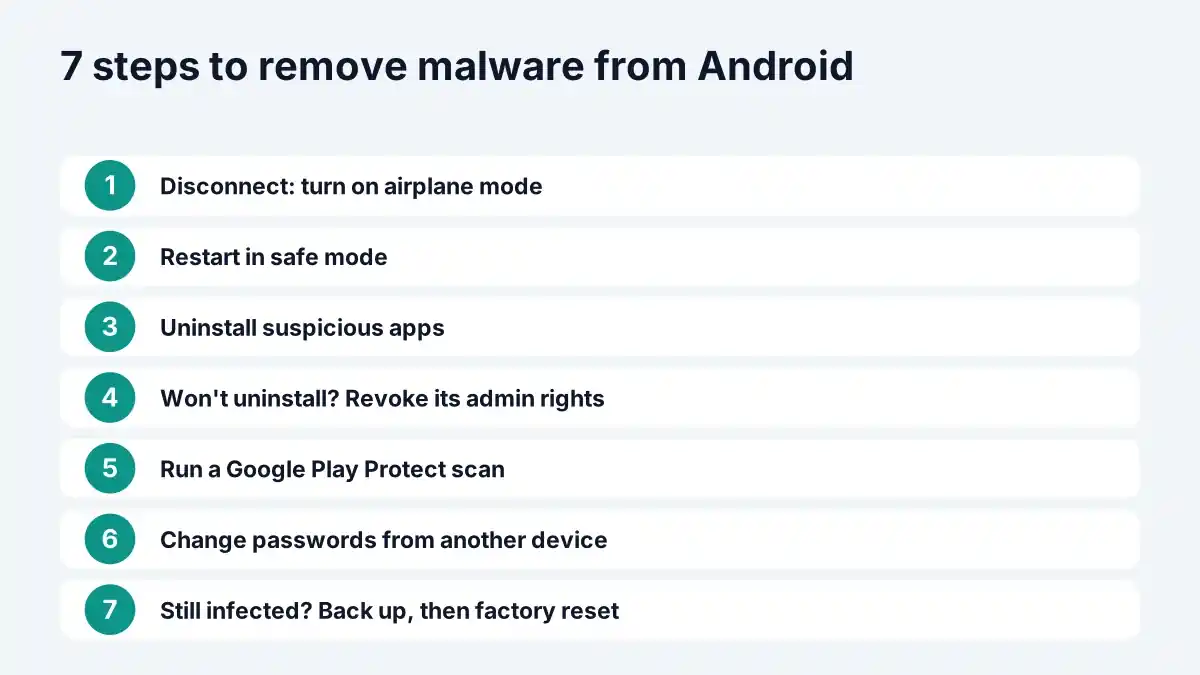
The safest way to remove malware from Android is to work through these seven steps in order, stopping once the problem is gone. Menu names vary between Pixel, Samsung, Motorola and other brands, so if a path doesn’t match exactly, use the search bar at the top of Settings.
Step 1: Disconnect the phone
Turn on airplane mode from the Quick Settings panel. This cuts the malware off from its server, so it can’t upload more of your data or download new instructions while you clean up. If you’re on Wi-Fi, make sure Wi-Fi is off too. It’s the quickest way to contain Android malware before you remove it.
If you suspect a banking trojan, don’t open your banking or shopping apps until the cleanup is done. The FTC advises you to stop logging in to accounts on an infected device.
Step 2: Restart in safe mode
Safe mode is a diagnostic mode that starts Android with only the preinstalled system apps, so anything you downloaded can’t run. That stops most Android malware from hiding itself or reinstalling while you remove it.
On most phones, including Pixel and Samsung models:
- Press and hold the power button (on some phones, power and volume up together) to open the power menu.
- Touch and hold Power off or Restart until the Safe mode prompt appears.
- Tap OK. You’ll see “Safe mode” in the bottom corner after the phone restarts.
If that doesn’t work, check your phone maker’s support site, as Google’s own safe mode help page recommends. If the problem disappears in safe mode, a downloaded app is almost certainly the cause.
Step 3: Uninstall suspicious apps
Open Settings > Apps > See all apps and sort or scroll through the list. Focus on:
- Apps installed around the time the problems started
- Apps you don’t recognize, or that have generic names like “System Update”, “Cleaner” or “Battery Booster”
- Flashlight, wallpaper, PDF, QR-code and VPN apps from unknown developers, a favorite disguise for Android malware
Tap the app, then Uninstall. Google’s help notes that any data saved in that app will be erased. Remove one app at a time, restart normally and check whether the problem has gone, then repeat if needed.
If the Uninstall button is greyed out, jump to the next step.
Step 4: Revoke admin rights from apps that won’t uninstall
Some Android malware gives itself device administrator rights, which blocks the uninstall button. Removing those rights frees it up.
- Open Settings and search for Device admin apps (on Pixel it’s under Security & privacy > More security settings; on Samsung under Security and privacy > Other security settings).
- Switch off any app you don’t recognize. Leave Find My Device and your work profile manager alone.
- Go back to Step 3 and uninstall the app.
While you’re in Settings, also check Accessibility for downloaded services you didn’t knowingly turn on. Banking trojans often abuse accessibility access to read your screen and tap buttons for you. Turn off anything unfamiliar.
Step 5: Run a Google Play Protect scan
Google Play Protect is Android’s built-in malware scanner, and the easiest free tool to remove malware from Android. It checks apps from the Play Store and from other sources, and according to Google it scans 200 billion Android apps every day (Google for Developers).
To run a scan:
- Turn airplane mode off so the scan can get Google’s latest threat data.
- Open the Play Store, tap your profile icon, then Play Protect.
- Tap Scan. If it finds a harmful app, follow the prompt and tap Uninstall.
- Tap the gear icon and make sure Scan apps with Play Protect is switched on.
Play Protect can also disable the most harmful apps automatically and, on Android 6 to 10, reset permissions for apps you haven’t used in about three months (Google Account Help).
Step 6: Clear your browser and check app permissions
Some adware lives in the browser rather than in an app. In Chrome, open Settings > Site settings > Notifications and block any site you don’t trust; malicious sites use notification permission to push fake alerts. Then clear browsing data for the past few weeks.
Next, open Settings > Apps > Special app access > Install unknown apps and switch off permission for every app that doesn’t strictly need it. This stops a hidden dropper from installing more malware later.
Step 7: Factory reset if the problem persists
If pop-ups, overheating or strange activity continue after Steps 1–6, a factory reset is the most reliable fix. It wipes every app and file and returns Android to its original state.
Before you reset, follow Google’s factory reset checklist:
- Back up photos, contacts and messages to your Google Account (but don’t restore apps you suspect).
- Confirm you know the Google Account email and password on the phone, plus your screen lock PIN or pattern. You’ll need them to set the phone up again.
- If you changed your Google password in the last 24 hours, wait a day before resetting.
- Charge the phone to at least 70% and stay connected to Wi-Fi; the reset can take up to an hour.
Then go to Settings > System > Reset options > Erase all data (factory reset). When you set the phone up again, reinstall apps one by one from the Play Store instead of restoring everything at once.
What if an app won’t uninstall?
If an app still won’t uninstall after you revoke its admin rights, boot into safe mode and try again, because the app can’t run to protect itself there. Some phones also let you Disable an app from its App info page, which stops it from running until you can remove it.
If the stubborn app is a preinstalled system app that’s behaving badly, it may be part of the phone’s firmware. Security researchers, including Kaspersky, have reported Triada variants preinstalled on some cheap, off-brand phones. In that case, install every system update, contact the seller or manufacturer, and consider replacing the device if no fix exists.
How to spot fake “virus detected” warnings on Android
A pop-up or web page claiming “Your phone is infected with 5 viruses” is almost always a scam, not a real detection. Android’s real warnings come from Play Protect inside the Play Store or as a system notification, not from a website.
Red flags include:
- Countdown timers, flashing red screens or loud alarm sounds
- Pressure to download a “cleaner” or “antivirus” app right now
- A phone number to call for “Google support” or “Android security”
Close the tab, don’t tap anything on the page, and never install an app it recommends. Scammers use these pages to push real malware or to run tech-support scams. You can report them at ReportFraud.ftc.gov.
After the cleanup: secure your accounts
Once you remove malware from Android, assume anything you typed on the phone may have been seen. Use a different, clean device such as a laptop for these steps:
- Change your Google Account password first, then your email, banking, shopping and social media passwords. Use a different password for each.
- Turn on two-step verification for every account that offers it, ideally with a passkey or authenticator app rather than SMS.
- Check your Google Account’s security page (myaccount.google.com/security) for devices and sign-ins you don’t recognize, and sign them out.
- Call your bank if you opened a banking app while infected. Ask them to watch for unusual transactions or issue a new card.
- Check your phone bill for premium texts or subscriptions and dispute any you didn’t authorize.
If someone may have installed stalkerware on purpose, think about your safety before removing it, because the person may notice. Domestic violence support services can help you plan.
Does a factory reset remove malware?
Yes, a factory reset removes almost all Android malware, because it erases every app you installed along with its data. The rare exception is malware built into the phone’s firmware at the factory, which survives a reset because it’s part of the system image itself.
Two mistakes can bring the malware straight back: restoring a full backup that includes the infected app, and re-downloading the same app from the same link. Reinstall apps one at a time from the Play Store and skip anything you’re unsure about.
How to keep malware off your Android phone
The best protection against Android malware is to install apps only from the Google Play Store, keep Play Protect on, and install system updates as soon as they arrive. Those three habits block most Android malware before it ever runs.
| Habit | Why it helps |
|---|---|
| Install apps only from Google Play | Play apps are scanned before and after download; most Android malware spreads through sideloaded APK files |
| Keep Play Protect on | Daily scans catch harmful apps, even ones installed from outside Play |
| Install Android and security updates | Patches close holes that malware uses to gain control |
| Check reviews and the developer name | Fake apps often copy famous names with tiny spelling changes |
| Deny unnecessary permissions | A flashlight app has no reason to read your texts or use accessibility |
| Don’t tap links in unexpected texts | Smishing messages are a common way trojans get installed |
Google also blocks some sideloaded apps that request sensitive permissions often linked to financial fraud. If Play Protect warns you about an app, believe it. Point Wild’s Q3 2026 report found one Android malware family that specifically tricks users into turning Play Protect off.
Do you need an antivirus app for Android?
Most people don’t need a paid antivirus app for Android if they stick to the Play Store and keep Play Protect switched on. Google Play Protect already scans every app on the phone daily, and Android’s sandboxing limits what a single app can reach.
A reputable third-party security app can still make sense if you often install apps from outside Google Play, if you’ve been infected before, or if you want extra features such as scam-link filtering. Choose a well-known brand from the Play Store, and be wary of free “cleaner” or “booster” apps, which are a classic malware disguise themselves.
FAQ
Can Android phones get malware?
Yes. Android phones can get malware, usually through apps installed from outside the Google Play Store, malicious links in texts, or fake apps that slip past Play Store review. Kaspersky blocked more than 1.99 million mobile malware attacks in Q2 2026 alone. Keeping Play Protect on and installing apps only from Google Play greatly reduces the risk.
How do I check my Android phone for malware?
Open the Play Store, tap your profile icon, then Play Protect, and tap Scan. Next, review Settings > Apps for anything you don’t recognize, and check Device admin apps and Accessibility for unfamiliar entries. If problems vanish in safe mode, a downloaded app is the likely cause.
Does a factory reset remove malware on Android?
A factory reset removes nearly all Android malware because it deletes every downloaded app and its data. It won’t remove malware built into the phone’s firmware, which is rare and mostly found on cheap off-brand devices. Avoid restoring a full app backup afterward, or the infected app may return.
Does Google Play Protect remove malware?
Yes, partly. Google Play Protect scans your apps daily, warns you about harmful ones, and can automatically disable or remove the most dangerous apps. For less severe threats, it asks you to uninstall the app yourself. It works best combined with safe mode and a manual review of your installed apps.
Why can’t I uninstall an app on my Android phone?
An app usually can’t be uninstalled because it has device administrator rights or is a preinstalled system app. Go to Settings, search for Device admin apps, switch off the app’s admin access, then uninstall it. If that fails, boot into safe mode and try again, or disable the app from its App info page.
Can malware survive a factory reset?
Malware can only survive a factory reset if it’s built into the phone’s firmware, or if you reinstall it yourself from a backup. Firmware-level malware is uncommon and mainly affects low-cost, unbranded devices. If problems return right after a clean reset with no apps restored, contact the manufacturer or seller.
Final takeaway
You can remove malware from Android without paying for anything: disconnect the phone, boot into safe mode, uninstall suspicious apps, strip admin rights from stubborn ones, run a Play Protect scan, and factory reset only if the problem survives. Then change your passwords from a clean device. Bookmark this checklist so you can work through it calmly if a problem ever appears.
