
Want to lock YouTube screen so little hands or your pocket can’t tap it? In the YouTube app, start a video, tap the settings icon and choose Lock screen. To unlock, tap the video and select Tap to unlock. That’s the quickest way.
Below are three simple ways to do it: YouTube’s built-in button, Guided Access on iPhone and iPad, and app pinning on Android. Each one has a clear use, so pick the one that fits.
[ADD PERSONAL EXPERIENCE: one line about when you needed to lock the screen, such as a child watching cartoons or a video playing while you cook.]
Table of Contents
Why Lock YouTube Screen?
A single accidental tap can pause a video, skip to another one or open a random channel. Locking the screen helps when:
- A child is watching and keeps tapping the screen.
- You’re listening to a long video and your phone is in your pocket.
- You’re cooking or working out and might brush the screen.
- You want to watch without the controls popping up all the time.
Each method below works a little differently. Here’s how they compare.
| Method | Works on | Needs a passcode to exit? | Best for |
|---|---|---|---|
| YouTube Lock screen button | YouTube mobile app | No | Stopping accidental taps |
| Guided Access | iPhone and iPad | Yes | Kids, longer sessions |
| App pinning | Android phones and tablets | Yes (your PIN or pattern) | Kids, longer sessions |
Way 1: Lock YouTube Screen With the Built-in Button
YouTube added its own lock option to the mobile app. According to YouTube Help, it stops accidental taps and swipes from interrupting playback.
- Open the YouTube app and start the video.
- Tap the video once, then tap the settings (gear) icon.
- Tap Lock screen.
To unlock, tap anywhere on the video so the lock button shows up, then select Tap to unlock.
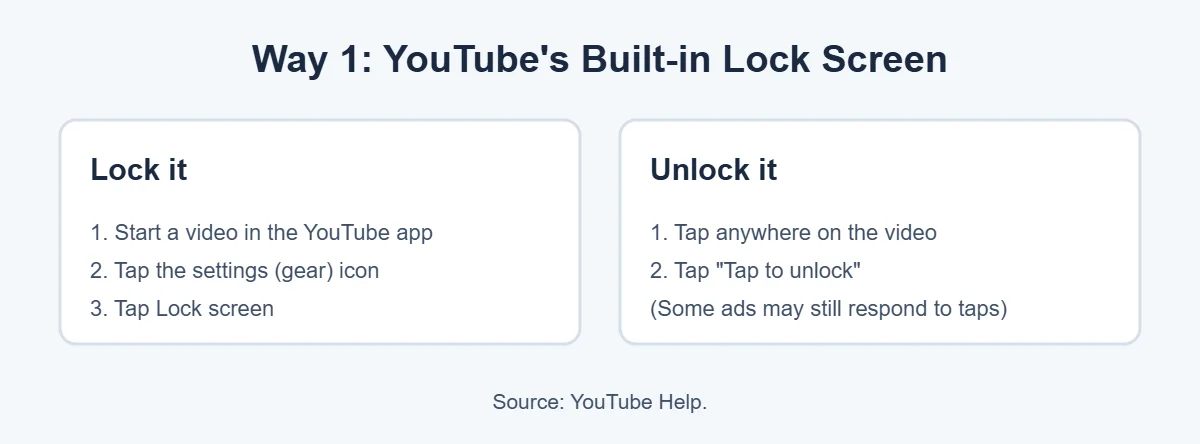
One thing to know: YouTube says some in-app notifications and ads may briefly let you interact with the screen. The lock returns once the ad ends or you close the notification. Also, anyone can unlock it with one tap, so it isn’t childproof for curious kids.
Way 2: Lock YouTube Screen on iPhone or iPad (Guided Access)
Guided Access is built into every iPhone and iPad. It locks your device to one app and can turn off touch completely. Your child can’t leave YouTube until you enter a passcode. Here’s how to set it up, based on Apple Support.
Turn on Guided Access (one time)
- Open Settings, then Accessibility, then Guided Access.
- Turn on Guided Access.
- Tap Passcode Settings and set a Guided Access passcode. You can also allow Face ID or Touch ID.
Lock the screen while YouTube plays
- Open YouTube and start the video.
- Triple-click the side button (or the Home button on older iPhones).
- Tap Options and turn off Touch so the whole screen ignores taps.
- Tap Start.
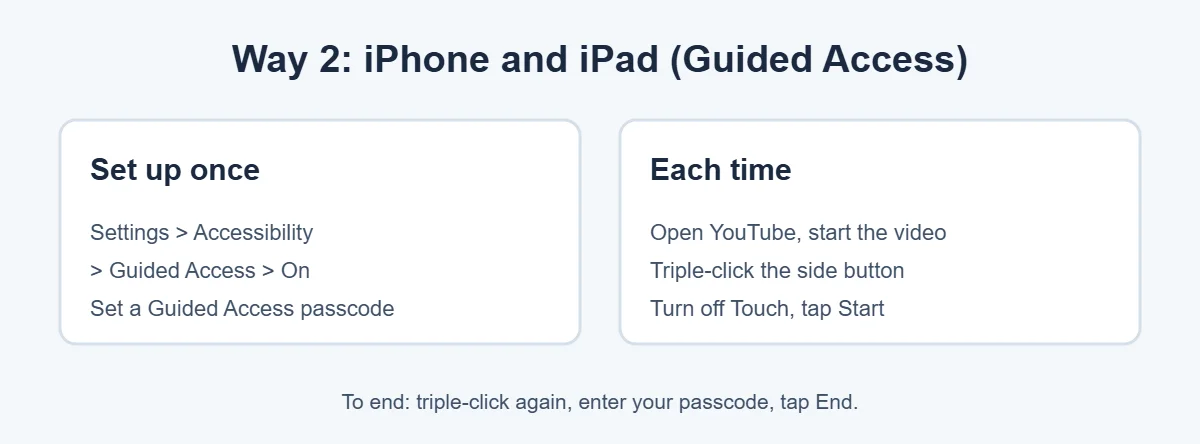
To end the session, triple-click the side button again (on iOS 18 or earlier, Apple says to double-click), enter your passcode or use Face ID, then tap End.
Way 3: Lock YouTube Screen on Android (App Pinning)
Android has a similar tool called app pinning, or screen pinning. It keeps the phone on one app until you unpin it with your PIN, pattern or password. These steps come from Android Help.
Turn on app pinning (one time)
- Open Settings, then Security (or Security and location).
- Tap Advanced, then App pinning, and turn it on.
Pin YouTube
- Open YouTube and start the video.
- Swipe up to the middle of the screen and hold to open Overview. With three-button navigation, tap the Overview button.
- Tap the YouTube icon at the top of the preview.
- Tap Pin.
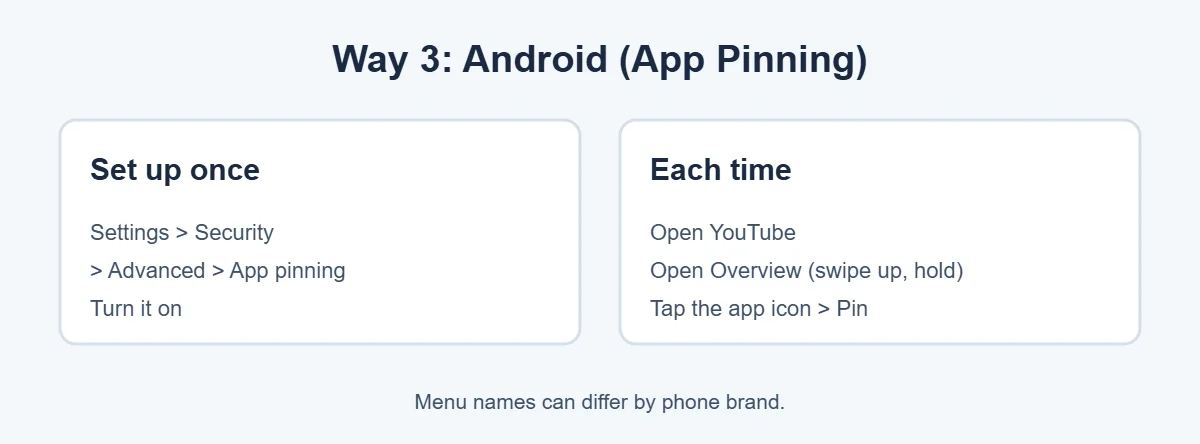
To unpin, swipe up and hold (gesture navigation), or touch and hold Back and Overview (three-button navigation). Then enter your PIN if asked. Menu names can be a little different on Samsung and other brands, so check your phone’s help pages if you can’t find them.
Pinning only stops leaving the app. Your child can still tap inside YouTube, so you may want to use YouTube’s Lock screen button at the same time.
Which Way Should You Use?
- Just want to stop pocket taps? Use YouTube’s Lock screen button.
- Handing an iPhone or iPad to a child? Use Guided Access with Touch turned off.
- Handing an Android phone to a child? Use app pinning plus YouTube’s Lock screen button.
Streaming on other devices too? See how to authorize a MacBook for Apple TV, or what to do if you can’t watch Disney Plus on your MacBook.
Frequently Asked Questions
Can you lock the screen on YouTube?
Yes. The YouTube mobile app has a built-in Lock screen option. Start a video, tap the settings icon, then tap Lock screen. To unlock, tap the video and choose Tap to unlock. It stops accidental taps and swipes from pausing or changing the video.
Why don’t I see the Lock screen option in YouTube?
First, update the YouTube app from the App Store or Google Play, because the option is only in newer versions of the mobile app. If you still don’t see it, use Guided Access on iPhone or app pinning on Android instead. Both work with any video app.
How do I lock my screen while a child watches YouTube?
Use YouTube’s Lock screen button for short videos. For longer sessions, Guided Access on iPhone or app pinning on Android is safer, because your child can’t leave the app without your passcode or PIN. YouTube Kids is also worth a look for younger children.
Does locking the YouTube screen stop ads?
No. Locking the screen only stops taps and swipes. Ads still play as normal, and YouTube says some ads and in-app notifications may briefly let you interact with the screen. The lock comes back once the ad ends or the notification closes.
How do I unlock Guided Access if I forgot the passcode?
Apple’s Guided Access needs its passcode, Face ID or Touch ID to end a session. If you can’t remember it, try Face ID or Touch ID if you turned it on. If that doesn’t work, contact Apple Support for help, and pick a passcode you’ll remember next time.
Can I lock YouTube screen on a computer?
There’s no lock button on the YouTube website. On a computer, the easiest option is to make the video full screen and avoid touching the mouse and keyboard, or lock Windows with Windows + L once the video is done.
The Bottom Line
The quickest way to lock YouTube screen is the built-in option: tap settings, then Lock screen. For kids, Guided Access on iPhone and app pinning on Android are stronger, because nobody can leave YouTube without your passcode.
Set them up once, and next time you hand over your phone, locking the screen takes just a few seconds.
{“@context”:”https://schema.org”,”@type”:”FAQPage”,”mainEntity”:[{“@type”:”Question”,”name”:”Can you lock the screen on YouTube?”,”acceptedAnswer”:{“@type”:”Answer”,”text”:”Yes. The YouTube mobile app has a built-in Lock screen option. Start a video, tap the settings icon, then tap Lock screen. To unlock, tap the video and choose Tap to unlock. It stops accidental taps and swipes from pausing or changing the video.”}},{“@type”:”Question”,”name”:”Why don’t I see the Lock screen option in YouTube?”,”acceptedAnswer”:{“@type”:”Answer”,”text”:”First, update the YouTube app from the App Store or Google Play, because the option is only in newer versions of the mobile app. If you still don’t see it, use Guided Access on iPhone or app pinning on Android instead. Both work with any video app.”}},{“@type”:”Question”,”name”:”How do I lock my screen while a child watches YouTube?”,”acceptedAnswer”:{“@type”:”Answer”,”text”:”Use YouTube’s Lock screen button for short videos. For longer sessions, Guided Access on iPhone or app pinning on Android is safer, because your child can’t leave the app without your passcode or PIN. YouTube Kids is also worth a look for younger children.”}},{“@type”:”Question”,”name”:”Does locking the YouTube screen stop ads?”,”acceptedAnswer”:{“@type”:”Answer”,”text”:”No. Locking the screen only stops taps and swipes. Ads still play as normal, and YouTube says some ads and in-app notifications may briefly let you interact with the screen. The lock comes back once the ad ends or the notification closes.”}},{“@type”:”Question”,”name”:”How do I unlock Guided Access if I forgot the passcode?”,”acceptedAnswer”:{“@type”:”Answer”,”text”:”Apple’s Guided Access needs its passcode, Face ID or Touch ID to end a session. If you can’t remember it, try Face ID or Touch ID if you turned it on. If that doesn’t work, contact Apple Support for help, and pick a passcode you’ll remember next time.”}},{“@type”:”Question”,”name”:”Can I lock YouTube screen on a computer?”,”acceptedAnswer”:{“@type”:”Answer”,”text”:”There’s no lock button on the YouTube website. On a computer, the easiest option is to make the video full screen and avoid touching the mouse and keyboard, or lock Windows with Windows + L once the video is done.”}}]}
2 thoughts on “How to Lock YouTube Screen: 3 Simple Ways (iPhone & Android)”