
PC screen blurry? The fastest fix is to open Settings, go to System, then Display, and set both resolution and scale to the option marked Recommended. That alone fixes most blurry screens. If not, update your graphics driver and check your cable.
Below are eight easy fixes for a PC screen blurry problem, ordered from quickest to more advanced. They work for desktops, laptops and external monitors on Windows 10 and 11.
[ADD PERSONAL EXPERIENCE: one line about when your own screen went blurry, like after an update or a new monitor.]
Table of Contents
Why Is My PC Screen Blurry?
A PC screen blurry issue almost always comes from one of these:
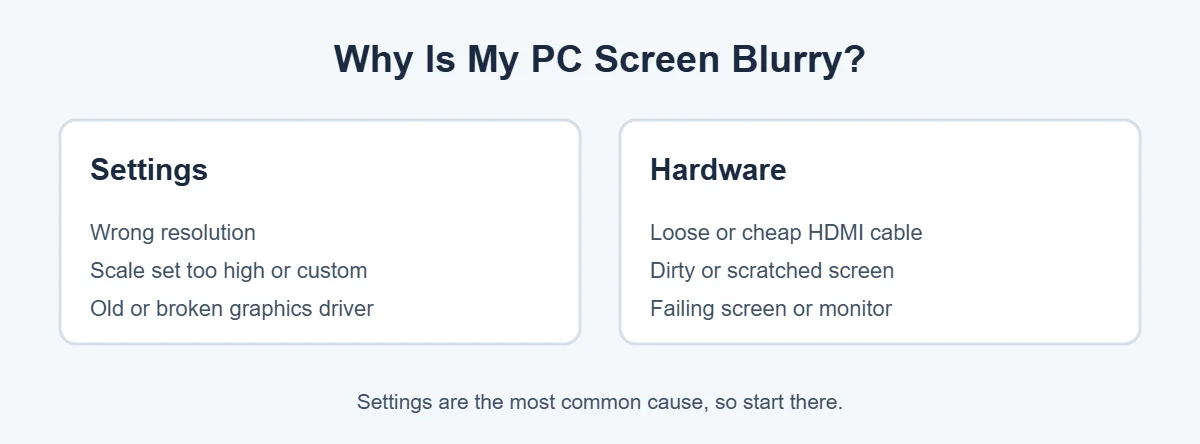
- Wrong resolution: anything other than your screen’s native resolution looks soft.
- Scaling: high or custom scale settings can stretch apps and text.
- Graphics driver: an old, missing or broken driver can lock you to a low resolution.
- Cable or port: a loose or worn HDMI cable can blur the picture.
- The screen itself: rare, but a failing panel or monitor can look fuzzy.
8 Easy Fixes for a PC Screen Blurry Problem
1. Set the recommended resolution
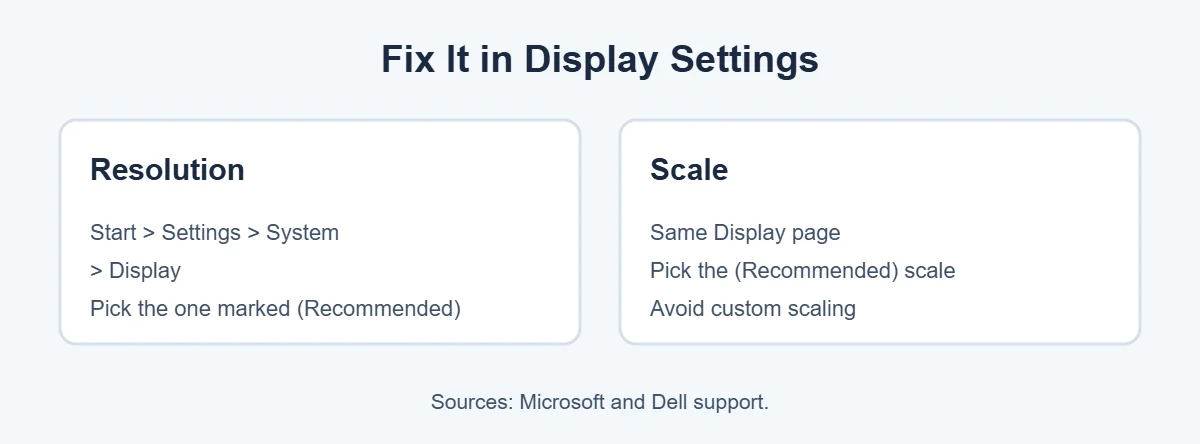
Open Start, then Settings, System, Display. Under Display resolution, pick the one marked (Recommended). Dell’s display guide gives the same advice. This is the number one fix for a PC screen blurry issue.
2. Set the recommended scale
On the same Display page, set Scale to the recommended value. Microsoft notes that custom scaling isn’t recommended, because it can make some apps look blurry. Sign out and back in after changing it.
3. Restart the graphics driver
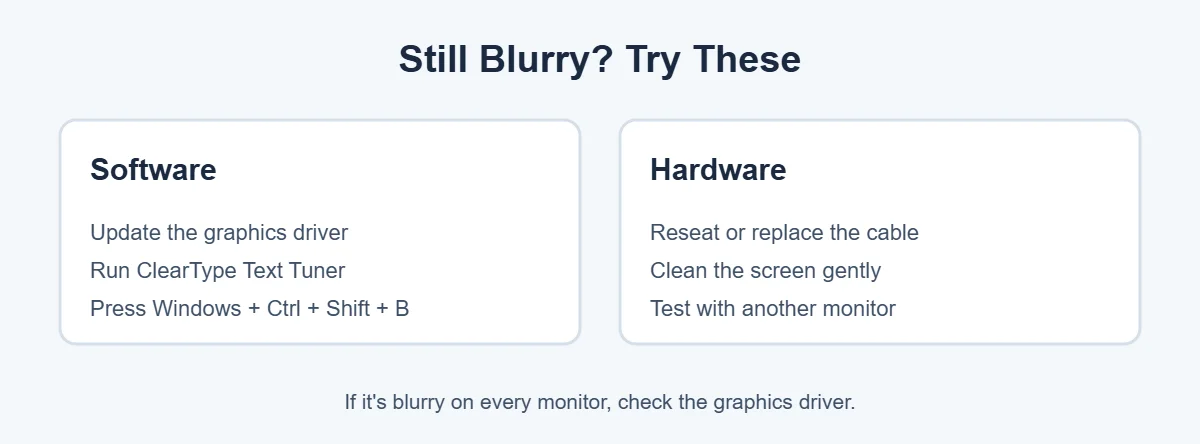
Press Windows + Ctrl + Shift + B. According to Microsoft, this resets the graphics driver, and you’ll hear a beep or see a quick flicker. It’s harmless and often clears display glitches.
4. Update your graphics driver
Open Device Manager, expand Display adapters, right-click your graphics card and choose Update driver. For the best results, download the latest driver from your PC maker or from Intel, AMD or NVIDIA. If the blur started after an update, choose Roll back driver instead.
5. Tune your text with ClearType
If text looks fuzzy but images look fine, search for Adjust ClearType text in Start. Follow the steps and pick the sample that looks sharpest. It only takes a minute.
6. Check the refresh rate
Go to Settings, System, Display, then Advanced display. Dell suggests a refresh rate of 60 Hz for most standard screens. A wrong setting can cause blur or flicker.
7. Check your cable and port
For a monitor, unplug and firmly reconnect both ends of the cable. Try a different port or a newer HDMI or DisplayPort cable. A cheap or damaged cable is a common reason a PC screen blurry problem appears only on an external monitor.
8. Clean the screen and test the hardware
Turn off the screen and wipe it gently with a dry microfiber cloth. Then run a hardware test. On a Dell laptop, hold the D key and press Power to start the built-in screen test. If the colors look sharp, your screen is fine and the blur is a software setting.
Blurry Only on a Second Monitor?
When you use two screens, each one needs its own settings. In Display settings, click each monitor at the top and set its own recommended resolution and scale. Moving apps between screens with different scales can make them look fuzzy until you sign out and back in.
When a Blurry Screen Means Hardware Trouble
- The blur shows up in your laptop’s built-in screen test.
- It’s blurry on every computer you connect the monitor to.
- You also see lines, flicker or dark spots.
In that case, contact your PC or monitor maker, especially if it’s still under warranty. If an old laptop isn’t worth fixing, here’s where to sell or recycle it, and why laptops cost more than desktops if you’re shopping.
Frequently Asked Questions
Why is my PC screen blurry all of a sudden?
The most common cause is a change in display settings, often after a Windows update or connecting a new monitor. Check that the resolution and scale are set to Recommended in Settings, System, Display. A loose cable or a new graphics driver can also cause sudden blur.
How do I fix blurry text on Windows 11?
Set the recommended resolution and scale first, then run the ClearType Text Tuner by searching “Adjust ClearType text” in Start. Follow the steps and pick the text that looks clearest. Restart or sign out afterward so all apps pick up the change.
Why is only one app blurry on my PC?
Some older apps don’t handle high scaling well, so Windows stretches them and they look fuzzy. Make sure your scale is set to Recommended, sign out and back in, and update the app. This often happens when you move an app between two monitors.
Can a bad HDMI cable make my screen blurry?
Yes. A loose, damaged or very old cable can cause blur, flicker or the wrong resolution. Reseat both ends, try another port, or swap in a newer cable. If a different cable fixes it, the old one was the problem.
Is a blurry laptop screen a hardware problem?
Usually not. Most blurry laptop screens are caused by resolution, scaling or driver settings. Run your laptop’s built-in screen test, like Dell’s D + Power test. If the test colors look sharp, the problem is software.
What resolution should my PC screen be?
Use the resolution Windows marks as Recommended in Settings, System, Display. That’s your screen’s native resolution, and anything else will look less sharp. Dell also suggests checking the refresh rate, which is usually 60 Hz on standard screens.
The Bottom Line
A PC screen blurry problem is usually settings, not a broken screen. Set the recommended resolution and scale, restart the graphics driver with Windows + Ctrl + Shift + B, update your driver and check the cable.
If your screen test still shows blur, it’s time for a repair. Otherwise, a few minutes in Display settings should have your screen sharp again.
{“@context”:”https://schema.org”,”@type”:”FAQPage”,”mainEntity”:[{“@type”:”Question”,”name”:”Why is my PC screen blurry all of a sudden?”,”acceptedAnswer”:{“@type”:”Answer”,”text”:”The most common cause is a change in display settings, often after a Windows update or connecting a new monitor. Check that the resolution and scale are set to Recommended in Settings, System, Display. A loose cable or a new graphics driver can also cause sudden blur.”}},{“@type”:”Question”,”name”:”How do I fix blurry text on Windows 11?”,”acceptedAnswer”:{“@type”:”Answer”,”text”:”Set the recommended resolution and scale first, then run the ClearType Text Tuner by searching \”Adjust ClearType text\” in Start. Follow the steps and pick the text that looks clearest. Restart or sign out afterward so all apps pick up the change.”}},{“@type”:”Question”,”name”:”Why is only one app blurry on my PC?”,”acceptedAnswer”:{“@type”:”Answer”,”text”:”Some older apps don’t handle high scaling well, so Windows stretches them and they look fuzzy. Make sure your scale is set to Recommended, sign out and back in, and update the app. This often happens when you move an app between two monitors.”}},{“@type”:”Question”,”name”:”Can a bad HDMI cable make my screen blurry?”,”acceptedAnswer”:{“@type”:”Answer”,”text”:”Yes. A loose, damaged or very old cable can cause blur, flicker or the wrong resolution. Reseat both ends, try another port, or swap in a newer cable. If a different cable fixes it, the old one was the problem.”}},{“@type”:”Question”,”name”:”Is a blurry laptop screen a hardware problem?”,”acceptedAnswer”:{“@type”:”Answer”,”text”:”Usually not. Most blurry laptop screens are caused by resolution, scaling or driver settings. Run your laptop’s built-in screen test, like Dell’s D + Power test. If the test colors look sharp, the problem is software.”}},{“@type”:”Question”,”name”:”What resolution should my PC screen be?”,”acceptedAnswer”:{“@type”:”Answer”,”text”:”Use the resolution Windows marks as Recommended in Settings, System, Display. That’s your screen’s native resolution, and anything else will look less sharp. Dell also suggests checking the refresh rate, which is usually 60 Hz on standard screens.”}}]}