

Computer screen half black? Take a screenshot first. If the screenshot looks normal, your screen or its cable is the problem. If the screenshot also shows the black half, it’s a software or driver issue. Then press Windows + Ctrl + Shift + B to reset your graphics driver, which fixes many cases instantly.
Below I’ll explain what causes a computer screen half black, three quick tests to find the cause, and seven easy fixes for laptops and external monitors.
[ADD PERSONAL EXPERIENCE: one line about when you saw half a screen go dark and what fixed it.]
Table of Contents
Why Is My Computer Screen Half Black?
A computer screen half black can come from software or hardware. Here are the usual causes:
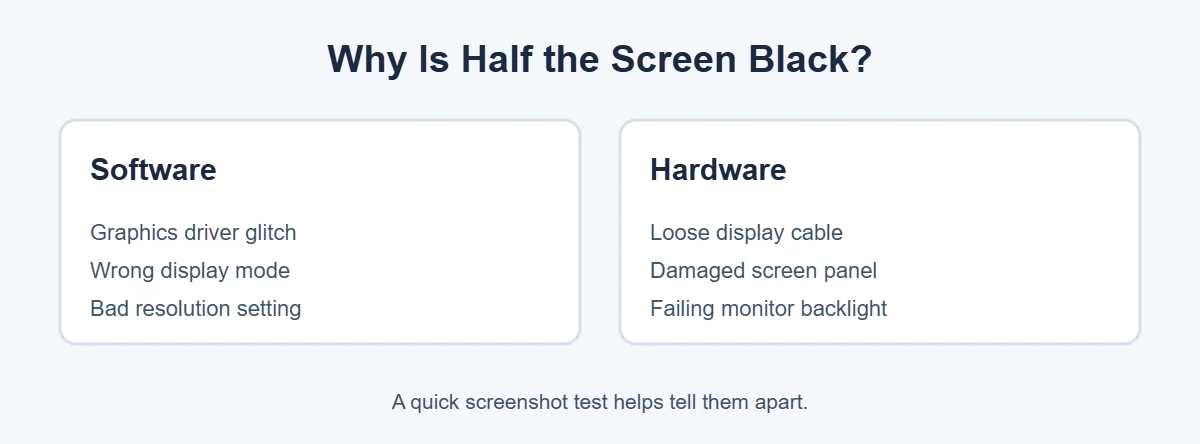
- Graphics driver glitch: the driver stops drawing part of the screen.
- Display mode or resolution: a wrong setting can leave part of the screen empty.
- Loose cable: the cable inside a laptop hinge, or an HDMI cable, can work loose.
- Damaged panel: a drop, bump or spill can kill part of the screen.
- Backlight failure: on some screens, part of the backlight stops working.
Find the Cause in 2 Minutes
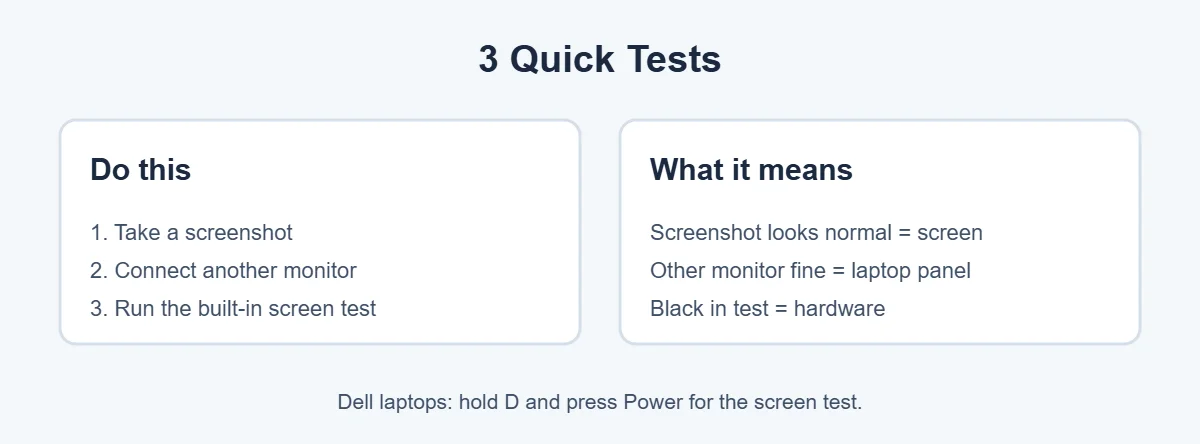
Before trying fixes, run these three quick tests on your computer screen half black problem.
1. Take a screenshot
Press Windows + PrtSc, then open the screenshot on your phone or another device. If the screenshot looks complete, the problem is the screen itself, not Windows.
2. Try another monitor
Connect your laptop to a TV or monitor. Dell explains that if the external display works, the laptop screen may be faulty.
3. Run the built-in screen test
On a Dell, turn the laptop off, hold D and press Power to run the LCD built-in self-test. Dark areas during the test point to hardware. Other brands have their own diagnostics, like HP PC Hardware Diagnostics.
7 Easy Fixes for a Computer Screen Half Black
1. Reset the graphics driver
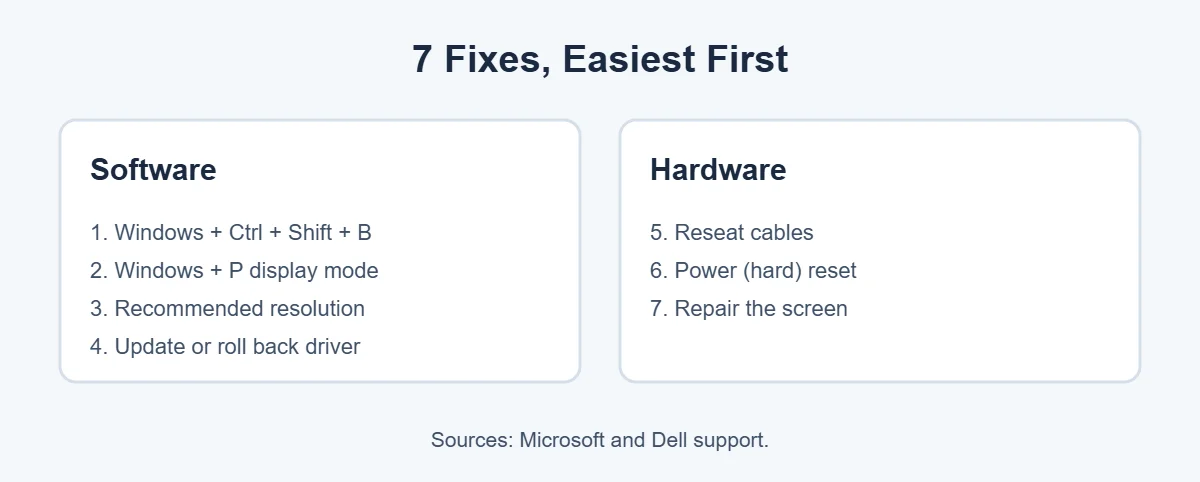
Press Windows + Ctrl + Shift + B. Microsoft says you’ll hear a beep or see a flicker when it works. It’s safe, quick and fixes many cases of a computer screen half black.
2. Switch the display mode
Press Windows + P and choose PC screen only or Duplicate. A wrong projection mode can leave part of the screen blank, especially after using a projector or second monitor.
3. Set the recommended resolution
Go to Settings, System, Display, and pick the resolution marked Recommended. A wrong resolution can push part of the picture off the screen.
4. Update or roll back the graphics driver
Open Device Manager, expand Display adapters, right-click your graphics card and choose Update driver. If your computer screen half black started right after an update, choose Roll back driver, as Microsoft suggests.
5. Reseat the cables
For a monitor, unplug and firmly reconnect both ends of the cable, then try another port or cable. For a laptop, gently open and close the lid. If the black half flickers or changes when you move the screen, the internal display cable is likely loose and needs a technician.
6. Do a power reset
Shut down, unplug the charger and remove all devices. Dell recommends holding the power button for 15 to 20 seconds, then plugging back in and turning the laptop on. This clears leftover power that can confuse the display.
7. Repair or replace the screen
If your computer screen half black shows in the screen test or on every boot, the panel or cable is damaged. Back up your files and contact the maker. If it’s still under warranty, the repair may be free unless there’s physical damage.
How to Avoid a Half Black Screen
- Open and close the lid from the middle, not one corner.
- Don’t carry the laptop by the screen.
- Keep drinks away and use a padded sleeve.
- Install Windows and driver updates regularly.
Is your laptop getting old? Here’s how long laptops usually last, and where to sell or recycle an old laptop if a repair isn’t worth it.
Frequently Asked Questions
Why is half my computer screen black?
It’s usually a graphics driver glitch, a wrong display setting, a loose cable or a damaged screen. If a screenshot of your screen looks normal, the problem is the physical display. If the screenshot also shows the black half, it’s software.
How do I fix half of my laptop screen being black?
Press Windows + Ctrl + Shift + B to reset the graphics driver, then restart. Next, update or roll back the driver and set the recommended resolution. If the black half shows up in your laptop’s built-in screen test, the panel or its cable needs repair.
Can a graphics driver cause half the screen to go black?
Yes. A broken or newly updated driver can stop part of the screen from drawing. Microsoft suggests updating the driver, or rolling it back in Device Manager if the problem started after an update.
Is half a black screen a hardware problem?
Often, yes, especially if it happened after a drop, a bump or a spill, or if the black half shows up in your laptop’s built-in screen test. A loose screen cable or a damaged panel are the usual hardware causes.
Why is half my monitor black?
For an external monitor, check the cable first: reseat it, try another port and another cable. Then connect the monitor to a different computer. If it’s still half black on every computer, the monitor itself has failed.
How much does it cost to fix a half black laptop screen?
It depends on the brand, model and whether it’s the cable or the whole panel. Check your warranty first, then get a quote from the maker or a local repair shop. For an older laptop, compare the cost with buying a new one.
The Bottom Line
A computer screen half black is usually a driver glitch, a display setting or a loose cable. Take a screenshot, try another monitor and run your laptop’s screen test to find the cause. Then reset the driver with Windows + Ctrl + Shift + B, check Windows + P and update your driver.
If the black half shows in the screen test, it’s hardware, and a repair is the only real fix.
{“@context”:”https://schema.org”,”@type”:”FAQPage”,”mainEntity”:[{“@type”:”Question”,”name”:”Why is half my computer screen black?”,”acceptedAnswer”:{“@type”:”Answer”,”text”:”It’s usually a graphics driver glitch, a wrong display setting, a loose cable or a damaged screen. If a screenshot of your screen looks normal, the problem is the physical display. If the screenshot also shows the black half, it’s software.”}},{“@type”:”Question”,”name”:”How do I fix half of my laptop screen being black?”,”acceptedAnswer”:{“@type”:”Answer”,”text”:”Press Windows + Ctrl + Shift + B to reset the graphics driver, then restart. Next, update or roll back the driver and set the recommended resolution. If the black half shows up in your laptop’s built-in screen test, the panel or its cable needs repair.”}},{“@type”:”Question”,”name”:”Can a graphics driver cause half the screen to go black?”,”acceptedAnswer”:{“@type”:”Answer”,”text”:”Yes. A broken or newly updated driver can stop part of the screen from drawing. Microsoft suggests updating the driver, or rolling it back in Device Manager if the problem started after an update.”}},{“@type”:”Question”,”name”:”Is half a black screen a hardware problem?”,”acceptedAnswer”:{“@type”:”Answer”,”text”:”Often, yes, especially if it happened after a drop, a bump or a spill, or if the black half shows up in your laptop’s built-in screen test. A loose screen cable or a damaged panel are the usual hardware causes.”}},{“@type”:”Question”,”name”:”Why is half my monitor black?”,”acceptedAnswer”:{“@type”:”Answer”,”text”:”For an external monitor, check the cable first: reseat it, try another port and another cable. Then connect the monitor to a different computer. If it’s still half black on every computer, the monitor itself has failed.”}},{“@type”:”Question”,”name”:”How much does it cost to fix a half black laptop screen?”,”acceptedAnswer”:{“@type”:”Answer”,”text”:”It depends on the brand, model and whether it’s the cable or the whole panel. Check your warranty first, then get a quote from the maker or a local repair shop. For an older laptop, compare the cost with buying a new one.”}}]}