
Why is my internet not working? Most of the time it’s a router that needs a restart, a loose cable, an outage from your internet provider, or a problem on just one device. Start by checking if other devices can get online, then restart your modem and router. That fixes most problems.
Below I’ll show you how to find where the problem is and nine simple fixes, easiest first.
[ADD PERSONAL EXPERIENCE: one line about the last time your internet went down and what fixed it.]
Table of Contents
First: Find Where the Problem Is
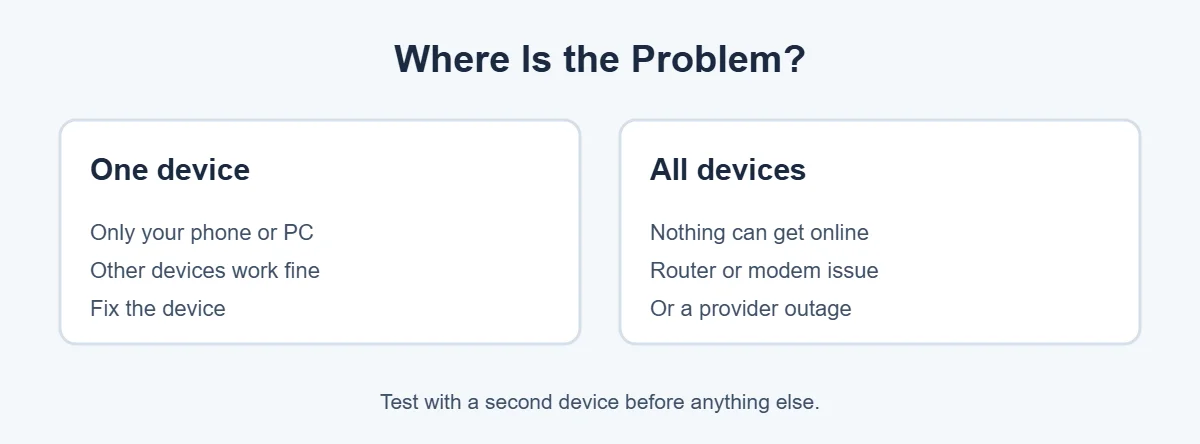
Before you fix anything, try a second device, like your phone on Wi-Fi. This quickly answers “why is my internet not working” on one device or on all of them.
- Only one device is offline: the problem is that device. Skip to fixes 4, 5, 7 and 8.
- All devices are offline: the problem is your router, modem or internet provider. Start with fixes 1 to 3.
Why Is My Internet Not Working? Common Causes
- The router or modem has frozen and needs a restart.
- A cable is loose or damaged.
- Your internet provider has an outage.
- Your device is too far from the router.
- A settings or driver problem on one device.
- Your bill is unpaid or your data cap is reached.
9 Simple Fixes
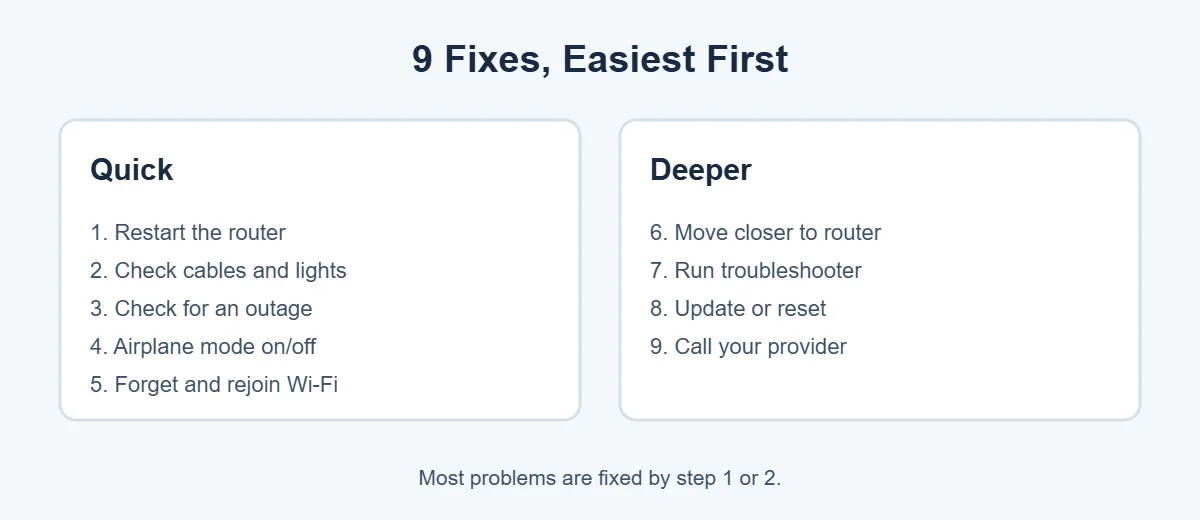
1. Restart your modem and router
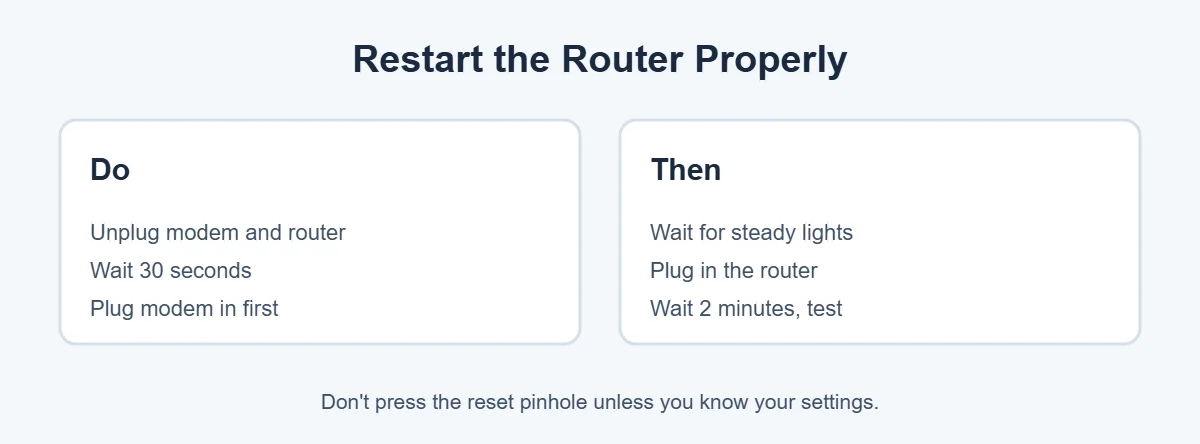
Unplug both, wait 30 seconds, plug in the modem first, wait for its lights to go steady, then plug in the router. Wait about two minutes and test again.
2. Check cables and lights
Push every cable in firmly, especially the one from the wall to the modem. A red or blinking warning light on the modem often means no signal from your provider. Your router’s manual explains what each light means.
3. Check for an outage
Use mobile data to open your provider’s app or website. Many have an outage map. If there’s an outage, you’ll need to wait for them to fix it.
4. Turn airplane mode on and off
On phones and laptops, airplane mode for 10 seconds resets the wireless connection. It’s a quick fix when one device is the issue.
5. Forget and rejoin the Wi-Fi
In your Wi-Fi settings, choose Forget on your network, then join again with the password. This clears saved settings that may be wrong.
6. Move closer to the router
Walls, floors and other electronics weaken Wi-Fi. If the signal is weak, move closer or put the router in a higher, open spot.
7. Run the network troubleshooter
On Windows, use the Get Help app to run the network troubleshooter. Microsoft’s Wi-Fi fixes guide also walks through checks for Windows PCs.
8. Update or reset network settings
Update your device and its network driver. On Windows 11, Settings, Network & internet, Advanced network settings, Network reset reinstalls network adapters. On iPhone, go to Settings, General, Transfer or Reset iPhone, Reset, Reset Network Settings. You’ll need to rejoin Wi-Fi afterwards.
9. Call your internet provider
If all devices are still offline after a restart and there’s no outage listed, call your provider and ask them why is my internet not working on their end. They can test the line and the modem from their side.
When Your Internet Works but Is Slow
If you’re not asking why is my internet not working, but why it’s so slow, that’s a different problem. Restart the router, check how many devices are using it, and run a speed test to compare with your plan. For more simple guides, visit TrickieTech.
Is It Your Wi-Fi or the Internet Itself?
These two things sound the same, but they are not. Wi-Fi is the wireless link between your device and your router. The internet is the connection from your router to your provider and the rest of the world.
So when you ask “why is my internet not working,” the answer depends on which link is broken. Here’s a quick way to tell:
- Wi-Fi icon shows “No internet” or a warning sign: your device reached the router, but the router can’t reach the internet. Look at the router, modem and provider.
- Device can’t see your Wi-Fi at all: the router may be off, or the device’s Wi-Fi is turned off or faulty.
- A cable-connected PC works but Wi-Fi doesn’t: the internet is fine. The problem is the router’s wireless or your device.
How to Read Your Modem and Router Lights
The small lights on the front of your modem and router are a free test. They tell you a lot about why you have the internet not working. The exact colors differ by brand, so check the label or manual, but most work like this:
| Light | Normal | What a problem looks like |
|---|---|---|
| Power | Steady on | Off, or red |
| Internet / WAN / Online | Steady on (often white, blue or green) | Off, red, orange or blinking for a long time |
| Wi-Fi | On or gently flashing | Off |
| DSL / Cable / Fiber (PON) | Steady on | Blinking that never stops, or red |
If the internet light is red or off even after a restart, the problem is almost always on the provider’s side or with the line coming into your home. That’s the moment to check for an outage or call them.
Internet Not Working on a Windows PC
If you have the internet not working on only your Windows laptop or desktop, try these steps in order.
- Click the Wi-Fi icon on the taskbar, turn Wi-Fi off, wait 10 seconds, and turn it on again.
- Restart the PC. A full restart clears many network glitches.
- Open Command Prompt and run
ipconfig /release, thenipconfig /renew, thenipconfig /flushdns. This asks the router for a fresh address and clears saved web addresses. - Update the network driver in Device Manager under Network adapters, or download it from your laptop maker’s website using another device.
- As a last step, use Network reset in Settings. You’ll have to rejoin Wi-Fi and set up any VPN again.
Internet Not Working on a Mac
- Click the Wi-Fi icon in the menu bar, turn Wi-Fi off and on again.
- Open System Settings, Wi-Fi, click Details next to your network and choose Forget This Network. Then join again.
- Hold the Option key and click the Wi-Fi icon. Choose Open Wireless Diagnostics and follow the steps. It looks for common problems with your connection.
- Restart the Mac and install any macOS updates.
Internet Not Working on iPhone or Android
When your phone shows Wi-Fi but has the internet not working, the fix is often quick.
- Toggle airplane mode on for 10 seconds, then off.
- Forget the network and join again with the password.
- Turn off a VPN or any ad blocker app for a moment to see if it’s blocking the connection.
- iPhone: Reset Network Settings (Settings, General, Transfer or Reset iPhone, Reset). This removes saved Wi-Fi passwords.
- Android (Pixel and many others): Settings, System, Reset options, Reset Wi-Fi, mobile and Bluetooth. Menu names can differ slightly on Samsung and other brands.
Router Problems You Might Not Think Of
Sometimes the reason for the internet not working is the router itself, even when it looks fine.
Bad placement
A router inside a cabinet, on the floor or behind a TV gives a weak signal. Put it up high, in the middle of your home, away from microwaves and thick walls.
Overheating
Routers get warm, but one that is very hot to touch can freeze or drop connections. Give it space and airflow, and keep it out of direct sun.
Too many devices
Phones, TVs, cameras, smart speakers and game consoles all share the same connection. A big download or 4K stream on one device can make it seem like the internet not working on others.
2.4 GHz vs 5 GHz
Many routers have two bands. 2.4 GHz reaches farther and goes through walls better, but it’s slower. 5 GHz is faster but has shorter range. If you’re far from the router, joining the 2.4 GHz network can give you a more stable connection.
An old router
Routers don’t last forever. If yours is many years old, gets no more firmware updates, or needs a restart every day, it may be time to replace it. Ask your provider first, since many will swap a rented modem for free.
Could It Be a DNS Problem?
DNS is like the internet’s phone book. It turns names like google.com into addresses your device can reach. If your provider’s DNS is having trouble, apps may say “no internet” even though the connection is up.
A quick sign of a DNS problem: some apps work, like WhatsApp, but websites won’t load in the browser. You can switch to a public DNS service, such as Google Public DNS (8.8.8.8) or Cloudflare (1.1.1.1), in your device or router network settings. If websites start loading, DNS was the issue.
Stay Online While You Wait
If your internet not working is caused by an outage, you can still get online for important tasks. Turn on the hotspot on your phone and connect your laptop to it. Watch your mobile data, since video calls and downloads use a lot.
What to Tell Your Internet Provider
If you need to call, a little prep saves time. Tell them:
- When the problem started.
- That you already restarted the modem and router.
- What the modem lights show, especially the internet light.
- Whether every device is offline or only one.
- Whether a cable-connected device works.
This helps them find out why you have the internet not working much faster, and they can often test the line or reset the modem remotely while you’re on the phone.
How to Stop It Happening Again
- Restart your router once in a while, for example once a month.
- Keep the router’s firmware updated through its app or admin page.
- Keep your phone, laptop and their network drivers updated.
- Use a strong Wi-Fi password so neighbors aren’t using your connection.
- For big homes, a mesh Wi-Fi system covers dead spots better than one router.
Internet Not Working Only on Some Websites or Apps?
Sometimes the connection is fine, but one website or app won’t load. That usually isn’t your internet at all. Try these checks:
- Open a different website. If others load, the first site may be down. Search the site’s name with “down” to see if other people have the same problem.
- Try another browser or a private window. A bad extension or old cache can block pages.
- Clear the browser cache and cookies for that site, then reload it.
- Update the app from the App Store or Google Play, or sign out and back in.
- Check the date and time on your device. If they are wrong, secure websites may refuse to open.
Internet Not Working After an Update or New Router?
Changes are a common trigger. If your internet not working started right after something changed, look there first.
- After a device update: restart once more, then update the network driver. On Windows, you can roll back a driver in Device Manager if a new one causes trouble.
- After a new router: make sure the Wi-Fi name and password on your devices match the new router. Old saved networks can confuse phones and laptops.
- After a new password: every device has to be reconnected with the new password, including printers and smart TVs.
- After moving furniture: check that no cable was pulled loose and the router isn’t blocked.
A Quick Checklist
Save this short list for the next time you find your internet not working:
- Does another device work?
- Did you restart the modem and router the right way?
- Are the modem lights normal?
- Is there an outage in your area?
- Did you forget and rejoin the Wi-Fi?
- Have you updated your device and its network driver?
- Still offline? Call your provider with the details above.
Most people never get past step two, because a proper restart fixes the problem.
Frequently Asked Questions
Why is my internet not working but Wi-Fi is connected?
Your device is connected to the router, but the router can’t reach the internet. Restart the modem and router, check the modem’s lights, and look for an outage from your provider. If other devices work, forget the Wi-Fi network on your device and join again.
How do I know if my internet provider has an outage?
Check your provider’s app, website or social media using mobile data. Many providers have an outage map. If neighbors or other devices also can’t get online after a router restart, an outage is likely, and you’ll need to wait or call them.
Why does my internet keep cutting out?
Common causes are a weak Wi-Fi signal, too many devices, an overheating or old router, or loose cables. Move closer to the router, restart it, and keep it in an open spot. If it keeps dropping, ask your provider to check the line.
Should I reset my router?
Restart first, not reset. A restart (unplug, wait, plug in) fixes most issues. A factory reset erases your Wi-Fi name, password and settings, so use it only as a last step and only if you know how to set the router up again.
Why is the internet working on my phone but not my laptop?
The problem is the laptop, not the router. Turn Wi-Fi off and on, forget and rejoin the network, restart the laptop, and update its network driver. On Windows, try the network troubleshooter or Network reset.
How long should I wait after restarting the router?
Give it about two minutes. The modem needs time to reconnect to your provider, and the lights should go steady before you test. If it still doesn’t work after five minutes, check for an outage or call your provider.
The Bottom Line
Why is my internet not working? Usually it’s a frozen router, a loose cable, a provider outage or one device acting up. Test a second device first, then restart your modem and router.
If that doesn’t help, work through the other fixes, and call your provider if every device is still offline.
{“@context”:”https://schema.org”,”@type”:”FAQPage”,”mainEntity”:[{“@type”:”Question”,”name”:”Why is my internet not working but Wi-Fi is connected?”,”acceptedAnswer”:{“@type”:”Answer”,”text”:”Your device is connected to the router, but the router can’t reach the internet. Restart the modem and router, check the modem’s lights, and look for an outage from your provider. If other devices work, forget the Wi-Fi network on your device and join again.”}},{“@type”:”Question”,”name”:”How do I know if my internet provider has an outage?”,”acceptedAnswer”:{“@type”:”Answer”,”text”:”Check your provider’s app, website or social media using mobile data. Many providers have an outage map. If neighbors or other devices also can’t get online after a router restart, an outage is likely, and you’ll need to wait or call them.”}},{“@type”:”Question”,”name”:”Why does my internet keep cutting out?”,”acceptedAnswer”:{“@type”:”Answer”,”text”:”Common causes are a weak Wi-Fi signal, too many devices, an overheating or old router, or loose cables. Move closer to the router, restart it, and keep it in an open spot. If it keeps dropping, ask your provider to check the line.”}},{“@type”:”Question”,”name”:”Should I reset my router?”,”acceptedAnswer”:{“@type”:”Answer”,”text”:”Restart first, not reset. A restart (unplug, wait, plug in) fixes most issues. A factory reset erases your Wi-Fi name, password and settings, so use it only as a last step and only if you know how to set the router up again.”}},{“@type”:”Question”,”name”:”Why is the internet working on my phone but not my laptop?”,”acceptedAnswer”:{“@type”:”Answer”,”text”:”The problem is the laptop, not the router. Turn Wi-Fi off and on, forget and rejoin the network, restart the laptop, and update its network driver. On Windows, try the network troubleshooter or Network reset.”}},{“@type”:”Question”,”name”:”How long should I wait after restarting the router?”,”acceptedAnswer”:{“@type”:”Answer”,”text”:”Give it about two minutes. The modem needs time to reconnect to your provider, and the lights should go steady before you test. If it still doesn’t work after five minutes, check for an outage or call your provider.”}}]}