

No sound on computer? First check that the sound isn’t muted and the right output device is selected, because Windows often switches to an HDMI monitor or Bluetooth headphones. Then run the audio troubleshooter, restart the PC, and update or reinstall the audio driver. These steps fix most sound problems.
Below are 10 easy fixes for Windows 11, plus steps for Mac, based on Microsoft’s sound troubleshooting guide.
[ADD PERSONAL EXPERIENCE: one line about when you had no sound on your computer and what fixed it.]
Table of Contents
Why Is There No Sound on Computer?
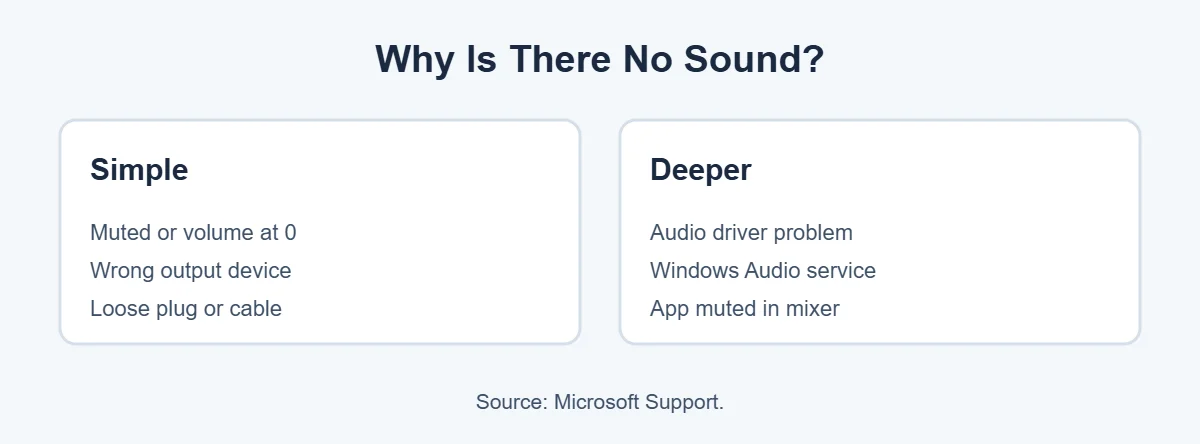
When there’s no sound on computer, it’s rarely a broken speaker. The common reasons are:
- The sound is muted or the volume is at zero.
- Windows is playing sound on the wrong device.
- A cable is loose or in the wrong jack.
- The audio driver is missing, old or broken.
- The Windows Audio service has stopped.
- One app is muted in the volume mixer.
10 Easy Fixes for No Sound on Computer
1. Check mute and volume
Click the speaker icon on the taskbar and move the volume slider up. If the icon has an X, sound is muted. Also check mute keys on your keyboard (often F1 or a key with a speaker icon) and the volume knob on external speakers.
2. Choose the right output device
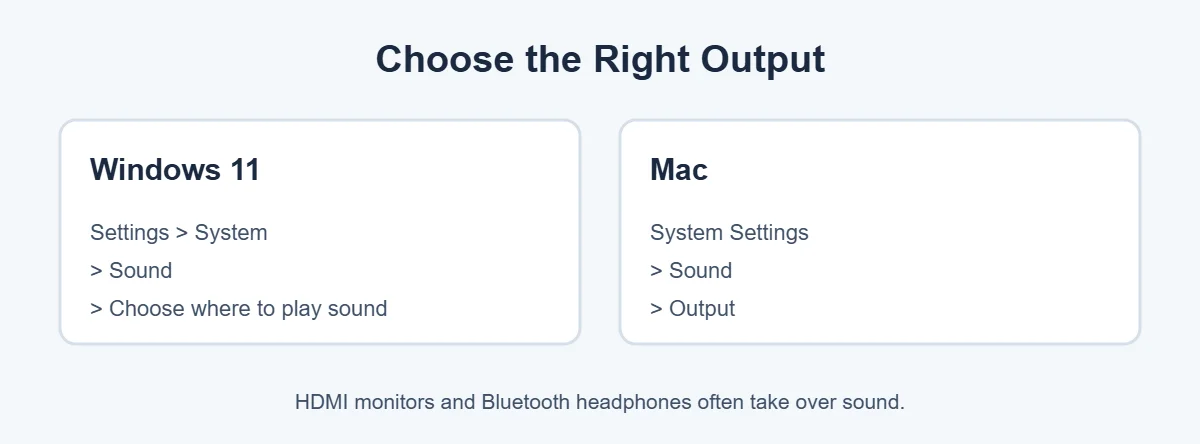
Go to Settings, System, Sound. Under “Choose where to play sound,” select your speakers or headphones. You can also click the arrow next to the volume slider in Quick Settings to switch fast.
This is the most common cause of no sound on computer after you plug in a monitor, TV or headset.
3. Run the audio troubleshooter
Open the Get Help app and search for the audio troubleshooter, or go to Settings, System, Sound and look for the troubleshoot option. It checks common problems and can fix them for you.
4. Check cables and plugs
- Wired speakers and headphones usually go in the green jack on a desktop.
- Push plugs in all the way.
- Try a different USB port for USB speakers or headsets.
- Make sure speakers are switched on and plugged into power.
5. Check Bluetooth
If you use Bluetooth headphones, make sure they’re charged and connected. If they connect but play no sound, remove them in Settings, Bluetooth & devices and pair them again. Also turn Bluetooth off if you want sound on the built-in speakers, since headphones may grab the audio.
6. Check the volume mixer
One app can be muted while others work. Right-click the speaker icon and open the Volume mixer. Make sure your app, like your browser or Spotify, isn’t turned down to zero.
7. Restart the computer
A restart resets audio services and drivers. It’s simple, but it fixes no sound on computer surprisingly often, especially after an update.
8. Update, roll back or reinstall the audio driver
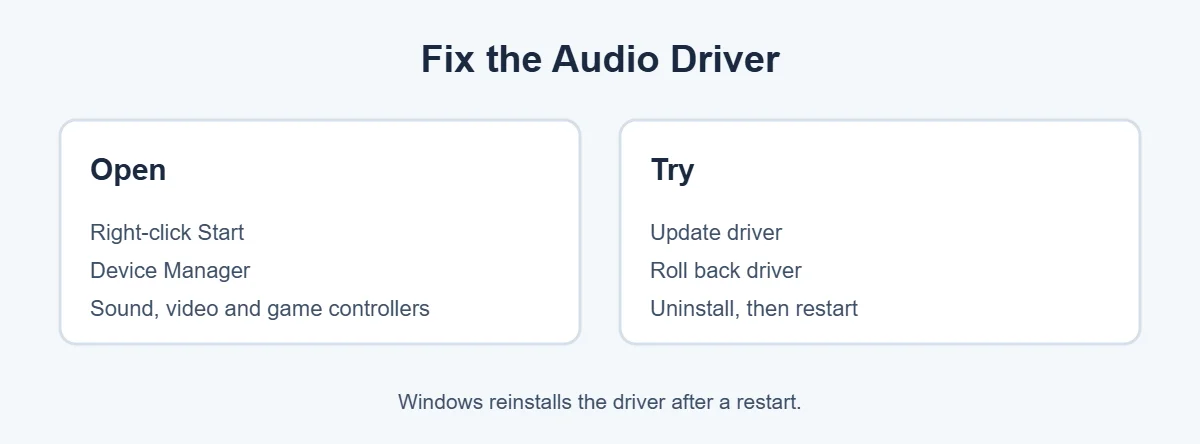
- Right-click Start and open Device Manager.
- Expand Sound, video and game controllers.
- Right-click your audio device (often Realtek or Intel) and choose Update driver.
- If sound stopped after an update, open Properties, Driver and choose Roll Back Driver if it’s available.
- Still no luck? Choose Uninstall device, then restart. Windows reinstalls the driver.
You can also get the newest audio driver from your PC maker, such as Dell, HP or Lenovo, by entering your model or serial number.
9. Restart the Windows Audio services
Search the taskbar for services and open it. Find Windows Audio, right-click it and choose Restart. Do the same for Windows Audio Endpoint Builder. Both should be set to start automatically.
10. Turn off audio enhancements
Some sound “enhancements” cause problems. In Settings, System, Sound, select your speaker and look for Audio enhancements. Set it to Off, then test the sound again.
No Sound on Computer Through HDMI or a TV
When you connect a laptop to a TV or monitor, Windows may send sound to it, or keep it on the laptop. To fix it:
- Select the TV or monitor in “Choose where to play sound.”
- Check the TV’s own volume and mute.
- Make sure the monitor actually has speakers. Many don’t.
- Update the graphics driver, since HDMI audio often comes from it.
- Try a different HDMI cable or port.
No Sound on Computer on a Mac
- Press the volume up key and check the menu bar volume isn’t muted.
- Open System Settings, Sound, Output and pick the right device.
- Unplug headphones and disconnect Bluetooth devices, then test the built-in speakers.
- Check the app you’re using has its own volume turned up.
- Restart the Mac and install macOS updates.
Apple has more help in its Mac User Guide.
No Sound Only in One App or Website
If other sounds work but one app is silent:
- Check the app’s own volume and mute buttons.
- In the browser, right-click the tab and make sure the site isn’t muted.
- Check the volume mixer for that app.
- Update or reinstall the app.
- In video calls like Zoom or Teams, check the app’s audio settings and pick the right speaker.
Is It a Hardware Problem?
If you still have no sound on computer after every fix, test with different speakers or headphones. If headphones work but built-in speakers don’t, the speakers may be faulty. If nothing works on any output, even after a driver reinstall, the sound chip or board may need repair. Contact your PC maker if it’s under warranty.
For more easy guides, visit TrickieTech.
No Sound on Computer After a Windows Update
Updates are one of the most common triggers for no sound on computer. If your sound stopped right after Windows updated, try these steps in order:
- Restart the PC again. Some updates finish only after a second restart.
- Check Settings, Windows Update for more updates, including optional driver updates under Advanced options.
- Roll back the audio driver in Device Manager, as shown in fix 8.
- Download the audio driver made for your exact model from your PC maker’s website and install it.
If a known update is causing no sound on computer for many people, Microsoft usually lists it on its Windows release health page and releases a fix.
Try the Generic Windows Audio Driver
If the maker’s driver keeps failing, Windows has a basic built-in driver you can try.
- In Device Manager, right-click your audio device and choose Update driver.
- Choose Browse my computer for drivers, then Let me pick from a list.
- Select High Definition Audio Device and click Next.
- Restart and test the sound.
The generic driver may not support every special feature, like some microphone effects, but it often brings basic sound back.
Check the Sound Format
Sometimes no sound on computer happens because the sound format setting doesn’t match your speakers. In Settings, System, Sound, select your speakers and find Format. Try a different option, like 16 bit, 48000 Hz, then click Test. If you hear a tone, keep that setting.
No Sound on Computer Speakers but Headphones Work
This one confuses many people. If headphones work but the built-in speakers are silent:
- Unplug the headphones fully. A stuck jack can make the laptop think headphones are still connected.
- Turn off Bluetooth so wireless earbuds don’t take the sound.
- Select Speakers as the output device.
- Check your laptop maker’s audio app (like Dell Audio, HP Audio Control or Realtek Audio Console) for a speaker mute setting.
No Sound on Computer in Games
If games are silent but music and videos work, check the game’s own audio settings first. Many games have their own output device choice. Also make sure Windows didn’t switch to a headset or monitor while the game started. Restarting the game after picking the right device usually fixes it.
Real-Life Examples
“Sound stopped after I plugged in my monitor”
Windows switched sound to the monitor, which has no speakers. Picking the laptop speakers again in Sound settings fixed it in seconds.
“My earbuds are in the drawer but the laptop is silent”
The earbuds were still connected by Bluetooth and took the audio. Turning off Bluetooth brought sound back to the speakers.
“No sound on computer after an update”
The update replaced the audio driver. Rolling back the driver, then installing the PC maker’s version, fixed it.
Quick Checklist
- Unmute and turn up the volume.
- Pick the right output device.
- Run the audio troubleshooter.
- Check cables, power and Bluetooth.
- Check the volume mixer.
- Restart the PC.
- Update, roll back or reinstall the driver.
- Restart the Windows Audio services.
- Turn off audio enhancements.
- Test other speakers to rule out hardware.
No Sound on Computer Desktop? Check the Jacks
Desktop computers usually have audio jacks on both the front and the back. They are color-coded on most PCs:
| Color | Use |
|---|---|
| Green | Speakers or headphones (audio out) |
| Pink | Microphone (audio in) |
| Blue | Line in (for other audio devices) |
If you have no sound on computer through the front jacks, try the green jack on the back. Front jacks connect through a cable inside the case, which can come loose. If you have a separate sound card, plug into the card’s jack, not the one on the motherboard.
Simple Words You’ll See
- Output device: where sound plays, like speakers, headphones or a TV.
- Audio driver: software that lets Windows control your sound hardware.
- Volume mixer: a panel that sets volume for each app separately.
- Windows Audio service: the background program that handles sound in Windows.
- Audio enhancements: extra effects like bass boost that can sometimes cause problems.
How to Avoid Sound Problems Later
- Install updates for Windows and drivers regularly.
- Unpair Bluetooth devices you no longer use.
- Get drivers from Windows Update or your PC maker, not random download sites.
- Unplug headphones gently, straight out, to protect the jack.
With these habits, you’ll see no sound on computer much less often, and when it does happen, the checklist above gets it fixed in minutes.
No Sound on Computer in Video Calls
Zoom, Microsoft Teams and Google Meet each choose their own speaker. So you may hear YouTube fine but nothing in a meeting.
- Zoom: click the arrow next to the microphone icon and choose the right speaker. Use “Test Speaker & Microphone” to check.
- Teams: open Settings, Devices (or Audio devices) and pick your speaker.
- Google Meet: click the three dots, Settings, Audio, and select the speaker.
Also check the browser has permission to play sound, and close other apps that might be using your headset at the same time.
When to Ask for Repair
If you still have no sound on computer, get help from your PC maker or a repair shop if:
- No output works, even new headphones, after a driver reinstall.
- Device Manager shows no audio device at all, even after a restart.
- The speakers crackle, buzz or cut out at every volume.
- The laptop was dropped or had a spill before the sound stopped.
Until it’s fixed, a cheap USB sound adapter or USB headset can work as a quick fix, since it uses its own sound hardware.
No Sound on Computer but the Microphone Works?
Sound in and sound out are separate in Windows. If people can hear you on a call but you can’t hear them, the problem is your output, not your microphone. Go back to fix 2 and check the output device, then check the call app’s speaker setting. If your headset has its own volume wheel or mute switch, check that too, because it’s easy to turn it down by accident.
Frequently Asked Questions
Why is there no sound on my computer all of a sudden?
Usually the sound is muted, the volume is low, or Windows switched to another output device like an HDMI monitor or Bluetooth headphones. A recent update can also break the audio driver. Check the volume, pick the right output device, then run the audio troubleshooter.
How do I get my sound back on my computer?
Click the speaker icon and make sure it isn’t muted. Choose the correct speakers in Settings, System, Sound. Restart the computer. If there is still no sound, update or reinstall the audio driver in Device Manager and restart the Windows Audio service.
Why do my headphones work but not my speakers?
Windows is sending sound to the headphones, or the speakers are off, unplugged or plugged into the wrong jack. Turn the speakers on, check their volume knob, plug them into the green audio-out jack or USB port, and choose them as the output device.
Why is there no sound through my HDMI monitor or TV?
Windows may still be sending sound to the laptop speakers. Select the monitor or TV as the output device in Sound settings. Also check that the TV or monitor isn’t muted and has speakers. Not all monitors have built-in speakers.
How do I reinstall my audio driver?
Right-click Start and open Device Manager. Expand Sound, video and game controllers, right-click your audio device and choose Uninstall device. Restart the computer, and Windows will reinstall the driver. You can also download the latest driver from your PC maker’s website.
Can a Windows update cause no sound?
Yes. An update can install a driver that doesn’t work well with your hardware. Try rolling back the driver in Device Manager, or install the newest driver from your PC maker. Checking for more updates can also bring a fixed driver.
The Bottom Line
No sound on computer is usually a muted volume, the wrong output device or a driver issue. Check mute, pick the right speakers, and run the troubleshooter first.
If that doesn’t work, restart the PC, fix the audio driver and restart the Windows Audio service. One of these steps should bring your sound back.
{“@context”:”https://schema.org”,”@type”:”FAQPage”,”mainEntity”:[{“@type”:”Question”,”name”:”Why is there no sound on my computer all of a sudden?”,”acceptedAnswer”:{“@type”:”Answer”,”text”:”Usually the sound is muted, the volume is low, or Windows switched to another output device like an HDMI monitor or Bluetooth headphones. A recent update can also break the audio driver. Check the volume, pick the right output device, then run the audio troubleshooter.”}},{“@type”:”Question”,”name”:”How do I get my sound back on my computer?”,”acceptedAnswer”:{“@type”:”Answer”,”text”:”Click the speaker icon and make sure it isn’t muted. Choose the correct speakers in Settings, System, Sound. Restart the computer. If there is still no sound, update or reinstall the audio driver in Device Manager and restart the Windows Audio service.”}},{“@type”:”Question”,”name”:”Why do my headphones work but not my speakers?”,”acceptedAnswer”:{“@type”:”Answer”,”text”:”Windows is sending sound to the headphones, or the speakers are off, unplugged or plugged into the wrong jack. Turn the speakers on, check their volume knob, plug them into the green audio-out jack or USB port, and choose them as the output device.”}},{“@type”:”Question”,”name”:”Why is there no sound through my HDMI monitor or TV?”,”acceptedAnswer”:{“@type”:”Answer”,”text”:”Windows may still be sending sound to the laptop speakers. Select the monitor or TV as the output device in Sound settings. Also check that the TV or monitor isn’t muted and has speakers. Not all monitors have built-in speakers.”}},{“@type”:”Question”,”name”:”How do I reinstall my audio driver?”,”acceptedAnswer”:{“@type”:”Answer”,”text”:”Right-click Start and open Device Manager. Expand Sound, video and game controllers, right-click your audio device and choose Uninstall device. Restart the computer, and Windows will reinstall the driver. You can also download the latest driver from your PC maker’s website.”}},{“@type”:”Question”,”name”:”Can a Windows update cause no sound?”,”acceptedAnswer”:{“@type”:”Answer”,”text”:”Yes. An update can install a driver that doesn’t work well with your hardware. Try rolling back the driver in Device Manager, or install the newest driver from your PC maker. Checking for more updates can also bring a fixed driver.”}}]}