
A slow computer usually has too many apps running at startup, a drive that’s almost full, not enough memory, or pending updates. Start by restarting, then turn off startup apps, free up storage and scan for malware. If it’s still slow, more RAM or an SSD will make the biggest difference.
Below are 12 simple fixes for a slow computer, free ones first, based on Microsoft’s tips to improve PC performance.
[ADD PERSONAL EXPERIENCE: one line about a slow computer you fixed and which step helped most.]
Table of Contents
Why Is My Computer So Slow?
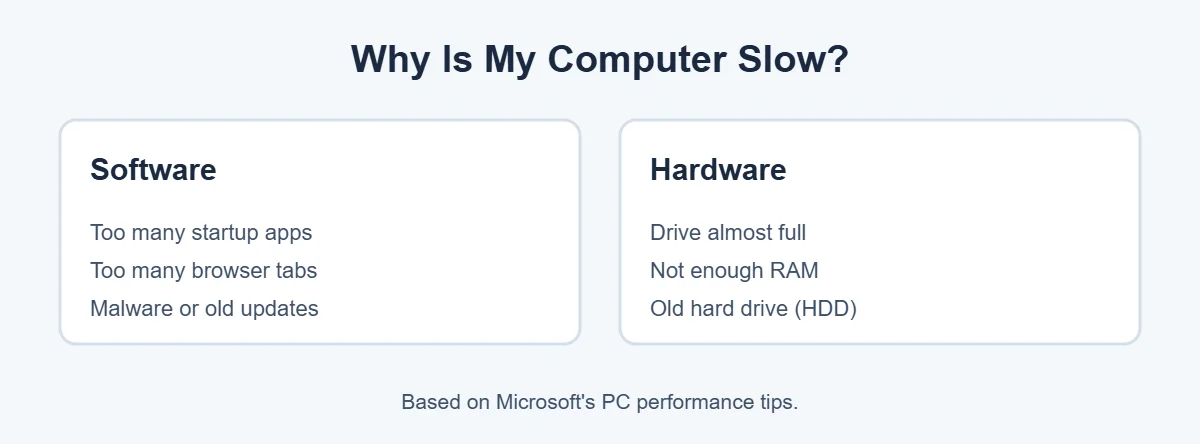
A slow computer is almost always doing too much with too little. Common causes are:
- Too many startup apps that open every time you turn it on.
- Too many browser tabs and extensions.
- A drive that’s almost full.
- Not enough RAM (memory) for what you do.
- An old hard disk drive instead of an SSD.
- Malware running in the background.
- Updates waiting to install or running in the background.
First, Find What’s Slowing It Down
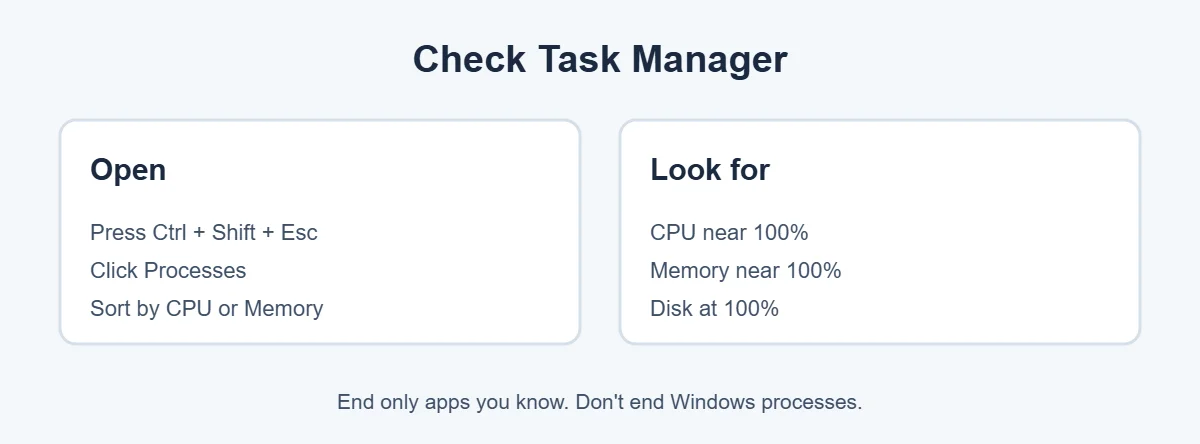
Press Ctrl + Shift + Esc to open Task Manager. On the Processes tab, click the CPU, Memory or Disk column to sort by the biggest users.
- If one app uses most of the CPU or memory, close it or restart it.
- If Memory is always near 100 percent, your PC needs fewer apps open or more RAM.
- If Disk sits at 100 percent for a long time, an old hard drive may be the bottleneck.
Only end tasks for apps you know. Don’t end Windows system processes.
12 Simple Ways to Fix a Slow Computer
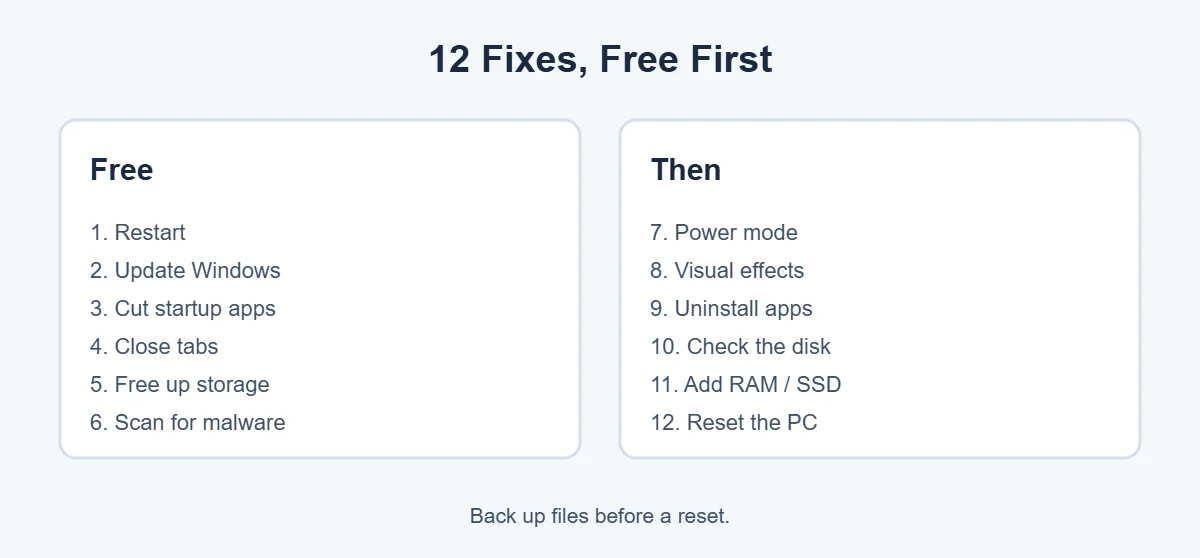
1. Restart your PC
Restarting clears memory and closes apps stuck in the background. Use Restart, not Shut down, because fast startup can keep some things running after a shutdown.
2. Install Windows and driver updates
Go to Settings, Windows Update and click Check for updates. Updates often fix bugs that slow things down. Restart when asked.
3. Turn off startup apps
Go to Settings, Apps, Startup. Turn off apps you don’t need right when the PC starts, like chat apps, game launchers and updaters. You can still open them yourself later. This makes a slow computer start much faster.
4. Close extra browser tabs and extensions
Every open tab uses memory. Close tabs you don’t need and remove extensions you don’t use. In Microsoft Edge and Chrome, sleeping tabs or memory saver features can help too.
5. Free up storage space
Go to Settings, System, Storage. Turn on Storage Sense to clean temporary files automatically, and use Cleanup recommendations to remove large or unused files. Try to keep at least 10 to 15 percent of the drive free.
6. Scan for viruses and malware
Open Windows Security, Virus & threat protection, then Scan options, and run a Full scan. Malware can quietly make a computer slow. Don’t install two antivirus programs at the same time, as they can slow each other down.
7. Change the power mode
Go to Settings, System, Power & battery and set Power mode to Best performance. On laptops, this uses more battery, so you can switch back when you’re unplugged.
8. Turn down visual effects
Search for View advanced system settings, open it, and under Performance click Settings. Choose Adjust for best performance, or untick only the animations you don’t care about. This helps older PCs feel snappier.
9. Uninstall programs you don’t use
Go to Settings, Apps, Installed apps. Remove trial software, old games and tools you never open. Many run small background tasks you don’t see.
10. Check your drive’s health
In Task Manager, open the Performance tab and click your disk to see if it’s an HDD or SSD. Old hard drives get slower and can fail. If you hear clicking, back up your files right away.
11. Add more RAM or switch to an SSD
If your slow computer has 4 GB of RAM or an old hard drive, upgrades make the biggest difference. Moving from an HDD to an SSD makes startup and app loading much faster. Going from 4 GB to 8 GB or 16 GB of RAM helps with many tabs and apps. Check your PC maker’s site to see what your model supports.
12. Reset Windows
If nothing else works, go to Settings, System, Recovery and choose Reset this PC. Pick Keep my files to keep personal files, but your apps will be removed. Back up everything first.
Slow Computer Only When Browsing?
If apps are fine but websites are slow, you may not have a slow computer at all. The problem may be your internet. Run a speed test and restart your router. Also clear your browser cache and turn off extensions one by one to find a slow one.
Slow Computer After a Windows Update
After big updates, Windows often finishes tasks in the background for a while, like indexing files. Leave it on and plugged in for an hour. If it’s still slow a day later, check for more updates and newer drivers from your PC maker.
Is It Time for a New Computer?
Sometimes a slow computer is just old. Think about replacing it if:
- It can’t run Windows 11 or no longer gets security updates.
- It’s slow even after a reset and an SSD upgrade.
- Upgrading RAM isn’t possible because memory is soldered on.
- Repairs would cost close to the price of a new PC.
If you replace it, you can sell or recycle the old one. Here’s what ecoATM accepts.
Slow Computer at Startup
If your slow computer takes ages to start but is fine after that, focus on startup.
- Turn off startup apps in Settings, Apps, Startup.
- In Task Manager, open the Startup apps page and check the “Startup impact” column. Disable the ones marked High that you don’t need.
- Check that Windows isn’t installing updates every time you start. Let pending updates finish.
- If the PC uses a hard drive, an SSD is the biggest fix for slow startup.
Slow Laptop on Battery
A laptop can become a slow computer on battery, because laptops slow themselves down to save power. If your laptop is a slow computer only when unplugged:
- Plug it in and see if it speeds up.
- Check Power mode and Energy Saver settings in Settings, System, Power & battery.
- Check your laptop maker’s power app, like Lenovo Vantage, MyASUS or Dell Optimizer, which may have its own battery saving mode.
- An old battery can also make a laptop slow down. Check battery health in your maker’s app.
Is Your Computer Overheating?
Heat can create a slow computer, because hot computers slow down on purpose to protect themselves. This is called thermal throttling. Signs include loud fans, a hot base and slowdowns during heavy work.
- Use the laptop on a hard, flat surface, not a bed or sofa.
- Clean dust from the vents with short bursts of compressed air while the PC is off.
- For desktops, make sure case fans spin and nothing blocks the airflow.
- A laptop stand or cooling pad can help during long sessions.
How Much RAM and Storage Do You Need?
| What you do | RAM | Storage |
|---|---|---|
| Email, browsing, videos | 8 GB | 256 GB SSD |
| Office work, many tabs, video calls | 16 GB | 512 GB SSD |
| Photo editing, gaming | 16 to 32 GB | 1 TB SSD |
| Video editing, heavy design | 32 GB or more | 1 TB SSD or more |
These are general guidelines, not exact rules. Windows 11’s own minimum is 4 GB of RAM and 64 GB of storage, but a PC at that minimum often feels like a slow computer in daily use.
What Not to Do
- Don’t install “PC cleaner” or “registry cleaner” apps from pop-up ads. Many add junk or show scary fake warnings. Windows’ own tools are enough.
- Don’t run two antivirus programs at once.
- Don’t disable Windows services you don’t understand. It can break updates and security.
- Don’t delete files from the Windows folder to save space.
Real-Life Examples
“It takes five minutes to start”
This slow computer had fifteen apps opening at startup. Turning off all but antivirus and cloud storage cut startup time a lot.
“It freezes when I have lots of tabs open”
The laptop had 4 GB of RAM and Memory showed 95 percent in Task Manager. Closing tabs helped, and upgrading to 8 GB fixed it.
“My old desktop is painfully slow”
It still had a hard drive running at 100 percent disk use. Swapping in an SSD made it feel like a new PC.
[ADD PERSONAL EXPERIENCE: add one short example from your own PC or a friend’s.]
Quick Checklist
- Restart and install updates.
- Check Task Manager for busy apps.
- Turn off startup apps.
- Close tabs and remove extensions.
- Free up storage with Storage Sense.
- Run a full Windows Security scan.
- Set Power mode to Best performance.
- Turn down visual effects.
- Uninstall unused programs.
- Check for overheating.
- Upgrade to an SSD or more RAM.
- Reset Windows as a last step.
Slow Computer and Cloud Storage Sync
Apps like OneDrive, Google Drive and Dropbox sync files in the background. When you first set them up, or after adding many photos, they can make a slow computer even slower for a while. You can pause syncing from the app’s icon in the taskbar during work, then let it finish later. Turning on “Files On-Demand” in OneDrive also saves space, because files stay in the cloud until you open them.
Keep Your Computer Fast Over Time
- Restart at least once a week instead of only using sleep.
- Let Windows updates install when they’re ready.
- Check startup apps every few months, since new programs add themselves.
- Keep Storage Sense on.
- Only install software from trusted sources, like the Microsoft Store or the maker’s official site.
- Keep 10 to 15 percent of your drive free.
Small habits like these stop a fast PC from turning into a slow computer again.
Simple Words You’ll See
- CPU: the computer’s brain that runs programs.
- RAM (memory): short-term space for apps that are open right now.
- Storage (drive): where files and apps are saved, either an HDD or an SSD.
- SSD: a fast drive with no moving parts.
- HDD: an older, slower drive with a spinning disk.
- Startup apps: programs that open by themselves when Windows starts.
Before You Upgrade: What to Check
Upgrades are the best fix for an old slow computer, but check a few things first so you buy the right part.
- Find your exact model. It’s on a sticker under a laptop or on the back of a desktop. You can also search “System Information” in Windows.
- Check RAM slots and the maximum. Your PC maker’s support page lists how much memory your model supports and how many slots it has. Some thin laptops have memory soldered on, so it can’t be upgraded.
- Check the drive type. Many newer PCs use small M.2 SSDs, while older ones use 2.5-inch drives. The maker’s page or manual tells you which fits.
- Plan to move your files. When you replace the drive, you’ll need to copy Windows and your files over (called cloning) or install Windows fresh and restore from a backup.
If you’re not comfortable opening the PC, a local repair shop can usually fit RAM or an SSD quickly. It often costs much less than a new computer and can add years of use.
Slow Computer While Gaming
Games need a lot from your PC at once. If games stutter but everything else is fine, try these steps:
- Update your graphics driver from NVIDIA, AMD or Intel.
- Lower in-game settings like resolution, shadows and textures.
- Turn on Game Mode in Settings, Gaming.
- Close browsers and launchers running in the background.
- Plug in your laptop, since many gaming laptops slow the graphics chip on battery.
If the game still runs poorly, compare your PC with the game’s minimum requirements on its store page. Sometimes the hardware just can’t keep up, and no setting will fix that.
Frequently Asked Questions
Why is my computer so slow all of a sudden?
A sudden slowdown usually comes from an update running in the background, a program using lots of CPU or memory, a full drive, or malware. Open Task Manager with Ctrl + Shift + Esc to see what’s busy, restart the PC, and run a Windows Security scan.
How do I make my slow computer faster for free?
Restart it, install updates, turn off startup apps, close extra browser tabs, free up storage with Storage Sense, and uninstall programs you don’t use. Set the power mode to Best performance. These free steps help most slow computers.
How much RAM do I need for Windows 11?
Windows 11 needs at least 4 GB to install, but that feels slow for daily use. For browsing and office work, 8 GB is a comfortable minimum, and 16 GB is better if you keep many tabs open, edit photos or play games.
Will an SSD make my computer faster?
Yes, if your PC still uses a hard disk drive (HDD). An SSD makes startup, opening apps and loading files much faster. You can check your drive type in Task Manager, Performance tab, where the disk shows HDD or SSD.
Does resetting a PC make it faster?
Often, yes. Reset this PC reinstalls Windows and removes built-up clutter. Choose Keep my files to save personal files, but apps will be removed. Back up everything first, and try the simpler fixes before you reset.
Can a virus make my computer slow?
Yes. Malware can use your CPU, memory and internet in the background. Run a full scan with Windows Security, which is built into Windows 11. If it finds threats, remove them, restart, and run the scan again.
The Bottom Line
A slow computer is usually fixed with a few free steps: restart, update, turn off startup apps, close tabs, free up storage and scan for malware.
If your PC is still slow, an SSD or more RAM gives the biggest boost, and a reset can clean up years of clutter.
{“@context”:”https://schema.org”,”@type”:”FAQPage”,”mainEntity”:[{“@type”:”Question”,”name”:”Why is my computer so slow all of a sudden?”,”acceptedAnswer”:{“@type”:”Answer”,”text”:”A sudden slowdown usually comes from an update running in the background, a program using lots of CPU or memory, a full drive, or malware. Open Task Manager with Ctrl + Shift + Esc to see what’s busy, restart the PC, and run a Windows Security scan.”}},{“@type”:”Question”,”name”:”How do I make my slow computer faster for free?”,”acceptedAnswer”:{“@type”:”Answer”,”text”:”Restart it, install updates, turn off startup apps, close extra browser tabs, free up storage with Storage Sense, and uninstall programs you don’t use. Set the power mode to Best performance. These free steps help most slow computers.”}},{“@type”:”Question”,”name”:”How much RAM do I need for Windows 11?”,”acceptedAnswer”:{“@type”:”Answer”,”text”:”Windows 11 needs at least 4 GB to install, but that feels slow for daily use. For browsing and office work, 8 GB is a comfortable minimum, and 16 GB is better if you keep many tabs open, edit photos or play games.”}},{“@type”:”Question”,”name”:”Will an SSD make my computer faster?”,”acceptedAnswer”:{“@type”:”Answer”,”text”:”Yes, if your PC still uses a hard disk drive (HDD). An SSD makes startup, opening apps and loading files much faster. You can check your drive type in Task Manager, Performance tab, where the disk shows HDD or SSD.”}},{“@type”:”Question”,”name”:”Does resetting a PC make it faster?”,”acceptedAnswer”:{“@type”:”Answer”,”text”:”Often, yes. Reset this PC reinstalls Windows and removes built-up clutter. Choose Keep my files to save personal files, but apps will be removed. Back up everything first, and try the simpler fixes before you reset.”}},{“@type”:”Question”,”name”:”Can a virus make my computer slow?”,”acceptedAnswer”:{“@type”:”Answer”,”text”:”Yes. Malware can use your CPU, memory and internet in the background. Run a full scan with Windows Security, which is built into Windows 11. If it finds threats, remove them, restart, and run the scan again.”}}]}