
Mobile data not working? First turn airplane mode on and off, make sure mobile data is switched on, and check you haven’t used up your data allowance. Then restart your phone and check for a carrier settings update. If it still doesn’t work, reset network settings or check your APN.
Below are 12 easy fixes for iPhone and Android, easiest first, based on Google’s Android connection guide and Apple’s iPhone User Guide.
[ADD PERSONAL EXPERIENCE: one line about when your mobile data stopped and where you were.]
Table of Contents
Why Is My Mobile Data Not Working?
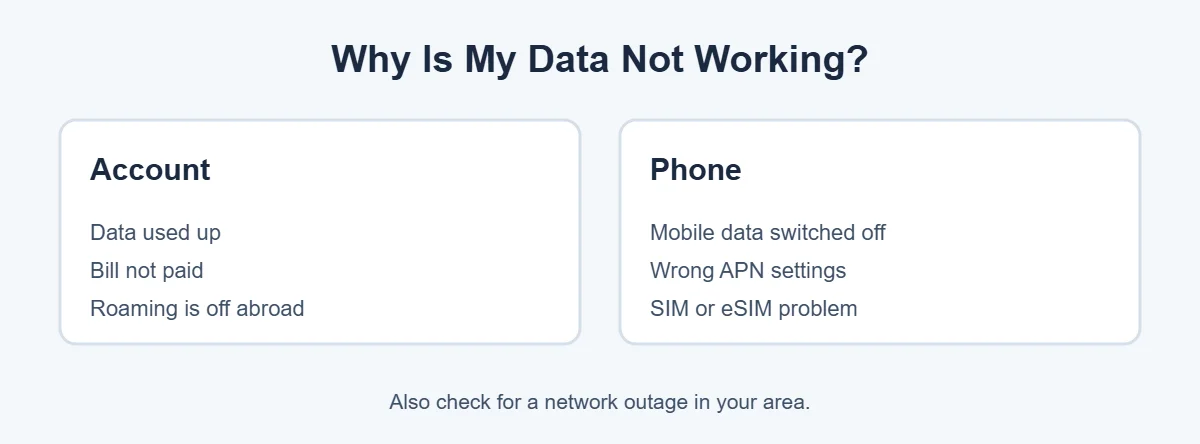
When mobile data is not working, the reason is usually one of these:
- Mobile data is switched off in settings or Control Center.
- You’ve used up your data for the month, or the bill is unpaid.
- Airplane mode is on, or got stuck.
- You’re abroad and data roaming is off.
- APN settings are wrong after changing SIM or carrier.
- A SIM or eSIM problem.
- A network outage or weak signal in your area.
12 Easy Fixes for Mobile Data Not Working
1. Turn mobile data off and on
On iPhone, open Control Center and tap the green antenna icon. On Android, pull down Quick Settings and tap Mobile data. Wait a few seconds, then turn it back on.
2. Toggle airplane mode
Turn airplane mode on for 10 seconds, then off. This forces the phone to reconnect to the network. It’s the fastest fix when mobile data is not working after you leave a building or a train.
3. Check your data balance and bill
Open your carrier’s app or website on Wi-Fi. If you’ve used all your high-speed data, data may stop or become very slow. Your carrier may also pause data if a bill is overdue.
4. Restart your phone
A restart clears small software glitches. Turn the phone off, wait 30 seconds, and turn it on again.
5. Check for a carrier settings update (iPhone)
Connect to Wi-Fi and go to Settings, General, About. If a carrier update is available, a message appears. Tap Update. These updates can fix data problems.
6. Check app access to mobile data
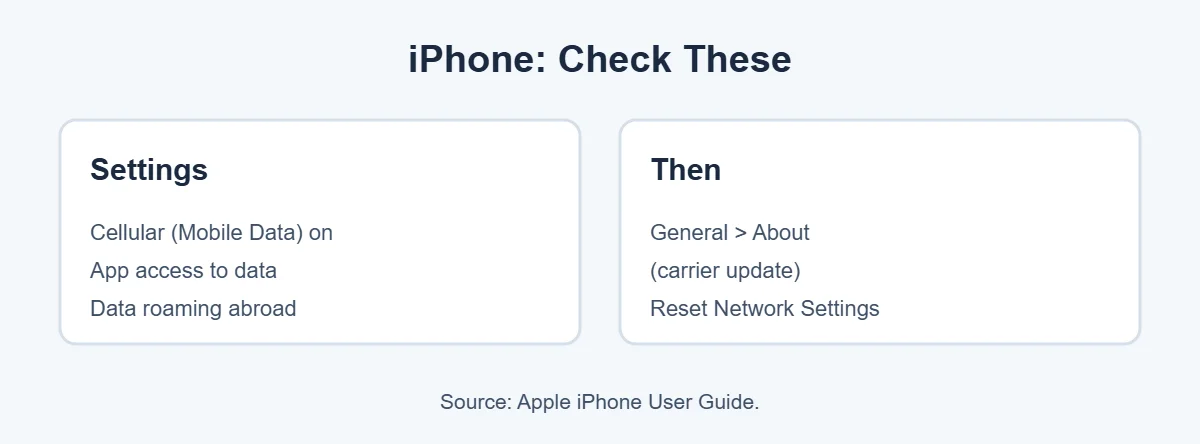
If only some apps don’t work, they may be blocked. On iPhone, open Settings, Cellular (or Mobile Data) and scroll down to check each app is allowed. Apple explains these options in its guide to cellular data settings.
7. Turn off Data Saver or Low Data Mode
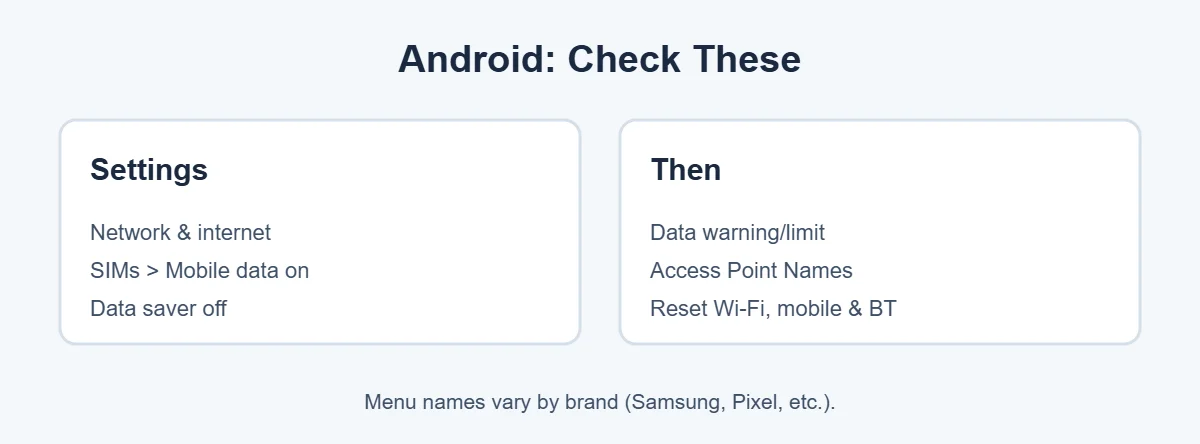
On Android, open Settings, Network & internet, Data Saver and turn it off, or allow the apps you need. Also check if a data limit is set under your SIM’s data warning and limit settings. When the limit is hit, the phone turns off mobile data. On iPhone, check Low Data Mode in Cellular Data Options.
8. Turn on data roaming when traveling
If you’re abroad, turn on Data Roaming in your mobile network settings. Check roaming charges with your carrier first, because they can be expensive.
9. Check APN settings
On Android, open Settings, Network & internet, SIMs, select your SIM, and find Access Point Names. Choose Reset to default from the menu. If you recently changed carrier, ask them for the correct APN details. iPhones usually set this automatically.
10. Remove and reinsert the SIM
Turn off the phone, take out the SIM card with the tray tool, check it for damage, and put it back. If you use an eSIM, make sure the line is turned on in your mobile settings.
11. Switch from 5G to 4G
Weak 5G can make data drop. On iPhone, go to Settings, Cellular, Cellular Data Options, Voice & Data and choose LTE. On Android, choose 4G or LTE under Preferred network type.
12. Reset network settings
This clears all network settings, including saved Wi-Fi passwords.
- iPhone: Settings, General, Transfer or Reset iPhone, Reset, Reset Network Settings.
- Android: Settings, System, Reset options, Reset Wi-Fi, mobile and Bluetooth. On Samsung, look under General management, Reset.
Mobile Data Not Working but Wi-Fi Works
When you have mobile data not working but Wi-Fi is fine, the phone’s internet is OK and the problem is the mobile network side. Focus on fixes 1 to 3, 5, 8, 9 and 10, and check for an outage with your carrier.
When to Call Your Carrier
Call your carrier if mobile data is not working after a restart, an airplane mode toggle and a network reset, or if the phone shows “No Service” or “SOS.” They can check your account, the network in your area and your SIM. They can also send a new SIM or eSIM if yours is damaged.
For more easy guides, visit TrickieTech.
Mobile Data Not Working on Samsung Phones
Samsung uses slightly different menu names. If mobile data not working is your problem on a Galaxy phone, here’s where to look:
- Mobile data switch: Settings, Connections, Data usage, Mobile data.
- Data saver: Settings, Connections, Data usage, Data saver.
- Network mode (5G/LTE): Settings, Connections, Mobile networks, Network mode.
- APN: Settings, Connections, Mobile networks, Access Point Names.
- Reset: Settings, General management, Reset, Reset mobile network settings (or Reset network settings).
Mobile Data Not Working After an Update
Phone updates sometimes change network settings. If mobile data is not working right after an update:
- Restart the phone once more.
- On iPhone, check for a carrier settings update in Settings, General, About.
- On Android, check APN settings and reset to default.
- Look for a follow-up software update in a day or two, which may fix the bug.
- Reset network settings if nothing else works.
Mobile Data Not Working After a New SIM or eSIM
New SIMs and eSIMs need a short time to activate, so mobile data not working in the first few minutes is normal. If data doesn’t work right away:
- Wait 15 to 30 minutes, then restart the phone.
- Make sure the new line is selected for mobile data. Phones with two SIMs (dual SIM) need you to choose which line uses data.
- Check that your phone is unlocked if the SIM is from a different carrier.
- Set up the APN with the details your carrier gives you.
Slow Mobile Data vs No Mobile Data
Mobile data not working and slow data are different problems.
| What you see | Likely cause | What to try |
|---|---|---|
| No data at all, apps won’t load | Data off, plan used up, APN or SIM problem | Fixes 1 to 10 |
| Data works but is very slow | Weak signal, busy network, speed limited after data cap | Move to better signal, check plan, try 4G |
| Data works in some places only | Coverage gaps | Check carrier coverage map, use Wi-Fi calling indoors |
| Data drops on and off | Switching between 5G and 4G | Set LTE/4G as preferred |
Real-Life Examples
“My data stopped on the last week of the month”
The monthly allowance was used up. The carrier app showed it, and a small data add-on fixed it.
“My mobile data is not working after landing abroad”
Data roaming was off. Turning it on, after checking the travel pass with the carrier, got the phone online.
“It works for calls but no internet after changing carrier”
The APN still had the old carrier’s details. Entering the new carrier’s APN fixed it.
[ADD PERSONAL EXPERIENCE: add a short example from your own phone if you have one.]
Tips to Avoid Data Problems
- Keep your phone and carrier settings up to date.
- Set a data warning, not a hard limit, so data doesn’t turn off unexpectedly.
- Use Wi-Fi at home to save mobile data.
- Check roaming options before traveling.
- Keep your SIM tray clean and dry.
Quick Checklist
- Toggle mobile data and airplane mode.
- Check your data balance and bill.
- Restart the phone.
- Install carrier and software updates.
- Check app data access and Data Saver.
- Turn on roaming when abroad.
- Reset APN to default.
- Reseat the SIM or check the eSIM.
- Switch from 5G to 4G.
- Reset network settings.
- Call your carrier.
Mobile Data Not Working on Dual SIM Phones
Dual SIM is a common cause of mobile data not working. Many phones can use two SIMs or a SIM plus an eSIM. Only one line uses mobile data at a time, so it’s easy to pick the wrong one and end up with mobile data not working.
- iPhone: go to Settings, Cellular, Cellular Data, and choose the line that has a data plan. You can also turn on Allow Cellular Data Switching if you want the iPhone to use the other line when coverage is poor. This may cost extra.
- Android: go to Settings, Network & internet, SIMs, and choose which SIM is used for mobile data. On Samsung, it’s Settings, Connections, SIM manager.
If you travel with a second eSIM for local data, remember to switch data back to your main line when you get home.
Messages You Might See
| Message | What it means | What to do |
|---|---|---|
| No Service | The phone can’t find your carrier’s network | Toggle airplane mode, restart, check SIM, check coverage |
| SOS or SOS only | Only emergency calls are possible | Move to a better signal area, check with your carrier |
| No SIM / Invalid SIM | The phone can’t read the SIM | Reseat the SIM, try another SIM, ask the carrier for a new one |
| SIM not supported | The phone may be locked to another carrier | Ask the original carrier to unlock it |
| “E” or “3G” instead of 4G/5G | Only a slow network is available | Move to better coverage, check preferred network type |
Stay Connected While You Fix It
- Use Wi-Fi calling indoors if your carrier supports it. Turn it on in your phone’s calling or mobile network settings.
- Connect to trusted Wi-Fi at home, work or a café to keep messages and maps working.
- Download maps offline in Google Maps before trips, so directions work without data.
Simple Words You’ll See
- Mobile data (cellular data): internet from your phone carrier, not Wi-Fi.
- Data roaming: using mobile data on another country’s network.
- APN: the settings your phone uses to connect to your carrier’s data network.
- eSIM: a digital SIM built into the phone instead of a plastic card.
- Data Saver / Low Data Mode: settings that cut background data use.
- Carrier settings update: a small update from your carrier that improves network settings on iPhone.
With these terms and the steps above, you can usually find out why your mobile data is not working in a few minutes.
Hotspot Not Sharing Mobile Data?
Sometimes mobile data works on the phone, but a laptop on its hotspot acts like mobile data not working. Here’s what to check:
- Make sure your plan includes hotspot or tethering. Some plans block it or give it a separate allowance.
- Turn the hotspot off and on, and reconnect the laptop.
- On iPhone, turn on Maximize Compatibility in Personal Hotspot settings if an older laptop can’t connect.
- Keep the phone screen on for a minute while the laptop connects. Some phones turn off the hotspot when idle to save battery.
- Check the laptop isn’t using a VPN or a metered-connection setting that blocks updates or sync.
If the hotspot still won’t share data, your carrier can tell you whether tethering is active on your line.
Is Your Phone’s Hardware the Problem?
It’s rare, but mobile data not working can be a hardware issue. A phone that was dropped or got wet can have a damaged antenna or SIM reader. Test your SIM in another phone. If data works there, the problem is your phone. If it doesn’t work in either phone, the SIM or account is the problem. Take a phone with hardware damage to the maker or an authorized repair shop, and back it up first.
Frequently Asked Questions
Why is my mobile data not working when I have signal?
Signal bars show you’re connected to calls and texts, but data can still be blocked. Common reasons are that mobile data is switched off, your data allowance is used up, the APN settings are wrong, or there’s a network problem. Toggle airplane mode and check your plan first.
How do I reset my mobile data?
Turn airplane mode on for 10 seconds, then off. Restart the phone. If that fails, reset network settings. On iPhone, go to Settings, General, Transfer or Reset iPhone, Reset, Reset Network Settings. On Android, look for Reset Wi-Fi, mobile and Bluetooth in Reset options.
Why is my data not working on just one app?
That app may not be allowed to use mobile data. On iPhone, check Settings, Cellular and scroll to the app. On Android, open the app’s info page, then Mobile data and Wi-Fi, and allow background data. Also check Data Saver isn’t blocking it.
What is an APN and do I need to change it?
An APN (Access Point Name) tells your phone how to connect to your carrier’s data network. Most phones set it automatically. If data stopped after changing SIM or carrier, ask your carrier for the correct APN details, or reset APN to default in mobile network settings.
Why does my mobile data not work abroad?
Data roaming is usually off by default to avoid big bills. Turn on Data Roaming in your mobile network settings, and make sure your plan includes roaming, or buy a local SIM or travel eSIM. Check roaming charges with your carrier before you travel.
Does turning off 5G help mobile data?
Sometimes. In areas with weak 5G, the phone may keep switching between 5G and 4G, which can make data stop. Setting your phone to LTE or 4G in mobile network settings can give a more stable connection until 5G coverage improves.
The Bottom Line
Mobile data not working is usually a quick fix: toggle airplane mode, make sure data is on, and check your plan. Then restart, update carrier settings and check app access and Data Saver.
If that doesn’t help, check APN, reseat the SIM, try 4G and reset network settings, and call your carrier if nothing works.
{“@context”:”https://schema.org”,”@type”:”FAQPage”,”mainEntity”:[{“@type”:”Question”,”name”:”Why is my mobile data not working when I have signal?”,”acceptedAnswer”:{“@type”:”Answer”,”text”:”Signal bars show you’re connected to calls and texts, but data can still be blocked. Common reasons are that mobile data is switched off, your data allowance is used up, the APN settings are wrong, or there’s a network problem. Toggle airplane mode and check your plan first.”}},{“@type”:”Question”,”name”:”How do I reset my mobile data?”,”acceptedAnswer”:{“@type”:”Answer”,”text”:”Turn airplane mode on for 10 seconds, then off. Restart the phone. If that fails, reset network settings. On iPhone, go to Settings, General, Transfer or Reset iPhone, Reset, Reset Network Settings. On Android, look for Reset Wi-Fi, mobile and Bluetooth in Reset options.”}},{“@type”:”Question”,”name”:”Why is my data not working on just one app?”,”acceptedAnswer”:{“@type”:”Answer”,”text”:”That app may not be allowed to use mobile data. On iPhone, check Settings, Cellular and scroll to the app. On Android, open the app’s info page, then Mobile data and Wi-Fi, and allow background data. Also check Data Saver isn’t blocking it.”}},{“@type”:”Question”,”name”:”What is an APN and do I need to change it?”,”acceptedAnswer”:{“@type”:”Answer”,”text”:”An APN (Access Point Name) tells your phone how to connect to your carrier’s data network. Most phones set it automatically. If data stopped after changing SIM or carrier, ask your carrier for the correct APN details, or reset APN to default in mobile network settings.”}},{“@type”:”Question”,”name”:”Why does my mobile data not work abroad?”,”acceptedAnswer”:{“@type”:”Answer”,”text”:”Data roaming is usually off by default to avoid big bills. Turn on Data Roaming in your mobile network settings, and make sure your plan includes roaming, or buy a local SIM or travel eSIM. Check roaming charges with your carrier before you travel.”}},{“@type”:”Question”,”name”:”Does turning off 5G help mobile data?”,”acceptedAnswer”:{“@type”:”Answer”,”text”:”Sometimes. In areas with weak 5G, the phone may keep switching between 5G and 4G, which can make data stop. Setting your phone to LTE or 4G in mobile network settings can give a more stable connection until 5G coverage improves.”}}]}