
To find the WiFi password on phone, open your Wi-Fi settings and tap the network. On an iPhone, go to Settings, Wi-Fi, tap the info button and tap Password. On Android, open the network’s settings and tap Share to see a QR code and, on many phones, the password. You’ll need to unlock with Face ID, a fingerprint or your PIN.
Below are seven easy ways to find a WiFi password on phone, based on Apple’s guide to saved Wi-Fi passwords and Android’s built-in sharing feature.
[ADD PERSONAL EXPERIENCE: one line about when you needed a WiFi password, like for a new laptop or a guest.]
Table of Contents
Before You Start
Your phone can only show a WiFi password on phone for networks it has already joined and saved. It can’t reveal passwords for other networks. And you should only look up passwords for networks you own or are allowed to use.
1. Find WiFi Password on iPhone (Settings)
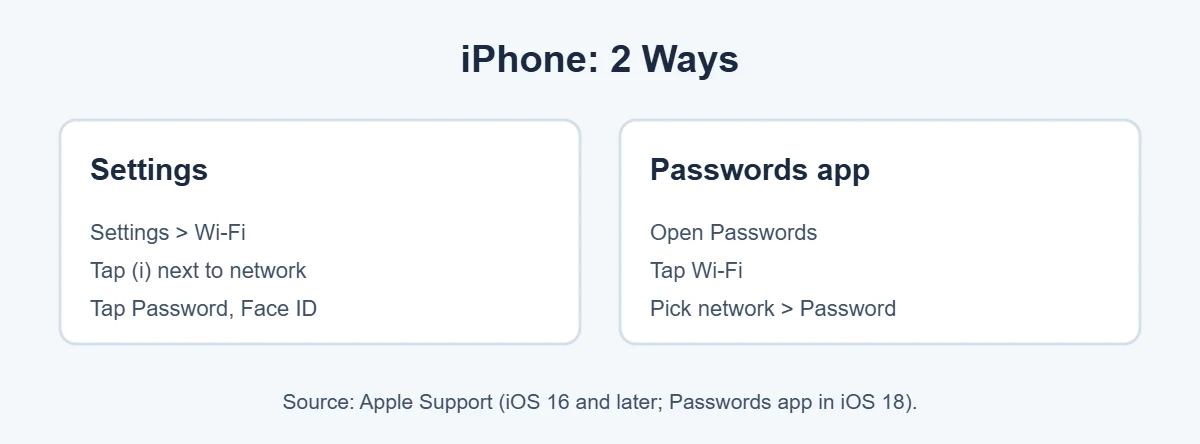
Seeing the WiFi password on phone this way works on iOS 16 and later.
- Open Settings and tap Wi-Fi.
- Tap the info button (i) next to your network.
- Tap Password.
- Unlock with Face ID, Touch ID or your passcode.
- The password appears. Tap Copy to paste it somewhere.
For a network you joined before but aren’t connected to now: in Settings, Wi-Fi, tap Edit in the top-right corner, unlock, then tap the info button next to the saved network and tap Password.
2. Find WiFi Password on iPhone (Passwords App)
On iOS 18, Apple added a Passwords app that keeps all your saved Wi-Fi passwords in one place.
- Open the Passwords app and unlock it.
- Tap Wi-Fi.
- Choose the network.
- Tap the Password field to show it.
Since it syncs with iCloud Keychain, you’ll also see Wi-Fi passwords saved on your Mac or iPad if they use the same Apple Account.
3. Find WiFi Password on Android
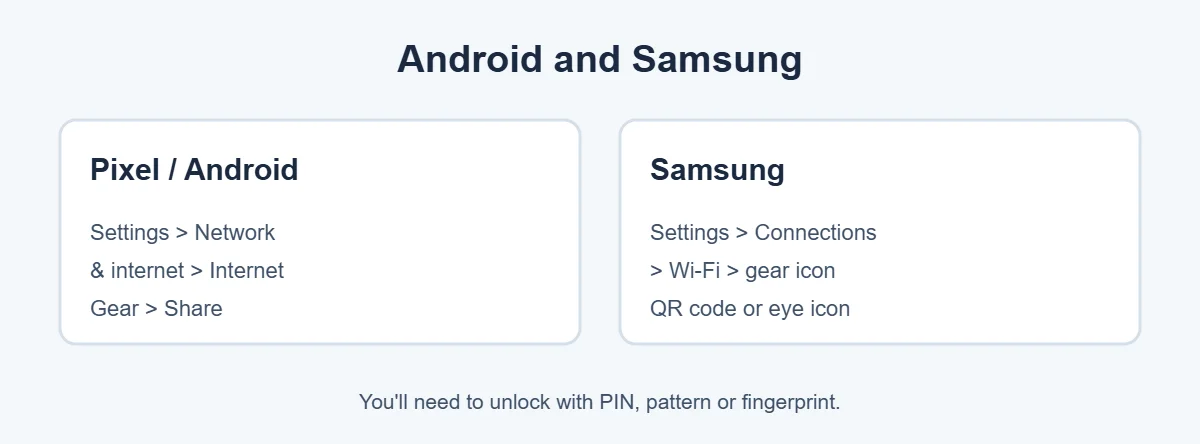
To see the WiFi password on phone with Android 10 and later, including Google Pixel phones:
- Open Settings, Network & internet, Internet (or Wi-Fi).
- Tap the gear icon next to your network.
- Tap Share.
- Unlock with your fingerprint, face or PIN.
- A QR code appears. On many phones, the password is shown in text below it.
If you only see the QR code, scan it with another phone’s camera to see the password, or use it to connect the other phone directly.
4. Find WiFi Password on Samsung Galaxy
- Open Settings, Connections, Wi-Fi.
- Tap the gear icon next to the connected network.
- On newer One UI versions, tap the eye icon next to Password to see it.
- On older versions, tap QR code and scan it with another phone.
5. Check the Router Sticker
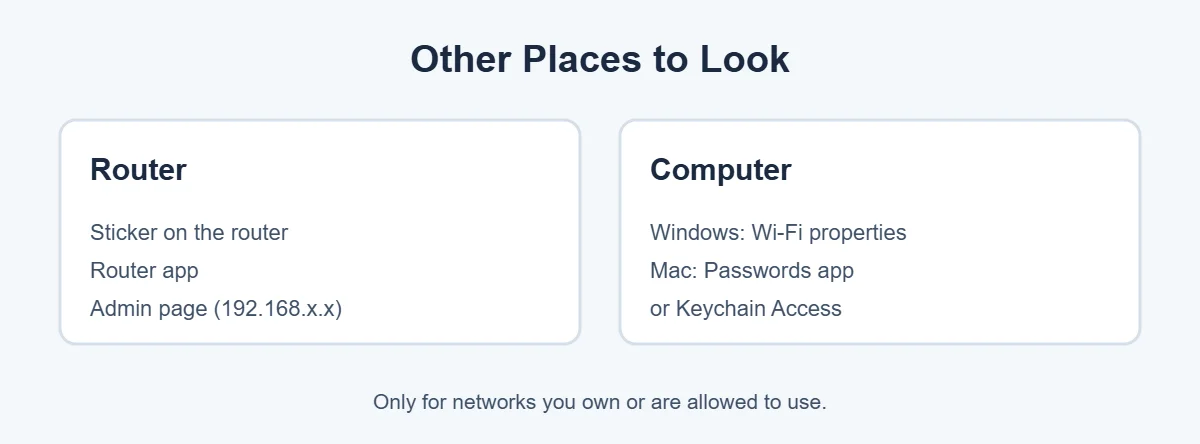
If you can’t find the WiFi password on phone, check the router. Most routers have a sticker on the bottom or back with the default network name and password. It may be labeled WPA key, Wi-Fi key, Network key or Password. If you or your provider changed the password, the sticker won’t match anymore.
6. Use the Router App or Admin Page
If it’s your own network, your router’s app (many providers and brands like TP-Link, Netgear and Eero have one) shows the Wi-Fi name and password. You can also type the router’s address, often 192.168.0.1 or 192.168.1.1, into a browser while connected, sign in with the admin details on the sticker, and look under Wireless or Wi-Fi settings.
7. Find It on a Computer
If your laptop is connected to the same network, it can show the password too.
- Windows 11: go to Settings, Network & internet, Wi-Fi, open your network’s properties and look for View Wi-Fi security key. Or open Control Panel, Network and Sharing Center, click your Wi-Fi, choose Wireless Properties, open the Security tab and tick Show characters.
- Mac: open the Passwords app (macOS Sequoia and later) and choose Wi-Fi, or use Keychain Access on older versions.
Share WiFi Without Saying the Password
You don’t always need to read the WiFi password on phone out loud.
- iPhone to iPhone: bring a friend’s iPhone near yours while they try to join. Your iPhone shows a Share Password button. You need each other’s contact details saved.
- Android: show the QR code from the Share screen and let the other person scan it.
- Nearby Share / Quick Share on many Android phones can send Wi-Fi details too.
For more easy guides, visit TrickieTech.
Can’t See the WiFi Password on Phone? Common Problems
| Problem | Why it happens | What to do |
|---|---|---|
| No Password option on iPhone | iOS is older than 16 | Update iOS in Settings, General, Software Update |
| No Share button on Android | Android is older than 10, or the network uses work login | Update the phone, or check the router instead |
| Only a QR code shows | Some Android versions hide the text | Scan the QR code with another phone or Google Lens |
| Network isn’t listed | The phone never saved it | Ask the owner or check the router |
| Work or school Wi-Fi | Uses a username and password per person (enterprise) | Ask your IT team; there is no single shared password |
Forgot the Router Admin Password Too?
If you can’t find the WiFi password on phone or computer and you also can’t sign in to the router, a factory reset is the last option.
- Find the small Reset pinhole on the router.
- With the router on, press and hold it with a paperclip for about 10 to 30 seconds (check your router’s manual for the exact time).
- The router goes back to the name and password on its sticker.
Warning: a reset erases all your settings, including your Wi-Fi name, password and any custom setup from your provider. Every device will need to reconnect. If your provider gave you the router, call them first; they may be able to help without a reset.
How to Change Your WiFi Password
Once you’ve found the WiFi password on phone, you may want to change it, especially if too many people know it.
- Open your router’s app, or sign in to its admin page in a browser.
- Go to Wireless, Wi-Fi or Security settings.
- Type a new password and save.
- Reconnect all your devices with the new password.
Use WPA3 or WPA2 security if your router offers it. Avoid old WEP security, which is easy to break.
Tips for a Strong WiFi Password
- Use at least 12 characters.
- Mix words, numbers and symbols, like a short phrase only you would think of.
- Don’t use your name, address or phone number.
- Don’t reuse a password from your email or bank.
- Store it in your phone’s password manager so you can find it again easily.
Set Up a Guest Network
Many routers let you create a separate guest network. Visitors get internet access, but can’t see your computers, printers or smart home devices. It’s a safer way to share your connection, and you can change the guest password anytime without affecting your own devices.
Real-Life Examples
“I need the password for my new laptop”
The iPhone was already connected, so the WiFi password on phone was easy to find. Settings, Wi-Fi, info button, Password showed it in seconds.
“My parents’ WiFi password isn’t on the sticker”
Their Samsung phone was connected. Tapping the gear next to the network and the QR code let another phone scan and join, and showed the password.
“A friend wants to join”
Instead of reading out a long password, the Android Share screen’s QR code did the job.
[ADD PERSONAL EXPERIENCE: add a short example of when you found or shared a WiFi password.]
Simple Words You’ll See
- SSID: the name of your Wi-Fi network.
- WPA key / network key: another name for the Wi-Fi password.
- WPA2 / WPA3: types of Wi-Fi security. WPA3 is the newest.
- QR code: a square code you scan with a camera to join a network.
- Router admin page: the settings page for your router, opened in a browser.
Quick Checklist
- iPhone: Settings, Wi-Fi, info button, Password.
- iPhone iOS 18: Passwords app, Wi-Fi.
- Android: Network settings, gear, Share.
- Samsung: Wi-Fi, gear, eye icon or QR code.
- Check the router sticker.
- Use the router app or admin page.
- Check a connected Windows PC or Mac.
WiFi Password on Phone: iPhone vs Android at a Glance
| iPhone | Android (Pixel) | Samsung | |
|---|---|---|---|
| Where | Settings, Wi-Fi, info button | Settings, Network & internet, Internet, gear | Settings, Connections, Wi-Fi, gear |
| Button | Password | Share | Eye icon or QR code |
| Unlock with | Face ID, Touch ID or passcode | Fingerprint, face or PIN | Fingerprint, face or PIN |
| All saved networks | Passwords app (iOS 18) | Saved networks list | Manage networks |
| Minimum version | iOS 16 | Android 10 | Varies by One UI |
Find Your Hotspot Password on Phone
Sometimes the WiFi password on phone you need is your own hotspot password, so a laptop or tablet can use your mobile data.
- iPhone: Settings, Personal Hotspot. The password is shown under Wi-Fi Password. Tap it to change it.
- Android (Pixel): Settings, Network & internet, Hotspot & tethering, Wi-Fi hotspot, then Hotspot password.
- Samsung: Settings, Connections, Mobile Hotspot and Tethering, Mobile Hotspot, then tap the password.
Do You Need Root or Special Apps?
No. Older guides say you need to “root” an Android phone or install a special app to see saved Wi-Fi passwords. That was true years ago. Today, Android 10 and later and iOS 16 and later show the WiFi password on phone using built-in settings. Avoid apps that claim to “hack” or “reveal” Wi-Fi passwords. Many are scams, show ads, or collect your data.
Keep Your WiFi Password Safe
- Lock your phone with a PIN, fingerprint or face, since anyone with your unlocked phone can see saved passwords.
- Don’t post a photo of your router sticker online.
- Change your Wi-Fi password if you think someone you don’t trust has it.
- Turn off WPS in your router settings if you don’t use it, as it can make networks easier to break into.
Now you know every way to find a WiFi password on phone, router and computer, plus how to keep it safe.
Using the Password on Other Devices
Once you have the WiFi password on phone, here’s how to use it on devices that can’t scan a QR code.
- Smart TV: open the TV’s Settings, Network, Wi-Fi, pick your network and type the password with the remote. Passwords are case-sensitive, so check capital letters.
- Printer: use the printer’s touchscreen Wi-Fi setup, or the maker’s app on your phone, which can often send the details for you.
- Game console: go to Network settings, choose your Wi-Fi and enter the password.
- Smart home devices: most use the maker’s app on your phone, which asks for the Wi-Fi password during setup. Many only work on the 2.4 GHz network.
- Laptop: click the Wi-Fi icon, choose your network and type the password, or copy it from your phone using a notes app synced to both devices.
If a device says the password is wrong, check for extra spaces, mix-ups between similar letters (like O and 0, or l and I), and caps lock. Copying the password from your phone, rather than typing it from memory, avoids most mistakes.
Write It Down Somewhere Safe
To avoid hunting for the WiFi password on phone every time, save it somewhere safe. A password manager, the Passwords app on iPhone, or Google Password Manager on Android all work well. If you prefer paper, keep a note inside a drawer at home, not stuck to the router where every visitor can see it. For guests, you can print a small Wi-Fi QR code card, made with your router app or a trusted QR generator, and keep it by the door.
Frequently Asked Questions
Can I see the WiFi password on my iPhone?
Yes. On iOS 16 or later, go to Settings, Wi-Fi, tap the info button next to the network, then tap Password and unlock with Face ID, Touch ID or your passcode. On iOS 18, you can also open the Passwords app and tap Wi-Fi.
How do I see my WiFi password on Android?
On most Android phones, go to Settings, Network & internet, Internet, tap the gear next to your network, then tap Share. After you unlock, the phone shows a QR code and, on many phones, the password in text below it.
How do I find the WiFi password on a Samsung phone?
Go to Settings, Connections, Wi-Fi and tap the gear next to the connected network. Depending on your One UI version, tap the eye icon next to Password, or tap QR code to share it. Scan the QR code with another phone to see the password.
Can I find the password for a WiFi network I never joined?
No. Your phone can only show passwords for networks it has saved. For a new network, ask the owner, check the sticker on the router, or look in the router’s app or settings if it’s your own network.
Where is the WiFi password on my router?
Most routers have a sticker on the bottom or back showing the network name (SSID) and the default password, often labeled WPA key, Wi-Fi key or Network key. If someone changed it, the sticker won’t match, and you’ll need the router’s app or admin page.
Is it safe to share my WiFi password?
Share it only with people you trust. Anyone with the password can use your connection and may see other devices on your network. For visitors, a guest network is safer. You can change the password anytime in your router’s settings.
The Bottom Line
Finding a WiFi password on phone takes seconds. On iPhone, use Settings, Wi-Fi or the Passwords app. On Android, tap Share in your network’s settings. On Samsung, tap the gear and then the eye icon or QR code.
If the phone can’t show it, check the router sticker, the router app or a connected computer.
{“@context”:”https://schema.org”,”@type”:”FAQPage”,”mainEntity”:[{“@type”:”Question”,”name”:”Can I see the WiFi password on my iPhone?”,”acceptedAnswer”:{“@type”:”Answer”,”text”:”Yes. On iOS 16 or later, go to Settings, Wi-Fi, tap the info button next to the network, then tap Password and unlock with Face ID, Touch ID or your passcode. On iOS 18, you can also open the Passwords app and tap Wi-Fi.”}},{“@type”:”Question”,”name”:”How do I see my WiFi password on Android?”,”acceptedAnswer”:{“@type”:”Answer”,”text”:”On most Android phones, go to Settings, Network & internet, Internet, tap the gear next to your network, then tap Share. After you unlock, the phone shows a QR code and, on many phones, the password in text below it.”}},{“@type”:”Question”,”name”:”How do I find the WiFi password on a Samsung phone?”,”acceptedAnswer”:{“@type”:”Answer”,”text”:”Go to Settings, Connections, Wi-Fi and tap the gear next to the connected network. Depending on your One UI version, tap the eye icon next to Password, or tap QR code to share it. Scan the QR code with another phone to see the password.”}},{“@type”:”Question”,”name”:”Can I find the password for a WiFi network I never joined?”,”acceptedAnswer”:{“@type”:”Answer”,”text”:”No. Your phone can only show passwords for networks it has saved. For a new network, ask the owner, check the sticker on the router, or look in the router’s app or settings if it’s your own network.”}},{“@type”:”Question”,”name”:”Where is the WiFi password on my router?”,”acceptedAnswer”:{“@type”:”Answer”,”text”:”Most routers have a sticker on the bottom or back showing the network name (SSID) and the default password, often labeled WPA key, Wi-Fi key or Network key. If someone changed it, the sticker won’t match, and you’ll need the router’s app or admin page.”}},{“@type”:”Question”,”name”:”Is it safe to share my WiFi password?”,”acceptedAnswer”:{“@type”:”Answer”,”text”:”Share it only with people you trust. Anyone with the password can use your connection and may see other devices on your network. For visitors, a guest network is safer. You can change the password anytime in your router’s settings.”}}]}