
A Bluetooth driver error usually means Windows can’t talk to your Bluetooth adapter. The quickest fixes are to restart the PC, restart the Bluetooth Support Service, and update, roll back or reinstall the driver in Device Manager. If Bluetooth vanished after an update, rolling back or installing your PC maker’s driver usually brings it back.
Below are 10 easy fixes in order, based on Microsoft’s Bluetooth troubleshooting guide. They work on Windows 11 and Windows 10.
[ADD PERSONAL EXPERIENCE: one line about when you saw a Bluetooth driver error and what you were trying to connect.]
Table of Contents
What Is a Bluetooth Driver Error?
A driver is a small piece of software that lets Windows control a piece of hardware. A Bluetooth driver error happens when that software is missing, broken, out of date or the wrong version. Your Bluetooth chip may be perfectly fine. Windows just can’t use it.
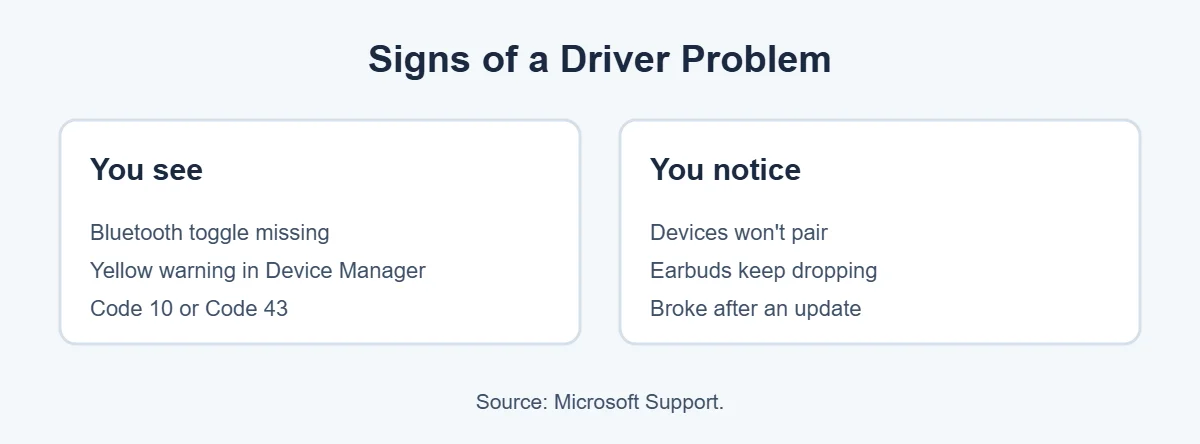
Common signs include:
- The Bluetooth toggle is missing from Quick Settings or Settings.
- A yellow warning sign on the Bluetooth adapter in Device Manager.
- Error messages like Code 10 (“This device cannot start”) or Code 43.
- Devices won’t pair, or keep disconnecting.
- Bluetooth stopped working right after a Windows update.
10 Easy Fixes for a Bluetooth Driver Error
1. Turn Bluetooth off and on
Open Quick Settings (click the Wi-Fi or volume icon on the taskbar) and turn Bluetooth off, wait a few seconds, and turn it on. Also make sure Airplane mode is off.
2. Do a full shutdown, not just a restart
Windows’ fast startup can keep a stuck driver loaded. Hold Shift while clicking Shut down to do a full shutdown. Wait 30 seconds and turn the PC back on. On laptops, unplug the charger during the wait.
3. Run the Bluetooth troubleshooter
Open the Get Help app and search for the Bluetooth troubleshooter. It checks the adapter, the service and common settings for you.
4. Restart the Bluetooth Support Service
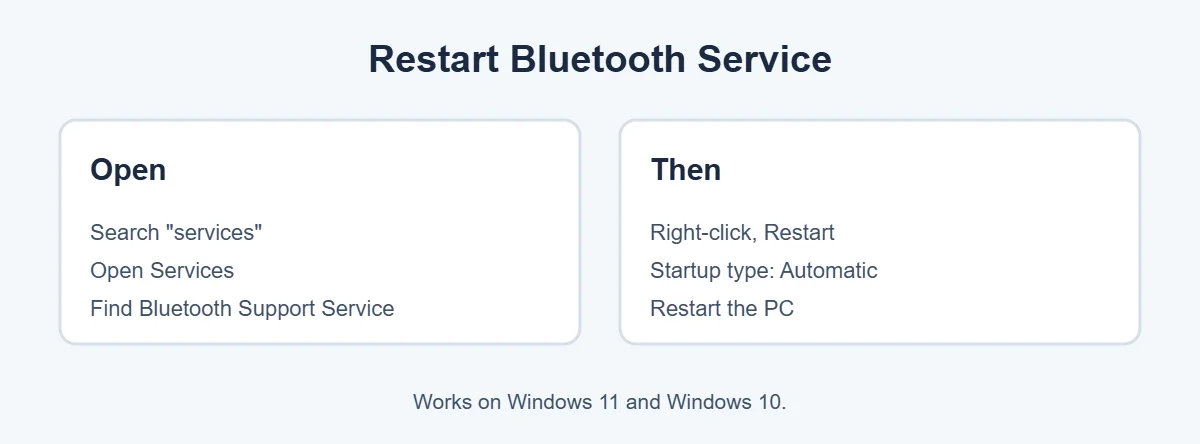
Search the taskbar for services and open it. Find Bluetooth Support Service, right-click it and choose Restart (or Start if it’s stopped). Double-click it and set Startup type to Automatic, then click Apply.
5. Update the Bluetooth driver
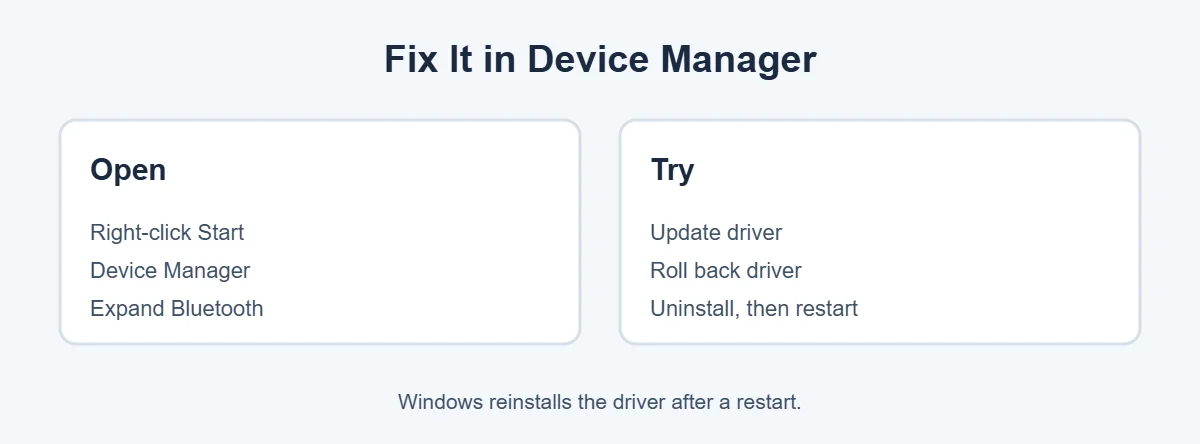
- Right-click Start and choose Device Manager.
- Expand Bluetooth.
- Right-click your adapter, for example Intel Wireless Bluetooth, Realtek Bluetooth or Qualcomm, and choose Update driver.
- Choose Search automatically for drivers.
Also check Settings, Windows Update, Advanced options, Optional updates, where driver updates sometimes wait.
6. Roll back the driver
If the Bluetooth driver error started after an update, go back to the old driver. In Device Manager, right-click the adapter, choose Properties, open the Driver tab and click Roll Back Driver. If the button is greyed out, there’s no older driver saved.
7. Uninstall and reinstall the driver
In Device Manager, right-click the adapter and choose Uninstall device. Restart the PC. Windows will find the adapter and install a driver again. This clears a damaged driver.
8. Install the driver from your PC maker
Windows’ generic driver isn’t always the best one. Go to your PC maker’s support site, such as Dell, HP or Lenovo, enter your model or serial number, and download the Bluetooth driver made for your PC. If your laptop uses an Intel wireless card, Intel’s Driver & Support Assistant can find the right driver too.
9. Stop Windows turning Bluetooth off to save power
In Device Manager, right-click the Bluetooth adapter, choose Properties, and open the Power Management tab if you see one. Untick Allow the computer to turn off this device to save power. This helps if Bluetooth works at first, then drops or disappears later.
10. Show hidden devices and check the Wi-Fi card
In Device Manager, click View, Show hidden devices. If you see greyed-out Bluetooth entries, they’re old copies. You can uninstall them. On many laptops, Wi-Fi and Bluetooth share one chip, so if Wi-Fi is also missing, update the wireless (network) driver too.
Bluetooth Driver Error After a Windows Update
This is the most common Bluetooth driver error story. Windows installs a new driver, and Bluetooth stops working. The best order is:
- Roll back the driver (fix 6).
- If that’s not possible, install your PC maker’s driver (fix 8).
- Check Windows Update again in a day or two. Microsoft and PC makers often release fixed drivers quickly.
You can also check Microsoft’s Windows release health page to see if the update has a known Bluetooth issue.
Bluetooth Toggle Missing in Windows 11
A missing toggle is a common Bluetooth driver error sign. If there’s no Bluetooth button in Quick Settings or in Settings, Bluetooth & devices, Windows can’t see an adapter at all.
- Check that Device Manager has a Bluetooth section.
- If not, click Action, Scan for hardware changes.
- Do a full shutdown (fix 2).
- On some laptops, a function key or a setting in the maker’s app turns wireless on or off.
- Install the wireless and Bluetooth drivers from your PC maker.
If there’s still no Bluetooth section, your PC may not have Bluetooth. Many desktops don’t.
Bluetooth Works but Devices Won’t Connect
If there’s no Bluetooth driver error but a device won’t pair:
- Make sure the device is charged and in pairing mode. Check its manual.
- Remove the device in Settings, Bluetooth & devices, then add it again.
- Disconnect it from your phone, which may be grabbing it first.
- Move closer. Bluetooth range drops through walls.
- Keep it away from USB 3 ports and Wi-Fi routers, which can cause interference.
Use a USB Bluetooth Adapter
If the built-in Bluetooth is broken, or your PC never had it, a small USB Bluetooth adapter is an easy fix. Many cost little and work with Windows 11’s built-in drivers. If you use one, turn off the built-in Bluetooth in Device Manager to avoid conflicts.
For more simple fixes, visit TrickieTech.
Common Bluetooth Driver Error Codes and Fixes
When there’s a Bluetooth driver error, Device Manager shows a code. Right-click the adapter, choose Properties, and look at the Device status box on the General tab.
| Code | What it means | What to try |
|---|---|---|
| Code 10 | The device can’t start | Reinstall the driver, install the PC maker’s driver, full shutdown |
| Code 43 | Windows stopped the device because it reported a problem | Full shutdown with charger unplugged, reinstall the driver |
| Code 28 | No driver is installed | Install the driver from Windows Update or the PC maker |
| Code 45 | The device isn’t connected right now | Check a USB adapter is plugged in, scan for hardware changes |
| Code 22 | The device is disabled | Right-click it and choose Enable device |
If the same Bluetooth driver error code keeps coming back after every fix, the adapter itself may be faulty.
Bluetooth Audio Problems After a Driver Fix
Once you fix the Bluetooth driver error, headphones may still sound bad or cut out. That’s usually not a Bluetooth driver error, but a few settings help:
- In Settings, System, Sound, pick the headphones as the output device.
- If sound is low quality during calls, that’s normal. Many headsets switch to a “hands-free” mode when the microphone is in use.
- Remove and re-pair the headphones after a driver change.
- Update the headphones’ firmware with the maker’s app, if they have one.
How to Back Up a Working Driver
Once you fix a Bluetooth driver error, it’s worth keeping it that way.
- Keep the installer you downloaded from your PC maker in a folder, so you can reinstall it quickly next time.
- Before big Windows updates, create a restore point. Search for “Create a restore point,” select your system drive, and click Create.
- If an update breaks Bluetooth again, you can roll back the driver or use System Restore to go back to that point.
Real-Life Examples
“Bluetooth disappeared after the latest update”
The update replaced the Intel Bluetooth driver. Rolling back the driver in Device Manager brought the toggle back right away.
“My earbuds connect, then drop after a few minutes”
Power management was switching off the adapter. Unticking “Allow the computer to turn off this device to save power” stopped the drops.
“Device Manager shows Code 43”
A full shutdown with the charger unplugged for a minute cleared the error. If it hadn’t, reinstalling the driver would have been next.
[ADD PERSONAL EXPERIENCE: add a short example from your own PC if you have one.]
What Not to Do
- Don’t download drivers from random websites. Use Windows Update, your PC maker or the chip maker.
- Don’t use driver updater apps that promise to fix everything. They often install the wrong driver.
- Don’t edit the registry unless you’re following official instructions and have a backup.
Simple Words You’ll See
- Driver: software that lets Windows use a piece of hardware.
- Adapter: the Bluetooth chip or USB stick in your PC.
- Device Manager: the Windows tool that lists your hardware and drivers.
- Bluetooth Support Service: the background program that runs Bluetooth.
- Roll back: go back to the driver you had before.
- Fast startup: a Windows feature that saves some system state at shutdown so the PC starts faster.
Quick Checklist
- Turn Bluetooth and Airplane mode off and on.
- Do a full shutdown with Shift + Shut down.
- Run the Bluetooth troubleshooter.
- Restart the Bluetooth Support Service.
- Update the driver.
- Roll back the driver after a bad update.
- Uninstall and reinstall the driver.
- Install the PC maker’s driver.
- Turn off power saving for the adapter.
- Use a USB Bluetooth adapter if all else fails.
Bluetooth Driver Error on a Desktop PC
Desktops are a little different from laptops. Many have no Bluetooth at all, and those that do often get it from a Wi-Fi card on the motherboard or a USB adapter.
- If your desktop has antennas screwed into the back, make sure they’re attached. Weak signal can look like a driver problem.
- Install the wireless and Bluetooth driver from the motherboard maker’s website, such as ASUS, MSI or Gigabyte, using your exact board model.
- If you use a USB Bluetooth adapter, plug it into a USB 2.0 port or use a short USB extension cable to move it away from the case and other USB 3 devices.
- Check the BIOS or UEFI settings to make sure onboard wireless isn’t turned off. Your motherboard manual shows where.
When to Get Repair Help
If you’ve tried every step and still see a Bluetooth driver error, and Wi-Fi is also unreliable, the wireless card may be failing. On laptops, this card can often be replaced. Contact your PC maker if the laptop is under warranty, or a trusted repair shop if it isn’t. In the meantime, a USB Bluetooth adapter is a cheap and quick way to keep using wireless headphones, mice and keyboards.
Bluetooth Mouse or Keyboard Lagging?
Lag isn’t always a Bluetooth driver error. Wireless mice and keyboards can stutter because of interference or low batteries.
- Replace or charge the batteries first. Low power causes lag and dropouts.
- Move the mouse or keyboard closer to the PC, with nothing metal in between.
- Keep Bluetooth devices away from USB 3 ports, external hard drives and wireless routers.
- If the device came with its own USB receiver, try using that instead of Bluetooth. It’s often more stable.
- Turn off power saving for the adapter, as shown in fix 9.
If lag only started after a Windows update, treat it like a driver problem and roll back or reinstall the Bluetooth driver.
Check Your Bluetooth Version
Older Bluetooth adapters can struggle with newer earbuds and controllers. To see your version, open Device Manager, expand Bluetooth, right-click the adapter, choose Properties, and open the Advanced tab. You’ll see a firmware or LMP number. LMP 9 means Bluetooth 5.0, LMP 10 means 5.1, LMP 11 means 5.2, and LMP 12 means 5.3. If your adapter is very old, a newer USB adapter can improve range and stability, even without any Bluetooth driver error.
Frequently Asked Questions
What causes a Bluetooth driver error?
A Bluetooth driver error usually comes from a Windows update that installed the wrong driver, a damaged or old driver, the Bluetooth Support Service being stopped, or power settings that switch the adapter off. Updating, rolling back or reinstalling the driver fixes most cases.
How do I reinstall my Bluetooth driver on Windows 11?
Right-click Start and open Device Manager. Expand Bluetooth, right-click your Bluetooth adapter (often Intel, Realtek or Qualcomm) and choose Uninstall device. Restart the PC, and Windows will reinstall the driver. You can also install the latest one from your PC maker’s website.
Why did my Bluetooth disappear from Windows 11?
The Bluetooth toggle disappears when Windows can’t see the adapter, often after an update, a driver error or a power-saving setting. Check Device Manager for the Bluetooth section, use View, Show hidden devices, and do a full shutdown and restart.
What does Code 10 or Code 43 mean for Bluetooth?
Code 10 means the device can’t start, and Code 43 means Windows stopped it because it reported a problem. Both often point to a driver issue. Reinstall the driver, install your PC maker’s version, and fully power off the PC before testing again.
Does my PC have Bluetooth?
Most laptops do. Many desktop PCs don’t. Open Device Manager and look for a Bluetooth section. If there isn’t one, even under Show hidden devices, your PC may not have Bluetooth. A small USB Bluetooth adapter can add it.
Should I use a driver updater app?
It’s safer not to. Many third-party driver updater apps install the wrong drivers or add unwanted software. Use Windows Update, your PC maker’s support site, or the chip maker’s official tool, like Intel Driver & Support Assistant.
The Bottom Line
A Bluetooth driver error is usually a software problem, not broken hardware. Restart the Bluetooth Support Service, do a full shutdown, and update, roll back or reinstall the driver.
If it started after an update, rolling back or installing your PC maker’s driver is the fastest fix. And if nothing works, a USB Bluetooth adapter gets you connected again.
{“@context”:”https://schema.org”,”@type”:”FAQPage”,”mainEntity”:[{“@type”:”Question”,”name”:”What causes a Bluetooth driver error?”,”acceptedAnswer”:{“@type”:”Answer”,”text”:”A Bluetooth driver error usually comes from a Windows update that installed the wrong driver, a damaged or old driver, the Bluetooth Support Service being stopped, or power settings that switch the adapter off. Updating, rolling back or reinstalling the driver fixes most cases.”}},{“@type”:”Question”,”name”:”How do I reinstall my Bluetooth driver on Windows 11?”,”acceptedAnswer”:{“@type”:”Answer”,”text”:”Right-click Start and open Device Manager. Expand Bluetooth, right-click your Bluetooth adapter (often Intel, Realtek or Qualcomm) and choose Uninstall device. Restart the PC, and Windows will reinstall the driver. You can also install the latest one from your PC maker’s website.”}},{“@type”:”Question”,”name”:”Why did my Bluetooth disappear from Windows 11?”,”acceptedAnswer”:{“@type”:”Answer”,”text”:”The Bluetooth toggle disappears when Windows can’t see the adapter, often after an update, a driver error or a power-saving setting. Check Device Manager for the Bluetooth section, use View, Show hidden devices, and do a full shutdown and restart.”}},{“@type”:”Question”,”name”:”What does Code 10 or Code 43 mean for Bluetooth?”,”acceptedAnswer”:{“@type”:”Answer”,”text”:”Code 10 means the device can’t start, and Code 43 means Windows stopped it because it reported a problem. Both often point to a driver issue. Reinstall the driver, install your PC maker’s version, and fully power off the PC before testing again.”}},{“@type”:”Question”,”name”:”Does my PC have Bluetooth?”,”acceptedAnswer”:{“@type”:”Answer”,”text”:”Most laptops do. Many desktop PCs don’t. Open Device Manager and look for a Bluetooth section. If there isn’t one, even under Show hidden devices, your PC may not have Bluetooth. A small USB Bluetooth adapter can add it.”}},{“@type”:”Question”,”name”:”Should I use a driver updater app?”,”acceptedAnswer”:{“@type”:”Answer”,”text”:”It’s safer not to. Many third-party driver updater apps install the wrong drivers or add unwanted software. Use Windows Update, your PC maker’s support site, or the chip maker’s official tool, like Intel Driver & Support Assistant.”}}]}