
Can you turn off Meta AI on WhatsApp? Not completely. As of October 2026, WhatsApp has no setting that switches Meta AI off or removes the button. But you can delete its chats, ask it to forget conversations with /reset-ai, block AI in a chat with Restricted chat, and remove it from groups. And Meta AI can’t read your personal chats unless you send or share messages with it.
Below are six simple ways to limit Meta AI on WhatsApp, what it can and can’t see, and answers to common questions, based on WhatsApp’s own Help Center.
[ADD PERSONAL EXPERIENCE: one line about when you first noticed the Meta AI button in your WhatsApp.]
Table of Contents
What Is Meta AI on WhatsApp?
Meta AI is a chatbot made by Meta, the company that owns WhatsApp, Facebook and Instagram. In WhatsApp, it shows up as a blue-purple circle button on the Chats screen and as “Ask Meta AI” in the search bar. You can chat with it like a contact to ask questions, write messages or create images.
WhatsApp describes Meta AI as an optional service. That means you don’t have to use it. But optional doesn’t mean you can hide it. The button stays in the app.
Can You Turn Off Meta AI on WhatsApp?
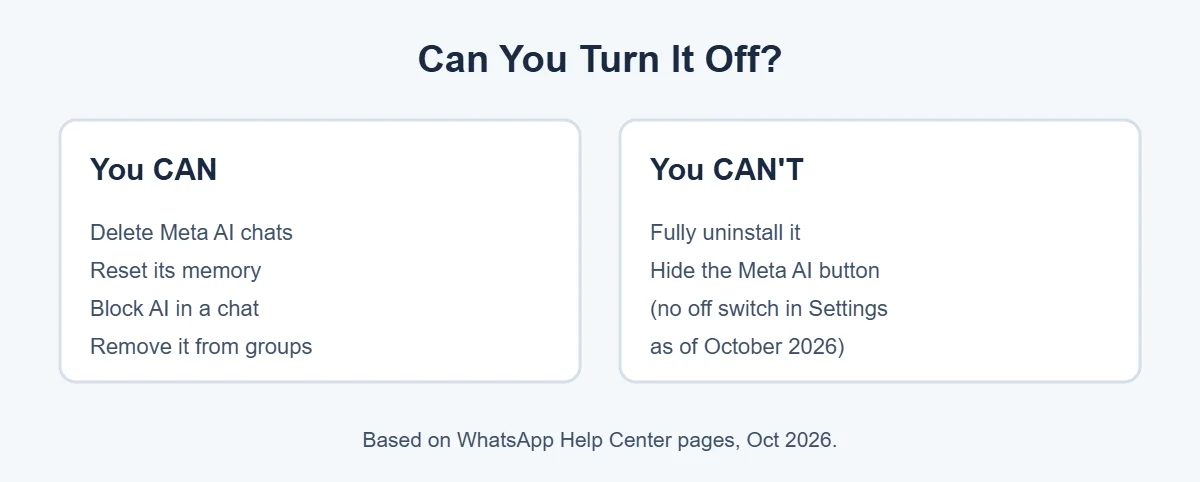
Here’s the honest answer. According to WhatsApp’s About Meta AI help page and related pages, there’s no switch in Settings to turn Meta AI off or uninstall it. Guides that promise a hidden “off” button are usually out of date or wrong.
What you can do is control how much Meta AI is involved in your chats. That’s what the six steps below do.
6 Simple Ways to Limit Meta AI on WhatsApp
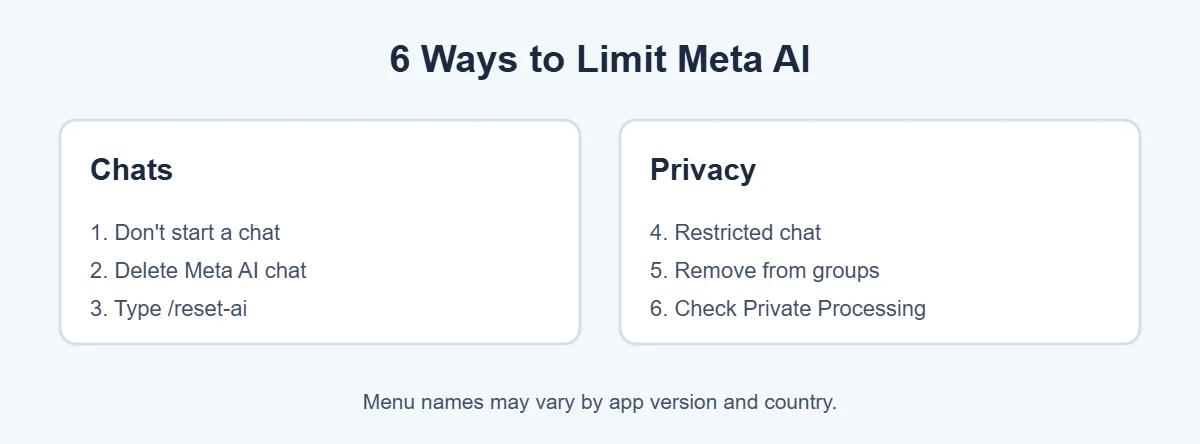
1. Simply don’t start a chat with it
Meta AI only works when you open a chat with it, tap the Meta AI button, ask it something in the search bar, or someone mentions @Meta AI in a group. If you never use it, it doesn’t do anything in your chats. Be careful when searching: typing in the search bar may suggest asking Meta AI. Tap a normal search result instead.
2. Delete your chats with Meta AI
If you’ve already used it and want it gone from your list:
- Open the Meta AI chat.
- Open the chat history.
- Press and hold the chat you want to remove.
- Tap Delete chat, then confirm.
This removes the chat from your phone. It can’t be undone.
3. Ask Meta AI to forget with /reset-ai
Deleting a chat on your phone isn’t the same as Meta deleting its copy. To ask Meta AI to delete its copy of a conversation, type /reset-ai in that chat and send it. To do this for all your Meta AI chats at once, type /reset-all-ais. WhatsApp’s help pages say these commands don’t work in Incognito chats.
4. Turn on Restricted chat for private conversations
WhatsApp has a chat-level privacy setting called Restricted chat (on older versions it’s called Advanced chat privacy). When it’s on:
- Meta AI features can’t be used in that chat.
- People can’t export the chat.
- Media isn’t auto-saved to phones.
To turn it on, open the chat, tap the chat or group name at the top, and look for Restricted chat or Advanced chat privacy. Turn it on. It’s a good choice for family groups or private work chats.
5. Remove Meta AI from groups
If someone added Meta AI to a group, a group admin can remove it, just like removing any member. Open the group info, find Meta AI in the members list, tap it and choose Remove.
6. Check Private Processing settings
Some newer AI features, like message summaries and writing help, use something WhatsApp calls Private Processing. WhatsApp says it’s off by default. You can check it in Settings, Chats, Private Processing, if it’s available in your country, and make sure it’s off if you don’t want these features.
What Can Meta AI on WhatsApp See?
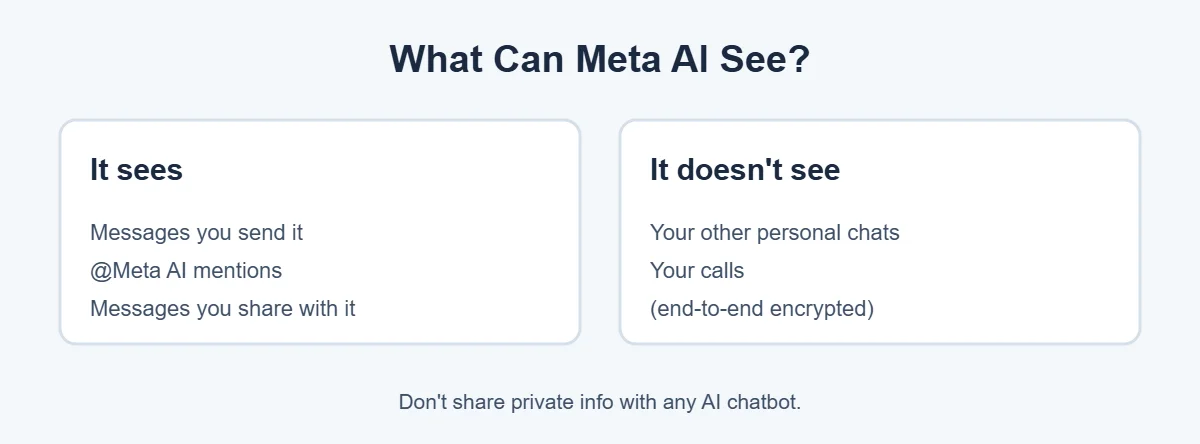
This is the biggest worry for most people, so let’s be clear. Your personal chats and calls on WhatsApp are end-to-end encrypted. That means only you and the person you’re talking to can read them. Not WhatsApp, and not Meta.
Meta AI can see:
- Messages you send directly to Meta AI.
- Messages in a group where someone mentions @Meta AI, along with what they ask.
- Messages you choose to forward or share with Meta AI.
It can’t read your other chats on its own. Viral messages claiming Meta AI reads all your chats have been checked and found false by fact-checkers such as TÜnews.
Still, treat Meta AI like any AI chatbot: don’t share passwords, bank details, ID numbers or health information with it.
Meta AI on WhatsApp vs Facebook and Instagram
Meta AI also appears in Facebook, Instagram and Messenger. Like on WhatsApp, there’s no simple off switch in those apps either. The same rules help: don’t start chats with it, delete conversations you don’t need, and avoid tapping AI suggestions in search.
For more simple tech guides, visit TrickieTech.
What Can Meta AI on WhatsApp Do?
Knowing what Meta AI on WhatsApp does helps you decide whether to use it or avoid it. Meta AI on WhatsApp can:
- Answer questions, like a search engine you chat with.
- Help write or rewrite messages.
- Create images from a text description, in supported countries.
- Join group chats when someone mentions @Meta AI, to answer questions for the group.
- Search the web for up-to-date answers.
Some people find Meta AI on WhatsApp handy. Others don’t want AI in a messaging app at all. Either way, it’s your choice whether to use it.
Why People Want to Turn Off Meta AI on WhatsApp
- Privacy worries: they don’t want an AI near their personal chats.
- Clutter: the button and search suggestions get in the way.
- Accidental taps: it’s easy to start a Meta AI chat by mistake from the search bar.
- Family use: parents may not want kids chatting with an AI.
The steps above handle most of these. For the clutter, the honest answer is that you’ll have to live with the button for now.
Meta AI Memory: What It Remembers
Meta AI on WhatsApp can remember details you tell it, like your preferences, to give more personal answers in later chats. WhatsApp has a help page about Meta AI memory. If you don’t want it to remember things:
- Avoid sharing personal details in Meta AI chats.
- Ask Meta AI what it remembers about you, and ask it to forget specific details.
- Use
/reset-aior/reset-all-aisto clear its copies of your chats.
Don’t Use Modded WhatsApp Apps to Remove It
You may see “WhatsApp mods” like GB WhatsApp that claim to hide Meta AI on WhatsApp. Don’t install them. They’re unofficial, can contain malware, and WhatsApp can ban accounts that use unofficial apps. You could lose access to your chats.
Also avoid installing very old versions of WhatsApp to get rid of Meta AI. Old versions stop working after a while and miss important security fixes.
Meta AI on WhatsApp in Groups: What Members See
When someone in a group types @Meta AI and a question, Meta AI replies in the group, and everyone sees the reply. Meta AI reads that message to answer it. It doesn’t read the rest of the group’s messages. If your group doesn’t want this, an admin can turn on Restricted chat for the group, which blocks Meta AI features there.
Is It Safe to Use Meta AI on WhatsApp?
For general questions, using Meta AI on WhatsApp is similar to using any AI chatbot. A few simple rules keep you safe:
- Don’t share passwords, PINs, bank or card numbers.
- Don’t share ID documents, addresses or health details.
- Double-check important answers. AI can be wrong.
- Don’t let children use it without supervision.
Real-Life Examples
“I started a Meta AI chat by mistake”
Typing /reset-ai, then deleting the chat, cleared it from both the phone and Meta AI’s copy.
“Our family group doesn’t want AI”
The group admin turned on Restricted chat. Now nobody can use Meta AI features in that group.
“Someone added Meta AI to our work group”
The admin removed it from the members list in group info, just like a normal member.
[ADD PERSONAL EXPERIENCE: add a short example of how you or your family handle Meta AI on WhatsApp.]
Simple Words You’ll See
- Meta AI: Meta’s AI chatbot inside WhatsApp, Facebook, Instagram and Messenger.
- End-to-end encryption: only you and the person you message can read your messages.
- Restricted chat / Advanced chat privacy: a chat setting that blocks AI features and chat exports.
- /reset-ai: a command that asks Meta AI to delete its copy of a chat.
- Private Processing: WhatsApp’s system for some AI features, like summaries. Off by default.
Quick Checklist
- Don’t tap the Meta AI button or “Ask Meta AI” in search.
- Send
/reset-aiin any Meta AI chat you used. - Delete Meta AI chats from your list.
- Turn on Restricted chat for private chats and groups.
- Remove Meta AI from groups (admins).
- Check Private Processing is off.
- Never share private details with any AI.
Meta AI on WhatsApp for Parents
If your child uses WhatsApp, it’s worth talking about Meta AI on WhatsApp together. WhatsApp’s minimum age is 13 in many countries, and higher in some, so check the rules where you live. A few simple steps help:
- Explain that Meta AI is a computer program, not a person, and can make mistakes.
- Agree that they won’t share their name, school, address, photos or passwords with it.
- Turn on Restricted chat in family groups.
- Use your phone’s parental controls, like Screen Time on iPhone or Google Family Link on Android, to manage app time.
Will WhatsApp Add an Off Switch Later?
It’s possible. Meta changes its AI features often, and options differ by country. Rules in some regions, like the European Union, have shaped how and when Meta AI launched there. We’ll update this guide if WhatsApp adds a way to fully turn off Meta AI on WhatsApp. Until then, the steps above are the best way to keep it out of your chats.
How to Avoid Tapping Meta AI by Accident
Most people who want Meta AI gone just keep opening it by mistake. A few habits help:
- In the search bar, type a contact’s name and tap the contact under Chats or Contacts, not the “Ask Meta AI” suggestion.
- On the Chats screen, the round Meta AI button often sits close to the new chat button, and its exact spot can change between app versions. Look before you tap, and use the new chat (pencil or plus) button carefully. If you open Meta AI by mistake, just go back; nothing is sent until you type a message.
- In groups, don’t type “@Meta” unless you mean it, since WhatsApp may suggest Meta AI as a mention.
- Pin your favorite chats to the top, so you rarely need search at all. Press and hold a chat and tap the pin icon.
Small changes like these make the Meta AI button easy to ignore, even though it stays in the app.
Frequently Asked Questions
Can I turn off Meta AI on WhatsApp completely?
No. As of October 2026, WhatsApp has no setting to switch Meta AI off or remove it from the app. You can avoid it by not chatting with it, delete its chats, reset its memory with /reset-ai, block AI features in a chat with Restricted chat, and remove it from groups.
Can Meta AI read my WhatsApp messages?
Meta AI can only read messages you send to it, messages where someone mentions @Meta AI, or messages you choose to share with it. Your other personal chats stay end-to-end encrypted, which means WhatsApp and Meta can’t read them.
How do I delete my chat with Meta AI on WhatsApp?
Open the Meta AI chat, open its chat history, then press and hold the chat you want to remove and tap Delete chat. This can’t be undone. To also ask Meta AI to delete its copy of a chat, type /reset-ai in that chat before you delete it.
What does /reset-ai do on WhatsApp?
Typing /reset-ai in a chat with Meta AI asks it to delete its copy of that conversation. Typing /reset-all-ais does the same for all your Meta AI chats. According to WhatsApp’s help pages, these commands don’t work in Incognito chats.
How do I stop Meta AI in a WhatsApp group?
Group admins can remove Meta AI from a group like any member. Admins or members can also turn on Restricted chat (called Advanced chat privacy in older versions) so Meta AI features can’t be used in that chat.
Is Meta AI on WhatsApp in every country?
No. Meta AI and some of its features are available only in certain countries and languages and are rolling out over time. If you don’t see the Meta AI button, it may not be available in your region or on your app version yet.
The Bottom Line
You can’t fully turn off Meta AI on WhatsApp in 2026, and it can’t be uninstalled. But it only gets involved when you or someone in a chat uses it.
Delete its chats, send /reset-ai to make it forget, turn on Restricted chat for private conversations, and remove it from groups. That keeps Meta AI out of your way while you use WhatsApp normally.
{“@context”:”https://schema.org”,”@type”:”FAQPage”,”mainEntity”:[{“@type”:”Question”,”name”:”Can I turn off Meta AI on WhatsApp completely?”,”acceptedAnswer”:{“@type”:”Answer”,”text”:”No. As of October 2026, WhatsApp has no setting to switch Meta AI off or remove it from the app. You can avoid it by not chatting with it, delete its chats, reset its memory with /reset-ai, block AI features in a chat with Restricted chat, and remove it from groups.”}},{“@type”:”Question”,”name”:”Can Meta AI read my WhatsApp messages?”,”acceptedAnswer”:{“@type”:”Answer”,”text”:”Meta AI can only read messages you send to it, messages where someone mentions @Meta AI, or messages you choose to share with it. Your other personal chats stay end-to-end encrypted, which means WhatsApp and Meta can’t read them.”}},{“@type”:”Question”,”name”:”How do I delete my chat with Meta AI on WhatsApp?”,”acceptedAnswer”:{“@type”:”Answer”,”text”:”Open the Meta AI chat, open its chat history, then press and hold the chat you want to remove and tap Delete chat. This can’t be undone. To also ask Meta AI to delete its copy of a chat, type /reset-ai in that chat before you delete it.”}},{“@type”:”Question”,”name”:”What does /reset-ai do on WhatsApp?”,”acceptedAnswer”:{“@type”:”Answer”,”text”:”Typing /reset-ai in a chat with Meta AI asks it to delete its copy of that conversation. Typing /reset-all-ais does the same for all your Meta AI chats. According to WhatsApp’s help pages, these commands don’t work in Incognito chats.”}},{“@type”:”Question”,”name”:”How do I stop Meta AI in a WhatsApp group?”,”acceptedAnswer”:{“@type”:”Answer”,”text”:”Group admins can remove Meta AI from a group like any member. Admins or members can also turn on Restricted chat (called Advanced chat privacy in older versions) so Meta AI features can’t be used in that chat.”}},{“@type”:”Question”,”name”:”Is Meta AI on WhatsApp in every country?”,”acceptedAnswer”:{“@type”:”Answer”,”text”:”No. Meta AI and some of its features are available only in certain countries and languages and are rolling out over time. If you don’t see the Meta AI button, it may not be available in your region or on your app version yet.”}}]}