
Want to turn off AI Overviews on Google? There’s no off switch in Google’s settings as of October 2026. But you can still get plain results: tap the Web tab after you search, or set your browser to search with udm=14, which opens Google’s Web view without the AI box. Other options include browser extensions and different search engines.
Below are six easy ways to turn off AI Overviews, or at least hide them, and how they compare.
[ADD PERSONAL EXPERIENCE: one line about why AI Overviews bother you, or a time one gave you a wrong answer.]
Table of Contents
What Are Google AI Overviews?
AI Overviews are the AI-written summaries that Google shows at the top of many search results. They use Google’s Gemini AI to combine information from several websites into one short answer, with links to sources.
Some people like them for quick answers. Others prefer a plain list of websites, find the summaries distracting, or worry about mistakes. That’s why “how to turn off AI Overviews” is such a common search.
Can You Turn Off AI Overviews?
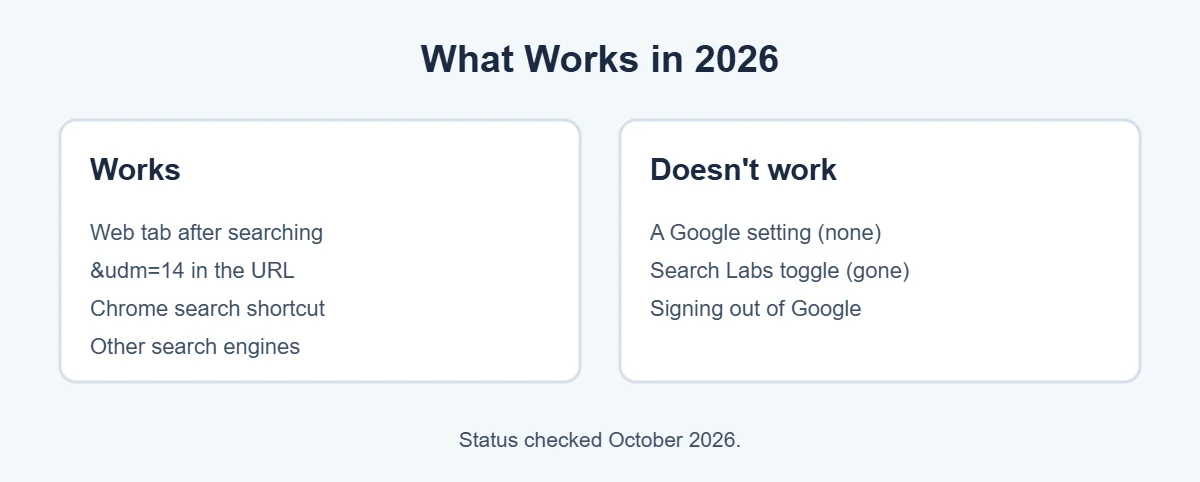
Not with a setting. Google doesn’t offer a user switch to turn off AI Overviews, and the old Search Labs toggle no longer controls them now that they’ve fully rolled out. Signing out of your Google account doesn’t remove them either.
In June 2026, Google added a control in Search Console, but it’s for website owners to keep their content out of AI features, not for people searching, as PPC Land reported.
So the methods below work around AI Overviews instead of switching them off.
6 Easy Ways to Turn Off AI Overviews
1. Use the Web tab after you search
Search on Google as usual. Under the search bar, you’ll see tabs like All, Images, Videos and News. Tap Web. If you don’t see it, tap More to find it. The Web view shows plain blue links without an AI Overview.
This is the easiest option and works on phones and computers, but you have to tap it every time.
2. Add &udm=14 to the search link
The Web tab works by adding udm=14 to the search address. You can add it yourself. After searching, click the address bar and add &udm=14 to the end of the link, then press Enter. You’ll get the same plain results.
3. Make Chrome use Web results by default
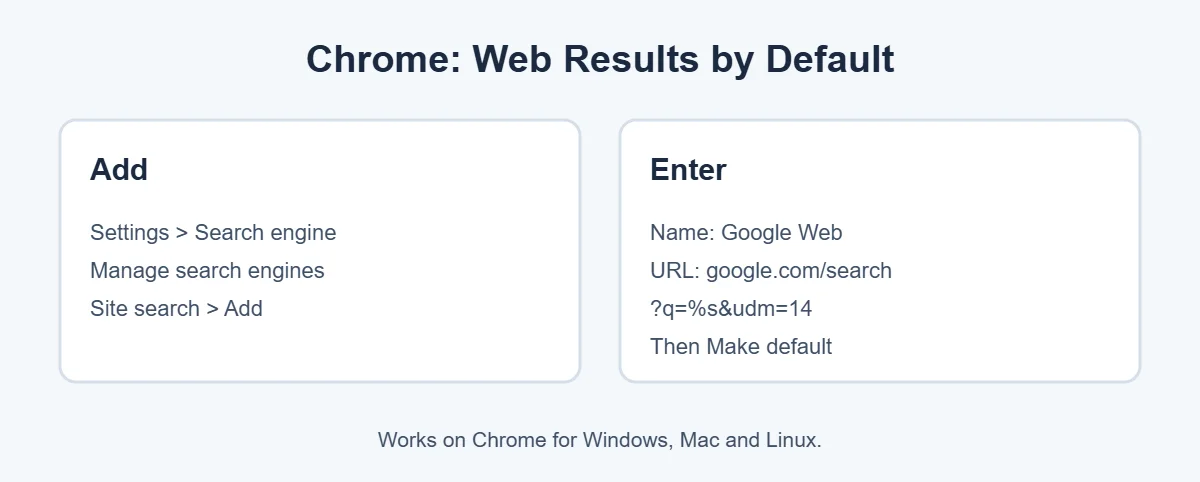
This is the best long-term way to turn off AI Overviews on a computer. Every search from Chrome’s address bar will skip AI Overviews.
- Open Chrome and go to Settings, Search engine, Manage search engines and site search.
- Next to Site search, click Add.
- Name: Google Web. Shortcut: anything, like gw.
- URL:
https://www.google.com/search?q=%s&udm=14 - Click Add.
- Find your new entry, click the three dots next to it and choose Make default.
Now type in the address bar and press Enter. Google opens straight to Web results.
4. Do the same in Edge or Firefox
- Microsoft Edge: Settings, Privacy, search and services, Address bar and search, Manage search engines, Add. Use the same URL, then set it as default.
- Firefox: Settings, Search, then add a search shortcut with the same URL if your version offers it, and choose it as the default search engine.
5. Use a browser extension
Extensions like Bye Bye, Google AI and Hide Google AI Overviews hide the AI box automatically. Install only well-reviewed extensions from the official Chrome Web Store or Firefox Add-ons site, and check what permissions they ask for. Extensions can break when Google changes its pages.
6. Try a different search engine
If you can’t turn off AI Overviews the way you want and would rather avoid AI summaries altogether, other search engines give you more control. For example, DuckDuckGo lets you turn off its AI-assisted answers in settings and offers a no-AI version at noai.duckduckgo.com. Bing and others also have their own AI features, so check their settings.
AI Overview vs Web Results
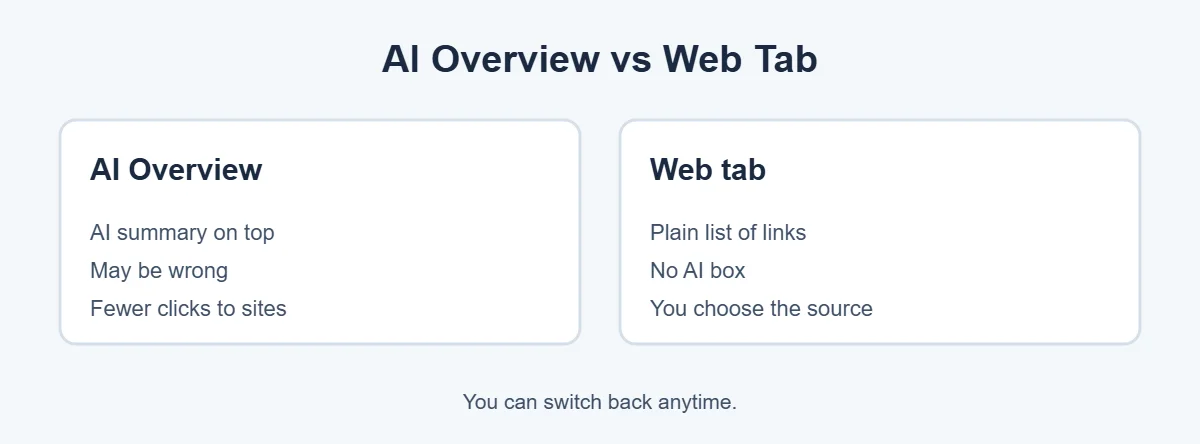
| AI Overview (All tab) | Web tab / udm=14 | |
|---|---|---|
| What you see | AI summary at the top, then results | Plain list of links |
| Speed to an answer | Fast for simple questions | You open a site yourself |
| Accuracy | Usually fine, sometimes wrong | Depends on the site you choose |
| Extras | Maps, shopping, images mixed in | Mostly text links only |
Note that the Web view can also hide other boxes, like maps and shopping results. For a local business or a product, the normal All view may be more useful.
What About AI Mode?
AI Mode is a separate Google tab where you chat with the AI instead of seeing links. The udm=14 trick doesn’t change it. If you don’t want AI Mode, just don’t open that tab. It doesn’t open on its own when you use the methods above.
For more easy tech guides, visit TrickieTech.
Turn Off AI Overviews on Phone
It’s harder to turn off AI Overviews on phones, because the Google app and mobile browsers give you fewer settings.
Google app (Android and iPhone)
There’s no switch to turn off AI Overviews in the Google app, so the Web tab is your best option. After searching, swipe the tabs under the search bar and tap Web. If you want plain results all the time, use a browser instead of the Google app.
Chrome on Android
Chrome on Android usually lets you choose from a list of search engines, not type your own URL. A simple workaround: save a bookmark to https://www.google.com/search?udm=14&q=, or use the Web tab after each search. Some people also use a site like udm14.com, which sends you to Google’s Web view.
Safari on iPhone and iPad
To turn off AI Overviews in Safari is harder, since Safari doesn’t let you add custom search URLs. Your options are to tap the Web tab after searching, or change the default search engine in Settings, Apps, Safari, Search Engine (or Settings, Safari on older iOS) to one like DuckDuckGo.
Why Do AI Overviews Show for Some Searches but Not Others?
Google decides when to show an AI Overview. They usually appear for questions, how-to searches and topics where Google thinks a summary helps. They often don’t appear for simple searches like a website name, a short fact, or very new news. That’s why you may see them often one day and less the next.
Are AI Overviews Safe to Trust?
Most of the time they’re a decent starting point, but they can be wrong. When AI Overviews first launched widely in May 2024, some answers went viral for bad advice, such as suggesting glue on pizza. Google says it has improved them since, but mistakes still happen.
Use these simple checks:
- Click the source links and read the original page.
- For health, money, legal or safety topics, check official sites, like government or medical organizations.
- Be careful with very recent events, where the AI may have old information.
- If something sounds surprising, search it again in the Web view.
Does Hiding AI Overviews Change Your Results?
The links underneath are mostly the same. The Web view mainly removes extras at the top, like the AI summary, and can also hide things like “People also ask,” maps and shopping boxes. You still get Google’s ranking of websites, just in a simpler layout.
Real-Life Examples
“I just want normal results for work research”
The easiest way to turn off AI Overviews here was setting Chrome’s default search to the udm=14 URL, so every search opened plain results, with no extra clicks.
“The AI answer about a medicine looked wrong”
Opening the Web tab and clicking a trusted medical site gave the correct information. AI summaries are never a replacement for a doctor or pharmacist.
“My parents find the AI box confusing”
Adding a home-screen bookmark to Google’s Web view on their phone made searching simple again.
[ADD PERSONAL EXPERIENCE: add a short example of how you avoid AI Overviews.]
Simple Words You’ll See
- AI Overview: Google’s AI-written summary at the top of search results.
- AI Mode: a separate chat-style search tab in Google.
- Web tab: a Google results view with only plain links.
- udm=14: the code in a Google link that opens the Web view.
- Default search engine: the search your browser uses when you type in the address bar.
- Gemini: Google’s AI model that powers AI Overviews and AI Mode.
Quick Checklist
- Tap the Web tab after searching.
- Or add &udm=14 to the search link.
- On a computer, set Chrome or Edge to the udm=14 search URL.
- On phones, use the Web tab or a bookmark.
- Try a trusted extension if you want it automatic.
- Or switch to another search engine.
- Always check important answers with real sources.
Turn Off AI Overviews on a Work or School Computer
On a managed computer, you may not be able to change the default search engine. Your IT team may have set it for you. You can still use the Web tab after each search, or save a bookmark to Google’s Web view. If many people want it, ask IT whether they can set the udm=14 search URL for everyone through browser policies.
Turn Off AI Overviews: Which Method Should You Pick?
| Method | Best for | Effort | Permanent? |
|---|---|---|---|
| Web tab | Anyone, any device | One tap each time | No |
| &udm=14 in the link | Quick one-off searches | Type each time | No |
| Chrome/Edge default search | Computers | 2 minutes once | Yes |
| Bookmark to Web view | Phones, older relatives | 1 minute once | Mostly |
| Extension | Computers, set and forget | Install once | Until it breaks |
| Other search engine | People who want no AI at all | Change once | Yes |
For most people, the Chrome or Edge default search method is the best way to turn off AI Overviews on a computer, and the Web tab is the simplest way on a phone.
Will Google Ever Add an Off Switch?
Maybe. In January 2026, Google said it was exploring opt-out controls after UK regulators set new requirements, according to PPC Land’s timeline. So far, the only new control is for publishers, not searchers. If Google adds a way to turn off AI Overviews for users, we’ll update this guide.
How to Turn AI Overviews Back On
Changed your mind? It’s easy. Use the All tab instead of Web. If you changed Chrome’s default search engine, go back to Settings, Search engine and choose Google again. Remove any extension you added from your browser’s extensions page.
Tips for Better Google Results Without AI
Once you’ve hidden the AI box, a few classic search tricks help you find good answers fast:
- Use quotes for exact phrases, like “printer offline windows 11”.
- Add site: to search one website, like
site:support.microsoft.com bluetooth. - Use a minus sign to remove words, like
jaguar -car. - Use Tools under the search bar to filter results by date, so you get recent pages.
- Add the year for things that change, like phone settings or prices.
These work in both the normal view and the Web view, and they make plain Google results much more useful. Combine them with the steps above to turn off AI Overviews and still find exactly what you need, quickly and without the clutter.
A Note on Privacy
Hiding AI Overviews changes what you see, not what Google collects. Your searches are still saved to your Google account if Web & App Activity is on. To control that, open myactivity.google.com, choose Web & App Activity, and turn it off or set auto-delete to 3, 18 or 36 months. You can also search in an Incognito or private window, which doesn’t save searches to your browser history on that device.
Frequently Asked Questions
Can you turn off AI Overviews in Google settings?
No. As of October 2026, Google has no setting that turns AI Overviews off for users. The old Search Labs toggle no longer controls them. To avoid them, use the Web tab after you search, or make your browser search with udm=14 so you get plain web results every time.
What is udm=14 on Google?
udm=14 is a code you add to a Google search link that opens the Web results view. That view shows a plain list of links without the AI Overview box. You can add it to your browser’s search engine settings so every search uses it automatically.
Does adding -ai to a search remove AI Overviews?
It’s not reliable. Some people reported it worked at times, but Google doesn’t support it, and adding -ai can also change your results by removing pages that contain the word “ai.” The Web tab or udm=14 is a better choice.
How do I turn off AI Overviews on my phone?
In the Google app, there’s no off switch. In a mobile browser, search and then tap the Web tab under the search bar. On Android with Chrome, you can add a custom search engine with udm=14 in some versions. On iPhone Safari, you can’t add custom search URLs, so use the Web tab or another search engine.
Is AI Mode the same as AI Overviews?
No. AI Overviews are the AI summaries at the top of normal search results. AI Mode is a separate chat-style search tab. The udm=14 trick hides AI Overviews in normal search, but it doesn’t change AI Mode. Just don’t open the AI Mode tab if you don’t want it.
Are AI Overviews accurate?
Often, but not always. AI Overviews can misread sources or mix up facts, and Google says they may make mistakes. For health, money, legal or safety questions, check the linked sources and trusted websites before you act on the answer.
The Bottom Line
You can’t fully turn off AI Overviews with a Google setting in 2026. But the Web tab and the udm=14 trick get you plain results in seconds.
For a permanent fix on a computer, set Chrome or Edge to search with udm=14 by default. On iPhone, use the Web tab or another search engine.
{“@context”:”https://schema.org”,”@type”:”FAQPage”,”mainEntity”:[{“@type”:”Question”,”name”:”Can you turn off AI Overviews in Google settings?”,”acceptedAnswer”:{“@type”:”Answer”,”text”:”No. As of October 2026, Google has no setting that turns AI Overviews off for users. The old Search Labs toggle no longer controls them. To avoid them, use the Web tab after you search, or make your browser search with udm=14 so you get plain web results every time.”}},{“@type”:”Question”,”name”:”What is udm=14 on Google?”,”acceptedAnswer”:{“@type”:”Answer”,”text”:”udm=14 is a code you add to a Google search link that opens the Web results view. That view shows a plain list of links without the AI Overview box. You can add it to your browser’s search engine settings so every search uses it automatically.”}},{“@type”:”Question”,”name”:”Does adding -ai to a search remove AI Overviews?”,”acceptedAnswer”:{“@type”:”Answer”,”text”:”It’s not reliable. Some people reported it worked at times, but Google doesn’t support it, and adding -ai can also change your results by removing pages that contain the word \”ai.\” The Web tab or udm=14 is a better choice.”}},{“@type”:”Question”,”name”:”How do I turn off AI Overviews on my phone?”,”acceptedAnswer”:{“@type”:”Answer”,”text”:”In the Google app, there’s no off switch. In a mobile browser, search and then tap the Web tab under the search bar. On Android with Chrome, you can add a custom search engine with udm=14 in some versions. On iPhone Safari, you can’t add custom search URLs, so use the Web tab or another search engine.”}},{“@type”:”Question”,”name”:”Is AI Mode the same as AI Overviews?”,”acceptedAnswer”:{“@type”:”Answer”,”text”:”No. AI Overviews are the AI summaries at the top of normal search results. AI Mode is a separate chat-style search tab. The udm=14 trick hides AI Overviews in normal search, but it doesn’t change AI Mode. Just don’t open the AI Mode tab if you don’t want it.”}},{“@type”:”Question”,”name”:”Are AI Overviews accurate?”,”acceptedAnswer”:{“@type”:”Answer”,”text”:”Often, but not always. AI Overviews can misread sources or mix up facts, and Google says they may make mistakes. For health, money, legal or safety questions, check the linked sources and trusted websites before you act on the answer.”}}]}