
Laptop not charging? First check the outlet, cable and charger, and make sure the plug is firmly in. Then check whether a battery charge limit is on in your laptop maker’s app, since it can stop charging at 60 or 80 percent on purpose. If it still won’t charge, reinstall the battery driver in Device Manager and do a full power reset.
Below are 11 easy fixes, from quickest to deepest. They work for Dell, HP, Lenovo, ASUS, Acer and most Windows laptops, with notes for MacBooks too.
[ADD PERSONAL EXPERIENCE: one line about when your laptop stopped charging and what fixed it.]
Table of Contents
Why Is My Laptop Not Charging?
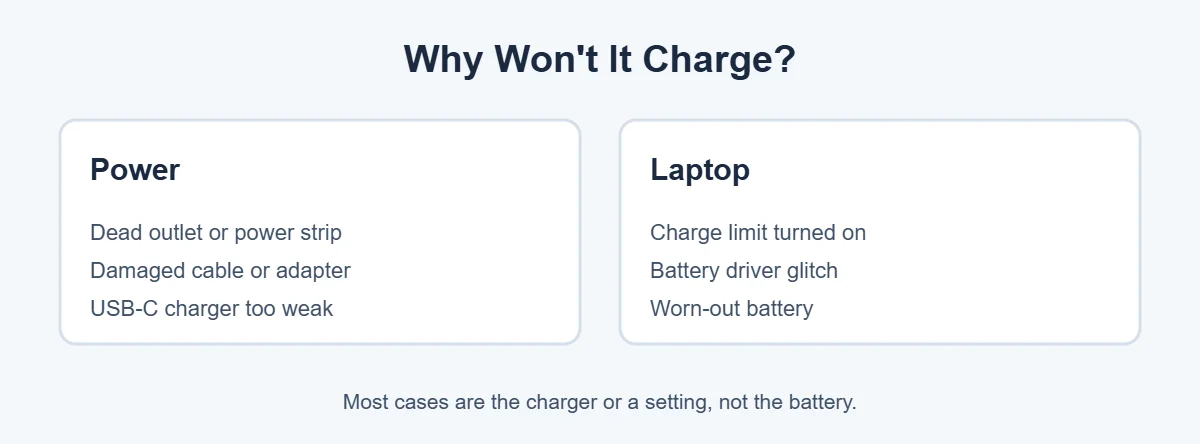
When you see a laptop not charging, the cause is usually simple:
- The outlet or power strip isn’t working.
- The cable or adapter is damaged, or loose.
- A USB-C charger is too weak for the laptop.
- A charge limit setting stops charging early.
- The battery driver has a glitch.
- The laptop is too hot, so charging pauses.
- The battery is worn out or failing.
11 Easy Fixes for a Laptop Not Charging
1. Check the outlet and power strip
Plug the charger straight into a different wall outlet, not a power strip or extension. Test the outlet with a phone charger or lamp.
2. Check every connection
Many chargers have two parts: the cable to the wall and the cable to the laptop, with a power brick in the middle. Push both ends in firmly. Look for a light on the brick or near the laptop’s charging port.
3. Inspect the cable and port
Look for cuts, bent pins, burn marks or a frayed area near the plug. Shine a light into the laptop’s charging port and gently remove dust or lint with a wooden toothpick. A loose or wobbly port may need repair.
4. Use the right charger
The charger must give enough watts. Check the label on your original charger, for example 65W. A smaller charger may charge slowly, or not at all while the laptop is in use. For USB-C laptops, use a USB Power Delivery (PD) charger with at least the same wattage, and plug into the USB-C port marked for charging.
5. Turn off battery charge limits
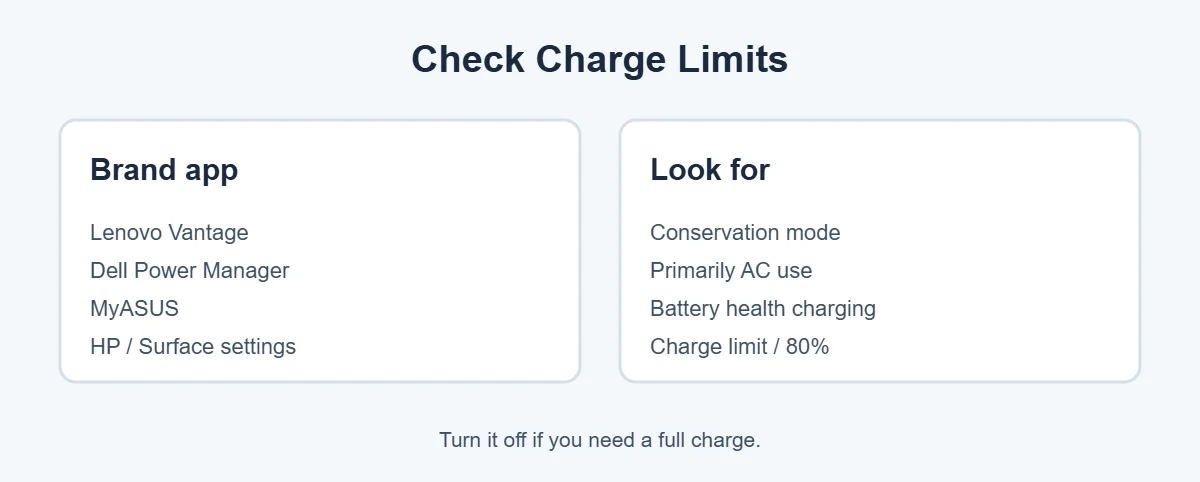
Many laptops have a feature that stops charging at 55 to 80 percent to protect the battery. It’s not a fault, but it looks like a laptop not charging. Check your maker’s app:
- Lenovo: Lenovo Vantage, Battery, Conservation mode.
- Dell: Dell Power Manager or Dell Optimizer, Battery settings (for example “Primarily AC use”).
- ASUS: MyASUS, Battery Health Charging.
- HP: Battery Health Manager, often in the BIOS or HP app.
- Windows: on some laptops, Settings, System, Power & battery, Battery has a Smart charging option.
6. Restart and let it cool down
Batteries won’t charge when they’re too hot. Shut down, let the laptop cool for 15 minutes on a hard surface, then plug in and turn it on.
7. Reinstall the battery driver
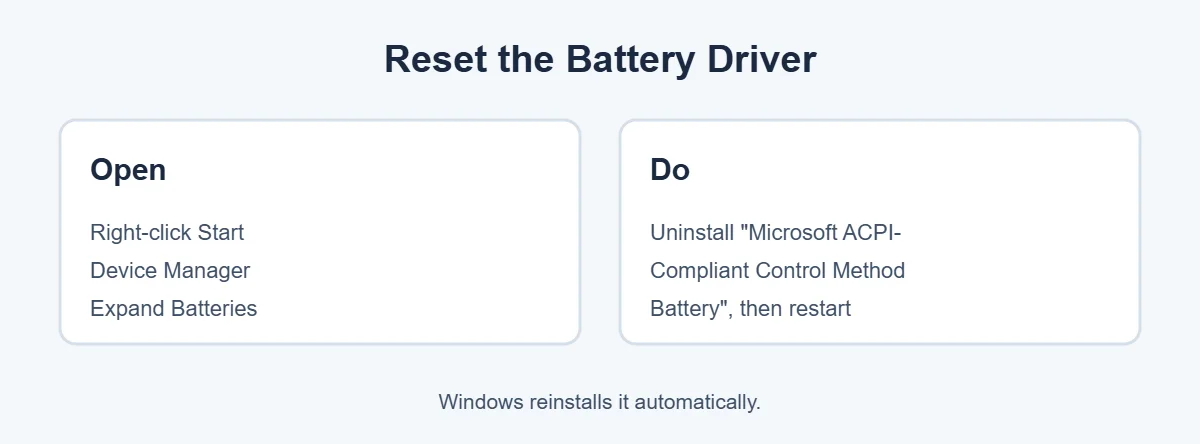
- Right-click Start and open Device Manager.
- Expand Batteries.
- Right-click Microsoft ACPI-Compliant Control Method Battery and choose Uninstall device.
- Restart the laptop. Windows reinstalls the driver automatically.
8. Do a full power reset
Shut down and unplug the charger. If the battery is removable, take it out. Hold the power button for 15 to 30 seconds. Put the battery back, plug in the charger and turn the laptop on. Some laptops with built-in batteries have a small reset pinhole on the bottom; check your manual.
9. Update BIOS and chipset drivers
Battery and charging are controlled partly by the BIOS (firmware). Download BIOS and chipset updates from your maker, such as Dell Support, HP or Lenovo, using your model or serial number. Keep the laptop plugged in during a BIOS update and don’t turn it off.
10. Check battery health
Open Command Prompt and type powercfg /batteryreport. Windows saves a report showing the battery’s Design capacity and Full charge capacity. If the full charge capacity is much lower, the battery is worn. Your maker’s app may also show battery health.
11. Replace the battery or charger
If another known-good charger works, replace the charger with an original or certified one. If no charger works and the battery report looks poor, the battery needs replacing. Use your maker or an authorized repair shop.
MacBook Not Charging
- Try a different outlet and check the USB-C or MagSafe cable.
- Check System Settings, Battery. Optimized Battery Charging may hold the charge at 80 percent for a while. That’s normal.
- Look at battery condition under Battery Health. If it says Service Recommended, contact Apple.
- Restart the Mac. For Intel Macs, resetting the SMC can help; Apple silicon Macs reset this with a normal restart.
Laptop Not Charging When Turned On, Only When Off
If you have a laptop not charging while on, and it charges only when it’s shut down, the charger probably doesn’t give enough power for both running and charging. This is common with low-watt USB-C chargers. Use the original or a higher-watt charger, close heavy apps and games, and lower screen brightness while charging.
For more easy fixes, visit TrickieTech.
What the Charging Light Tells You
When you have a laptop not charging, look at the light first. Most laptops have a small light near the charging port or on the front edge. Colors differ by brand, so check your manual, but these patterns are common:
| Light | Usually means |
|---|---|
| Solid white or green | Fully charged, or charging normally |
| Amber or orange | Charging, or battery is low |
| Blinking amber | Battery or charger problem (some brands use blink patterns as error codes) |
| No light at all | No power reaching the laptop: check outlet, cable and brick |
Dell, HP and Lenovo publish what each blink pattern means for their models on their support sites. Write down the pattern before you call support.
Laptop Not Charging After a Windows Update
- Restart once more.
- Reinstall the battery driver (fix 7).
- Check for BIOS and chipset updates from your maker.
- Check if the update turned a charge limit on in your maker’s app.
How to Read the Battery Report
The report from powercfg /batteryreport is saved as an HTML file, usually in your user folder. Open it in a browser and look at:
- Design capacity: how much energy the battery held when new.
- Full charge capacity: how much it holds now.
- Cycle count: how many full charge cycles it has done.
If full charge capacity is far below the design capacity, for example under half, the battery is worn and will drain fast, even if it does charge. Battery makers usually rate laptop batteries for a few hundred to around a thousand cycles, depending on the model.
Is It Safe to Use a Third-Party Charger?
A cheap charger can cause a laptop not charging problem. A third-party one can be fine if it’s from a trusted brand and matches your laptop’s voltage, wattage and connector. Cheap unbranded chargers may not give stable power and can overheat. For barrel-plug laptops, the plug size and voltage must match exactly. For USB-C laptops, look for USB PD and the right wattage. When in doubt, buy the maker’s own charger.
Signs the Battery Needs Replacing
- A “Consider replacing your battery” or “Service battery” warning.
- The battery drains in under an hour of light use.
- The percentage jumps or the laptop shuts off at 20 or 30 percent.
- The case bulges, the touchpad lifts, or the laptop won’t sit flat.
Important: if the battery is swollen, stop using and charging the laptop and get it repaired. A swollen lithium-ion battery can be dangerous.
Real-Life Examples
“It’s stuck at 60 percent”
This laptop not charging past 60 percent had Lenovo Vantage Conservation mode on. Turning it off let the laptop charge to 100 percent.
“It charges only when off”
This laptop not charging while on was using a 30W phone charger on a 65W laptop. The original charger fixed it.
“No light, no charging”
The laptop not charging at all had a power strip that was switched off. The simplest fix of all.
[ADD PERSONAL EXPERIENCE: add a short example from your own laptop if you have one.]
How to Make Your Laptop Battery Last Longer
- Turn on a charge limit if your laptop is plugged in most of the day.
- Keep it cool. Don’t charge it on a bed, sofa or in direct sun.
- Use the original charger or a certified one.
- Unplug the charger by the plug, not by pulling the cable.
- Don’t let it sit at 0 percent for long periods.
- Install BIOS and Windows updates, which often include battery fixes.
Quick Checklist
- Try another wall outlet.
- Push every plug in firmly.
- Check cable and port for damage or dust.
- Use a charger with enough watts.
- Turn off charge limit modes.
- Let it cool and restart.
- Reinstall the battery driver.
- Do a full power reset.
- Update BIOS and chipset drivers.
- Run a battery report.
- Replace the charger or battery.
Laptop Not Charging With a USB-C Dock or Monitor
Many people charge through a USB-C dock or a monitor with a USB-C cable. If you see the laptop not charging this way:
- Check how many watts the dock or monitor can send to the laptop. It’s listed in its specs, often as “power delivery” (for example 65W or 90W).
- Make sure the dock’s own power adapter is plugged in.
- Use the USB-C port on the laptop that supports charging. Not every USB-C port does.
- Update the dock’s firmware and the laptop’s Thunderbolt or USB-C drivers from the maker’s site.
- Test with the laptop’s original charger to see if the dock is the problem.
Simple Words You’ll See
- Watts (W): how much power a charger can give. Laptop chargers are usually 45W to 100W or more.
- USB Power Delivery (PD): the standard that lets USB-C chargers power laptops.
- Charge limit / conservation mode: a setting that stops charging below 100 percent to protect the battery.
- BIOS: the laptop’s built-in firmware that controls hardware, including charging.
- Cycle count: how many full charges the battery has done.
Laptop Not Charging Fully? Calibrate the Battery
Sometimes the battery charges fine, but the percentage is wrong. It may jump from 40 to 10 percent, or stop at 97. Calibrating helps Windows read the battery correctly again.
- Charge the laptop to 100 percent and leave it plugged in for another hour.
- Unplug it and use it normally until it shuts down on its own. Save your work first.
- Leave it off for a few hours.
- Plug it in and charge to 100 percent without interruption.
Don’t do this often, since deep discharges add wear. Once every few months, or only when the percentage acts strangely, is enough. Some makers include a calibration tool in their app or BIOS, which is the better option if your laptop has one.
When to Get Professional Repair
Get help from your laptop maker or a trusted repair shop if the charging port is loose or damaged, the charger works on another laptop but not yours, or you see burn marks, smell burning or the laptop gets very hot near the port. These can point to a faulty charging board. If the laptop is under warranty, contact the maker before opening it, so you don’t void the cover.
Frequently Asked Questions
Why does my laptop say plugged in, not charging?
Usually a battery charge limit is on, the charger doesn’t give enough power, or the battery driver has a glitch. Turn off charge limit modes in your laptop maker’s app, use the original charger, and reinstall the battery driver in Device Manager. A worn battery can also cause it.
How do I know if my laptop battery or charger is bad?
Try another compatible charger. If the laptop charges with it, the original charger is bad. If it still won’t charge, check battery health with the powercfg /batteryreport command or your maker’s app. Low full-charge capacity or a “replace battery” warning points to the battery.
Can I charge my laptop with a phone charger?
Only if the laptop charges by USB-C and the charger supports USB Power Delivery with enough watts. A small phone charger may charge very slowly, or show “slow charger” or “not charging.” Most laptops need 45 to 100 watts, so check your original charger’s rating.
Why does my laptop stop charging at 80 percent?
A battery health feature is probably on. Lenovo Conservation mode, ASUS Battery Health Charging, Dell Primarily AC use, HP Battery Health Manager and Windows Smart charging can stop at 55 to 80 percent to make the battery last longer. Turn it off in the app if you need 100 percent.
How do I reset my laptop battery?
Shut down, unplug the charger, and remove the battery if it’s removable. Hold the power button for 15 to 30 seconds, then reconnect and charge. For built-in batteries, some laptops have a reset pinhole or key combination. Check your maker’s support page for your model.
Is it bad to keep my laptop plugged in all the time?
Modern laptops stop charging when full, so it’s generally fine. Keeping a battery at 100 percent and warm all day can age it faster, which is why makers offer charge limit modes. Turning one on is a good idea if your laptop is plugged in most of the time.
The Bottom Line
A laptop not charging is usually a charger, outlet or setting problem, not a dead battery. Check the outlet and cable, use the right charger, and turn off charge limits.
If it still won’t charge, reinstall the battery driver, do a power reset and update the BIOS. If none of that works, check battery health and replace the battery or charger.
{“@context”:”https://schema.org”,”@type”:”FAQPage”,”mainEntity”:[{“@type”:”Question”,”name”:”Why does my laptop say plugged in, not charging?”,”acceptedAnswer”:{“@type”:”Answer”,”text”:”Usually a battery charge limit is on, the charger doesn’t give enough power, or the battery driver has a glitch. Turn off charge limit modes in your laptop maker’s app, use the original charger, and reinstall the battery driver in Device Manager. A worn battery can also cause it.”}},{“@type”:”Question”,”name”:”How do I know if my laptop battery or charger is bad?”,”acceptedAnswer”:{“@type”:”Answer”,”text”:”Try another compatible charger. If the laptop charges with it, the original charger is bad. If it still won’t charge, check battery health with the powercfg /batteryreport command or your maker’s app. Low full-charge capacity or a \”replace battery\” warning points to the battery.”}},{“@type”:”Question”,”name”:”Can I charge my laptop with a phone charger?”,”acceptedAnswer”:{“@type”:”Answer”,”text”:”Only if the laptop charges by USB-C and the charger supports USB Power Delivery with enough watts. A small phone charger may charge very slowly, or show \”slow charger\” or \”not charging.\” Most laptops need 45 to 100 watts, so check your original charger’s rating.”}},{“@type”:”Question”,”name”:”Why does my laptop stop charging at 80 percent?”,”acceptedAnswer”:{“@type”:”Answer”,”text”:”A battery health feature is probably on. Lenovo Conservation mode, ASUS Battery Health Charging, Dell Primarily AC use, HP Battery Health Manager and Windows Smart charging can stop at 55 to 80 percent to make the battery last longer. Turn it off in the app if you need 100 percent.”}},{“@type”:”Question”,”name”:”How do I reset my laptop battery?”,”acceptedAnswer”:{“@type”:”Answer”,”text”:”Shut down, unplug the charger, and remove the battery if it’s removable. Hold the power button for 15 to 30 seconds, then reconnect and charge. For built-in batteries, some laptops have a reset pinhole or key combination. Check your maker’s support page for your model.”}},{“@type”:”Question”,”name”:”Is it bad to keep my laptop plugged in all the time?”,”acceptedAnswer”:{“@type”:”Answer”,”text”:”Modern laptops stop charging when full, so it’s generally fine. Keeping a battery at 100 percent and warm all day can age it faster, which is why makers offer charge limit modes. Turning one on is a good idea if your laptop is plugged in most of the time.”}}]}