
To remove virus from laptop for free, open Windows Security and run a Full scan, then a Microsoft Defender Offline scan. If the virus comes back, scan again in Safe Mode, uninstall programs you don’t recognize, clean your browser and change your passwords. A Windows reset is the last step for stubborn infections.
Below are nine easy steps, based on Microsoft’s guide to removing malware. You don’t need to buy anything.
[ADD PERSONAL EXPERIENCE: one line about a time you had to clean a virus off a laptop.]
Table of Contents
Signs You Need to Remove a Virus From Your Laptop
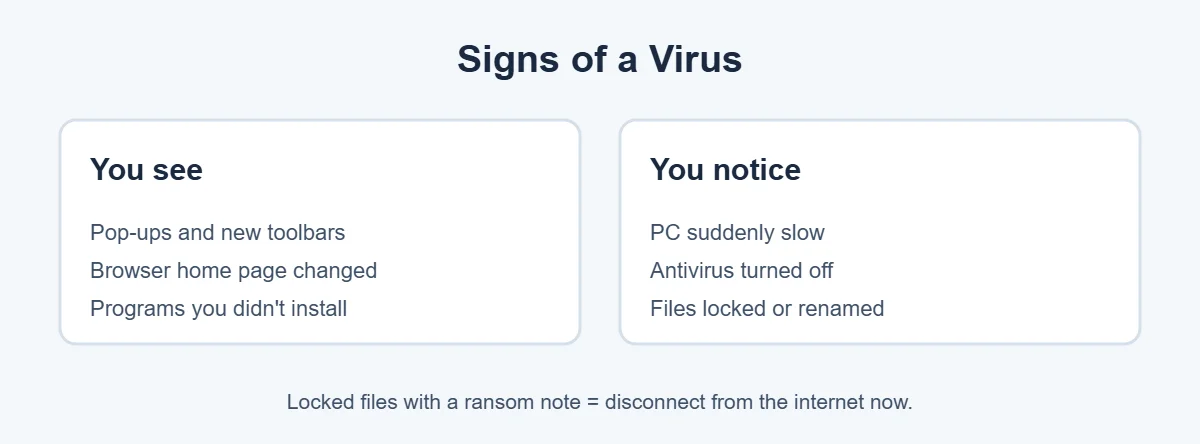
“Virus” is a common word for any kind of malware, including adware, spyware and ransomware. Signs include:
- Pop-ups and ads, even when the browser is closed.
- Your browser’s home page or search engine changed by itself.
- New toolbars or extensions you didn’t add.
- Programs you don’t remember installing.
- The laptop is suddenly slow, or the fan runs all the time.
- Windows Security is turned off and won’t turn on.
- Files are locked, renamed or there’s a ransom note.
Before You Start
- Save your work and close programs.
- Don’t call phone numbers in pop-up warnings. They’re scams.
- If you see a ransom note, disconnect from the internet straight away and skip to the ransomware section below.
9 Easy Steps to Remove Virus From Laptop
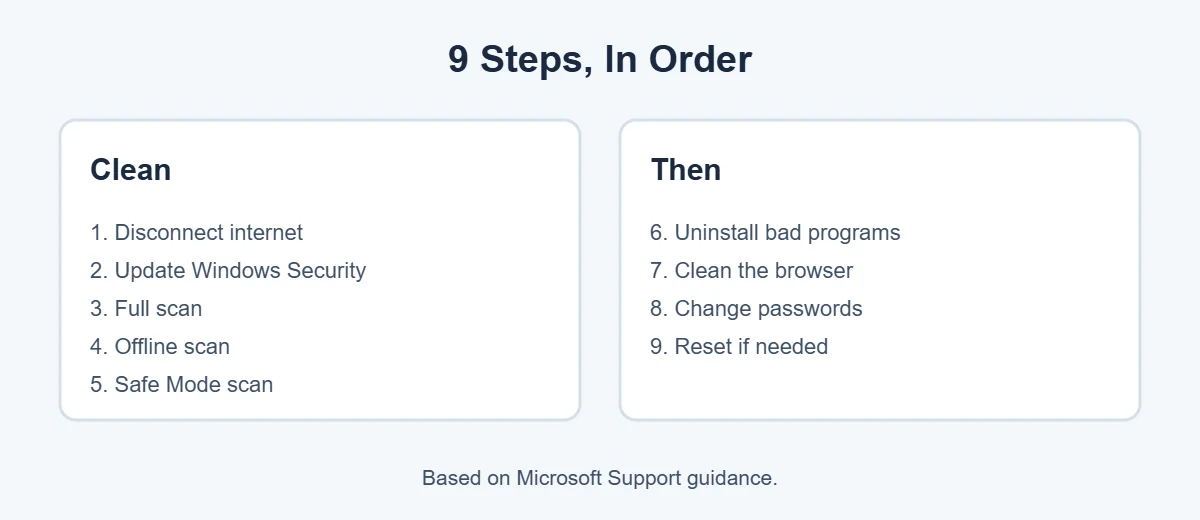
1. Disconnect from the internet (if it’s serious)
The first step to remove virus infections safely: if the laptop is clearly infected, turn off Wi-Fi to stop the malware sending data or downloading more. Reconnect briefly when you need updates.
2. Update Windows Security
Go to Settings, Windows Update and install updates. This also updates Microsoft Defender’s virus definitions, so it can recognize the newest threats.
3. Run a full scan
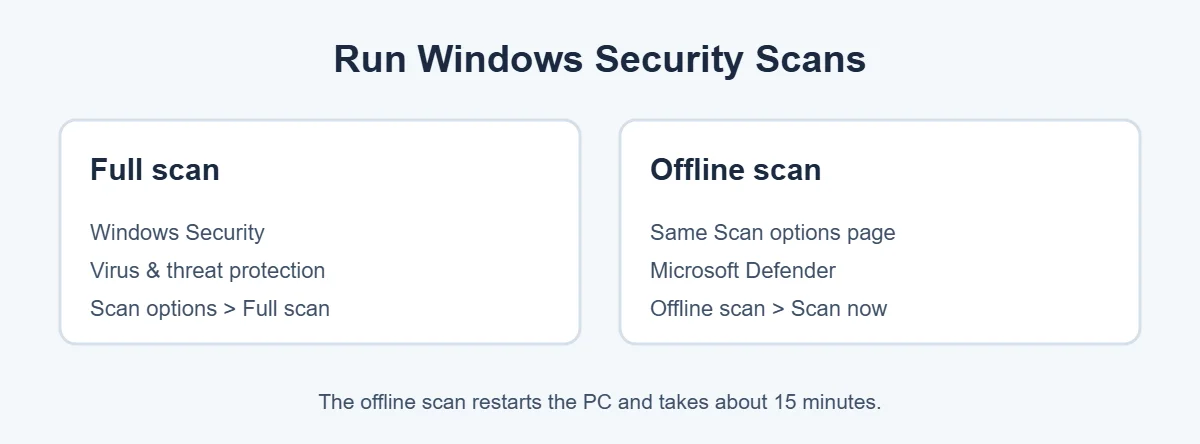
- Open Windows Security from the Start menu.
- Choose Virus & threat protection.
- Click Scan options.
- Select Full scan and click Scan now.
A full scan can take an hour or more. When it finishes, choose Remove or Quarantine for anything it finds.
4. Run a Microsoft Defender Offline scan
Some malware hides while Windows is running, so a normal scan can’t remove virus files like these. The offline scan restarts your laptop and scans before Windows loads. In Scan options, select Microsoft Defender Offline scan and click Scan now. It takes about 15 minutes, and the PC restarts on its own.
5. Scan in Safe Mode
Safe Mode starts Windows with only basic drivers, so most malware can’t run. That makes it easier to remove virus files.
- Go to Settings, System, Recovery.
- Next to Advanced startup, click Restart now.
- Choose Troubleshoot, Advanced options, Startup Settings, Restart.
- Press 5 or F5 for Safe Mode with Networking.
- Run a full scan again in Windows Security.
6. Uninstall suspicious programs
Scans don’t always remove virus-like programs that you installed yourself. Go to Settings, Apps, Installed apps. Sort by install date and look for programs you don’t recognize, especially ones installed around when problems started. Uninstall them. Search a program’s name online if you’re not sure what it is.
7. Clean your browser
- Remove extensions you didn’t add or don’t use.
- Reset your home page and default search engine.
- In Chrome, use Settings, Reset settings. In Edge, use Settings, Reset settings.
- Turn off notifications from sites you don’t trust in the browser’s site settings. Many “virus” pop-ups are just website notifications.
8. Change your passwords
Malware can steal saved passwords. After the laptop is clean, change passwords for email, banking and social media, ideally from another device. Turn on two-factor authentication.
9. Reset Windows if it keeps coming back
If scans keep finding the same threat, go to Settings, System, Recovery, Reset this PC. Choose Remove everything for the cleanest result, after backing up your personal files. Scan the backup before you copy files back.
Use a Second Opinion Scanner
If you want an extra check, Microsoft offers the free Microsoft Safety Scanner, a one-time scanning tool. It works alongside Windows Security and expires 10 days after you download it, so always get a fresh copy from Microsoft’s official website.
For more simple tech guides, visit TrickieTech.
How to Remove Virus Pop-Ups and Fake Warnings
Many people try to remove virus warnings that aren’t viruses at all, and you can’t remove virus pop-ups that are really scam pages with a scan. Scary pop-ups saying “Your PC is infected, call Microsoft” are tech support scams. Microsoft doesn’t put phone numbers in error messages.
- Don’t call the number or click anything on the page.
- Close the browser. If it won’t close, press Ctrl + Shift + Esc, select the browser in Task Manager and click End task.
- When you reopen the browser, don’t restore the previous tabs.
- Turn off notifications for unknown sites in your browser’s settings.
- Run a quick scan with Windows Security to be safe.
If you already called and gave someone remote access, disconnect from the internet, uninstall any remote access program they installed, run a full scan, change your passwords and call your bank if you paid them.
Ransomware: What to Do
Ransomware locks or scrambles your files and demands payment. You can’t simply remove virus files and get your data back. It’s the most serious kind of malware.
- Disconnect from the internet right away, Wi-Fi and cables.
- Unplug external drives so they don’t get locked too.
- Don’t pay. Paying doesn’t guarantee your files back and funds criminals.
- Report it: in the US to the FBI’s IC3, in the UK to Action Fraud, in Canada to the Canadian Anti-Fraud Centre, in Australia to ReportCyber.
- Get professional help and restore files from a backup made before the attack.
Ransomware is the main reason to keep a regular backup on a drive that isn’t always connected, or in a cloud service with version history.
Remove Virus From a Mac Laptop
Macs get malware less often, but adware and fake apps do happen. Here’s how to remove virus problems on a Mac.
- Update macOS in System Settings, General, Software Update. macOS has built-in malware protection called XProtect, which updates automatically.
- Check Applications for apps you didn’t install and move them to the Trash.
- Check System Settings, General, Login Items for unknown items.
- Remove unknown browser extensions in Safari, Chrome or Firefox.
- If problems continue, a well-known Mac security app can scan for adware.
Do You Need Paid Antivirus?
For most home users, no. To remove virus infections at home, Windows Security is free, built in and good enough to remove virus infections that most people get. Paid security suites can add features like a VPN, password manager, identity theft monitoring and parental controls. If you buy one, choose a well-known brand and uninstall other antivirus programs, because two running at once can slow your laptop and clash.
How to Avoid Getting Another Virus
- Keep Windows and apps updated.
- Leave Windows Security turned on, including real-time protection.
- Turn on Reputation-based protection in Windows Security, App & browser control.
- Download software only from official websites or the Microsoft Store.
- Avoid “free” cracked games, movies and software. They’re a top source of malware.
- Don’t open email attachments you weren’t expecting.
- Use a standard account for daily use, not an admin account, if you share the laptop.
- Back up important files regularly.
Real-Life Examples
“My browser kept opening ads”
To remove virus-like ads here, the fix was simple: a free PDF tool had installed a browser extension. Removing the extension and resetting the browser fixed it.
“A pop-up said Microsoft found a virus and gave a number”
It was a scam page. Closing the browser with Task Manager and turning off site notifications was all that was needed.
“Windows Security kept finding the same threat”
A Microsoft Defender Offline scan removed it, because it was hiding while Windows was running.
[ADD PERSONAL EXPERIENCE: add a short real example if you have one.]
Simple Words You’ll See
- Malware: any harmful software, including viruses.
- Quarantine: moving a threat to a safe place where it can’t run.
- Safe Mode: a way to start Windows with only basic programs.
- Offline scan: a scan that runs before Windows starts.
- Ransomware: malware that locks your files and demands money.
- Adware: software that shows unwanted ads.
Quick Checklist
- Disconnect from the internet if it’s serious.
- Update Windows Security.
- Run a full scan.
- Run a Microsoft Defender Offline scan.
- Scan again in Safe Mode if needed.
- Uninstall unknown programs.
- Clean browser extensions and settings.
- Change passwords and turn on 2FA.
- Reset Windows if it comes back.
Back Up Your Files Safely Before a Reset
If you need to reset Windows to remove virus problems for good, back up your personal files first, but be careful not to copy the malware too.
- Copy only personal files: documents, photos, music and videos. Don’t back up program files, .exe installers or downloads you don’t trust.
- Use an external drive or OneDrive. Scan the external drive with Windows Security before and after copying.
- Export browser bookmarks instead of copying the whole browser profile.
- Write down software you need to reinstall, and download fresh copies from official websites afterwards.
After the reset, install Windows updates first, then run a quick scan on the backup drive before you copy files back.
Remove Virus From Laptop: Which Step Fixes What?
| Problem | Best step |
|---|---|
| Pop-ups in the browser only | Clean browser extensions and notifications |
| “Call Microsoft” warning page | Close the browser; it’s a scam, not a virus |
| Windows Security finds a threat | Remove it, then run an offline scan |
| Threat keeps coming back | Safe Mode scan, uninstall unknown programs |
| Antivirus won’t turn on | Offline scan, then Safety Scanner |
| Files locked with a ransom note | Disconnect, report, restore from backup |
| Nothing works | Back up files and reset Windows |
Use this table to jump to the right fix. Most people only need the first three steps to remove virus problems from a laptop.
How Long Does It Take to Remove Virus Infections?
It depends on how bad the infection is and how fast your laptop is. A quick scan takes a few minutes. A full scan usually takes 30 minutes to a couple of hours, depending on how many files you have. The offline scan adds about 15 minutes. If you have to back up files and reset Windows, plan for an afternoon, since reinstalling apps and updates takes time.
The good news is that you can keep using the laptop during a full scan, though it may feel a little slower. Plug in the charger first, so the laptop doesn’t go to sleep or run out of battery halfway through.
When to Get Professional Help
You can remove virus infections yourself in most cases. Get help from a trusted local repair shop or your laptop maker if:
- You see ransomware and don’t have a backup.
- The laptop is for work and holds customer or company data. Tell your IT team right away.
- You gave a scammer remote access and they may have installed more tools.
- Windows won’t start at all after an infection.
Avoid “virus removal” services found through pop-up ads or cold calls. Choose a shop with real reviews, and never pay a stranger who contacts you first. A good shop will explain what they found and how they plan to remove virus files before charging you.
Frequently Asked Questions
How do I remove a virus from my laptop for free?
Use Windows Security, which is built into Windows 11. Open it, go to Virus & threat protection, Scan options, and run a Full scan. Then run a Microsoft Defender Offline scan, which restarts the PC to catch harder malware. Remove what it finds, then restart.
Can a virus be removed without resetting the laptop?
Usually, yes. Most malware is removed by a full scan plus an offline scan. You may also need to uninstall bad programs and remove browser extensions. Reset Windows only if the problem keeps coming back after scans, or if you suspect ransomware or a deep infection.
How do I know if my laptop has a virus?
Common signs are pop-ups that appear outside your browser, a changed browser home page or search engine, programs you didn’t install, a sudden slowdown, antivirus that keeps turning off, and files that are locked or renamed. A scan with Windows Security confirms it.
Is Windows Security good enough to remove viruses?
For most home users, yes. Microsoft Defender in Windows Security scores well in independent antivirus tests. If you want extra features, like a VPN or identity monitoring, a paid security suite can add them, but you don’t need to pay to remove common malware.
What should I do if I see a ransomware message?
Disconnect the laptop from Wi-Fi and unplug network cables straight away to stop it spreading. Don’t pay the ransom. Report it to the authorities, such as the FBI’s IC3 in the US or Action Fraud in the UK, and get professional help. Restore files from a backup made before the attack.
Should I call the number in a virus warning pop-up?
No. Pop-ups that say your PC is infected and give a phone number are tech support scams. Microsoft doesn’t show error messages with phone numbers. Close the browser, using Task Manager if needed, and never give remote access or payment to the caller.
The Bottom Line
You can remove virus from laptop for free with tools already in Windows 11. Update Windows, run a full scan and an offline scan, and use Safe Mode if needed.
Then uninstall bad programs, clean your browser and change your passwords. Reset Windows only if the virus keeps coming back.
{“@context”:”https://schema.org”,”@type”:”FAQPage”,”mainEntity”:[{“@type”:”Question”,”name”:”How do I remove a virus from my laptop for free?”,”acceptedAnswer”:{“@type”:”Answer”,”text”:”Use Windows Security, which is built into Windows 11. Open it, go to Virus & threat protection, Scan options, and run a Full scan. Then run a Microsoft Defender Offline scan, which restarts the PC to catch harder malware. Remove what it finds, then restart.”}},{“@type”:”Question”,”name”:”Can a virus be removed without resetting the laptop?”,”acceptedAnswer”:{“@type”:”Answer”,”text”:”Usually, yes. Most malware is removed by a full scan plus an offline scan. You may also need to uninstall bad programs and remove browser extensions. Reset Windows only if the problem keeps coming back after scans, or if you suspect ransomware or a deep infection.”}},{“@type”:”Question”,”name”:”How do I know if my laptop has a virus?”,”acceptedAnswer”:{“@type”:”Answer”,”text”:”Common signs are pop-ups that appear outside your browser, a changed browser home page or search engine, programs you didn’t install, a sudden slowdown, antivirus that keeps turning off, and files that are locked or renamed. A scan with Windows Security confirms it.”}},{“@type”:”Question”,”name”:”Is Windows Security good enough to remove viruses?”,”acceptedAnswer”:{“@type”:”Answer”,”text”:”For most home users, yes. Microsoft Defender in Windows Security scores well in independent antivirus tests. If you want extra features, like a VPN or identity monitoring, a paid security suite can add them, but you don’t need to pay to remove common malware.”}},{“@type”:”Question”,”name”:”What should I do if I see a ransomware message?”,”acceptedAnswer”:{“@type”:”Answer”,”text”:”Disconnect the laptop from Wi-Fi and unplug network cables straight away to stop it spreading. Don’t pay the ransom. Report it to the authorities, such as the FBI’s IC3 in the US or Action Fraud in the UK, and get professional help. Restore files from a backup made before the attack.”}},{“@type”:”Question”,”name”:”Should I call the number in a virus warning pop-up?”,”acceptedAnswer”:{“@type”:”Answer”,”text”:”No. Pop-ups that say your PC is infected and give a phone number are tech support scams. Microsoft doesn’t show error messages with phone numbers. Close the browser, using Task Manager if needed, and never give remote access or payment to the caller.”}}]}