
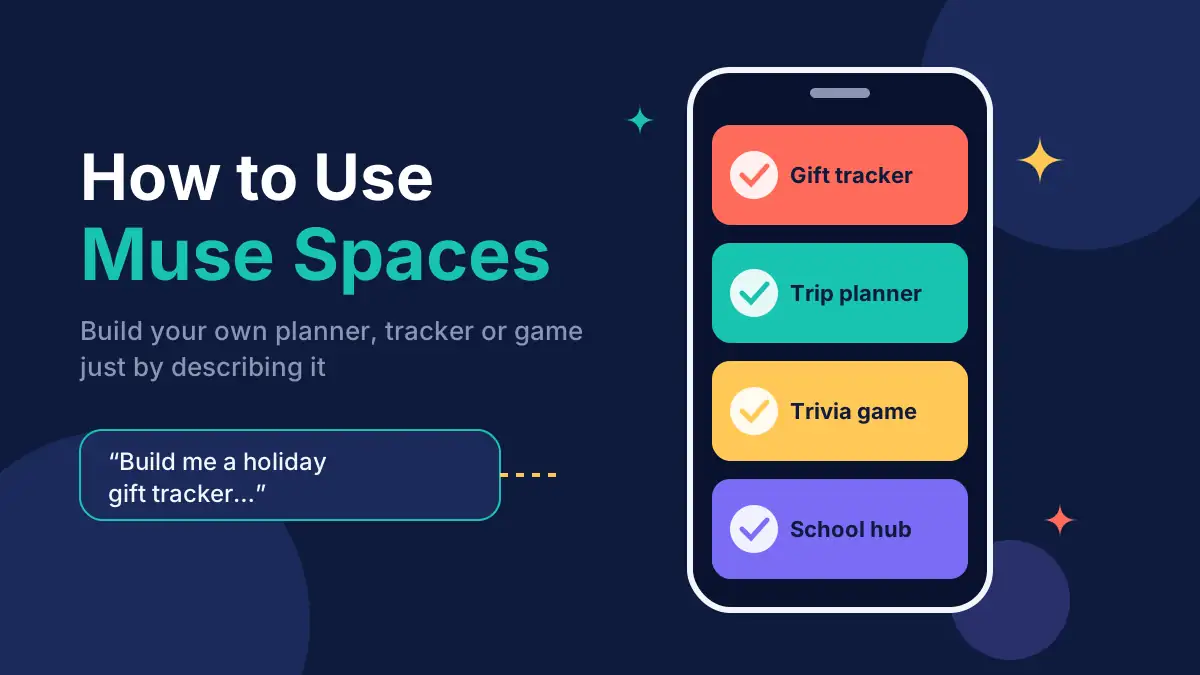
Muse Spaces are custom mini-apps you build inside Meta’s Muse app just by describing them in chat. You tell Muse what you need (a gift tracker, a trip planner, a trivia game), it builds the space, and you pin it to your sidebar or main tabs to come back to later. Meta launched Spaces on November 6, 2026, and says they are available everywhere Muse is available.
That makes Muse Spaces one of the first mainstream examples of an AI assistant building a personal tool on demand, rather than just answering questions. Below is how to set one up, prompts you can copy, and the privacy settings worth checking first.
Facts in this guide are current as of November 8, 2026. Meta is rolling the feature out and may change how it works.
What are Muse Spaces?
A Muse space is a single-topic, custom experience inside the Muse app that Muse builds for you from a plain-language description. Meta describes a space as a custom experience you design inside the app. In practice it works like a focused chat with its own layout, such as a checklist, planner, tracker or game, that stays saved in your sidebar.
Some quick definitions help here:
- Muse is Meta’s personal AI agent, delivered through the Muse app. It is powered by Meta’s Muse model family, including models trained with learnings from Muse Wonder, which Meta introduced in October 2026.
- A space is one dedicated experience for one job, such as “Holiday gifts 2026” or “Spain trip.”
- Connected apps are services you link so a space can update in the background, for example showing new concert dates or a price change without you asking.
According to TechCrunch, Mark Zuckerberg said on Meta’s October earnings call that Muse agents had about 10 million users in the US and Canada. Spaces arrived one day after Muse Voice, which Meta began rolling out on November 5 so you can talk to your agent out loud.
How to create a space in Muse (step by step)
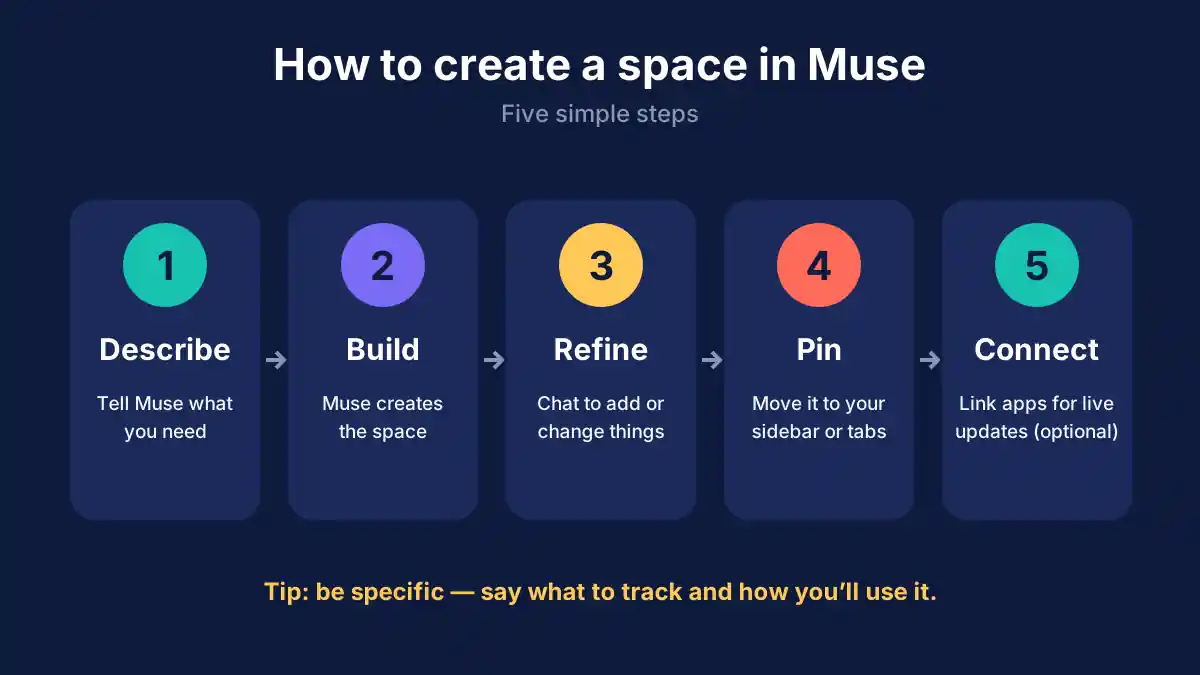
To create a Muse space, open the Muse app, describe the tool you want in a chat message, then refine it and pin it to your sidebar or tabs. Meta’s own summary is short: “Tell Muse about it, and it builds it for you.” Here is the full process.
Step 1: Update and open the Muse app
Make sure your Muse app is on the latest version from the App Store or Google Play, since Spaces is a server-side and app-side rollout. Open a new chat with your Muse agent.
Step 2: Describe the space you want
Write one clear message that says what the space is for, what it should track, and how you want to use it. Specific beats vague. “Make me a planner” gives you something generic; “Make a weekly meal planner for a family of four with a shopping list I can check off” gives Muse enough to build a useful layout.
Muse may also suggest a space on its own when you share an idea in chat, according to Meta’s announcement as reported by ETV Bharat.
Step 3: Refine it by chatting
You do not need to get it right the first time. Meta says you can keep adjusting a space with Muse as you use it: add missing sections, change the look, or change how it behaves. Inside the space you can also check items off and add your own notes.
Step 4: Pin it where you’ll see it
Spaces live in the sidebar by default. You can move one to your main tabs, hide the ones you no longer need, and even schedule when a space appears. Meta’s example: a weekly planner sits up front on workdays, then swaps out for weekend plans on Saturday.
Step 5: Connect apps only if you need live updates
If you want a space to update itself, such as tracking new album releases or shipping updates, Muse can connect to your apps and refresh the space in the background. This is optional. Skip it for spaces that only hold your own notes. See the privacy section below before you connect anything.
[ADD PERSONAL EXPERIENCE: Build one real space (for example a holiday gift tracker), then note which phone you used, the exact prompt you typed, how long Muse took to build it, and one thing you had to fix by chatting. A screenshot of your own space would also help here.]
Muse Spaces ideas you can copy
The best Muse Spaces solve one recurring job, like tracking, planning or organizing, that you would otherwise juggle across notes, emails and screenshots. Meta’s launch examples include a shopping hub, a school dashboard, a music tracker, a wedding planner, a trivia game, a podcast studio, an order tracker, a client hub and a trip planner.
Here are prompt templates built on those ideas. Copy one, then swap in your details:
| Space | Prompt you can paste |
|---|---|
| Holiday gift tracker | “Build a holiday gift tracker for 8 people with a budget per person, gift ideas, status (idea, bought, wrapped) and a running total.” |
| School dashboard | “Make a school dashboard for my two kids that lists upcoming events, due dates and things to sign, sorted by date.” |
| Trip planner | “Create a trip planner for 5 days in Chicago in December with flights, hotel, a day-by-day plan and a packing checklist.” |
| Small-business order tracker | “Set up an order tracker with customer name, item, paid or unpaid, and shipping status.” |
| Family trivia game | “Make a trivia game with 10 questions about 90s movies, keep score for 3 players.” |
| Freelancer client hub | “Build a client hub with projects, deadlines, invoice amounts and whether each invoice is paid.” |
Mark Zuckerberg said he built a BBQ game, an event tracker and a home control dashboard while testing Spaces, according to TechCrunch.
Spaces vs a regular Muse chat
A regular Muse chat is a conversation that scrolls away; a space is a saved, structured tool that keeps its layout and data so you can return to it. Use a chat for one-off questions and a space for anything you will check more than twice.
| Regular Muse chat | Muse space | |
|---|---|---|
| Best for | Quick questions, one-off help | Ongoing tracking and planning |
| Layout | Message thread | Custom (checklist, board, game, dashboard) |
| Where it lives | Chat history | Sidebar or main tabs |
| Can update itself | No | Yes, if you connect apps |
| Can be scheduled to appear | No | Yes |
Privacy: what to check before connecting apps
Meta says spaces are personal to you from the start, but a space that reads your email, calendar or shopping data still sends that data through Meta’s AI, so connect only what the space truly needs. Meta’s launch post does not spell out how space data is used for ads or AI training, so check Meta’s Privacy Policy and the Muse app’s settings before linking accounts.
A quick checklist before you connect anything:
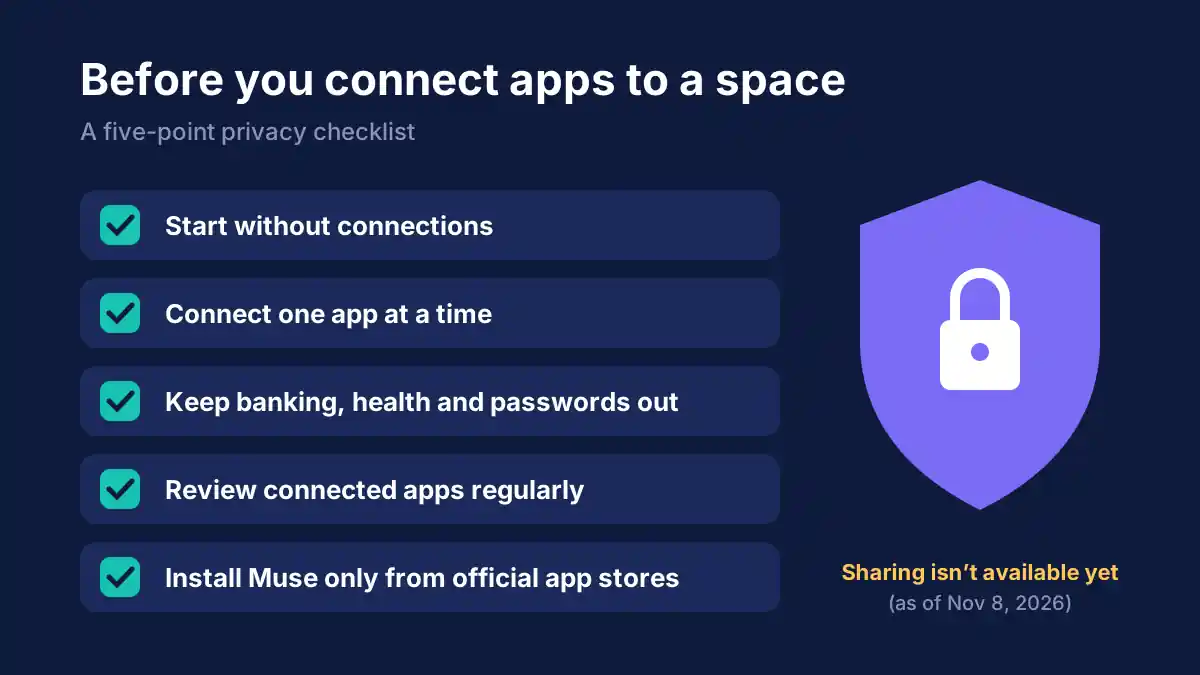
- Start without connections. Build the space first and see if manual updates are enough.
- Connect one app at a time, and only the one that space needs (for example, your calendar for a school dashboard).
- Avoid sensitive spaces. Don’t build spaces around medical records, banking logins, passwords or Social Security numbers.
- Review connected apps regularly and remove any you no longer use.
- Watch for fake “Muse” links. New AI features attract scam texts and lookalike apps. Only download Muse from the official App Store or Google Play listing, and never enter your Meta password on a site you reached from a text message.
What Muse Spaces can’t do yet
As of November 8, 2026, you can’t share a space with other people; Meta says it is only exploring ways to add sharing. Spaces are personal, so a wedding planner or family dashboard is for your eyes only for now.
Other things Meta has not published yet:
- A full list of countries and devices where Spaces works (Meta only says it works everywhere Muse is available)
- Pricing details or any limits on how many spaces you can create
- A detailed list of which apps can be connected
We will update this guide when Meta confirms these details.
Muse Spaces not showing up? Try this
If you can’t create a space, the usual causes are an outdated app, the gradual rollout not reaching your account yet, or Muse not being available in your country. Work through these fixes:
- Update the Muse app and restart your phone.
- Sign out of the app and sign back in.
- Ask Muse directly in chat: “Create a space for…” Muse can build a space from a chat request even if you don’t see a menu option.
- Check that you’re in a region where Muse itself is offered. Reported availability includes the US and Canada, and Meta announced Singapore on October 27, 2026.
- Wait a day or two. Meta features often roll out in stages.
FAQ
What are Spaces in Meta Muse?
Spaces are custom, single-purpose experiences that Meta’s Muse agent builds inside the Muse app when you describe what you need. A space can be a planner, tracker, checklist, game or dashboard. It stays saved in your sidebar or main tabs, and you can keep changing it by chatting with Muse. Meta launched Spaces on November 6, 2026.
How do I create a space in Muse?
Open the Muse app, start a chat and describe the tool you want, for example “build a holiday gift tracker with a budget for each person.” Muse builds the space. You can then refine it by chatting, check items off, add notes, move it to your main tabs and optionally connect apps so it updates on its own.
Is Muse Spaces free?
Meta’s November 6, 2026 announcement says Spaces is available everywhere Muse is available, but it does not list a separate price or paid tier for Spaces. Check the Muse app listing in the App Store or Google Play for current pricing in your country, since Meta may change plans or add limits later.
Can I share a Muse space with someone?
Not yet. As of November 8, 2026, spaces are personal to your account. Meta said in its launch post that it is exploring ways to let you share spaces with others, but it has not announced a date. For now, family or team planning still needs a shared calendar, shared note or similar tool.
Why don’t I see Spaces in my Muse app?
Update the Muse app, restart it and try asking Muse in chat to create a space. Meta rolls features out in stages, so some accounts get them later. Spaces only works where Muse itself is offered; reported availability includes the US, Canada and Singapore as of early November 2026.
Is Muse Spaces private?
Meta says spaces are personal from the start, meaning other people can’t see them. However, any data you put in a space or pull in through connected apps is processed by Meta’s AI. Meta hasn’t detailed ad or training use for space data in its launch post, so review its Privacy Policy and connect as few apps as possible.
The bottom line
Muse Spaces turn Meta’s Muse agent into a builder of small personal tools: describe a planner, tracker or game, and Muse makes it and keeps it in your sidebar. Start with one low-risk space, such as a gift list or trip plan, refine it by chatting, and hold off on connecting sensitive accounts until Meta publishes clearer privacy details. If Spaces isn’t on your account yet, update the app and check back in a day or two.
