
The easiest way to transfer data to a new phone is to use the free tool built for your switch: Quick Start for iPhone to iPhone, Move to iOS for Android to iPhone, Apple’s Transfer to Android or Google’s Android Switch for iPhone to Android, and Google’s copy tool or Samsung Smart Switch for Android to Android. Each one runs during setup and moves your photos, contacts, messages and most settings in one go.
The tricky part is everything around it: what doesn’t move, how to keep your WhatsApp chats and phone number, and what to do with the old phone afterwards so you don’t lose texts or lock out its next owner. This guide covers all four directions, with the steps Apple and Google publish as of November 2026.
Last checked: November 6, 2026. Apple and Google update their transfer tools often, especially with Android 17 and iOS 26.x, so menu names may change.
Which method should you use to transfer data to a new phone?
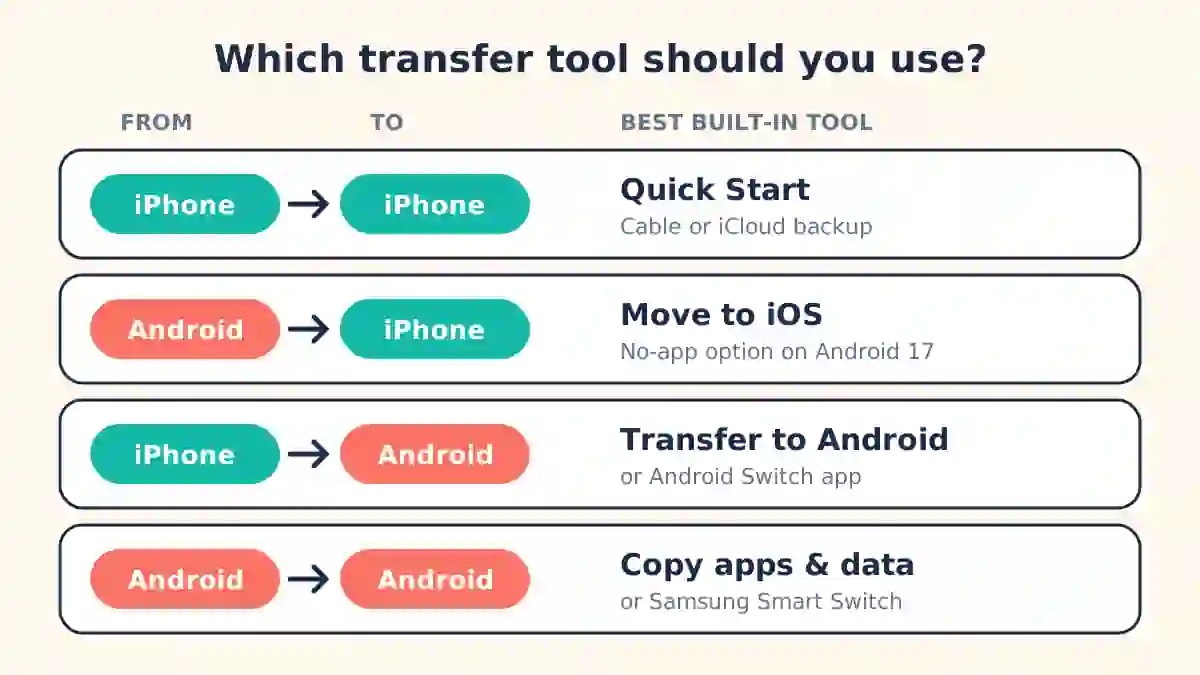
The right transfer method depends on the phone you’re leaving and the one you’re moving to. Use this table to find yours, then jump to that section.
| Moving from → to | Best built-in method | Cable option | What you need |
|---|---|---|---|
| iPhone → iPhone | Quick Start (wireless) | Yes, USB-C or Lightning cable | Old iPhone on iOS 11 or later, Wi-Fi, Bluetooth |
| Android → iPhone | Move to iOS app (or no-app transfer on compatible Android 17 phones) | Yes, USB-C cable | Both phones on power, Wi-Fi on Android |
| iPhone → Android | Transfer to Android (iOS 26.3+) or Android Switch app | Yes, iPhone charging cable plus adapter if needed | Wi-Fi, Bluetooth, compatible Android 17 phone for the built-in option |
| Android → Android | Google’s “Copy apps & data” during setup, or Samsung Smart Switch | Yes | Same Google Account, both phones charged |
Before you transfer data to a new phone: a 7-point checklist
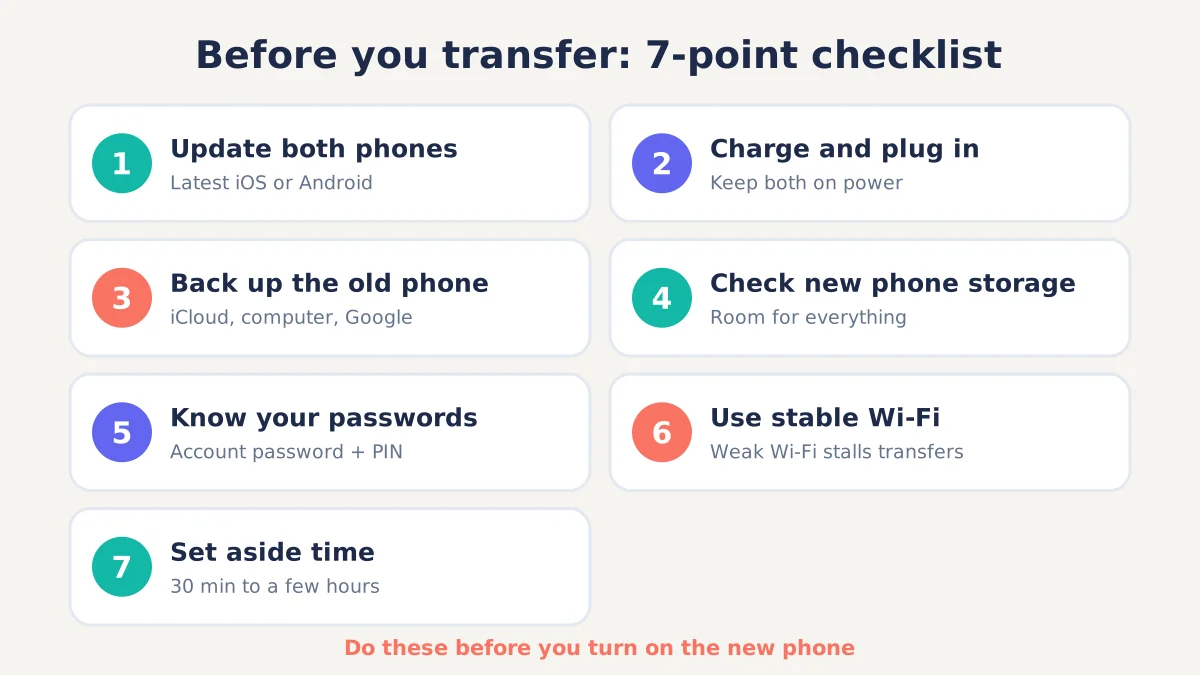
A little prep prevents most failed transfers. Do these before you turn on the new phone.
- Update both phones to the latest software. Apple says both devices should run the latest iOS for Quick Start, and Apple’s Transfer to Android needs the latest iOS.
- Charge both phones and keep them plugged in. Apple and Google both tell you to keep devices on power during a transfer.
- Make a backup of the old phone (iCloud or computer for iPhone; Google One backup for Android). If the transfer fails, you can restore.
- Check storage on the new phone. If it fills up mid-transfer, Apple’s advice is to erase and start again.
- Know your passwords: your Apple Account or Google Account password and your old phone’s PIN. Android’s cable transfer asks for the PIN repeatedly.
- Connect to stable Wi-Fi. Most methods use Wi-Fi or a direct wireless link; a weak network is the most common cause of stalls.
- Set aside time. Google says an iPhone-to-Android transfer usually takes under 30 minutes but can take hours with lots of data. Photo-heavy phones take longest.
[ADD PERSONAL EXPERIENCE: Note your own last phone switch: which two phones, which method, how many GB of data, how long it took, and anything that didn't come across. Real timing numbers make this section far more useful.]
iPhone to iPhone: Quick Start, cable or iCloud backup
Quick Start is Apple’s built-in way to transfer data to a new iPhone: you hold the new phone near the old one, and it copies your settings, apps and data automatically. According to Apple’s Quick Start guide, the old iPhone needs iOS 11 or later.
Quick Start (wireless)
- Turn on the new iPhone and place it next to the old one. Make sure the old iPhone has Wi-Fi and Bluetooth on.
- When the Quick Start prompt appears on the old phone, follow the on-screen steps and scan the animation on the new iPhone with the old one.
- Enter your old passcode on the new phone, set up Face ID or Touch ID, and connect to Wi-Fi or cellular. You may be asked to activate your cellular service or eSIM here.
- Choose how to transfer:
– Download from iCloud: you can start using the new iPhone right away while apps and data download in the background.
– Transfer directly from iPhone: everything copies phone-to-phone, and you wait on both devices until it’s done. - Keep the phones close together and plugged in until migration finishes.
Quick Start isn’t available if the new iPhone is enrolled in Apple School Manager or Apple Business, which is common with work phones.
Wired iPhone transfer
A cable is faster and more reliable on busy Wi-Fi. Apple’s wired transfer guide says iPhone 15 and later can connect to each other with a USB-C charge cable. For an older iPhone with a Lightning port, use a USB-C to Lightning cable, or a Lightning to USB 3 Camera Adapter with a 12W or higher power adapter.
Restore from an iCloud or computer backup
If your old iPhone is lost, broken or already wiped, restore from a backup instead. Apple’s restore guide explains both routes:
- iCloud: during setup, on the Transfer Your Apps & Data screen, tap From iCloud Backup, sign in and choose the most recent backup. Stay on Wi-Fi and power until the progress bar finishes; photos, music and apps keep downloading after setup.
- Computer: on a Mac, use Finder (macOS Catalina or later). On Windows, use the Apple Devices app (Windows 10 or later). Connect the iPhone, choose Restore Backup, and enter the backup password if it’s encrypted.
If the new iPhone is already set up, you’ll have to erase it first to get back to the transfer screen.
Android to iPhone: Move to iOS
Move to iOS is Apple’s free Android app that copies your contacts, messages, photos and more to a new iPhone during setup. As of late October 2026, Apple’s Move to iOS guide also describes a transfer with no app on compatible Android 17 phones.
How to use Move to iOS
- Plug in both phones and turn on Wi-Fi on the Android phone. For a faster transfer, connect them with a USB-C cable.
- Install Move to iOS from Google Play. Update Chrome if you want your bookmarks.
- On the iPhone’s Quick Start screen, tap Set Up Without Another Apple Device. On Transfer Your Apps & Data, tap From Android, then Transfer with App.
- On the Android phone, open Move to iOS, tap Continue, then Agree.
- The iPhone shows a code. Type it into the Android phone, then join the temporary Wi-Fi network the iPhone creates.
- Pick what to move and tap Continue. Leave the Android phone alone until the bar finishes; switching apps or taking a call can interrupt the transfer.
What Move to iOS transfers
Apple lists contacts, message history, photos and videos, albums, files and folders, accessibility and display settings, web bookmarks, mail accounts, WhatsApp messages and media, voice memos, call history and calendars. Some free apps available on both stores are added too.
What it doesn’t move: music, books and PDFs, which you copy over manually. Paid Android apps don’t carry over, so you’ll need to buy the iPhone version again if there’s no subscription to sign back into.
iPhone to Android: Transfer to Android or Android Switch
Switching from iPhone to Android got much easier in 2026. Apple now has a built-in Transfer to Android option, and Google’s Android Switch app covers older phones.
Apple’s built-in Transfer to Android (iOS 26.3 and later)
Apple’s Transfer to Android guide says that starting with iOS 26.3 you can move data and your eSIM straight to an Android phone. The Android phone needs a compatible version of Android 17.
- On the iPhone, go to Settings > General > Transfer or Reset iPhone > Transfer to Android.
- Connect the iPhone to Wi-Fi and turn on Bluetooth on both phones.
- Place the phones together, tap Continue and scan the QR code on the Android phone with the iPhone’s Camera.
- Choose your data and tap Continue. When it’s done, tap Continue again to move your eSIM, and double-click the side button to confirm.
This moves photos, contacts, calendars, call history, messages and your eSIM, plus accessibility settings, Home Screen layout and wallpaper. Third-party app data only moves if the app’s developer supports it. In the US, Apple lists AT\&T, FirstNet, T-Mobile and Verizon for eSIM transfer. Once your number moves, it stops working on the iPhone.
Google’s Android Switch app
If your Android phone isn’t on Android 17 yet, use Google’s Android Switch app from the App Store, or connect the phones with a cable during setup. Before you start, Google says to turn off iMessage on the iPhone so texts reach your new number.
How much moves depends on the method:
| Android Switch method | What transfers |
|---|---|
| Wireless (iPhone on iOS 15+) | Contacts, calendars, photos and videos |
| Cable | Adds messages, free apps, music, downloaded files, home screen layout, alarms, notes, voice memos, wallpapers, accessibility settings and WhatsApp history |
| Upgraded transfer (Android 17 on Pixel 8 and newer, Galaxy Z Flip 8, Z Fold 8, S26 FE and some others) | Adds app data, call history, Google Account, all files, eSIM on select carriers, passwords and passkeys, and Wi-Fi networks |
What never transfers from iPhone to Android: iCloud Photos (request a copy into Google Photos instead), paid apps and in-app purchases, Safari bookmarks and Health data, according to Google.
Android to Android: Google’s copy tool or Samsung Smart Switch
Moving between Android phones is the simplest switch, because your Google Account already holds much of your data. During setup, the new phone offers to copy apps and data from your old phone over a cable or wirelessly, or to restore from your Google backup.
Google’s built-in transfer
Google’s switching guide recommends that you:
- Charge both phones and make sure you can unlock the old one with its PIN, pattern or password.
- Sign in with your Google Account and back up the old phone.
- Turn on the new phone and follow the prompts to copy apps and data from the old one.
If the old phone is gone, you can still restore from your Google backup on the new phone with your Google Account password.
Samsung Smart Switch
Samsung Smart Switch moves contacts, photos, music, videos, messages, notes and calendars to a Galaxy phone from another Android or an iPhone. New Galaxy phones can start it from a QR code during setup. From an iPhone, Samsung recommends a cable transfer because it supports the most data types, and suggests moving iCloud photos to Google Photos first.
How to move WhatsApp chats to a new phone
WhatsApp chats only move if you use the same phone number on the new phone. Google’s WhatsApp transfer guide says you can’t move your WhatsApp history to a new number.
- Android to Android: back up in WhatsApp (Settings > Chats > Chat backup > Back up). On the new phone, install WhatsApp, verify the same number and choose Transfer from old phone or Restore from backup.
- Android to iPhone: Move to iOS includes WhatsApp messages and media, per Apple.
- iPhone to Android: Android Switch can transfer WhatsApp history with a cable, after the first part of setup.
- iPhone to iPhone: WhatsApp normally comes across with Quick Start or an iCloud restore. As a safety net, run a WhatsApp chat backup to iCloud first.
Moving your phone number and eSIM
Your phone number lives on your SIM or eSIM, not in the transfer data. With a physical SIM, move the card to the new phone. With an eSIM, you have three options:
- During setup: iPhone setup offers to activate your number or eSIM, and Move to iOS can do it during the transfer. Some carriers send you to their website to finish.
- iPhone to Android: Apple’s Transfer to Android moves the eSIM at the end on supported carriers, or use Settings > Cellular > Transfer eSIM.
- Through your carrier: if an automatic transfer fails, the carrier’s app or support can issue a new eSIM.
Keep the old phone until your number works on the new one: make a test call and send a text first.
After the transfer: what to do with your old phone
Before you sell, trade in or recycle your old phone, check that nothing is missing, then disconnect it from your accounts and erase it. This protects your data and avoids activation locks for the next owner.
- Check your data. Open Photos, Messages, Contacts, your authenticator app and banking apps on the new phone. Google warns you to clear the old phone only after you confirm everything copied.
- Move two-factor codes. Authenticator apps don’t always transfer. Move each account to the new phone before wiping the old one, or you could lock yourself out.
- Moving to Android? Deregister iMessage. Turn off iMessage on the iPhone, or use Apple’s online deregistration if you no longer have it, so friends’ texts don’t vanish into iMessage.
- Unpair your Apple Watch if you’re giving up the iPhone it was paired with. See Apple’s Apple Watch guide.
- Sign out of your accounts. On iPhone, sign out of your Apple Account, which also turns off Find My and Activation Lock. On Android, remove your Google Account so the next owner isn’t blocked by Factory Reset Protection.
- Erase it. On iPhone: Settings > General > Transfer or Reset iPhone > Erase All Content and Settings, as Apple’s trade-in checklist explains. On Android: use Reset options in Settings.
- Remove the SIM card if you still use one.
Troubleshooting: when you can’t transfer data to a new phone
Most stalled transfers come down to Wi-Fi interference, low storage or a phone going to sleep. Try these fixes, in order:
- Stay on the transfer screen. On Android, an incoming call or opening another app can stop Move to iOS.
- Turn off apps that change Wi-Fi, such as VPNs, Wi-Fi optimizers or mobile data on the Android phone, as Apple suggests.
- Restart both phones and try again.
- Use a cable if wireless keeps failing.
- Free up space on the new phone or remove large videos from the transfer.
- Restore from backup instead if a direct transfer keeps failing.
FAQ
How long does it take to transfer data to a new phone?
It depends on how much data you have and the method. Google says iPhone-to-Android transfers usually take under 30 minutes but can run for hours with large photo libraries. Wired transfers are generally faster than wireless. Keep both phones plugged in and close together, and don’t use them during the transfer.
Can I transfer data to a new phone after setup?
Usually you need to do it during setup. On an iPhone, Apple’s Move to iOS and backup restore only run from the setup screens, so you’d have to erase the new iPhone and start again. Some tools, like Samsung Smart Switch and WhatsApp’s own transfer, also work after setup.
Do I need Wi-Fi to transfer data to a new phone?
Mostly yes. Quick Start, Move to iOS and Apple’s Transfer to Android use Wi-Fi or a direct wireless link, and iCloud restores need Wi-Fi. If your Wi-Fi is weak, a cable transfer is the most reliable option. Downloading apps afterward also needs an internet connection.
Will my text messages transfer to a new phone?
Yes, with the right method. Quick Start and iCloud backups bring iPhone messages across. Move to iOS includes message history from Android. Apple’s Transfer to Android and Android Switch’s cable method move messages to Android. Turn off iMessage before leaving iPhone so new texts reach your Android phone.
Do apps transfer to a new phone?
Your apps reinstall automatically when you stay on the same platform. Between iPhone and Android, only some free apps available in both stores carry over. Paid apps and in-app purchases don’t transfer across platforms, so you’ll need to buy them again unless the app uses an account or subscription you can sign into.
Should I factory reset my old phone after transferring?
Yes, but only after you’ve confirmed everything copied, moved your two-factor codes and checked your phone number works. Sign out of your Apple Account or remove your Google Account first, then erase the phone. This protects your data and prevents activation locks for the next owner.
The bottom line
To transfer data to a new phone without losing anything, update and charge both devices, make a backup, then use the built-in tool for your switch: Quick Start, Move to iOS, Transfer to Android, Android Switch, or Google’s or Samsung’s copy tool. Keep the old phone until your messages, photos, two-factor codes and phone number all work on the new one. Only then sign out and erase it.
Next step: run through the 7-point checklist above tonight, and your transfer will take minutes instead of an afternoon.
