
Yes, Outlook was down. A major Microsoft 365 outage that began around midday Eastern time on Thursday, November 12, 2026 knocked out email in Outlook for many work and school accounts, along with parts of Teams, SharePoint and Microsoft 365 Copilot. As of about 10:30 p.m. ET (03:30 UTC Nov 13), Microsoft was still returning servers to service and had not declared the incident fully resolved.
If your inbox is frozen, your messages are stuck in the Outbox, or Outlook keeps asking you to sign in, this guide explains what is going on, how to tell whether the Outlook outage is the cause or something on your end, and the safe steps to take while you wait.
What happened in the Microsoft 365 outage?
The November 12 Microsoft 365 outage was a server-side failure in Microsoft’s cloud, not a problem with individual computers. Microsoft tracked it under two incident IDs in its admin center: EX1550543 (Exchange Online mailbox access) and MO1550821 (a wider Microsoft 365 service degradation).
Exchange Online is the Microsoft service that stores and delivers email for business and school Microsoft 365 accounts. When it struggles, every Outlook app connected to it struggles too: Outlook on the web, the Windows and Mac desktop apps, and the Outlook mobile app.
According to Microsoft’s status updates, as reported by Tom’s Guide and TechRadar, the affected services included Exchange Online, Microsoft Teams, SharePoint Online, Microsoft 365 Copilot and Microsoft Defender XDR. Planner, To Do, Intune and Purview were added later in the afternoon.
Timeline of the outage
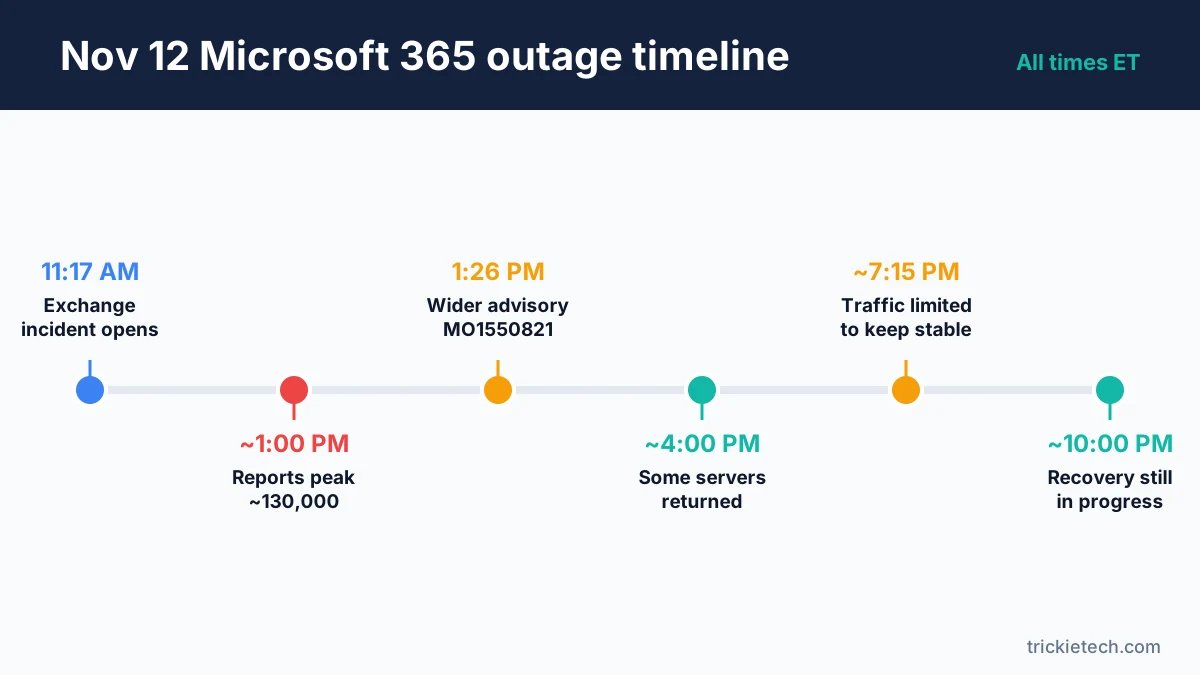
All times are US Eastern on Thursday, November 12, 2026, compiled from Microsoft status posts as reported by the outlets linked below.
| Time (ET) | What happened |
|---|---|
| ~11:17 a.m. | Exchange Online incident EX1550543 opens in the Microsoft 365 admin center |
| ~12:30–12:40 p.m. | Outlook reports start spiking on Downdetector |
| ~1:00 p.m. | Reports peak at roughly 130,000+ (Al Jazeera, TechRadar) |
| ~1:07 p.m. | Microsoft says users in any region may be affected |
| ~1:26 p.m. | Broader advisory MO1550821 begins |
| ~4:00 p.m. | Microsoft returns some servers using an alternative health check |
| ~5:11 p.m. | Microsoft says a core process on affected servers is overwhelmed; no recovery estimate |
| ~6:00 p.m. | Some servers back in service (ABC News) |
| ~7:15 p.m. | Microsoft warns recovered servers can become unresponsive again under traffic |
| ~10:00 p.m. | Still 25,000+ Outlook reports; recovery ongoing |
Downdetector counts are user reports, not the number of affected accounts, so treat them as a measure of how widespread the frustration was rather than an exact headcount.
What Microsoft says caused it
Microsoft has not published a final root cause. Its explanation shifted through the day. Early posts blamed “elevated load” on part of its infrastructure. By mid-afternoon, Microsoft said the load came from servers that had unexpectedly become unavailable after failing automated health checks, which pushed extra traffic onto the remaining servers.
At around 3:19 p.m. ET, Microsoft said it had “not identified any recent change correlated with the start of impact.” Later updates said a small number of configuration changes were being investigated, and that it had paused deployments. A Microsoft spokesperson told reporters there was no indication of a cyberattack, according to ABC News and other outlets.
Expect a post-incident report in the Microsoft 365 admin center in the coming days. We’ll update this section when it lands.
Is the Outlook outage fixed yet?
Not completely, as of about 10:30 p.m. ET on November 12 (03:30 UTC November 13). Microsoft had brought a portion of servers back and was limiting traffic so they would stay stable, but it had not declared the incident resolved. Digital Trends reported that Microsoft expects a gradual return as Outlook clients reconnect, so some people will get their inboxes back before others.
This situation can change quickly. To check the live status yourself:
- Microsoft 365 status page: status.cloud.microsoft
- Microsoft 365 Status on X: @MSFT365Status
- Work or school admins: Microsoft 365 admin center > Health > Service health, then search for MO1550821 or EX1550543.
Personal Outlook.com and Hotmail accounts: the incident was tracked as a Microsoft 365 business service problem, and the major reports focus on work and school accounts. We could not confirm from Microsoft whether consumer Outlook.com accounts were affected, so if your personal account misbehaved, check the status page above.
How to tell if it’s the outage or your own Outlook
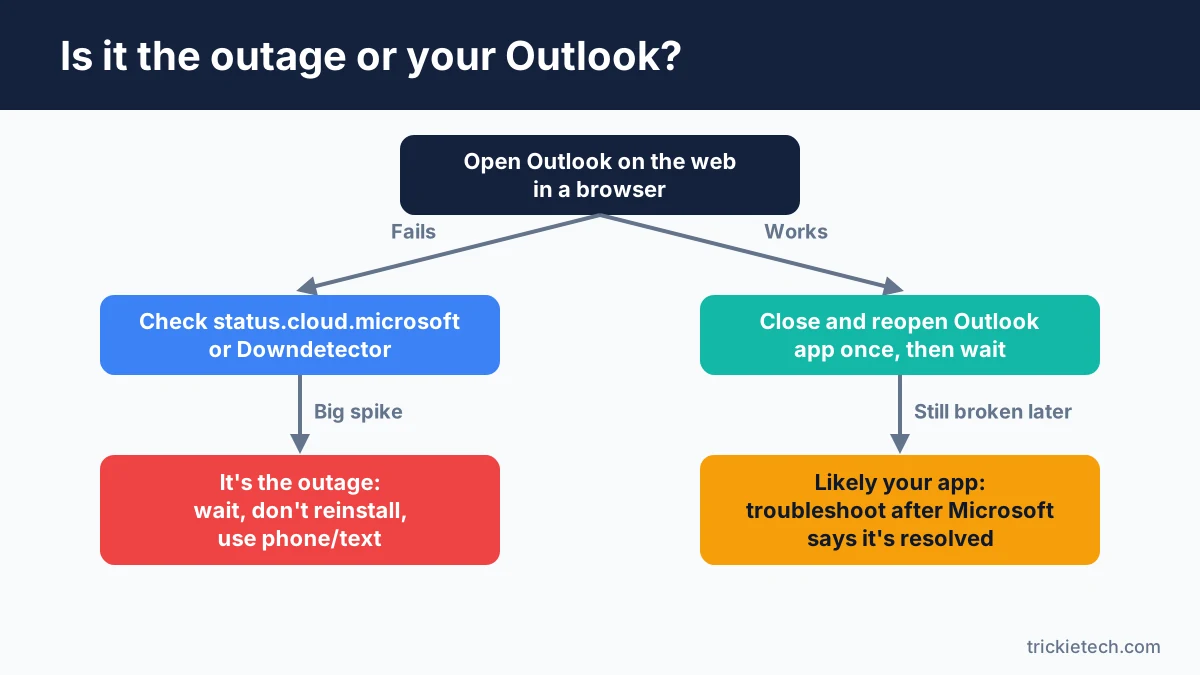
The quickest test is to try Outlook on the web from a different device or network. If it fails there too, the problem is almost certainly Microsoft’s, and there is nothing to fix on your computer.
Run through these checks in order:
- Open outlook.office.com (work/school) or outlook.live.com (personal) in a browser. If the web version also fails or shows errors, it’s the outage.
- Try your phone on mobile data, not Wi-Fi. This rules out your home or office network.
- Check the status page and Downdetector. A large spike in reports at the same time means it’s not just you.
- Ask a coworker. If everyone on the same Microsoft 365 tenant has the same issue, it’s server-side.
- If the web version works but your desktop app doesn’t, the outage may simply be clearing unevenly. Close and reopen Outlook once, then wait. Only troubleshoot your app if the problem continues after Microsoft declares the incident resolved.
What to do while Outlook is down
Keep Outlook open, keep working offline where you can, and switch urgent conversations to another channel. Your existing email is stored on Microsoft’s servers, and the outage doesn’t delete it.
- Leave the desktop app open. If you use Cached Exchange Mode (the default in most Outlook desktop setups), recent email and calendar items stay readable offline.
- Write replies as drafts. Save them and send once service returns. Messages sitting in your Outbox will try to send automatically when Outlook reconnects.
- Use the phone or text for anything urgent. Tell clients or colleagues email is delayed, and share an alternative contact method.
- Check your calendar separately. If Teams and Outlook calendars are affected, confirm today’s meetings by message or phone.
- Keep a note of anything time-sensitive that you sent just before the outage, so you can confirm it arrived later.
[ADD PERSONAL EXPERIENCE: describe what you saw during the Nov 12 outage, e.g. which Outlook app failed first, the exact error message (such as "Trying to connect" or a 500 error) and how long it took your inbox to come back.]
What not to do during an Outlook outage
Don’t try to “fix” a server outage on your own device. It won’t help, and some steps can make things worse once service returns.
- Don’t delete or rebuild your Outlook profile. That removes your offline copy of mail, which is the only thing you can read right now.
- Don’t uninstall or reinstall Microsoft Office. The problem isn’t on your computer.
- Don’t reset your password because Outlook keeps asking you to sign in. Repeated sign-in prompts are a common symptom of server problems. A reset can cause extra lockouts across your other devices.
- Don’t keep hitting Send on the same email. You may end up sending duplicates when the backlog clears.
Watch out for “fix your Outlook” phishing
Scammers use big outages as bait. Expect emails and texts claiming your mailbox is “suspended,” that you must “verify your account to restore email,” or offering a link to “reactivate Outlook.”
Microsoft does not need you to sign in through a link in a text or email to fix an outage. If you get one of these messages:
- Don’t click the link or open any attachment.
- Go to Outlook directly by typing the address into your browser.
- Report it with Outlook’s Report > Report phishing button once service is back, or forward phishing texts to 7726 (SPAM), as the FTC recommends.
If you already clicked a link and entered your password, change it right away from the official Microsoft account page and turn on two-step verification.
What to do once Outlook is back
When your inbox starts updating again, give it time to catch up before you troubleshoot anything. Large backlogs can take a while to sync, and mail sent to you during the outage may arrive late or in batches.
- Check your Outbox and confirm queued messages actually sent.
- Look at Sent Items to check for duplicates.
- Scan for delivery-failure notices (non-delivery reports, or NDRs). If you get one, resend that message.
- Ask important contacts whether they received anything you sent between about 11 a.m. and late evening ET on November 12.
- Re-check meetings that were scheduled or changed during the outage, because calendar updates may have failed silently.
For small-business admins: service health and credits
If you run Microsoft 365 for a business, record the outage now while the details are fresh. Note the incident IDs (EX1550543, MO1550821), the hours your users lost, and the services affected.
- Service health: Admin center > Health > Service health shows Microsoft’s official updates and, later, the post-incident report.
- Message center: watch for follow-up notices and any configuration changes Microsoft reverts.
- Service credits: Microsoft’s online services service level agreement (SLA) can provide credits when monthly uptime falls below the guaranteed level. Check the current terms in the Microsoft Licensing documents and file through your admin center or your Microsoft partner. Deadlines apply, so don’t wait.
How to prepare for the next outage
Microsoft 365 outages are rare but not unheard of. TechCrunch noted that Microsoft’s previous major incident was in September 2026. A few habits make the next one much less painful:
- Keep Outlook desktop in Cached Exchange Mode so you always have an offline copy.
- Export key contacts to a CSV file or your phone so you can reach people without Outlook.
- Save a backup way to reach your team (a group text, a phone tree or a second chat app).
- Bookmark status.cloud.microsoft so you can check it in seconds.
- For businesses: agree on a short “email is down” message for clients, ready to send by text or social media.
FAQ
Is Outlook down right now?
Outlook and Microsoft 365 had a major outage starting around midday ET on November 12, 2026. As of about 10:30 p.m. ET that day, Microsoft was still restoring service and had not declared it fully fixed. Check status.cloud.microsoft or the @MSFT365Status account on X for the latest update before troubleshooting your own device.
Why is Outlook not working today?
On November 12, 2026, Microsoft servers that handle Exchange Online email failed health checks and went offline, overloading the remaining servers. That stopped many work and school Outlook accounts from sending, receiving or loading mail. If you’re reading this later, check Microsoft’s status page first, since a new incident may be the cause.
Was the Microsoft outage a cyberattack?
Microsoft said there was no indication the November 12 outage was a cyberattack. Its updates pointed to servers failing automated health checks and a core process becoming overwhelmed, with configuration changes under investigation. Microsoft had not published a final root cause at the time of writing, so watch for its post-incident report.
Will I lose emails sent to me during the outage?
Usually not. Email servers retry delivery for a period of time, so most messages sent to you during an outage arrive late rather than disappearing. Some senders may get a delivery-failure notice and need to resend. Once service returns, check with important contacts and watch for bounce messages in your own inbox.
Should I reinstall Outlook or reset my password?
No. A server-side outage can’t be fixed from your computer, and rebuilding your Outlook profile deletes the offline copy of your mail. Resetting your password because of repeated sign-in prompts can cause lockouts on other devices. Wait for Microsoft to restore service, then troubleshoot only if problems continue.
How do I check Microsoft 365 service status?
Visit status.cloud.microsoft or follow @MSFT365Status on X for public updates. If you’re an admin for a work or school account, sign in to the Microsoft 365 admin center and open Health > Service health, then search for the incident ID, such as MO1550821, for detailed technical updates.
Bottom line
The November 12 Outlook outage was Microsoft’s problem, not yours. Confirm it with Outlook on the web and the Microsoft 365 status page, keep Outlook open so you can read cached mail, move urgent conversations to phone or text, and ignore any message offering to “restore” your mailbox. Once service is back, check your Outbox, Sent Items and calendar, and use this outage as a reminder to set up a simple backup plan for the next one.
Last updated: November 13, 2026, 04:30 UTC. Details may change as Microsoft restores service and publishes its post-incident report.
