
Public WiFi is usually safe for everyday browsing in 2026, because most websites and apps now encrypt your data with HTTPS. The real risks are fake hotspots, phishing login pages, open file sharing and outdated devices. Use your phone’s hotspot or a VPN for banking, and follow a few simple settings to stay protected.
That answer surprises a lot of people who still remember warnings that café networks is a hacker’s playground. Things have changed, but not everything. This guide explains what shared networks can and cannot expose, the attacks that still work, and the exact iPhone, Android, Windows and Mac settings that close the gaps.
Contents
- Is public WiFi safe in 2026?
- What is public WiFi?
- What can someone see on public WiFi?
- The real risks of public WiFi
- How to use public WiFi safely: 9 rules
- Device settings for public WiFi
- Do you need a VPN on public WiFi?
- Public WiFi vs phone hotspot vs VPN
- Airport, hotel and coffee shop WiFi
- What to do if you think you were hacked
- FAQ
Is public WiFi safe in 2026?
Yes, for most everyday tasks, public WiFi is reasonably safe in 2026, as long as you connect to the real network and stick to sites that use HTTPS. It is not risk-free, and it is a poor choice for banking or work logins if you have a better option.
The Federal Trade Commission’s consumer guidance now says connecting through a public WiFi network “is usually safe,” and it credits the widespread use of encryption (FTC). Google reports that HTTPS use in Chrome climbed from roughly 30–45% of page loads in 2015 to about 95–99% by 2020 (Google Security Blog, October 2025).
Security agencies are more cautious. The National Security Agency advises avoiding public WiFi when possible, using a personal hotspot instead, and using a VPN if you must connect (NSA guidance, 2021). The FCC also says your cellular data plan “may be more secure” than WiFi (FCC).
So the honest answer is: it is fine for reading news, maps and streaming, and acceptable for most apps. The danger comes from a handful of specific attacks, covered below.
What is public WiFi?
Public WiFi is any wireless network that strangers can join, such as networks in cafés, airports, hotels, libraries, stores, trains and planes. You share it with everyone else connected, and you have no control over how it is set up or who runs it.
Public networks come in three main types:
- Open networks: no password at all. Traffic between your device and the router is not encrypted by the WiFi itself.
- Shared-password networks: a password printed on a sign or receipt. Encryption is on, but everyone has the same key.
- Captive portal networks: you connect, then a web page asks you to accept terms, enter a room number or sign in. Hotels and airports use these a lot.
Newer routers may support Wi-Fi Enhanced Open, which is a standard that encrypts open networks without a password using Opportunistic Wireless Encryption (OWE) (Wi-Fi Alliance). It stops casual snooping, but Android’s documentation notes it does not prove the network is genuine, so it cannot stop a fake hotspot (Android Open Source Project).
What can someone see on public WiFi?
On public WiFi, someone watching the network can usually see which websites and services you connect to, but not what you type or read on HTTPS sites. Passwords, messages and card numbers sent over HTTPS stay encrypted between your device and the website.
Here is what is typically visible and hidden on a shared network:
| Data | Visible to others on public WiFi? |
|---|---|
| Site names you visit (e.g. bank.com) | Often yes, through DNS lookups and connection details |
| Pages, passwords and messages on HTTPS sites | No, encrypted |
| Anything on old HTTP-only sites | Yes, readable |
| Your device’s name and MAC address | Yes, unless you use a private/random address |
| Shared folders and printers on your laptop | Yes, if sharing is turned on |
| Email and banking app data | No, if the app uses encryption (most do) |
The key point: HTTPS protects the content of your connection, not your choice of network. If you join a fake network and type your password into a fake login page, encryption does not help, because you are sending it straight to the scammer. The FTC makes this exact point in its guidance.
The real risks of public WiFi
The main risks in 2026 are evil twin hotspots, fake login pages, devices left open to sharing, and attacks on unpatched software. Plain eavesdropping is less of a threat than it was ten years ago.
Evil twin hotspots
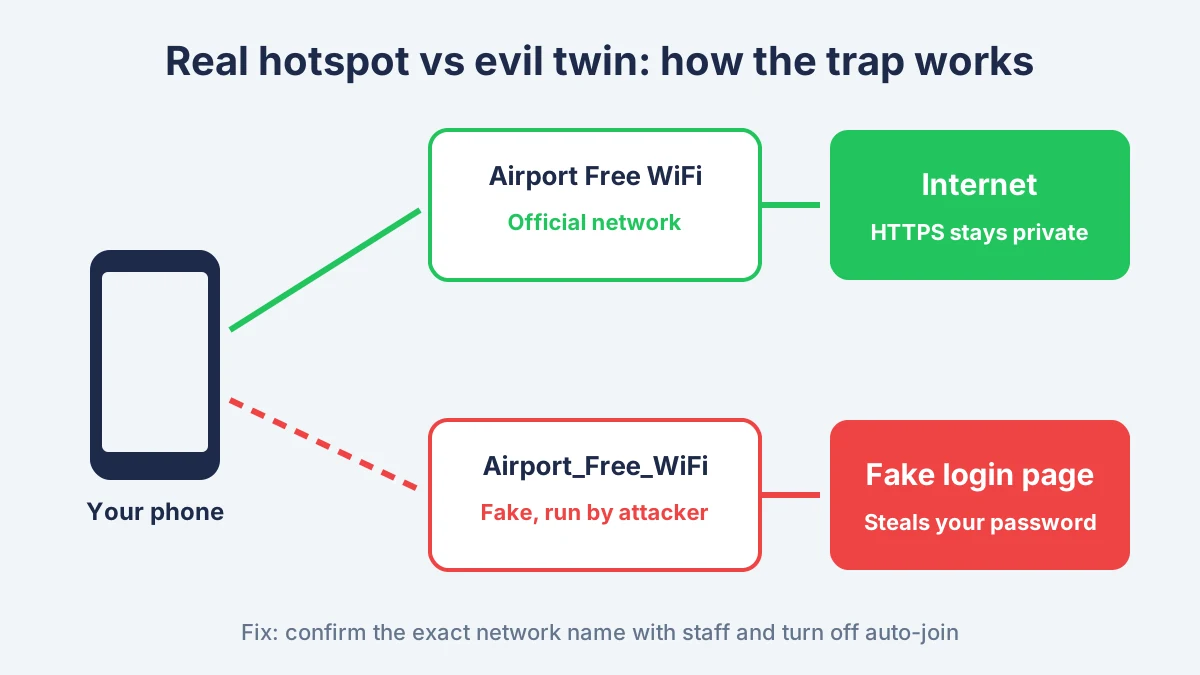
An evil twin is a fake WiFi network named to look like the real one, such as “Airport_Free_WiFi” next to the official “Airport Free WiFi.” Once you connect, the attacker controls what you see.
This is not theory. In 2024, Australian Federal Police charged a man accused of running fake WiFi networks at Perth, Melbourne and Adelaide airports and on domestic flights. The networks led to fake login pages that collected people’s email and social media credentials (The Hacker News, July 2024). He was later sentenced to more than seven years in prison.
Fake captive portals and phishing pages
A captive portal is the sign-in page you see before the internet works. Attackers copy these pages and ask you to “log in with Google” or “verify with your email,” then steal the password. A real hotel or café portal should not need your email password.
Man-in-the-middle tricks
A man-in-the-middle attack means someone places themselves between you and the internet to read or change traffic. HTTPS blocks most of this today, but it still works against old HTTP sites, apps that skip encryption, and anyone who clicks past browser security warnings.
Open file sharing and weak device settings
Laptops set to treat a network as “private” or “home” may show shared folders, printers and media libraries to everyone nearby. Bluetooth left discoverable adds another way in.
Outdated software
Unpatched phones, browsers and laptops can have flaws that attackers on the same network try to exploit. Keeping automatic updates on removes most of that risk.
A 2025 survey of 1,014 US adults by Panda Security found 19% were sure they had a security problem after using public WiFi, and 18% had logged into a bank account on it (Panda Security, July 2025). That is a vendor survey, so treat the numbers as a rough guide.
How to use public WiFi safely: 9 rules
The safest way to use public WiFi is to confirm the network name, use HTTPS sites and encrypted apps, keep your device hidden from others, and save sensitive tasks for your phone’s data or a VPN. These nine rules cover nearly every real-world risk.
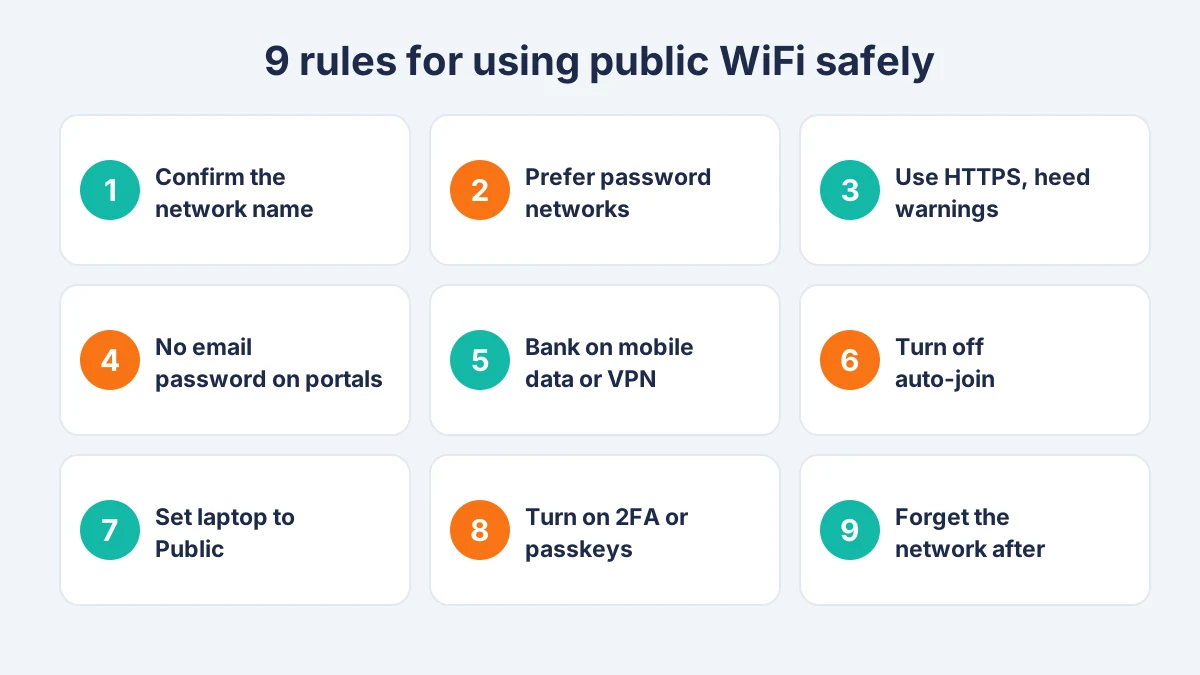
- Confirm the exact network name. Ask staff or check a printed sign. If you see two similar names, do not guess. The FCC recommends this to avoid imposter hotspots.
- Prefer password-protected networks. The NSA suggests using networks that need a password and use at least WPA2 encryption over open ones.
- Check for HTTPS and never ignore warnings. If your browser warns that a connection is not private, close the page. Turn on your browser’s HTTPS-only mode.
- Never enter your email password on a WiFi sign-in page. Real portals ask you to accept terms, enter a room number or a code, not your Google or Microsoft password.
- Do banking and shopping on mobile data or a VPN. It is a small change that removes the biggest risk.
- Turn off auto-join and “ask to join” prompts. This stops your device from silently connecting to a fake network with a familiar name.
- Set the network to Public on laptops and turn off sharing. That hides your computer from other devices on the same network.
- Turn on two-factor authentication. Even if a password is stolen, a second step blocks the login. See our guide on how to turn on two-factor authentication, or switch to passkeys, which cannot be phished on a fake page.
- Forget the network when you leave. Deleting old hotspots stops your device from rejoining them, or a fake copy of them, later.
Also keep automatic updates on and turn off Bluetooth when you do not need it, both recommended by the NSA and FCC.
[ADD PERSONAL EXPERIENCE: Describe a time you saw two lookalike WiFi names at an airport, hotel or café, which one was real, and how you confirmed it with staff.]
Device settings for public WiFi
The most useful public WiFi settings are a private (random) WiFi address, auto-join control, and a “Public” network profile on laptops. Menu names below are current as of November 2026 and can change with updates.
iPhone and iPad
- Private WiFi address: Settings > Wi-Fi > tap the (i) next to the network > Private Wi-Fi Address. On iOS 18 and later, choose Rotating for public networks (Apple Support).
- Ask to Join Networks: Settings > Wi-Fi > Ask to Join Networks > Notify or Ask.
- Stop auto-joining a network: Settings > Wi-Fi > tap (i) > turn off Auto-Join, or tap Forget This Network (Apple Support).
Android
- Randomized MAC address: Settings > Network & internet > Internet > tap the gear next to the network > Privacy or Network details > use randomized MAC. Menu names vary by brand and Android version (Google Android Help).
- Private DNS: Settings > Network & internet > Private DNS. This encrypts DNS lookups so others on the network cannot easily see which sites you look up.
- Auto-connect: open the network’s settings and turn off auto-connect for public hotspots.
Windows 11
- Network profile: Settings > Network & internet > Wi-Fi > select the connected network > Network profile type > Public network (Recommended). Microsoft says this hides your PC from other devices on the network (Microsoft Support).
- Random hardware addresses: Settings > Network & internet > Wi-Fi > Random hardware addresses (Microsoft Support).
Mac
- Private WiFi address: Apple menu > System Settings > Wi-Fi > Details next to the network > Private Wi-Fi Address > Rotating (macOS Sequoia and later).
- Remove old networks: System Settings > Wi-Fi > Advanced > choose the network > Remove From List.
- Firewall: System Settings > Network > Firewall > turn it on.
Do you need a VPN on public WiFi?
You do not strictly need a VPN for normal browsing in 2026, because HTTPS already encrypts most traffic. A VPN is still worth using if you regularly work, bank or travel on public networks, since it hides which sites you visit and adds protection for apps that skip encryption.
A VPN, or virtual private network, is a service that creates an encrypted tunnel from your device to a VPN server, so the local network only sees scrambled traffic. The NSA “strongly advises” a VPN on public networks, and the FCC suggests one for people who use hotspots often.
A VPN does not stop phishing pages, fake shopping sites or malware you download yourself. Choose a reputable paid provider or one built into your security suite, and avoid unknown free VPN apps, which may log or sell your data. Our walkthrough on how to set up a VPN on iPhone covers the setup step by step.
Public WiFi vs phone hotspot vs VPN
A personal phone hotspot is safer than public WiFi because only you control the network and its password. A shared network with a VPN is close in safety and saves your data allowance. An unprotected shared network is fine for low-risk browsing.
| Option | Security level | Best for | Downsides |
|---|---|---|---|
| Public WiFi alone | Fair (HTTPS only) | News, maps, streaming | Fake hotspots, visible site names |
| Public WiFi + VPN | Good | Work, email, frequent travel | VPN cost, slight speed loss |
| Phone hotspot (5G/LTE) | Very good | Banking, shopping, logins | Uses data, drains battery |
| Mobile data on one device | Very good | Quick sensitive tasks | Data limits |
For a laptop at an airport, the hotspot option is often the simplest safe choice. Give your hotspot a strong password and turn it off when you finish.
Airport, hotel and coffee shop WiFi
Airport, hotel and coffee shop WiFi are the most targeted public networks because they are busy and people expect a sign-in page. Confirm the network name with staff, avoid entering personal passwords on portals, and save sensitive tasks for mobile data.
- Airports and planes: lookalike network names are common, as the Australian case shows. Use the name printed on airport signs or the airline’s app.
- Hotels: the portal should ask for a room number and last name, never a card number unless you are buying premium internet through the hotel’s own page. Avoid shared lobby computers for any login.
- Cafés and stores: networks may be open with no password. Stick to HTTPS and apps, and use your hotspot for anything sensitive.
A related tip: public USB charging ports can be tampered with. Use your own charger in a wall outlet or a charge-only cable when traveling.
What to do if you think you were hacked
If you think public WiFi exposed your accounts, change the affected passwords from a trusted network, turn on two-factor authentication, and check for logins you do not recognise. Act quickly; most damage happens in the first few hours.
- Disconnect from the network and forget it on your device.
- Change passwords for email first, then banking, shopping and social accounts, from mobile data or home WiFi.
- Sign out of other sessions in your Google, Apple, Microsoft and social media security settings.
- Check bank and card activity and call your bank about any charge you did not make.
- Scan your device and install pending updates. If your phone acts strangely afterwards, see our guide on how to tell if your phone is hacked.
- Report identity theft at IdentityTheft.gov if personal details were stolen.
At home, make sure your own network is locked down too with our guide to securing your home WiFi.
FAQ
Is it safe to use online banking on public WiFi?
Banking apps and websites encrypt your data, so it is usually safe on the real network. The bigger risk is joining a fake hotspot or entering details on a phishing page. For extra safety, switch to mobile data or turn on a VPN before banking, and make sure two-factor authentication is on for your bank account.
Can someone hack my phone through public WiFi?
It is uncommon for an up-to-date phone to be hacked just by joining public WiFi. Most attacks need you to do something, such as entering a password on a fake page, installing an app or ignoring a security warning. Keep automatic updates on, turn off auto-join, and avoid unknown sign-in pages to lower the risk further.
Can people see my browsing history on public WiFi?
The network owner or someone watching may see the names of sites you visit, such as youtube.com, but not the pages, searches or messages inside HTTPS sites. Turning on Private DNS on Android, using a private relay or VPN, or switching to mobile data hides even the site names from others on the network.
Is public WiFi safe with a VPN?
Yes, a reputable VPN makes it much safer because it encrypts all traffic between your device and the VPN server, hiding which sites you visit. It cannot protect you from phishing pages, fake stores or malicious downloads, so you still need to check web addresses and avoid entering passwords on WiFi sign-in pages.
Is incognito mode safe on public WiFi?
No. Incognito or private browsing only stops your browser from saving history and cookies on your device. It does not encrypt your connection or hide your activity from the network, your internet provider or the websites you visit. For privacy on shared networks, rely on HTTPS, a VPN or your phone’s hotspot instead.
Is hotel WiFi safe?
Hotel WiFi is usually acceptable for browsing and streaming, but it is shared with hundreds of guests and often uses captive portals that attackers copy. Confirm the network name at the front desk, never enter email passwords on the sign-in page, and use a VPN or your phone’s hotspot for banking and work.
Should I turn off WiFi when I am not using it?
Yes, it helps. The NSA recommends turning WiFi off when you are not using it, along with turning off auto-connect. This prevents your phone from quietly joining saved networks or fake copies of them in places like airports and malls. It can also save a little battery.
Is a mobile hotspot safer than public WiFi?
Yes. A hotspot from your own phone is a private network that only you control, protected by your password and your carrier’s encrypted cellular connection. The NSA and FCC both point to cellular data as the more secure option. The trade-off is data use and battery drain.
The bottom line
Public WiFi is safe enough for everyday browsing in 2026, thanks to near-universal HTTPS, but it still carries real risks from fake hotspots, phishing portals and open device settings. Confirm the network name, keep your laptop set to Public, turn on a private WiFi address, and use your phone’s hotspot or a VPN for banking and work. Those few habits make public WiFi a convenience instead of a liability.
