
To back up an Android phone, open Settings, tap Google (or Google services), then All services > Backup, make sure Backup is on, and tap “Back up now.” That saves your apps, app data, contacts, call history, settings and text messages to your Google Account for free. Turn on Google Photos backup as well to protect your pictures and videos, which Google stores separately.
That’s the two-minute version. The rest of this guide shows exactly what each backup method covers, the gaps that catch people out (WhatsApp chats, authenticator codes, files in your Downloads folder), and how to restore everything on a new phone. Menu names below are current as of November 2026 and can differ slightly by brand and Android version.
What does backing up an Android phone mean?
Backing up an Android phone means saving a copy of your data somewhere other than the phone, so you can restore it after a loss, theft, upgrade or factory reset. A factory reset is when a phone is wiped back to its out-of-the-box state, deleting everything stored on it.
Android uses two different systems, and it helps to know the difference:
- Device backup is a periodic snapshot of apps, settings and messages, stored in your Google Account. You only use it when setting up a phone.
- Sync keeps data such as contacts, calendar and photos continuously up to date in a cloud service, so you can also see it on the web or other devices.
Google’s own Pixel help page points out that photos, videos and contacts “are synced to their respective services” and are separate from device backups. That’s why a complete backup uses both.
Why bother now? Phones get lost, dropped and stolen, and some problems can only be fixed by wiping the phone. In November 2026, for example, Bitdefender disclosed the GhostMap Android flaw, where a single malicious app can force a factory reset. A current backup turns that from a disaster into a chore.
What Google backup saves (and what it doesn’t)
Google’s built-in backup saves apps and app data, call history, contacts, device settings, and SMS and MMS messages. It also saves RCS chats if you use Google Messages, call settings and blocked numbers if you use the Phone by Google app, and photos and videos if you use Google Photos.
| Data | Backed up by Google? | Notes (as of November 2026) |
|---|---|---|
| Apps and app data | Yes | Some apps opt out or only save part of their data |
| Contacts | Yes | Also synced to Google Contacts |
| Call history | Yes | |
| SMS and MMS messages | Yes | MMS media from your carrier isn’t screen-lock encrypted |
| RCS chats | Yes, with Google Messages | |
| Device settings | Yes | Wallpaper, Wi-Fi networks and similar |
| Photos and videos | Via Google Photos | Turn on separately |
| Files in Downloads/Documents | No | Copy to Google Drive or a computer |
| WhatsApp, Signal, Telegram chats | Not reliably | Use each app’s own backup |
| Work profile or company phone | No | Google backup isn’t available there |
Google’s help page adds a caveat worth remembering: “Not all apps can back up or restore all settings and data.” Banking apps, some games and many messaging apps deliberately keep data off the shared backup, so you’ll need to sign in again or use the app’s own backup tool.
How to back up an Android phone with Google
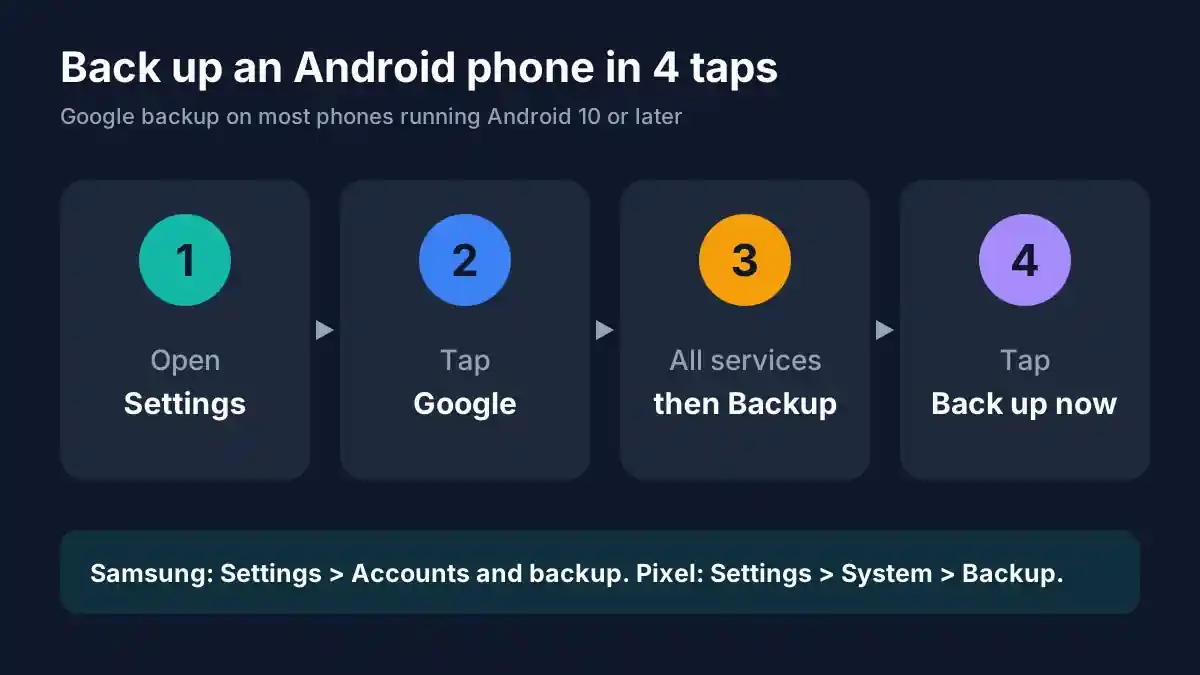
Google backup is the fastest way to back up an Android phone, and it runs automatically once it’s switched on. You need a Google Account, an internet connection and a screen lock (PIN, pattern or password) for the strongest encryption.
Step 1: Turn on Backup by Google One
- Open Settings.
- Tap Google (on some phones it’s called Google services).
- Tap All services, then under “Backup and restore” tap Backup.
- Turn on Backup by Google One if it’s off.
- Check that the right account appears under Account storage.
On Pixel phones you can also reach the same screen through Settings > System > Backup. On Samsung Galaxy phones, Google backup lives under Settings > Accounts and backup > Back up data (in the Google Drive section).
Step 2: Tap “Back up now”
Automatic backups run in the background, but Google’s help page doesn’t publish a fixed schedule. Tap Back up now before you factory reset, trade in or update a phone, so the backup is fresh. Stay on Wi-Fi and keep the phone charging if you have a lot of app data.
Step 3: Check your backup details
On the Backup screen, look under Backup details. You’ll see each category (apps, call history, contacts, device settings, SMS) with the time it last backed up. If a category shows an old date or an error, tap Back up now again.
You can also confirm a backup exists from a computer. Go to one.google.com, open Backup, and choose View. You can view backups there, but Google says you need the phone itself to create or delete them.
[ADD PERSONAL EXPERIENCE: Walk through backing up your own Android phone. Note your phone model, how long the first "Back up now" took, and how big the backup was in Google One. Real numbers help readers set expectations.]
Is a Google backup encrypted?
Yes. Google encrypts Android backups, and some of the data is end-to-end encrypted with your phone’s screen-lock PIN, pattern or password. End-to-end encryption means only someone who knows that screen lock can decrypt that data, not Google.
Two exceptions are worth knowing: photos and videos in Google Photos, and MMS media from your carrier, aren’t encrypted with your screen lock. Google recommends using a PIN, pattern or password rather than a swipe or Smart Lock so this protection applies.
How to back up photos and videos with Google Photos
Photos and videos are backed up through the Google Photos app, not the main device backup. Turn it on once and new pictures upload automatically.
- Open the Google Photos app and sign in with your Google Account.
- Tap your profile picture at the top right.
- Tap Photos settings > Backup and turn on Backup.
- Choose a backup quality. “Storage saver” uses less space; “Original quality” keeps full resolution. Both count against your Google storage.
- Under Back up device folders, turn on folders such as WhatsApp Images, Screenshots or Downloads if you want them saved too.
Look for a cloud icon with a check mark on recent photos. That means they’re safely uploaded. Before deleting anything from the phone, wait until the upload finishes.
How to back up a Samsung Galaxy phone
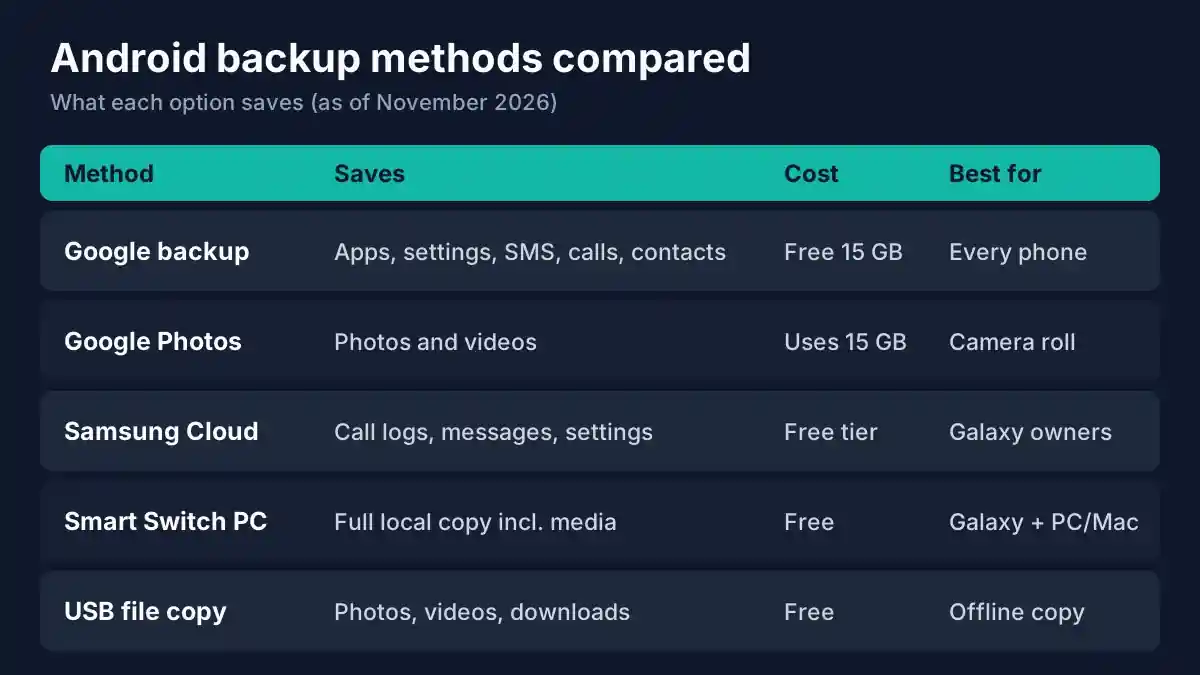
Samsung Galaxy phones can use Google backup, Samsung Cloud, or Smart Switch on a computer, and using two of them gives you the best coverage. Samsung’s tools save some Galaxy-specific items, such as Samsung Notes and Home screen layout, that Google backup may miss.
Back up with Samsung Cloud
- Open Settings and tap your Samsung account name at the top.
- Tap Samsung Cloud > Back up data.
- Turn on the switches for the data you want, such as call logs, messages and settings.
- Tap Back up now.
Samsung says automatic backups run about once every 24 hours when the screen is off and the phone is charging on Wi-Fi. Samsung lists a 1 GB file-size limit, and the service isn’t available on every carrier or in every country, so check your phone’s menu. Free storage amounts can change, so confirm yours in the Samsung Cloud screen.
Back up to a PC or Mac with Smart Switch
Smart Switch is Samsung’s free transfer and backup app. It makes a full local copy, including photos, videos, music and documents.
- Install Smart Switch on your Windows 10 or later PC or Mac (macOS 10.9 or later). Chromebooks aren’t supported.
- Connect the phone with a data USB cable (charge-only cables won’t work).
- Tap Allow on the phone when asked.
- In Smart Switch on the computer, click Backup, choose what to include (everything is selected by default), and click OK.
- Wait for it to finish, then eject the phone safely.
Large backups (Samsung mentions anything over 20 GB) take a while, so start this when you don’t need the phone. Smart Switch can also encrypt the backup with a PIN.
Back up to an SD card or USB drive
On supported Galaxy models, insert a microSD card or plug in a USB drive, open Smart Switch on the phone, tap the SD card icon at the top right, then Backup. When it’s done, open My Files, tap the three-dot menu next to the drive, and choose Unmount before removing it. Note that encrypted music and some purchases can’t be moved to external storage.
How to back up an Android phone to a computer
You can back up photos, videos and files from any Android phone to a computer by copying them over a USB cable. This is free, works offline, and doesn’t use cloud storage, but it won’t save apps, settings or messages.
On a Windows PC:
- Unlock the phone and connect it with a USB cable.
- Pull down the notification shade, tap the USB notification, and choose File transfer (sometimes labelled MTP).
- Open File Explorer, click your phone under This PC, and open Internal storage.
- Copy the DCIM (camera photos), Pictures, Movies, Download and Documents folders to a folder on your PC or an external drive.
On a Mac, macOS doesn’t open Android storage on its own, so you’ll need a transfer app. Galaxy owners can use Smart Switch for Mac. For other phones, a reputable file-transfer app or simply uploading to Google Drive or Google Photos is often easier.
Apps that need their own backup
Some of the most important data on your phone lives inside apps that handle their own backups, so the main Android backup won’t fully protect it. Check these before you wipe or replace a phone:
- WhatsApp: go to Settings > Chats > Chat backup, choose your Google Account and tap Back up. WhatsApp backups count toward your Google storage.
- Signal and Telegram: Signal has its own backup option in its settings; Telegram keeps chats in its cloud, except Secret Chats, which aren’t backed up.
- Authenticator apps: Google Authenticator can sync codes to your Google Account. Other authenticator apps have their own export or cloud-backup option. Losing these codes can lock you out of accounts, so set this up first.
- Files in Downloads or Documents: upload important PDFs, tickets and scans to Google Drive, or copy them to a computer.
- Game progress: many games save to Google Play Games or their own accounts; some only save locally.
[ADD PERSONAL EXPERIENCE: Mention an app you once had to set up again from scratch after switching phones (for example, an authenticator or a messaging app) and what you'd do differently.]
How much storage do you need?
Every Google Account comes with 15 GB of free storage, shared across Gmail, Google Drive and Google Photos, and Android device backups can use it at no charge. For most people the device backup itself is small. Photos, videos and WhatsApp media are what fill the 15 GB.
To check your usage, open the Google One app or go to one.google.com and look at the Storage breakdown. If you’re close to full:
- Switch Google Photos to Storage saver quality.
- Delete large videos and old WhatsApp media you don’t need.
- Clear big email attachments in Gmail.
- Upgrade to a paid Google One plan if you’d rather keep everything. Google changed Google One prices in July 2026, so check current plans in the Google One app before you buy.
How to restore your backup on a new phone
You restore an Android backup during setup by signing in with the same Google Account and choosing the backup you want. Restore is offered once, at setup, so don’t skip it.
- Turn on the new phone, connect to Wi-Fi, and follow the on-screen steps.
- Choose to copy apps and data, then select a backup from the cloud (wording varies by brand) or connect your old phone with a cable for a direct transfer.
- Sign in with the Google Account you backed up to.
- Enter your old phone’s screen lock when asked. This unlocks the end-to-end encrypted parts of the backup.
- Pick what to restore and tap Restore.
A few rules from Google’s help pages to keep in mind:
- A full restore can take up to 24 hours to finish in the background.
- You can’t restore a backup from a newer Android version onto a phone running an older one.
- If you don’t use a device for 57 days, Google erases its backup (photos and videos in Google Photos stay put).
- On Pixel 9 and later, you can still restore after setup through Settings > Accounts & backup > Android Switch, but only from one previous device.
A simple backup routine (the 3-2-1 rule)
The 3-2-1 backup rule means keeping three copies of important data, on two different types of storage, with one copy off-site. For a phone, that’s easy to follow.
- Copy 1: the data on your phone.
- Copy 2: Google backup plus Google Photos (off-site, in the cloud).
- Copy 3: a computer or external drive copy every month or two, using Smart Switch or a USB file copy.
Set a calendar reminder on the first of each month to tap Back up now, check that Google Photos shows “Backup complete,” and copy new photos to your computer. It takes about five minutes.
Troubleshooting: when Android backup doesn’t work
Most Android backup failures come down to storage, connection, or account problems, and each has a quick fix.
- “Backup paused” or “Waiting for Wi-Fi”: connect to Wi-Fi and charge the phone, then tap Back up now.
- Storage full: free up space in Google One or upgrade your plan; backups stop when the 15 GB is used.
- Backup option greyed out: you may be using a work profile or a company-managed phone, where Google backup isn’t available. Ask your IT team.
- Wrong account: go to Backup > Account storage and choose the correct Google Account.
- Old backup date: sign out and back in to your Google Account, restart the phone, and try again.
- App data missing after restore: the app may not support Android backup. Sign in to that app or use its own restore option.
FAQ
How do I back up my entire Android phone?
No single button saves absolutely everything. Turn on Google backup (Settings > Google > All services > Backup) for apps, settings, contacts and messages, enable Google Photos backup for pictures and videos, and copy files from Downloads to Google Drive or a computer. Samsung owners can add a Smart Switch backup for a full local copy.
Does Google backup include photos?
Not directly. Google’s device backup covers apps, call history, contacts, settings and SMS. Photos and videos are protected through the Google Photos app, which you turn on separately under Photos settings > Backup. Both use the same Google Account storage, which includes 15 GB free shared with Gmail and Drive.
How often does Android back up automatically?
Once Backup is on, Android backs up automatically in the background, but Google’s help page doesn’t state an exact schedule. Samsung Cloud says its automatic backup runs about once every 24 hours on Wi-Fi while charging. To be safe, tap Back up now before any reset, update or phone swap.
How long does Google keep my Android backup?
Google keeps your backup while the device stays in use. If you don’t use a phone for 57 days, Google erases that device’s backup, except photos and videos already in Google Photos. Turning backup off also deletes it. Back up again soon after switching phones so you always have a current copy.
Can I back up an Android phone without Google?
Yes. Samsung phones can use Samsung Cloud or Smart Switch on a PC or Mac, and any Android phone can copy photos, videos and files to a computer over USB. These methods won’t restore apps and settings as smoothly as Google backup, so many people use one alongside Google rather than instead of it.
Does Android backup include WhatsApp messages?
Not reliably. WhatsApp uses its own backup, found in WhatsApp under Settings > Chats > Chat backup, which saves to your Google Account and counts toward your storage. Run it before switching phones, then restore it when you first open WhatsApp on the new device with the same phone number.
Final takeaway
The easiest way to back up an Android phone is to switch on Google backup and Google Photos today, then tap “Back up now” before any big change. Add a monthly copy to a computer, and check app-specific backups for WhatsApp and your authenticator app. Ten minutes of setup means a lost, broken or wiped phone costs you a new device, not your memories.
Menu names and storage details checked against Google and Samsung support pages on November 8, 2026. Labels can vary by phone brand and Android version and may change with updates.
