
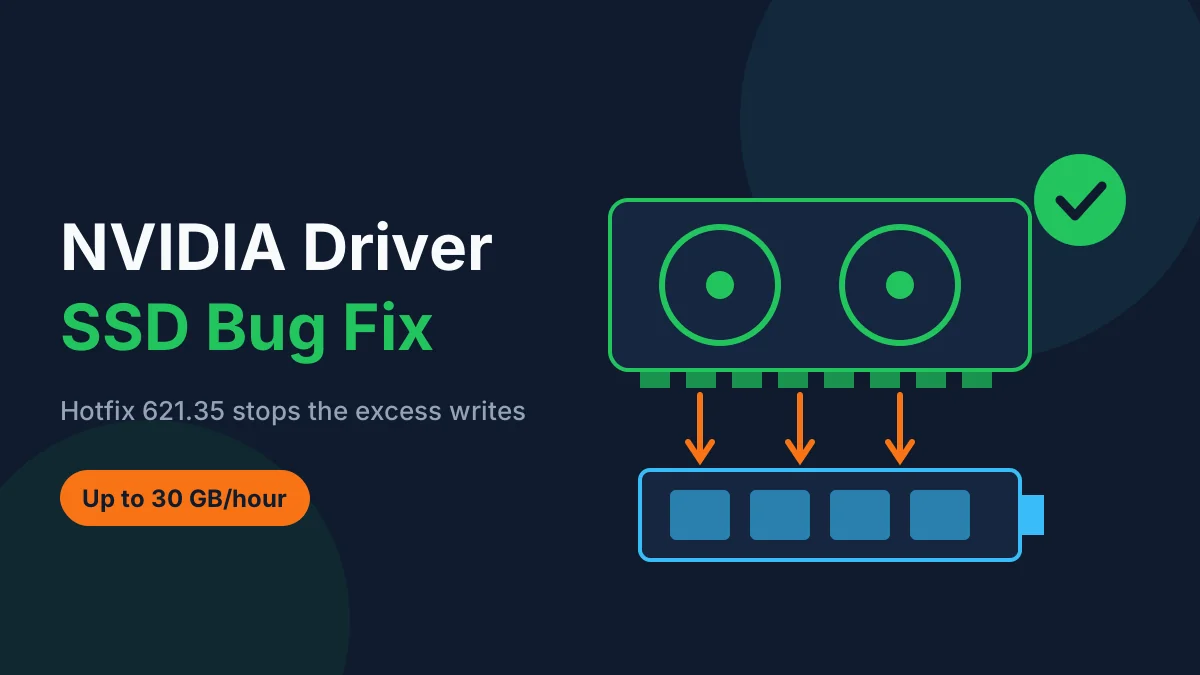
The NVIDIA driver SSD bug is a problem in GeForce drivers 621.14 and 621.24 that makes a background service rewrite a log file over and over, adding gigabytes of needless writes to your system SSD even when the PC is idle. NVIDIA fixed it in GeForce Hotfix Driver 621.35, released November 20, 2026. Installing that hotfix is the fastest fix for most people.
If you updated your GeForce driver in November, the NVIDIA driver SSD issue may mean your drive has been quietly logging far more writes than normal. The good news: a few minutes of checking tells you whether you were affected, and the fix is free. This guide walks through how to check, how to fix it, and whether your drive took any real damage.
Information in this article is current as of November 23, 2026. Driver versions change quickly, so check NVIDIA’s driver page for anything newer.
Table of Contents
- What is the NVIDIA driver SSD bug?
- Which drivers are affected?
- How to check if your SSD is affected
- 5 quick fixes for the NVIDIA driver SSD bug
- Did the bug damage my SSD?
- Wasn’t AMD hit by the same thing?
- FAQ
What Is the NVIDIA Driver SSD Bug?
The NVIDIA driver SSD bug is a logging fault in which NVDisplay.Container.exe, the process behind the “NVIDIA Display Container LS” Windows service, keeps rewriting a file called nvlog.nvlgstg instead of adding to it. Because the whole file is rewritten each time, write volume grows as the file grows.
The file sits in C:\ProgramData\NVIDIA Corporation\nvtopps\nct\, which is on your Windows drive for almost everyone. That is why the NVIDIA driver SSD writes land on the main system drive, according to reporting by TechSpot and Windows Latest.
Key terms in plain English:
- NVDisplay.Container.exe is a helper process that runs NVIDIA’s control panel, overlay and plugin features in the background.
- SSD writes are the amount of data saved to your solid-state drive. Every SSD can handle a finite amount of writing over its life.
- TBW (terabytes written) is the endurance rating a maker gives a drive: the total data it is warrantied to absorb.
- A hotfix driver is an optional, quickly tested driver that NVIDIA releases between regular Game Ready drivers to fix one urgent problem.
How much data are we talking about?
NVIDIA driver SSD write measurements from users vary a lot. PCWorld and Windows Latest reported about 3 GB per hour on driver 621.14 and up to 30 GB per hour on 621.24 on some systems (PCWorld). One Windows Latest test logged 515 MB in five idle minutes on an RTX 4070 Super. Other users saw almost nothing, so not every PC with these drivers behaves the same way.
Which Drivers Are Affected?
Drivers 621.14 (released November 4, 2026) and 621.24 (Game Ready, released November 12, 2026) are the ones linked to the NVIDIA driver SSD issue. Driver 621.01 is reported as unaffected, and hotfix 621.35 contains the fix.
| Driver | Released | NVIDIA driver SSD bug? | Notes |
|---|---|---|---|
| 621.01 | October 2026 | No (reported) | Had video freeze/black screen issues on some RTX 50 GPUs |
| 621.12 hotfix | Oct 27, 2026 | Not reported | Fixed the RTX 50 video playback freeze |
| 621.14 | Nov 4, 2026 | Yes | About 3 GB/hour reported on some PCs |
| 621.24 Game Ready | Nov 12, 2026 | Yes, worse | Up to 30 GB/hour reported on some PCs |
| 621.35 hotfix | Nov 20, 2026 | Fixed | Based on 621.24; optional beta driver |
NVIDIA’s hotfix note, as quoted by Notebookcheck and NT Compatible, lists one fix: “Excessive writes to file nvlog.nvlgstg may occur in background” (bug ID 7116722).
How to Check If Your SSD Is Affected
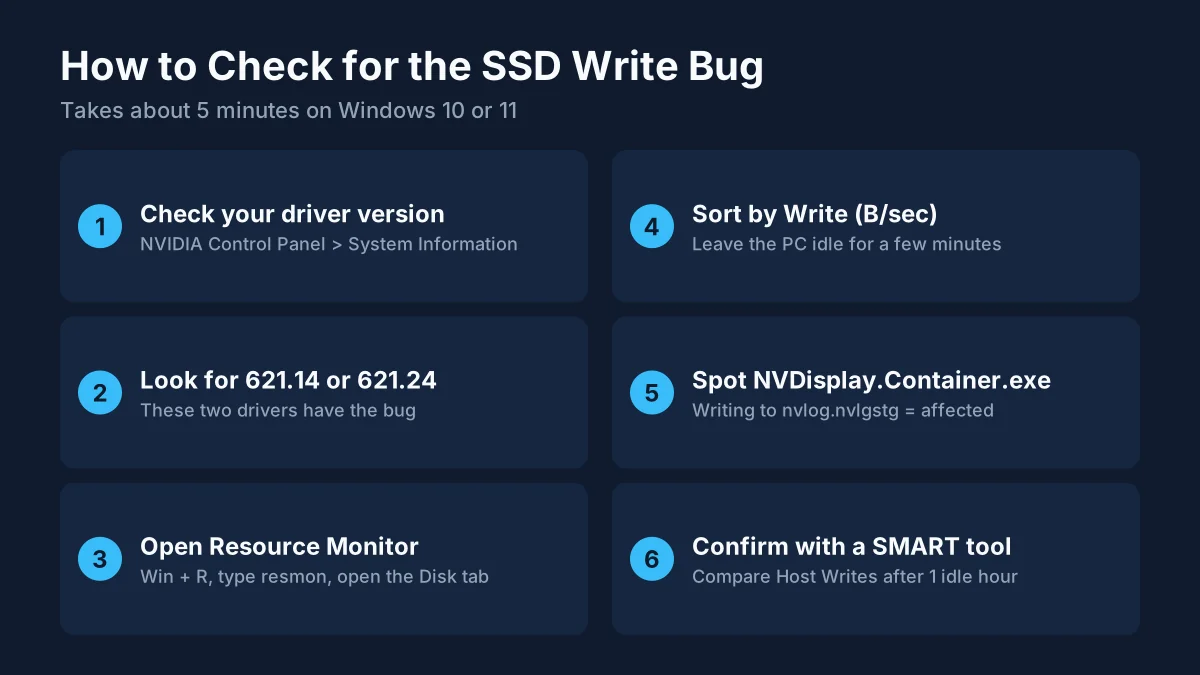
You can confirm the NVIDIA driver SSD problem in about five minutes with two free tools: Windows Resource Monitor shows which process is writing, and a SMART tool shows how much your drive has written in total.
Step 1: Find your NVIDIA driver version
- Right-click the desktop and open NVIDIA Control Panel, then click System Information (bottom left).
- Read the Driver version line. If it says 621.14 or 621.24, keep going.
- You can also open the NVIDIA App and check the Drivers tab.
Step 2: Watch disk activity in Resource Monitor
- Press Win + R, type
resmon, and press Enter. - Open the Disk tab and expand Disk Activity.
- Click the Write (B/sec) column to sort by write speed.
- Leave the PC idle for a few minutes. If NVDisplay.Container.exe keeps writing to nvlog.nvlgstg, you have the NVIDIA driver SSD bug.
Step 3: Measure total writes with a SMART tool
- Install a free SMART reader such as CrystalDiskInfo, or your SSD maker’s own app.
- Note the Host Writes or Data Units Written value.
- Leave the PC idle for one hour, then check again. A jump of several gigabytes with nothing running points to the bug.
[ADD PERSONAL EXPERIENCE: Run the Resource Monitor check on your own GeForce PC and note the driver version, GPU model and how many MB or GB NVDisplay.Container.exe wrote in 10 idle minutes before and after installing 621.35. A screenshot of the Disk tab would make this section much stronger.]
5 Quick Fixes for the NVIDIA Driver SSD Bug
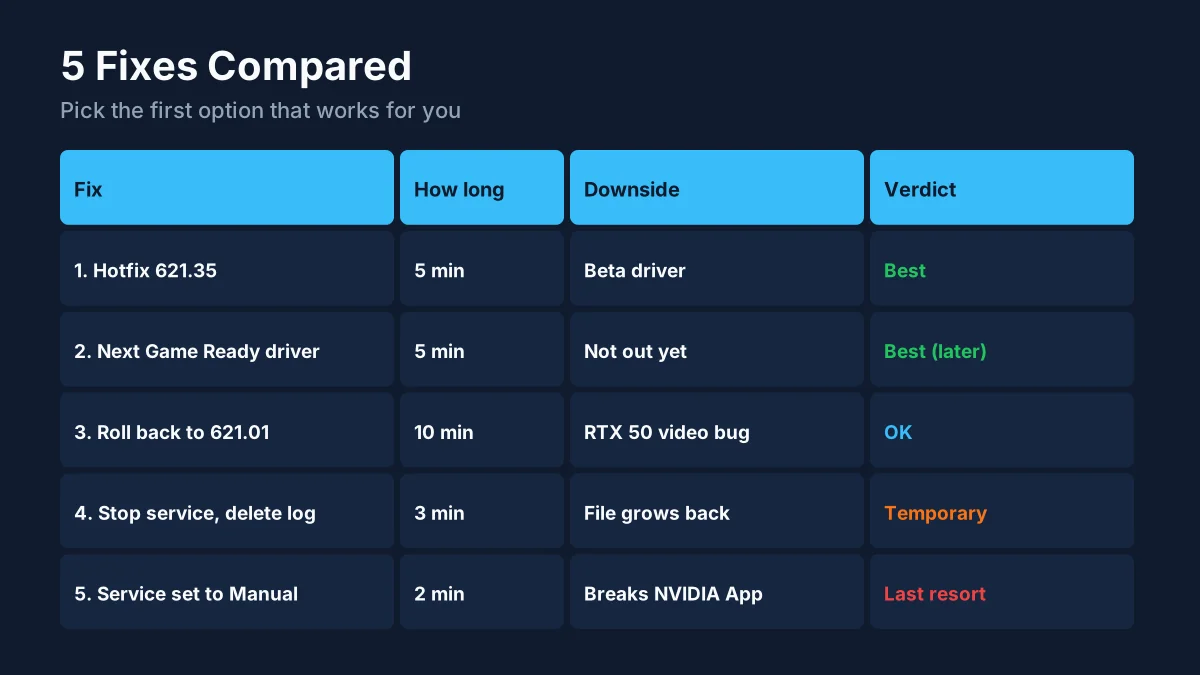
The best fix for the NVIDIA driver SSD bug is installing hotfix 621.35 or any newer NVIDIA driver. If you prefer not to run a beta driver, rolling back to 621.01 or applying a temporary service workaround also stops the writes.
Fix 1: Install GeForce Hotfix Driver 621.35 (recommended)
- Go to NVIDIA’s Customer Care article for hotfix 621.35 (linked from NVIDIA’s support site).
- Download the version for your Windows build (Windows 10/11 x64, or Windows 11 ARM64 where offered).
- Run the installer, pick Custom (Advanced), and tick Perform a clean installation if you want to clear old settings.
- Restart your PC, then repeat the Resource Monitor check to confirm the writes have stopped.
NVIDIA labels hotfix drivers as beta, optional and run through “a much abbreviated QA process.” The same fix will roll into the next WHQL-certified Game Ready driver, so cautious users can wait for that instead.
Fix 2: Update to the next Game Ready driver when it arrives
If you see a Game Ready driver newer than 621.35 in the NVIDIA App, install it. Hotfix changes are folded into the next certified release, and that driver goes through NVIDIA’s full testing.
Fix 3: Roll back to driver 621.01
- Download driver 621.01 from NVIDIA’s driver archive.
- Run it with Perform a clean installation ticked, or remove the current driver first with Display Driver Uninstaller (DDU) in Safe Mode for a fully clean slate.
- Turn off automatic driver updates in the NVIDIA App until you are ready to move to 621.35 or newer.
Watch out if you own an RTX 50 series card: 621.01 had video playback freezes and black screens on some of those GPUs, which is why NVIDIA shipped hotfix 621.12. For most RTX 50 owners, Fix 1 is the better choice.
Fix 4: Stop the service and delete the log (temporary)
- Press Win + R, type
services.msc, and press Enter. - Find NVIDIA Display Container LS, right-click it and choose Stop.
- Open
C:\ProgramData\NVIDIA Corporation\nvtopps\nct\and delete nvlog.nvlgstg. - Start the service again.
One report cited by TechSpot saw NVIDIA driver SSD writes drop by about 91% after this, but the file grows back over time. Treat it as a stopgap until you can install the hotfix.
Fix 5: Set the service to Manual (last resort)
Setting NVIDIA Display Container LS to Manual or Disabled stops the writes, but it also breaks the NVIDIA Control Panel and the NVIDIA App. Only use this if you cannot install any other driver right now, and switch it back to Automatic afterwards.
Did the Bug Damage My SSD?
For most people, no. The NVIDIA driver SSD bug used up a small slice of drive endurance, not enough to cause failure, unless your PC sat idle with an affected driver for weeks and your drive is small or already heavily worn.
Here is the rough math on NVIDIA driver SSD wear. Many 1 TB consumer NVMe SSDs carry endurance ratings in the 600 TBW range, and Windows Latest cited a Tom’s Hardware estimate of about 28 TB per year at the worst write rates. Two or three weeks on 621.24 at the extreme end might add roughly 1 to 2 TB, a fraction of a percent of that rating. Reports with far lower write rates used even less.
How to check your SSD’s health:
- Open CrystalDiskInfo or your SSD maker’s tool (Samsung Magician, WD Dashboard, Crucial Storage Executive and similar).
- Look at Health Status or Percentage Used.
- Compare Host Writes with the TBW rating on your drive’s spec sheet.
If health still reads “Good” and percentage used is in the low single digits, your drive is fine. Smaller 256 GB or 512 GB SSDs have lower TBW ratings, so the NVIDIA driver SSD bug matters more there; owners of those should apply the fix quickly. For general maintenance, see our guide on how to speed up Windows 11, which covers storage health and background apps.
Wasn’t AMD Hit by the Same Thing?
Yes. A week before the NVIDIA driver SSD reports spread, AMD owners found that the AMD External Events Utility was writing heavily to SSDs, with TechSpot citing cases above 400 GB per day. AMD fixed it in the optional Adrenalin 26.11.1 driver on November 12, 2026, for Radeon RX 7000 and newer cards.
The pattern matters: GPU drivers now ship many background helpers for overlays, telemetry and plugins, and a logging mistake in any of them can hit your SSD. Checking Resource Monitor once after a major driver update is a cheap habit. If your PC feels sluggish after an update, our walkthrough on how to fix a slow computer is a good next stop, and Windows-side bugs are tracked in our Windows 11 26H2 problems guide.
Trend note: Searches for this issue jumped on November 19–21, 2026, after PCWorld, Kotaku and TechSpot covered user reports and NVIDIA released the hotfix.
FAQ
Is the NVIDIA driver SSD bug fixed?
Yes. NVIDIA released GeForce Hotfix Display Driver 621.35 on November 20, 2026, which fixes “excessive writes to file nvlog.nvlgstg.” The hotfix is based on Game Ready driver 621.24. The same fix should appear in the next certified Game Ready driver, so updating to any later driver will also resolve it.
Which NVIDIA drivers write too much to the SSD?
Drivers 621.14 (November 4, 2026) and 621.24 (November 12, 2026) are linked to the excessive SSD writes. Driver 621.01 is reported as unaffected. If your NVIDIA Control Panel shows 621.14 or 621.24, install hotfix 621.35 or a newer driver, then check Resource Monitor to confirm the writes stopped.
What is nvlog.nvlgstg?
nvlog.nvlgstg is a log file used by NVIDIA’s background plugin system, stored in C:\ProgramData\NVIDIA Corporation\nvtopps\nct. In drivers 621.14 and 621.24, the NVIDIA Display Container service rewrote the whole file repeatedly instead of appending to it, which caused the heavy SSD writes. Deleting it is safe; the driver recreates it.
Can a driver bug really kill an SSD?
In theory, extreme constant writes for many months could wear out a small SSD faster. In practice, this bug ran for only a few weeks, and most 1 TB drives have hundreds of terabytes of rated endurance. Check your drive’s health percentage in a SMART tool; if it reads Good, no action is needed.
Is the NVIDIA hotfix driver safe to install?
Hotfix drivers are optional beta releases with shortened testing, so a small risk of new bugs exists. Hotfix 621.35 changes only one thing, the nvlog.nvlgstg write issue, on top of driver 621.24. Most users can install it safely. If you prefer fully certified software, wait for the next WHQL Game Ready driver.
Do I need to do a clean install of the NVIDIA driver?
A clean install is not required to apply the fix, but ticking “Perform a clean installation” in the installer’s Custom mode removes old profiles and logs. That is a good idea if you also deleted nvlog.nvlgstg or changed the Display Container service. Note that it resets your NVIDIA Control Panel settings.
Does the SSD write bug affect laptops?
Yes. The NVIDIA driver SSD bug can affect any Windows PC running GeForce driver 621.14 or 621.24, including gaming laptops. Laptop SSDs are often smaller, with lower endurance ratings, so laptop owners should install hotfix 621.35 or a newer driver promptly and check drive health in a SMART tool afterwards.
Conclusion: Fix the NVIDIA Driver SSD Bug in Five Minutes
The NVIDIA driver SSD bug came from a background log file that drivers 621.14 and 621.24 rewrote nonstop. Check your driver version, confirm the writes in Resource Monitor, then install hotfix 621.35 or the next Game Ready driver. Finish by checking your SSD’s health once. For nearly everyone, the drive is fine and the problem ends with one update.
