

Seeing a white screen on laptop? Press Windows + Ctrl + Shift + B to reset your graphics driver, then restart. If the white screen shows up before Windows loads, or only half of the laptop screen is white, it’s likely a loose cable or a damaged panel, and the laptop may need a repair.
Below I’ll explain what causes a white screen on laptop, how to tell software from hardware in two minutes, and seven easy fixes for a full or half white screen.
[ADD PERSONAL EXPERIENCE: one line about when your own screen went white and what you were doing at the time.]
Table of Contents
What Causes a White Screen on Laptop?
A white screen on laptop can be full white, half white, or white with lines. The cause is either software or hardware.
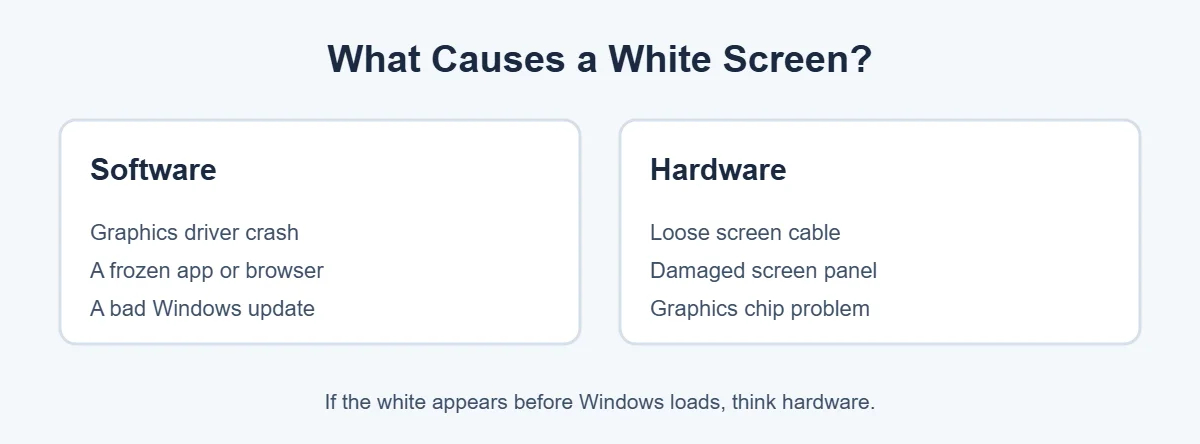
- Frozen app or browser: a crashed program can fill the screen with white.
- Graphics driver crash: the driver stops drawing the picture.
- Bad update: a new driver or Windows update can cause display problems.
- Loose cable: the cable through the hinge can work loose over time.
- Damaged panel: a drop, bump or spill can turn part of the screen white.
Software or Hardware? 3 Quick Tests
Before you fix a white screen on laptop, find out where the problem lives.
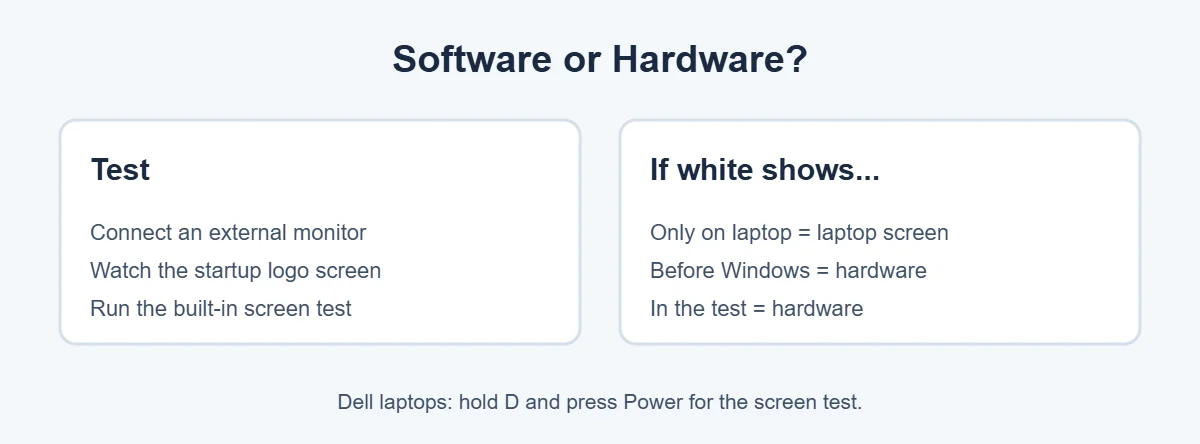
- Connect an external monitor. Press Windows + P and choose Duplicate. Dell explains that if the external display works, the laptop screen may be faulty.
- Watch startup. If the screen is white before the maker’s logo, it’s hardware. Software can’t affect the screen that early.
- Run the built-in screen test. On a Dell, hold D and press Power to start the LCD self-test. White areas in the test mean a hardware problem.
7 Easy Fixes for a White Screen on Laptop
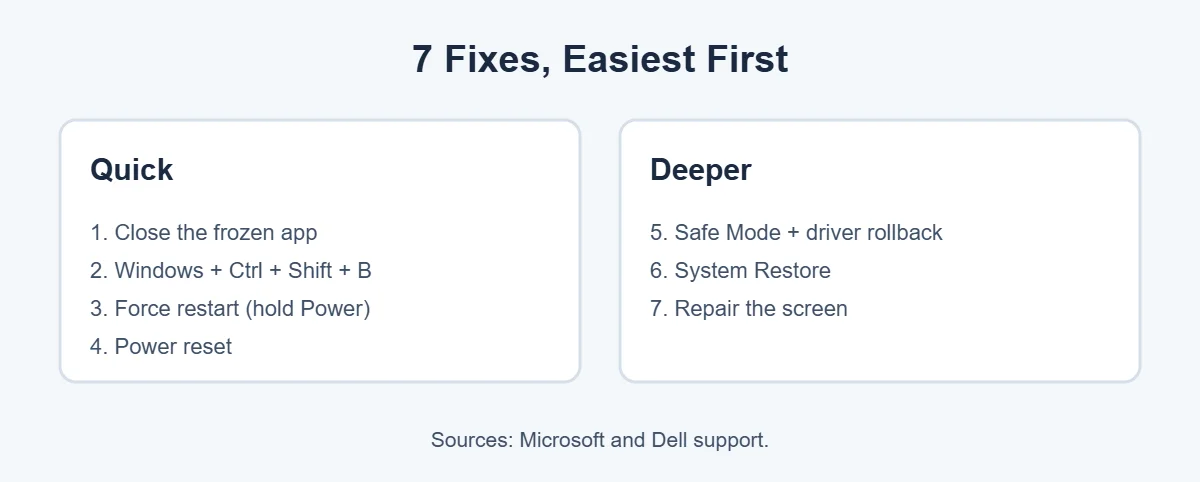
1. Close the frozen app
Press Ctrl + Shift + Esc to open Task Manager. Select the app that froze and click End task. If the white screen on laptop came from one app, this fixes it right away.
2. Reset the graphics driver
Press Windows + Ctrl + Shift + B. Microsoft says a beep or flicker means it worked.
3. Force a restart
If nothing responds, hold the power button for about 20 seconds until the laptop turns off, as Microsoft suggests. Wait a moment, then turn it back on.
4. Do a power reset
Unplug the charger and all devices. Dell recommends holding the power button for 15 to 20 seconds, then plugging back in and starting the laptop. This clears leftover power that can confuse the display.
5. Use Safe Mode to fix the driver
If Windows keeps loading to a white screen, start it in Safe Mode. Microsoft’s steps: hold the power button for 10 seconds two or three times until Recovery appears, then go to Troubleshoot, Advanced options, Startup Settings, Restart, and press F5. In Safe Mode, open Device Manager, expand Display adapters and choose Update driver or Roll back driver.
6. Run System Restore
If the white screen on laptop started after a recent change, go back to a restore point. From Recovery, choose Troubleshoot, Advanced options, then System Restore, and pick a date before the problem began.
7. Repair the screen
If the white shows during startup or in the screen test, the panel, its cable or the graphics chip needs a technician. Back up your files first, then contact the maker. Physical damage usually isn’t covered by standard warranty, but they can still quote a repair.
Half of Laptop Screen Is White?
When half of the laptop screen is white and the other half looks normal, it almost always points to hardware. Gently open and close the lid and watch the white area. If it changes or flickers, the display cable is likely loose. If it stays the same, the panel itself is probably damaged.
Laptop getting old? Here’s how long laptops usually last, and where to sell or recycle it if a repair costs too much.
Frequently Asked Questions
Why is my laptop screen white?
A white screen on laptop is usually caused by a frozen app, a graphics driver crash or a bad update. If the screen turns white even before Windows loads, or only part of it is white, the screen panel or its cable may be damaged.
Why is half of my laptop screen white?
Half of a laptop screen turning white usually points to hardware, like a loose display cable or a damaged panel, especially after a drop or bump. Run your laptop’s built-in screen test. If the white half shows up there too, the screen needs repair.
How do I fix a white screen on my laptop?
Press Windows + Ctrl + Shift + B to reset the graphics driver, then restart. If it’s still white, boot into Safe Mode and update or roll back the graphics driver. If the white screen shows during startup or in the screen test, contact your laptop maker.
Can a virus cause a white screen?
It’s possible, but much less common than driver or hardware problems. If your laptop works in Safe Mode, run a full Microsoft Defender scan. Most white screens are fixed by a driver reset, an update or a rollback.
Why does my laptop show a white screen at startup?
If the screen turns white before the Windows logo appears, the problem is almost always hardware: the panel, its cable or the graphics chip. Software can’t affect the screen that early. Contact your laptop’s support team for a repair.
Is a white laptop screen worth repairing?
If it’s a loose cable or the laptop is under warranty, yes. A full panel replacement can be costly on older laptops, so compare the quote with the price of a new laptop before deciding.
The Bottom Line
A white screen on laptop is usually a frozen app or a graphics driver crash. Close the app, press Windows + Ctrl + Shift + B, and restart. If it keeps happening, fix the driver in Safe Mode or use System Restore.
If the screen is white before Windows loads, or half of it stays white, it’s hardware, and a repair is the fix.
{“@context”:”https://schema.org”,”@type”:”FAQPage”,”mainEntity”:[{“@type”:”Question”,”name”:”Why is my laptop screen white?”,”acceptedAnswer”:{“@type”:”Answer”,”text”:”A white screen on laptop is usually caused by a frozen app, a graphics driver crash or a bad update. If the screen turns white even before Windows loads, or only part of it is white, the screen panel or its cable may be damaged.”}},{“@type”:”Question”,”name”:”Why is half of my laptop screen white?”,”acceptedAnswer”:{“@type”:”Answer”,”text”:”Half of a laptop screen turning white usually points to hardware, like a loose display cable or a damaged panel, especially after a drop or bump. Run your laptop’s built-in screen test. If the white half shows up there too, the screen needs repair.”}},{“@type”:”Question”,”name”:”How do I fix a white screen on my laptop?”,”acceptedAnswer”:{“@type”:”Answer”,”text”:”Press Windows + Ctrl + Shift + B to reset the graphics driver, then restart. If it’s still white, boot into Safe Mode and update or roll back the graphics driver. If the white screen shows during startup or in the screen test, contact your laptop maker.”}},{“@type”:”Question”,”name”:”Can a virus cause a white screen?”,”acceptedAnswer”:{“@type”:”Answer”,”text”:”It’s possible, but much less common than driver or hardware problems. If your laptop works in Safe Mode, run a full Microsoft Defender scan. Most white screens are fixed by a driver reset, an update or a rollback.”}},{“@type”:”Question”,”name”:”Why does my laptop show a white screen at startup?”,”acceptedAnswer”:{“@type”:”Answer”,”text”:”If the screen turns white before the Windows logo appears, the problem is almost always hardware: the panel, its cable or the graphics chip. Software can’t affect the screen that early. Contact your laptop’s support team for a repair.”}},{“@type”:”Question”,”name”:”Is a white laptop screen worth repairing?”,”acceptedAnswer”:{“@type”:”Answer”,”text”:”If it’s a loose cable or the laptop is under warranty, yes. A full panel replacement can be costly on older laptops, so compare the quote with the price of a new laptop before deciding.”}}]}