
Want to turn on the Dell Inspiron 15 3000 backlit keyboard? Press F10, or Fn + F10, if the F10 key has a small backlight icon. Each press cycles through Off, Low and High. If your F10 key has no light icon, your model likely doesn’t have a backlit keyboard at all.
Below I’ll show you how to check if your laptop has one, how to turn it on, how to fix it in the BIOS, and what to do if it still won’t light up.
[ADD PERSONAL EXPERIENCE: one line about using your Inspiron in the dark and whether yours has a backlight.]
Table of Contents
Does Your Inspiron 15 3000 Have a Backlit Keyboard?
This is the most important question. Not every Dell Inspiron 15 3000 backlit keyboard exists, because many models in this series were sold without one.
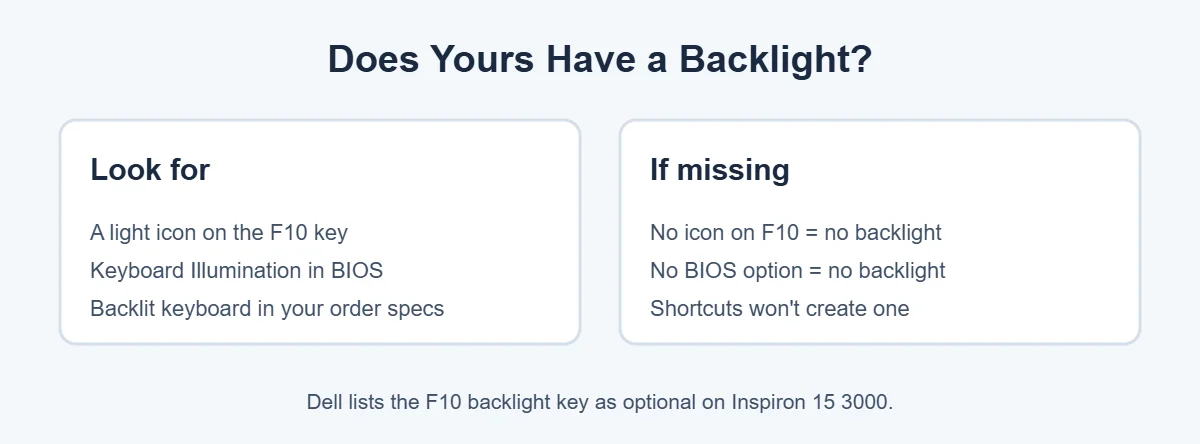
The Inspiron 15 3000 manual lists F10 as “Toggle keyboard backlight (optional)”, and says keyboards without a backlight have an F10 key without the backlight icon. So check these three things:
- The F10 key: look for a small light or sun-like icon.
- The BIOS: look for a Keyboard Illumination option (steps below).
- Your order details: your Dell order or Service Tag specs list “backlit keyboard” if you have one.
How to Turn On the Dell Inspiron 15 3000 Backlit Keyboard
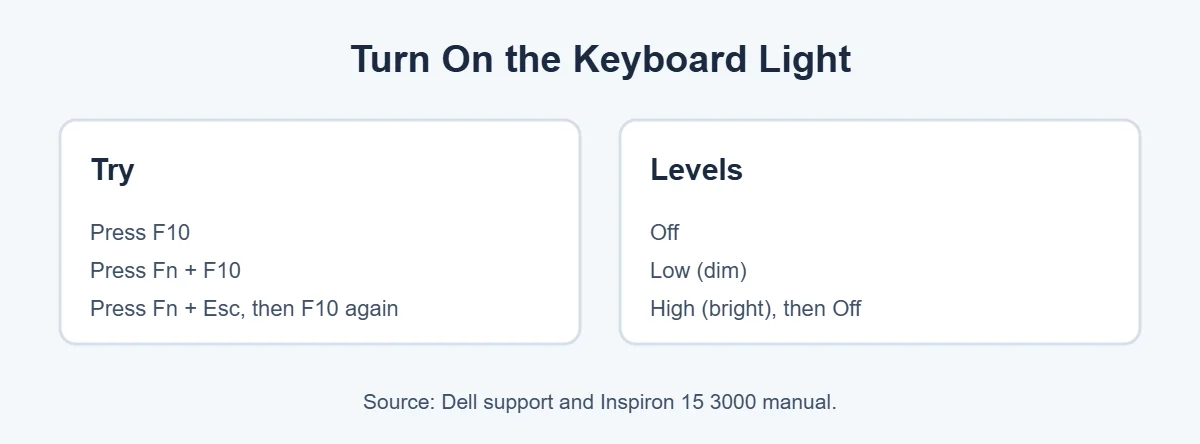
- Press F10.
- If nothing happens, press Fn + F10.
- Still nothing? Press Fn + Esc to switch the Fn lock, then try F10 again.
- Keep pressing to cycle through Off, Low and High.
Dell’s backlit keyboard guide explains that whether you need Fn depends on your Fn lock setting. On most models, Fn is needed by default.
Fix the Keyboard Light in BIOS
If the keys do nothing, the Dell Inspiron 15 3000 backlit keyboard may be switched off in the BIOS.
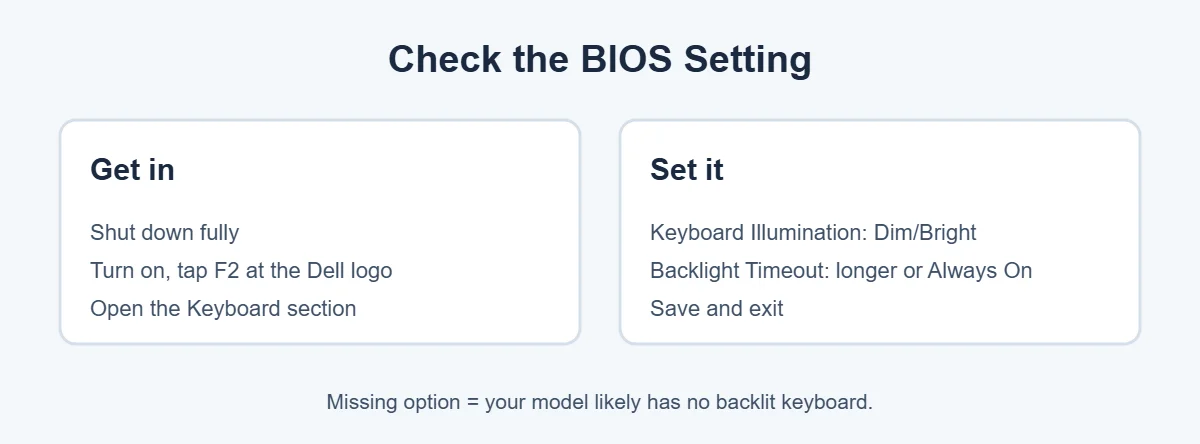
- Shut the laptop down completely.
- Turn it on and tap F2 about once per second when the Dell logo appears.
- Open the Keyboard section.
- Set Keyboard Illumination to Dim or Bright.
- If you see Keyboard Backlight Timeout, set a longer time or Always On.
- Save and exit.
Dell says if the Keyboard Illumination option is missing, the model may not have a backlit keyboard.
Keyboard Light Turns Off by Itself?
If your Dell Inspiron 15 3000 backlit keyboard turns off on its own, that’s usually the backlight timeout. Dell explains that this BIOS setting controls how long the light stays on after your last key press, and it’s separate from Windows display sleep. Some models also have an ambient light sensor option that dims the light automatically. Turn it off if you want full manual control.
Still Not Working?
- Restart the laptop and try F10 again.
- Update the BIOS through Dell SupportAssist or Dell’s support site, with the charger plugged in.
- Contact Dell Support with your Service Tag if your model should have a backlit keyboard but it won’t light.
Having other keyboard trouble? Here’s why laptops cost more than desktops if you’re thinking about upgrading, and where to sell your old laptop.
Frequently Asked Questions
Does the Dell Inspiron 15 3000 have a backlit keyboard?
Some do, many don’t. Dell’s Inspiron 15 3000 manual lists the F10 keyboard backlight shortcut as optional, and says keyboards without a backlight have an F10 key without the backlight icon. Check your F10 key and your BIOS for a Keyboard Illumination option.
How do I turn on the keyboard light on my Dell Inspiron 15 3000?
Press F10, or Fn + F10, if your F10 key has the backlight icon. Each press cycles through Off, Low and High. If nothing happens, press Fn + Esc to switch the Fn lock and try again.
Why is my Dell keyboard light not working?
The most common reasons are the Fn lock, a BIOS setting turned off, or a short backlight timeout. Dell suggests checking Keyboard Illumination and Keyboard Backlight Timeout in BIOS, and updating the BIOS if the light still won’t work.
How do I keep my Dell keyboard light on?
Open the BIOS by tapping F2 at the Dell logo, go to the Keyboard section and set Keyboard Backlight Timeout to a longer time or Always On, if available. Save and exit. Dell says this setting is separate from Windows display sleep.
Can I add a backlit keyboard to my Inspiron 15 3000?
Only if your model supports it. A keyboard shortcut or software can’t create a backlight that isn’t there. Some people replace the keyboard, but it depends on the exact model, so check with Dell or a qualified technician first.
What key turns on the keyboard light on Dell laptops?
It depends on the model. Dell says the backlight key is commonly F5, F6, F7 or F10 on Latitude, Vostro and Inspiron laptops. Look for the small light icon on the top row of your keyboard.
The Bottom Line
To turn on the Dell Inspiron 15 3000 backlit keyboard, press F10 or Fn + F10, and use Fn + Esc if the Fn lock gets in the way. If nothing works, check Keyboard Illumination in the BIOS.
No light icon on F10 and no BIOS option? Then your model simply doesn’t have a backlit keyboard, and no shortcut can add one.
{“@context”:”https://schema.org”,”@type”:”FAQPage”,”mainEntity”:[{“@type”:”Question”,”name”:”Does the Dell Inspiron 15 3000 have a backlit keyboard?”,”acceptedAnswer”:{“@type”:”Answer”,”text”:”Some do, many don’t. Dell’s Inspiron 15 3000 manual lists the F10 keyboard backlight shortcut as optional, and says keyboards without a backlight have an F10 key without the backlight icon. Check your F10 key and your BIOS for a Keyboard Illumination option.”}},{“@type”:”Question”,”name”:”How do I turn on the keyboard light on my Dell Inspiron 15 3000?”,”acceptedAnswer”:{“@type”:”Answer”,”text”:”Press F10, or Fn + F10, if your F10 key has the backlight icon. Each press cycles through Off, Low and High. If nothing happens, press Fn + Esc to switch the Fn lock and try again.”}},{“@type”:”Question”,”name”:”Why is my Dell keyboard light not working?”,”acceptedAnswer”:{“@type”:”Answer”,”text”:”The most common reasons are the Fn lock, a BIOS setting turned off, or a short backlight timeout. Dell suggests checking Keyboard Illumination and Keyboard Backlight Timeout in BIOS, and updating the BIOS if the light still won’t work.”}},{“@type”:”Question”,”name”:”How do I keep my Dell keyboard light on?”,”acceptedAnswer”:{“@type”:”Answer”,”text”:”Open the BIOS by tapping F2 at the Dell logo, go to the Keyboard section and set Keyboard Backlight Timeout to a longer time or Always On, if available. Save and exit. Dell says this setting is separate from Windows display sleep.”}},{“@type”:”Question”,”name”:”Can I add a backlit keyboard to my Inspiron 15 3000?”,”acceptedAnswer”:{“@type”:”Answer”,”text”:”Only if your model supports it. A keyboard shortcut or software can’t create a backlight that isn’t there. Some people replace the keyboard, but it depends on the exact model, so check with Dell or a qualified technician first.”}},{“@type”:”Question”,”name”:”What key turns on the keyboard light on Dell laptops?”,”acceptedAnswer”:{“@type”:”Answer”,”text”:”It depends on the model. Dell says the backlight key is commonly F5, F6, F7 or F10 on Latitude, Vostro and Inspiron laptops. Look for the small light icon on the top row of your keyboard.”}}]}