
To find a lost Android phone, go to android.com/find on any browser, or open the Find Hub app on another Android device, and sign in with the Google account used on the missing phone. You’ll see its location on a map and can make it ring, lock it with a message, or erase it. This works as long as the phone was signed in to Google with Find Hub turned on, which it usually is by default.
Find Hub is Google’s free service for locating Android phones, tablets, earbuds and trackers. It replaced the old Find My Device name, so many guides still use that label. Below you’ll find exactly what to do in the first few minutes, how to handle a phone that’s turned off or stolen, and how to set things up now so you’re covered next time.
What to do in the first 10 minutes
Act quickly but calmly: locate first, ring if it’s nearby, lock it if it might be stolen, and erase only as a last resort. The order matters, because erasing a phone removes it from Find Hub.
- Call your number from another phone. If someone found it, they may answer.
- Open android.com/find and sign in with your Google account.
- Check the map. If it shows somewhere familiar, use Play sound.
- If it’s somewhere unexpected, use Mark as lost to lock it and show a contact message.
- If you think it was stolen, don’t go there yourself. Note the location and contact police.
- Change the password on your Google account if you suspect someone can get into the phone.
How to find a lost Android phone with Find Hub
Find Hub shows your phone’s current or last known location as long as the device has power, is signed in to your Google account, has Find Hub turned on, and has an internet connection. Google’s Find Hub help page also says the phone must be visible in Google Play, so if you ever hid it there, it won’t appear.
Location accuracy varies. Google says GPS can pinpoint a phone to about 20 meters, while location based on cell towers may only be accurate to a few thousand meters. When you’re within about 10 meters, a Find nearby option can help you home in on it.
From a computer
- Go to android.com/find in any browser.
- Sign in with the Google account on the lost phone.
- If you have several devices, select the missing phone at the top or side of the page.
- The map shows its location, battery level and when it was last seen.
From another Android phone (guest mode)
If you borrow a friend’s Android phone, open the Find Hub app, tap Sign in as guest, and sign in with your own account. According to Google, this lets you find your device without adding your account to your friend’s phone. Remember to sign out when you’re done.
From an iPhone
There’s no Find Hub app for iPhone, but you can open android.com/find in Safari or Chrome on the iPhone and sign in. The same options appear as on a computer.
Tip: if you use 2-Step Verification and your only sign-in prompt goes to the lost phone, you may get stuck. Google recommends keeping backup codes or a security key for exactly this situation.
[ADD PERSONAL EXPERIENCE: describe a time you or someone you know lost an Android phone, how accurate the Find Hub location was, and how long it took to recover it.]
Ring, mark as lost or erase: which to choose
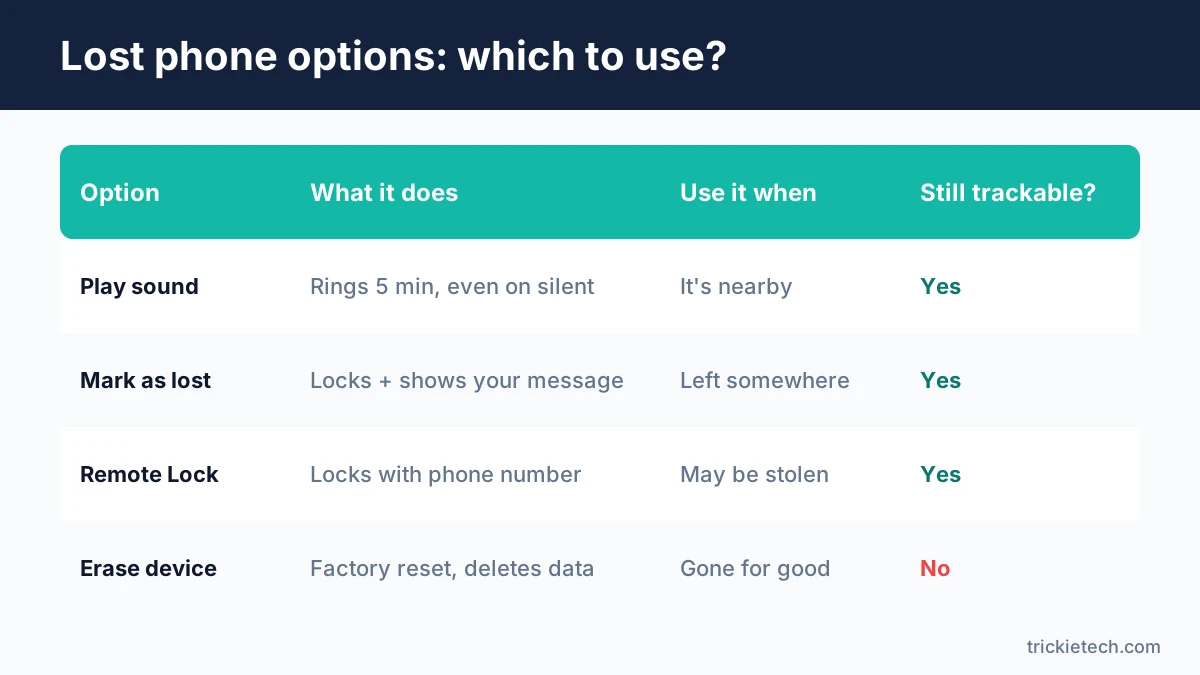
Use Play sound when the phone is nearby, Mark as lost when it’s somewhere you can’t reach, and Erase only when you’ve given up on getting it back. Each option does something very different.
| Option | What it does | Best for | Can you still track it? |
|---|---|---|---|
| Play sound | Rings at full volume for 5 minutes, even on silent or vibrate | Phone is in your home, car or bag | Yes |
| Mark as lost | Locks the phone with your PIN/pattern/password and shows a message and contact info | Left in a taxi, café or office | Yes |
| Erase device | Factory reset that permanently deletes data (may not delete SD cards) | Phone is stolen and you won’t get it back | No – it disappears from Find Hub |
Google notes that after a remote erase, the phone “will no longer be available in Find Hub.” If the phone is offline when you send the erase command, it will run the next time it connects.
Can you find an Android phone that’s turned off or offline?
Sometimes. If your phone supports offline finding and the setting is on, Google’s Find Hub network can locate it using nearby Android devices, even without its own internet connection. On supported phones, such as the Pixel 8 series, Google says it can still be located for several hours after the battery dies or the phone is turned off.
The Find Hub network is a crowd-sourced system: other Android devices that pass nearby detect your phone over Bluetooth and report its encrypted location. Google says neither it nor the people whose devices helped can see the location; only you can.
You choose how much your phone takes part under Settings > Google > All services > Find Hub > Find your offline devices:
- Off: no offline finding.
- Without network: stores only your phone’s most recent encrypted location; doesn’t use other people’s devices.
- With network in busy places only: uses the network in crowded areas such as airports.
- With network everywhere: uses the network in both busy and quiet areas.
For powered-off finding, Bluetooth and Location need to be on when the phone shuts down, and you need a screen lock (PIN, pattern or password). If none of this is set up and the phone is off, Find Hub can only show its last known location.
Lock a stolen phone fast: Remote Lock and theft protection
If your phone may have been stolen, Remote Lock lets you lock its screen using just your phone number, without your Google password. That’s useful when you’re panicking or can’t get past 2-Step Verification.
Go to android.com/lock, enter your phone number, complete the security check and confirm. According to Google’s theft protection page, the phone needs a screen lock, an active SIM, Find Hub turned on and Remote Lock enabled. If the phone is offline, it locks as soon as it reconnects.
Android also includes automatic theft protections under Settings > Google > All services > Theft protection:
- Theft Detection Lock: uses motion sensors and on-device AI to spot a grab-and-run theft and locks the screen.
- Offline Device Lock: locks the screen automatically if a thief cuts the phone off from the internet.
- Failed Authentication Lock: locks the phone after repeated wrong unlock attempts.
Availability depends on your phone model and Android version, and Google says these features don’t work on Android Go phones, tablets or wearables. Check now whether they’re turned on; you can’t enable them after the phone is gone.
Finding a lost Samsung Galaxy phone
Samsung phones work with Google’s Find Hub, and they also have Samsung’s own service, Samsung Find. If you’re signed in to a Samsung account, you can also try samsungfind.samsung.com from a browser.
According to Samsung, Samsung Find can locate the phone, ring it, set a lost mode with a message, and, from the website, extend battery life or erase data. “Allow this phone to be found” must be turned on in your Samsung account’s lost device protection settings. Samsung’s offline finding can also locate Galaxy phones and tablets running Android 8 or later.
Using both services gives you two chances to find the phone, so it’s worth turning on both on a Galaxy device.
If you can’t find it: carrier, IMEI and police
If the phone is gone for good, block it with your carrier using its IMEI and report it to police. The IMEI is a unique 15-digit number that identifies your phone on mobile networks.
- Find the IMEI. In Find Hub, select the device and open its settings or info. On android.com/find, select the settings icon next to the device. It may also be on the original box or your carrier bill.
- Call your carrier. Ask them to suspend your line (to stop SIM swap misuse and charges) and to blocklist the IMEI so the phone can’t be used on major US networks.
- File a police report. Give them the IMEI, serial number and last known location. Your insurer or carrier may need the report number.
- Secure your accounts. Change your Google password, review Your devices at myaccount.google.com, and remove the lost phone. Do the same for banking apps and your email.
- Erase the phone remotely once you’re sure you won’t get it back.
Set up your phone now so you can find it later
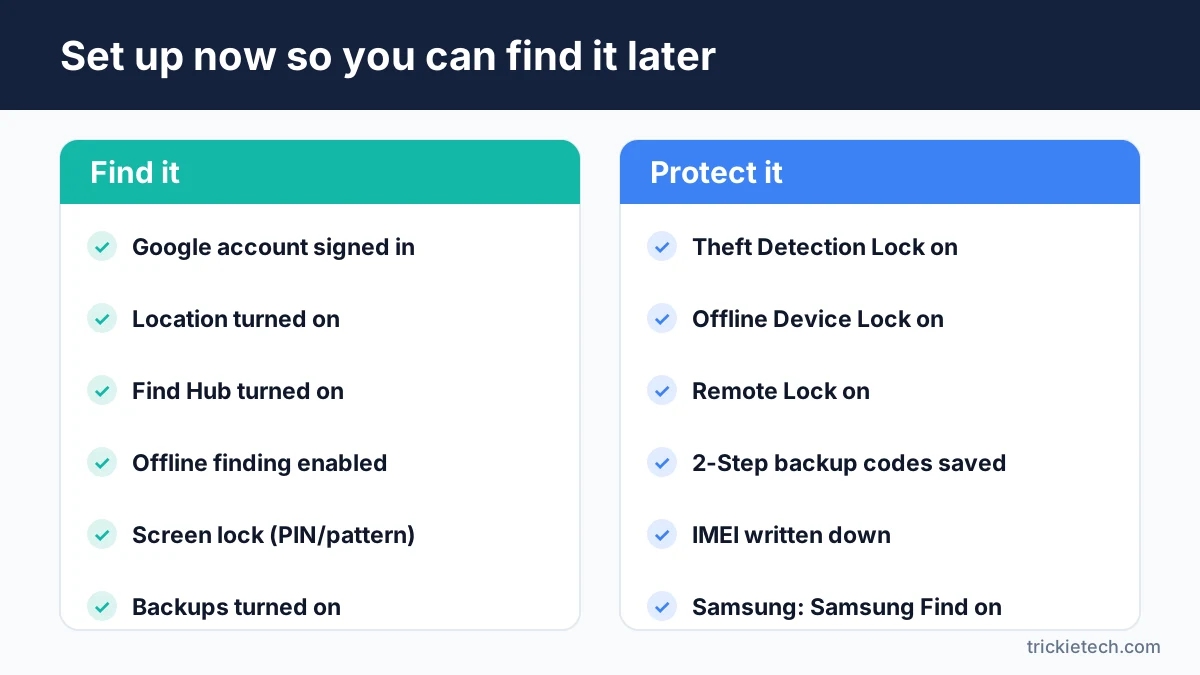
Five minutes of setup today makes a lost phone far easier to recover. Run through this checklist on every Android phone in your household.
- [ ] Signed in to a Google account (Settings > Passwords, passkeys & accounts)
- [ ] Location turned on
- [ ] Find Hub on (Settings > Security or Settings > Google > All services > Find Hub)
- [ ] Offline finding set to “With network in busy places only” or “everywhere”
- [ ] Screen lock set (PIN, pattern or password)
- [ ] Theft Detection Lock, Offline Device Lock and Remote Lock turned on
- [ ] 2-Step Verification on, with backup codes saved somewhere other than the phone
- [ ] IMEI written down and stored safely
- [ ] Regular backups on (so erasing a lost phone doesn’t mean losing your photos)
- [ ] Samsung users: Samsung Find turned on too
FAQ
How can I find my lost Android phone?
Open android.com/find in any web browser, or the Find Hub app on another Android device, and sign in with the Google account used on the lost phone. You’ll see its location on a map and can ring it, mark it as lost, or erase it. It works if Find Hub was turned on beforehand.
Can I find my Android phone if it’s turned off?
Sometimes. Supported phones, such as the Pixel 8 series, can be located for several hours after they power off using Google’s Find Hub network, as long as offline finding was enabled and Bluetooth and location were on. Otherwise, Find Hub shows only the phone’s last known location before it went offline.
Can I find my Android phone from an iPhone?
Yes. Open Safari or Chrome on the iPhone, go to android.com/find and sign in with the Google account from your lost Android phone. You get the same map and the same ring, lock and erase options as on a computer. There’s no Find Hub app for iPhone, so use the website.
Is Find My Device the same as Find Hub?
Yes. Find Hub is the current name for the service Google used to call Find My Device. It does the same job and more: locating Android phones, tablets, earbuds and compatible Bluetooth trackers. Many settings menus, articles and videos still use the old name, so you’ll see both.
What happens if I erase my Android phone remotely?
Erasing performs a factory reset that permanently deletes the data on the phone, though it may not wipe an SD card. After the reset, the phone no longer appears in Find Hub, so you can’t track it. Factory Reset Protection still asks for your Google account password before anyone can set it up again.
Can police track a phone by its IMEI?
Your carrier can use the IMEI to block a lost or stolen phone from working on its network. Police may ask for the IMEI and serial number when you report a theft, and they can work with carriers through legal channels. You can’t track a phone yourself with just the IMEI number.
Final takeaway
If you need to find a lost Android phone, go straight to android.com/find, check the map, ring it if it’s close, and mark it as lost if it isn’t. Use android.com/lock if it may have been stolen, and save erasing for when you’ve given up. Then take five minutes to turn on offline finding, theft protection and backups on your next phone, so a lost device is an inconvenience rather than a disaster.
Last reviewed: November 13, 2026. Menu names and feature availability vary by phone maker and Android version, and Google updates Find Hub regularly.
