Want to know how to screenshot on HP laptop? Press Windows + PrtSc to save the whole screen as a file, or press Windows + Shift + S to pick just one area. On some HP models you also need to hold Fn with the PrtSc key.
Below are six easy ways to take a screenshot on HP laptop models like Pavilion, EliteBook, ProBook, Envy and Spectre, plus where your screenshots are saved and what to do if the shortcut doesn’t work.
[ADD PERSONAL EXPERIENCE: one line about which shortcut you use most on your HP laptop.]
Table of Contents
Quick Answer: HP Screenshot Shortcuts
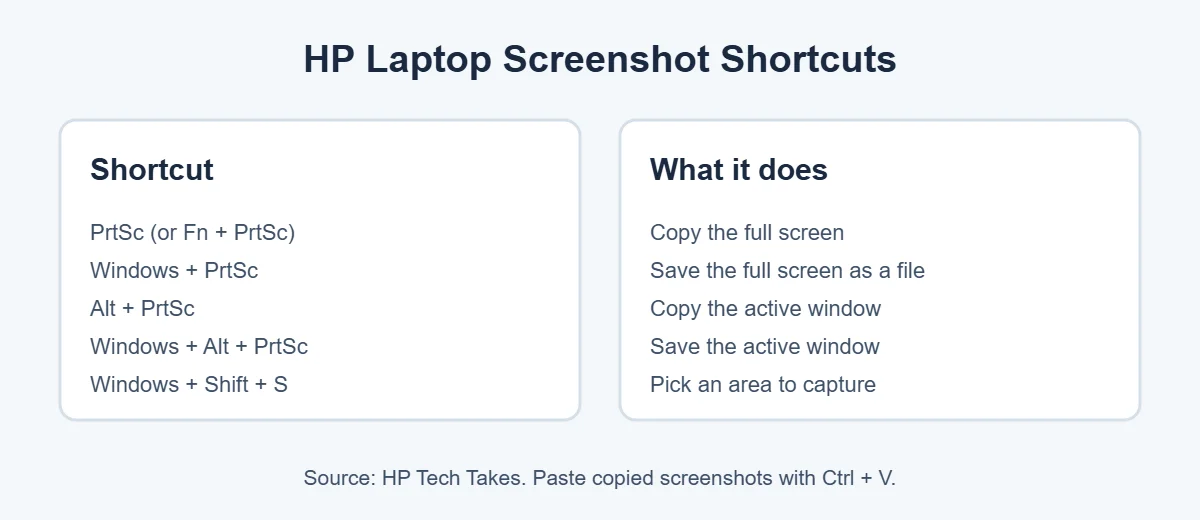
Here’s a cheat sheet for every screenshot on HP laptop shortcut. All of these come from HP’s own guide.
| What you want | Shortcut | Saved as a file? |
|---|---|---|
| Whole screen, copied | PrtSc (or Fn + PrtSc) | No, paste with Ctrl + V |
| Whole screen, saved | Windows + PrtSc | Yes (Pictures > Screenshots) |
| Active window, copied | Alt + PrtSc | No, paste with Ctrl + V |
| Active window, saved | Windows + Alt + PrtSc | Yes |
| Pick an area | Windows + Shift + S | Yes (Screenshots folder) |
How to Screenshot on HP Laptop: 6 Easy Ways
1. PrtSc key (copy the whole screen)
The simplest way to take a screenshot on HP laptop keyboards is the prt sc key, usually on the top row near Delete. Press it once and Windows copies the whole screen. Then open Paint, Word or a chat and press Ctrl + V to paste. HP says some models need Fn + PrtSc.
2. Windows + PrtSc (save the whole screen)
Press Windows + PrtSc together. The screen flashes or dims for a moment, and the screenshot is saved as a PNG file in Pictures, then Screenshots. This is the fastest way if you need many screenshots in a row.
3. Alt + PrtSc (one window only)
Click the window you want, then press Alt + PrtSc. Only that window is copied, not your whole desktop. Paste it with Ctrl + V.
4. Windows + Alt + PrtSc (save one window)
Want the active window saved as a file instead? HP lists Windows + Alt + PrtSc, which captures the window you’re using and saves it automatically.
5. Windows + Shift + S (pick any area)
This is the most flexible way to take a screenshot on HP laptop screens. Press Windows + Shift + S, choose rectangle, free-form, window or full screen, then drag over what you want. According to Microsoft, snips are copied and also saved to the Screenshots folder.
6. Snipping Tool app
Open Start, type Snipping Tool and open it. Click New, choose a snip type and capture. You can draw on the screenshot, highlight parts and save it. Microsoft says Alt + D adds a short delay, which helps when you need to capture a menu.
Where Do Screenshots Go on an HP Laptop?
This is the top question after people take a screenshot on HP laptop keyboards for the first time.
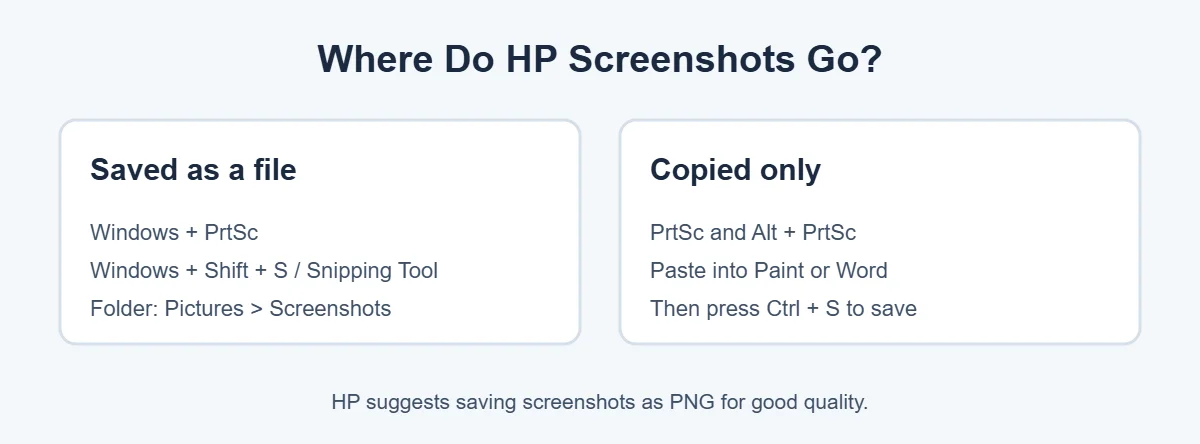
- Windows + PrtSc: saved in Pictures, then Screenshots.
- Windows + Shift + S and Snipping Tool: saved to the Screenshots folder.
- PrtSc and Alt + PrtSc: copied only. Paste and save them yourself.
HP suggests saving screenshots as PNG files, because they keep good quality at a small size.
How to Screenshot on an HP Chromebook
HP Chromebooks run ChromeOS, so the keys are different. Press Ctrl + Show windows for a full screenshot, or Ctrl + Shift + Show windows to choose an area. Screenshots save to the Downloads folder by default.
HP Screenshot Not Working? Quick Fixes
If nothing happens when you try a screenshot on HP laptop keys, try these fixes.
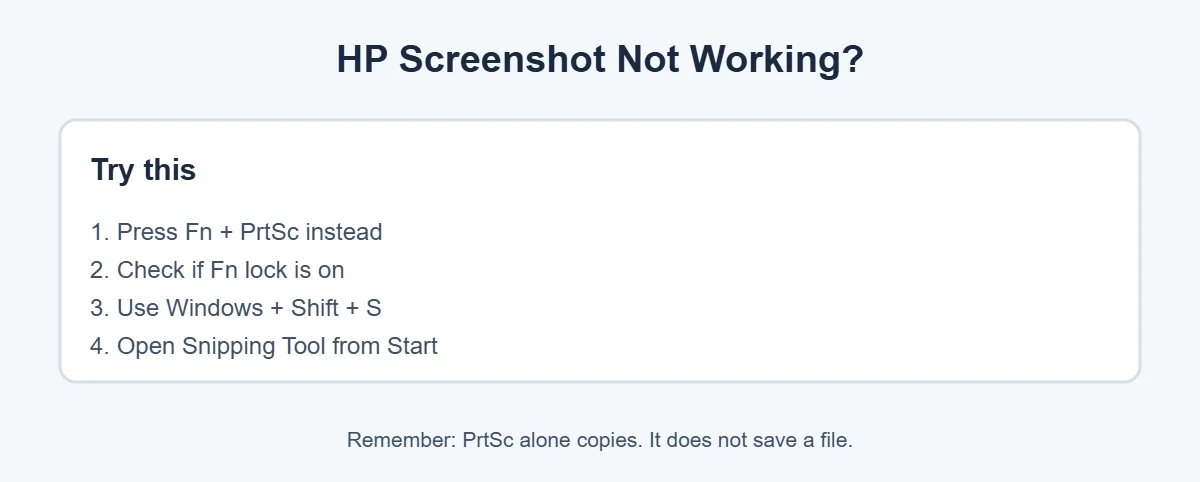
- Hold Fn: on many HP models the PrtSc key shares space with another function.
- Check Fn lock: if your F-keys act strange, your Fn lock may be on. Look for a lock symbol on the Fn or Esc key.
- Use Windows + Shift + S: it doesn’t need the PrtSc key at all.
- Look in the right place: PrtSc alone only copies. Use Windows + PrtSc for a saved file.
- Update Windows: install the latest updates if Snipping Tool won’t open.
Thinking about a new laptop? Here’s why laptops cost more than desktops, and what to do with your old one: does ecoATM take laptops?
Frequently Asked Questions
Where is the Print Screen button on an HP laptop?
Most HP laptops have a key labeled prt sc or PrtSc on the top row, often near the right side next to Delete or F12. HP notes that some models need you to press Fn with it. If you can’t find it, use Windows + Shift + S, which works without the PrtSc key.
Where do screenshots go on an HP laptop?
If you press Windows + PrtSc, the screenshot is saved in Pictures, inside the Screenshots folder. Snipping Tool snips are saved to the Screenshots folder too. PrtSc alone and Alt + PrtSc only copy the image, so paste it into Paint or Word and save it.
How do I screenshot only part of the screen on my HP laptop?
Press Windows + Shift + S. Your screen dims and a small toolbar appears. Choose rectangle or free-form, then drag over the area you want. The screenshot is copied, and you can paste it anywhere with Ctrl + V.
Why is my HP screenshot not working?
Most often, the PrtSc key needs the Fn key on your model, or the Fn lock is switched on. Try Fn + PrtSc, or use Windows + Shift + S instead. Also remember that PrtSc alone doesn’t save a file. It just copies the screen.
How do I screenshot on an HP Chromebook?
HP Chromebooks run ChromeOS, so they use different keys. Press Ctrl + Show windows for a full screenshot, or Ctrl + Shift + Show windows to pick an area. Screenshots are saved to the Downloads folder by default.
Can I record my screen on an HP laptop?
Yes. On Windows 11, press Windows + Shift + R to open the Snipping Tool video overlay, select an area and start recording. Microsoft lists this shortcut on its Snipping Tool help page.
The Bottom Line
The easiest way to take a screenshot on HP laptop models is Windows + PrtSc for a saved full screen, or Windows + Shift + S to pick an area. Use Alt + PrtSc for one window, and hold Fn if the PrtSc key doesn’t respond.
Save the cheat sheet above, and you’ll never have to search for these shortcuts again.