Want to know how to screenshot on Lenovo laptop? Press Windows + Shift + S, drag over the area you want, and the screenshot is copied and saved. To grab the whole screen as a file, press Windows + PrtSc. Both work on any Lenovo running Windows 10 or 11.
Below are six easy ways to take a screenshot on Lenovo laptop models like IdeaPad, ThinkPad, Yoga and Legion, plus where your screenshots are saved and how to do it on a Lenovo Chromebook.
[ADD PERSONAL EXPERIENCE: one line about which shortcut you use most on your own laptop and why.]
Table of Contents
Quick Answer: Lenovo Screenshot Shortcuts
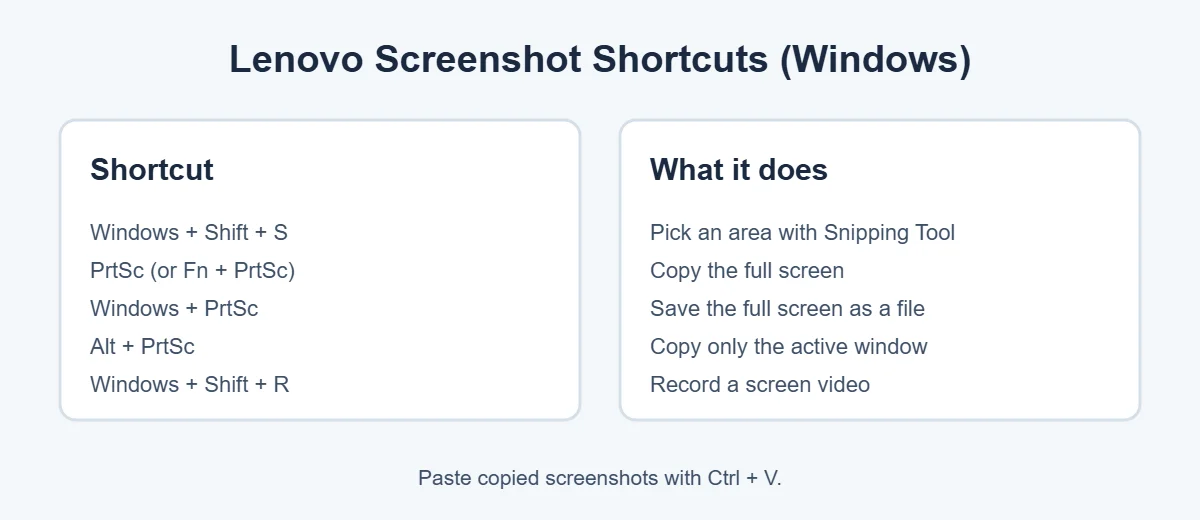
Here’s a cheat sheet you can save. All shortcuts below work on Lenovo laptops with Windows.
| What you want | Shortcut | Saved as a file? |
|---|---|---|
| Pick an area, window or full screen | Windows + Shift + S | Yes (Screenshots folder) |
| Whole screen, copied | PrtSc (or Fn + PrtSc) | No, paste it with Ctrl + V |
| Whole screen, saved | Windows + PrtSc | Yes (Pictures > Screenshots) |
| Only the active window | Alt + PrtSc | No, paste it with Ctrl + V |
| Screen recording | Windows + Shift + R | Yes |
How to Screenshot on Lenovo Laptop: 6 Easy Ways
1. Windows + Shift + S (best for most people)
This is the easiest way to take a screenshot on Lenovo laptop models with Windows 10 or 11. According to Microsoft, it opens the Snipping Tool overlay so you can choose how to capture.
- Press Windows + Shift + S. The screen dims.
- Pick a mode at the top: Rectangle, Window, Full screen or Freeform.
- Drag over the area, or click the window you want.
- The screenshot is copied. Microsoft says snips are also saved to the Screenshots folder automatically.
2. PrtSc key (copy the whole screen)
Press the PrtSc key once. Windows copies the whole screen to the clipboard. Then open Paint, Word, an email or a chat and press Ctrl + V to paste it. On some Lenovo keyboards the PrtSc key shares space with another function, so hold Fn while you press it.
Tip: on newer Windows 11 versions, PrtSc may open the Snipping Tool instead. That’s normal, and you can switch it in Settings under Accessibility, then Keyboard.
3. Windows + PrtSc (save the whole screen)
Want a file without pasting? Press Windows + PrtSc. The screen flashes for a moment and the screenshot is saved in your Pictures folder, inside Screenshots. This is the fastest way to take many screenshots on Lenovo laptop screens in a row.
4. Alt + PrtSc (just one window)
To capture only the window you’re working in, click it first, then press Alt + PrtSc. Lenovo’s own guide mentions this shortcut for capturing the active window. Paste it with Ctrl + V.
5. Snipping Tool app (with a timer)
Open Start, type Snipping Tool and open it. Click New to take a screenshot. Need to capture a menu that disappears? Microsoft says Alt + D adds a delay of 1 to 5 seconds, so you have time to open it first. You can also draw on the screenshot and save it with Ctrl + S.
6. Record your screen
Sometimes a video explains things better than a picture. Press Windows + Shift + R, select an area and start recording. It uses the same Snipping Tool, so the video saves just like your screenshots.
Where Do Lenovo Screenshots Go?
This is the most common question after people learn how to screenshot on Lenovo laptop keyboards.
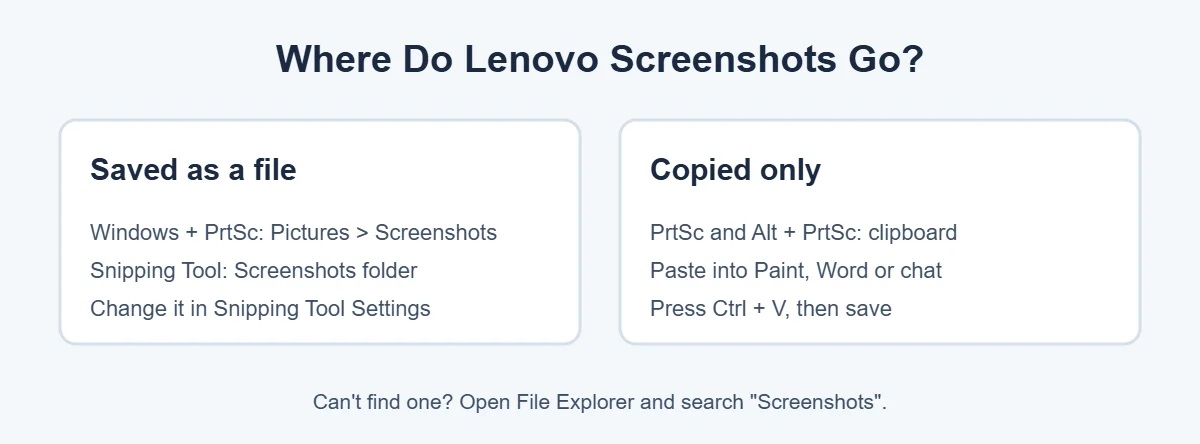
- Windows + PrtSc: saved in Pictures, then Screenshots.
- Windows + Shift + S and Snipping Tool: saved to the Screenshots folder. You can change the folder in Snipping Tool settings.
- PrtSc and Alt + PrtSc: only copied. Paste them somewhere and save.
Still can’t find it? Open File Explorer and search for “Screenshots”.
How to Screenshot on a Lenovo Chromebook
Lenovo Chromebooks run ChromeOS, so the keys are different from Windows.
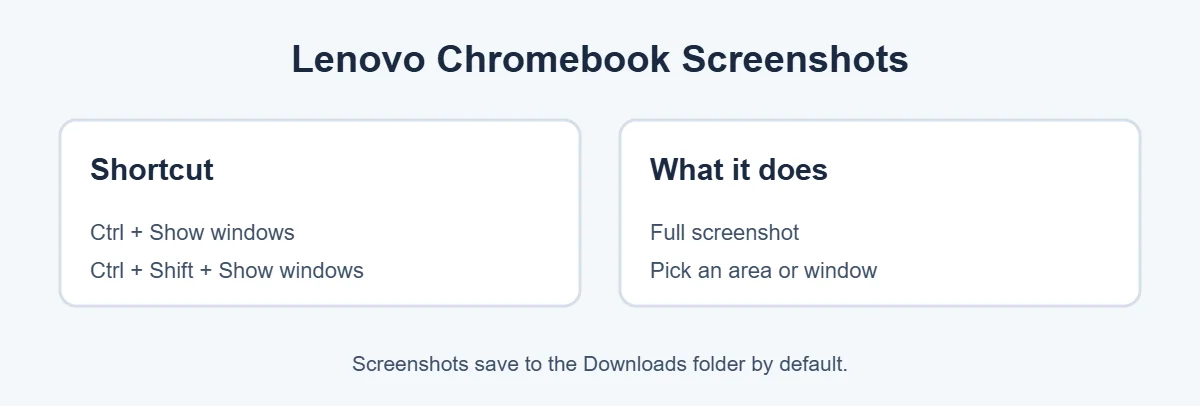
- Full screen: press Ctrl + Show windows (the key with a box and two lines, above the 6 key).
- Part of the screen: press Ctrl + Shift + Show windows, then choose an area or window.
Chromebook screenshots save to the Downloads folder by default, and a small preview pops up so you can copy or edit it.
Screenshot Not Working? Quick Fixes
- Nothing happens when you press PrtSc: try Fn + PrtSc, or use Windows + Shift + S instead.
- The function keys act strange: your Fn lock may be on. On many Lenovo laptops, Fn + Esc switches it.
- No file appears: remember that PrtSc alone only copies. Use Windows + PrtSc to save a file.
- Snipping Tool won’t open: restart the laptop and install the latest Windows updates.
Using AirPods with your Lenovo too? Here’s how to connect AirPods to a Lenovo laptop. And if your laptop is getting old, see how long laptops really last.
Frequently Asked Questions
Where is the Print Screen button on a Lenovo laptop?
Most Lenovo laptops have a key marked PrtSc or PrtScr on the top row, near F12, or near the arrow keys on some models. On smaller keyboards it may share a key with another function, so you may need to hold Fn while pressing it.
Why is my screenshot not saving on my Lenovo laptop?
Pressing PrtSc alone only copies the screen to the clipboard. It doesn’t save a file. Paste it with Ctrl + V into Paint or a document, or use Windows + PrtSc instead, which saves the screenshot straight to the Pictures, Screenshots folder.
How do I screenshot only part of the screen on a Lenovo laptop?
Press Windows + Shift + S to open the Snipping Tool overlay, then choose Rectangle or Freeform and drag over the area you want. Microsoft says the snip is copied and also saved to the Screenshots folder automatically.
What is the shortcut to screenshot on a Lenovo ThinkPad?
ThinkPads running Windows use the same shortcuts as other Windows laptops: PrtSc, Windows + PrtSc, Alt + PrtSc and Windows + Shift + S. The PrtSc key location varies by model, so check the top row or the area near the right Alt key.
How do I screenshot on a Lenovo laptop without the PrtSc key?
Use Windows + Shift + S, which works without the Print Screen key. You can also open the Snipping Tool from the Start menu, or use the on-screen keyboard, which has its own PrtScn key.
Can I record my screen on a Lenovo laptop?
Yes. On Windows 11, press Windows + Shift + R to open the Snipping Tool video capture overlay, select an area and start recording. Microsoft lists this shortcut on its Snipping Tool help page.
The Bottom Line
The easiest way to take a screenshot on Lenovo laptop models is Windows + Shift + S. For a quick full-screen file, use Windows + PrtSc, and for one window, use Alt + PrtSc.
Lenovo Chromebook? Use Ctrl + Show windows. Save the cheat sheet above, and you’ll never have to search for these shortcuts again.