
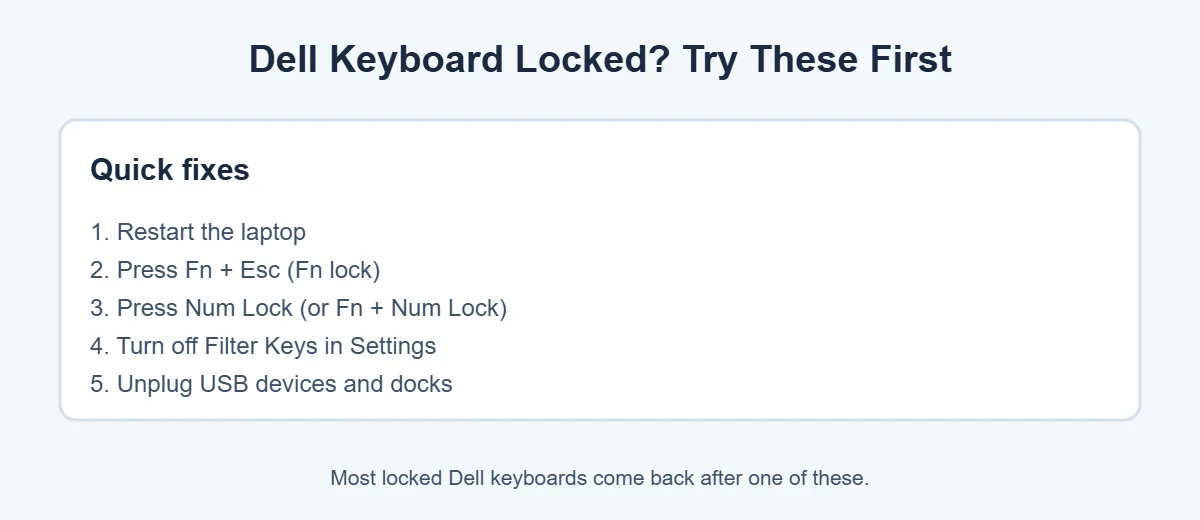
Need to unlock keyboard on Dell laptop fast? Restart the laptop first, then press Fn + Esc to turn off the function key lock and press Num Lock if letters type numbers. These two quick fixes solve most locked Dell keyboards in under a minute.
If that doesn’t work, don’t worry. Below are seven easy fixes, from simple to more advanced, all based on Dell’s own keyboard guide. Work through them in order.
[ADD PERSONAL EXPERIENCE: a short note about a time your own Dell keyboard locked up and which fix worked.]
Table of Contents
Why Is My Dell Keyboard Locked?
A Dell keyboard that seems “locked” is usually not broken. Most of the time, a setting got switched on by accident. Here are the usual reasons:
- Fn lock is on: the F1-F12 keys do the wrong thing.
- Num Lock is on: some letter keys type numbers instead.
- Filter Keys is on: Windows ignores short or repeated key presses.
- A software glitch: Windows or a driver stopped responding.
- A USB device or dock: another device is confusing the laptop.
- A hardware problem: a spill, loose cable or worn-out keyboard.
The good news is that the first five are easy to fix at home. Here are the quick fixes most people need.
How to Unlock Keyboard on Dell Laptop: 7 Easy Fixes
Try these fixes in order. After each one, open Notepad and type a few letters to check if the keyboard works again.
1. Restart your Dell laptop
A restart clears small glitches, and it’s the first step in Dell’s own guide. Click Start, then Power, then Restart. If the screen is frozen and nothing responds, hold the power button for at least 15 seconds to force it off, then turn it back on. You’ll lose unsaved work, so only do this if you have to.
2. Turn off Fn lock (Fn + Esc)
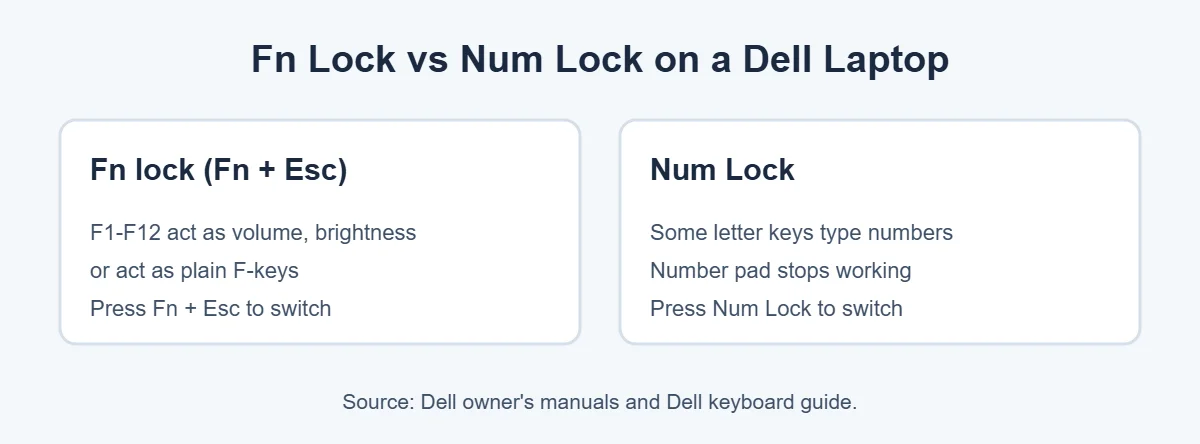
If the F1-F12 keys are acting strange, Fn lock is probably on. On many Dell laptops, pressing Fn + Esc switches the function key lock on or off, according to Dell’s owner’s manuals. Press it once and test the F-keys again. Some models use a different key, so check your manual if Fn + Esc does nothing.
3. Turn off Num Lock
Typing “J” and getting “1”? That’s Num Lock. On smaller Dell laptops, some letter keys double as a number pad. Press the Num Lock key, or hold Fn and press Num Lock, to switch back to letters.
4. Turn off Filter Keys and Sticky Keys
Filter Keys makes Windows ignore quick or repeated key presses, which can feel like a locked keyboard. To turn it off on Windows 11, open Settings, go to Accessibility, then Keyboard, and switch off Filter keys and Sticky keys. On Windows 10, the same switches are under Ease of Access, then Keyboard.
A common trigger is holding the right Shift key for eight seconds, which turns Filter Keys on by mistake. Turning off the shortcut in the same menu stops it from happening again.
5. Unplug USB devices and docks
Dell’s guide says to turn the laptop off, unplug everything except power (USB drives, external keyboards, docking stations), then turn it back on. If the built-in keyboard works, plug devices back in one at a time to find the one causing trouble.
6. Update Windows, BIOS and drivers
Old software can stop the keyboard from working properly. Install the latest Windows updates, then download the newest BIOS for your model from Dell’s support site. You can also open Device Manager, expand Keyboards, right-click your keyboard and choose Uninstall device. Restart, and Windows will reinstall the driver on its own.
If you recently installed keyboard macro tools, gaming keyboard software or KVM switch software, Dell suggests removing them too, since they can block normal typing.
7. Run Dell’s keyboard diagnostics
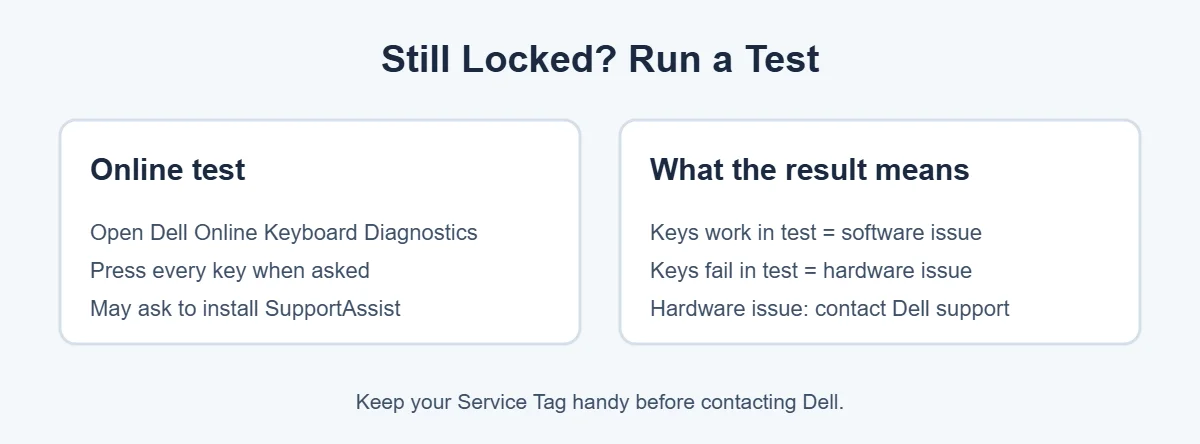
Still can’t unlock keyboard on Dell laptop? Run a test. Dell offers an online keyboard diagnostic that asks you to press every key, and it may ask you to install SupportAssist. This tells you whether you’re dealing with a software or a hardware problem.
How to Type While Your Dell Keyboard Is Locked
You still need to sign in or search for help while you fix things. Two easy options:
- Plug in a USB keyboard. Any cheap wired keyboard works right away on a Dell laptop.
- Use the On-Screen Keyboard. At the sign-in screen, click the Accessibility icon and choose On-Screen Keyboard. Inside Windows, you can also find it by searching for “On-Screen Keyboard”.
How to Lock Your Dell Keyboard on Purpose
Some people want the opposite: a quick way to lock the keyboard, for example so a child or a cat can’t type. The simplest safe way is to lock Windows by pressing Windows + L. Your apps stay open, and nobody can type until you sign back in with your PIN or password.
When a Locked Dell Keyboard Means Hardware Trouble
If none of these fixes work, the problem may be physical. Watch for these signs:
- The keyboard stopped working right after a drink spill.
- Only one area of keys is dead, while the rest work fine.
- Keys fail in Dell’s diagnostics test.
- Keys feel sticky, loose or crunchy.
For sticky keys, Dell suggests shutting down, turning the keyboard upside down and shaking it gently, then using compressed air (never tilt the can). For spills or dead sections, contact Dell support with your Service Tag. If your laptop is old and a repair costs too much, it may be time to upgrade. This guide on why laptops cost more than desktops can help you choose, and you can check whether ecoATM takes laptops before you sell the old one.
Frequently Asked Questions
Why is my Dell laptop keyboard locked?
The most common reasons are an accidental Fn lock, Num Lock being on, or Filter Keys slowing down key presses. A Windows glitch, a faulty driver or a USB device can also block the keyboard. Start by restarting, then try Fn + Esc and Num Lock before anything else.
What is the shortcut to unlock a Dell keyboard?
On many Dell laptops, Fn + Esc toggles the function key lock. If letter keys type numbers, press Num Lock, or Fn plus the Num Lock key on smaller laptops. There is no single magic shortcut for every model, so check your laptop’s manual on Dell’s support site.
How do I unlock my Dell keyboard without a working keyboard?
Restart the laptop with the power button, or hold it for 15 seconds if the screen is frozen. You can also plug in a USB keyboard or use the Windows On-Screen Keyboard to sign in, then fix settings like Filter Keys from there.
Why do my Dell keyboard keys type numbers instead of letters?
Num Lock is turned on. On some smaller Dell laptops, letter keys like J, K and L double as a number pad when Num Lock is active. Press Num Lock, or Fn plus Num Lock, to switch back to normal letters.
Can a Windows update lock my Dell keyboard?
It can sometimes cause driver problems. If the keyboard stopped working right after an update, restart first, then install the latest Windows and BIOS updates from Dell. If that doesn’t help, restoring to an earlier restore point usually fixes software-related keyboard issues.
When should I contact Dell support?
Contact Dell if the keyboard fails Dell’s keyboard diagnostics, if keys stopped working after a spill, or if nothing works even in the test. That points to a hardware fault. Have your Service Tag ready, which is printed on a sticker under the laptop.
The Bottom Line
To unlock keyboard on Dell laptop, start simple: restart, press Fn + Esc, and check Num Lock. Then turn off Filter Keys, unplug extra devices and update your drivers. If the keyboard still won’t respond, Dell’s diagnostics will tell you if it’s time for a repair.
Nine times out of ten, a locked Dell keyboard is just a setting, not a broken laptop.
{“@context”:”https://schema.org”,”@type”:”FAQPage”,”mainEntity”:[{“@type”:”Question”,”name”:”Why is my Dell laptop keyboard locked?”,”acceptedAnswer”:{“@type”:”Answer”,”text”:”The most common reasons are an accidental Fn lock, Num Lock being on, or Filter Keys slowing down key presses. A Windows glitch, a faulty driver or a USB device can also block the keyboard. Start by restarting, then try Fn + Esc and Num Lock before anything else.”}},{“@type”:”Question”,”name”:”What is the shortcut to unlock a Dell keyboard?”,”acceptedAnswer”:{“@type”:”Answer”,”text”:”On many Dell laptops, Fn + Esc toggles the function key lock. If letter keys type numbers, press Num Lock, or Fn plus the Num Lock key on smaller laptops. There is no single magic shortcut for every model, so check your laptop’s manual on Dell’s support site.”}},{“@type”:”Question”,”name”:”How do I unlock my Dell keyboard without a working keyboard?”,”acceptedAnswer”:{“@type”:”Answer”,”text”:”Restart the laptop with the power button, or hold it for 15 seconds if the screen is frozen. You can also plug in a USB keyboard or use the Windows On-Screen Keyboard to sign in, then fix settings like Filter Keys from there.”}},{“@type”:”Question”,”name”:”Why do my Dell keyboard keys type numbers instead of letters?”,”acceptedAnswer”:{“@type”:”Answer”,”text”:”Num Lock is turned on. On some smaller Dell laptops, letter keys like J, K and L double as a number pad when Num Lock is active. Press Num Lock, or Fn plus Num Lock, to switch back to normal letters.”}},{“@type”:”Question”,”name”:”Can a Windows update lock my Dell keyboard?”,”acceptedAnswer”:{“@type”:”Answer”,”text”:”It can sometimes cause driver problems. If the keyboard stopped working right after an update, restart first, then install the latest Windows and BIOS updates from Dell. If that doesn’t help, restoring to an earlier restore point usually fixes software-related keyboard issues.”}},{“@type”:”Question”,”name”:”When should I contact Dell support?”,”acceptedAnswer”:{“@type”:”Answer”,”text”:”Contact Dell if the keyboard fails Dell’s keyboard diagnostics, if keys stopped working after a spill, or if nothing works even in the test. That points to a hardware fault. Have your Service Tag ready, which is printed on a sticker under the laptop.”}}]}