
An “iCloud storage full” alert means your iPhone stops backing up, new photos stop uploading, and iCloud Mail can’t send or receive messages. The fastest fix is to delete old device backups and large videos, then trim Messages attachments and iCloud Drive files. If you still need room, upgrading to iCloud+ starts at \$0.99 a month in the US for 50 GB.
Apple gives every account only 5 GB free, and one iPhone backup plus a few years of photos can blow past that. If you’re seeing iCloud storage full warnings, this guide shows you how to see exactly what is eating your space, the free fixes that work best, and when paying for more storage makes sense.
Prices and menu names checked against Apple Support on November 6, 2026. Apple changes menus between iOS versions, so labels on your device may differ slightly.
What does “iCloud storage full” mean?
“iCloud storage full” means your Apple Account has used all of its online storage allowance, which is 5 GB on the free plan. iCloud storage is Apple’s cloud space for backups, iCloud Photos, iCloud Drive, Messages, Mail and app data. Once it’s full, nothing new can sync or upload until you free space or buy more.
iCloud storage is not the same as your iPhone’s storage. Device storage is the built-in space on your iPhone (for example 128 GB or 256 GB). Apple explains that the two are separate, so a phone with plenty of free space can still show an “iCloud storage full” alert, and the reverse is also true.
Here’s a quick way to tell which one you’re dealing with:
| iCloud storage | iPhone (device) storage | |
|---|---|---|
| Where it lives | Apple’s servers | Inside your phone |
| Free amount | 5 GB per Apple Account | Whatever capacity you bought |
| Where to check | Settings > [your name] > iCloud | Settings > General > iPhone Storage |
| Fix | Delete cloud data or buy iCloud+ | Delete apps, files or offload content |
What stops working when you see iCloud storage full
With iCloud storage full, Apple says four things stop working: your device won’t back up to iCloud, new photos and videos won’t upload to iCloud Photos, iCloud Drive and other iCloud apps won’t stay up to date across devices, and you can’t send or receive email at your iCloud address (Apple Support).
That last point catches people off guard. If you use an @icloud.com, @me.com or @mac.com address, a full account can mean missed emails until you clear space.
There’s one more risk that’s easy to miss. Apple notes that if you exceed your iCloud storage limit, photos and videos you delete are removed immediately and can’t be recovered from Recently Deleted. So with iCloud storage full, be extra careful about what you delete from Photos.
How to see what’s using your iCloud storage
The storage breakdown shows which apps and backups take the most space, so start there before deleting anything when you get an iCloud storage full message. The biggest items are almost always Photos, Backups, Messages and iCloud Drive.
On iPhone or iPad: open Settings, tap your name, tap iCloud, then tap Storage or Manage Account Storage. You’ll see a bar chart and a list of apps sorted by size.
On a Mac: choose Apple menu > System Settings, click your name, click iCloud, then click Manage.
On a Windows PC: open iCloud for Windows and click Storage (Apple Support).
On the web: sign in at iCloud.com to view your storage use from any browser.
[ADD PERSONAL EXPERIENCE: Screenshot or describe your own iCloud storage breakdown. Which category was the biggest surprise (for example, an old iPad backup or Messages videos), and how much space did you recover?]
9 ways to fix iCloud storage full for free
You can usually recover several gigabytes without paying anything. Work through these in order; the first three tend to free the most space.
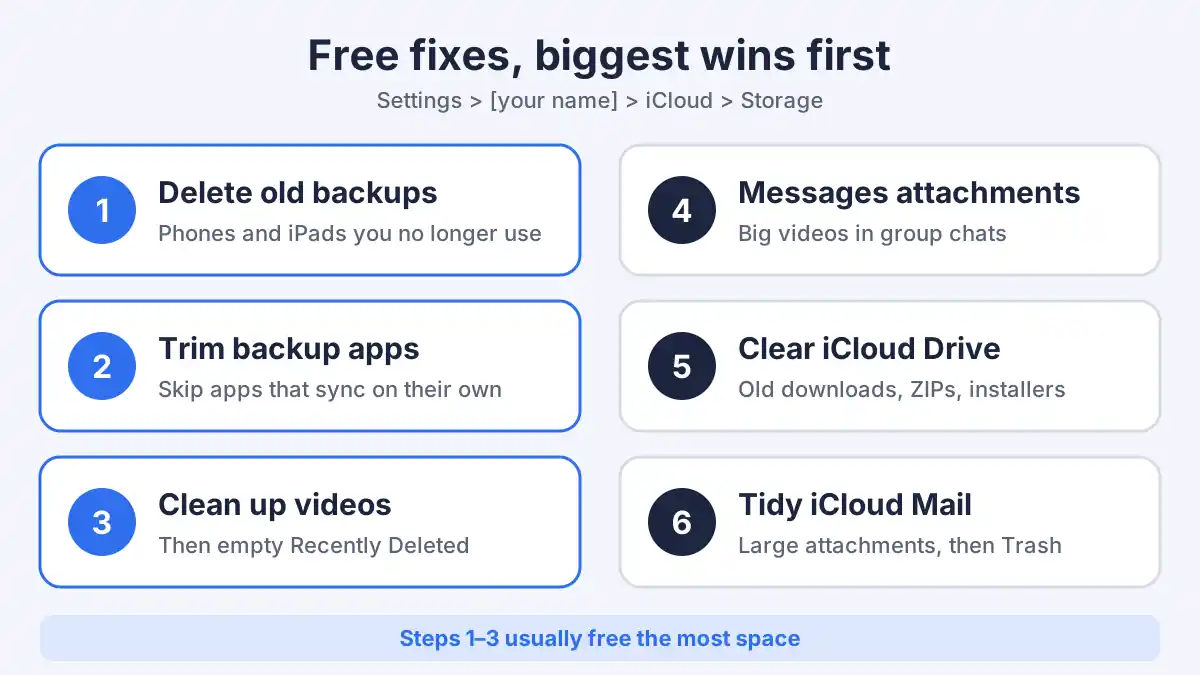
1. Delete backups of old devices
Old device backups are the most common hidden cause of iCloud storage full alerts. If you replaced a phone or iPad, its last backup may still sit in iCloud, sometimes taking several gigabytes.
- Go to Settings > [your name] > iCloud > Storage (or Manage Account Storage).
- Tap Backups, then tap the old device.
- Tap Turn Off and Delete from iCloud, then confirm.
Deleting a backup also turns off iCloud Backup for that device, so only remove backups for devices you no longer use, or back the device up to a computer first. Apple also notes that backups stay available for 180 days after you turn off or stop using iCloud Backup, so a forgotten device can keep using space for months.
2. Choose which apps get backed up
Your current iPhone backup can shrink a lot if you stop backing up apps that already sync their own data. Many messaging, streaming and note apps keep data in their own cloud, so backing them up twice wastes space.
- Go to Settings > [your name] > iCloud > Storage > Backups.
- Tap your current iPhone.
- Turn off apps you don’t need in the backup, and tap Turn Off to confirm.
Leave Photos alone here if you use iCloud Photos; those are stored separately and don’t need to be in the backup.
3. Clean up photos and videos
Photos and videos are usually the single largest item behind iCloud storage full problems, and videos are the biggest offenders. A single minute of 4K video can take hundreds of megabytes.
With iCloud Photos turned on, deleting from the Photos app on any device deletes it from iCloud and every other device signed in to the same Apple Account:
- Open Photos and tap Library (or browse Collections > Media Types > Videos to find big files).
- Tap Select, choose the items, tap the delete button, then confirm.
- Open the Recently Deleted album and delete them again if you want the space back right away.
Deleted items normally stay in Recently Deleted for 30 days. Apple says items there don’t count against your iCloud storage, but remember the exception above: when you’re already over your limit, deletions are immediate and permanent.
Good candidates to delete: duplicate shots, screenshots, screen recordings, blurry burst photos and long videos you’ve already shared elsewhere.
4. Delete large Messages attachments
If Messages in iCloud is on, every photo, video and file in your chats is stored in iCloud. Long-running group chats can quietly grow to several gigabytes, which is a common reason people hit iCloud storage full.
- Open a conversation and tap the contact’s or group’s name at the top.
- In iOS 26 or later, tap Photos. In iOS 18 or earlier, tap See All in the Photos section.
- Tap Edit (or Select), choose attachments, and tap Delete Attachment.
You can also check Settings > General > iPhone Storage > Messages to review large attachments sorted by size.
5. Clear out iCloud Drive
iCloud Drive holds files from the Files app, desktop and document folders synced from a Mac, and app documents. Old downloads, installers and ZIP files often sit there forgotten.
- Open the Files app and tap Browse.
- Under Locations, tap iCloud Drive.
- Tap the More button, tap Select, choose files, and tap Delete.
Deleted iCloud Drive files stay in Recently Deleted for 30 days, so empty that folder too if you need space immediately. If you use a Mac with “Desktop & Documents Folders” syncing, check those folders first, since large project files often end up there.
6. Clean up iCloud Mail
Emails with big attachments add up, especially if you’ve had an iCloud address for years. Deleting them also restores your ability to send and receive iCloud Mail once you’re back under your limit.
In the Mail app, tap More > Cleanup Recommendations > iCloud Mail Cleanup, then follow the suggestions. You can also delete old messages manually and then empty the Trash. On a Mac, choose Mailbox > Erase Deleted Items and pick your iCloud account.
7. Use “Recommended for You”
Apple shows personalized clean-up tips based on your account. On an iPhone running iOS 17 or later, go to Settings > [your name] > iCloud > Recommended for You. It may suggest reviewing large files, old backups or photos, which saves time hunting through each app.
8. Remove data from apps you no longer use
Apps you’ve deleted can still leave data in iCloud. In the storage list (Settings > [your name] > iCloud > Storage), tap any app you no longer use and choose the option to delete its data from iCloud.
Check these too:
- Voice Memos: long recordings can be large.
- FaceTime: Apple warns you can’t recover this data after deleting it from iCloud.
- Contact Images (iOS 26 or later): contact posters and photos can be removed with Delete Data from iCloud.
9. Move your photos somewhere else first
If you’d rather not delete memories, download them before clearing space. You can export your library to a Mac or Windows PC, an external drive, or another cloud service, then delete the originals from iCloud.
On iCloud.com, open Photos, select items and download them. On a Mac, the Photos app can export originals to an external drive. Check that the copies open properly before you delete anything from iCloud.
Should you upgrade to iCloud+? Plans and prices
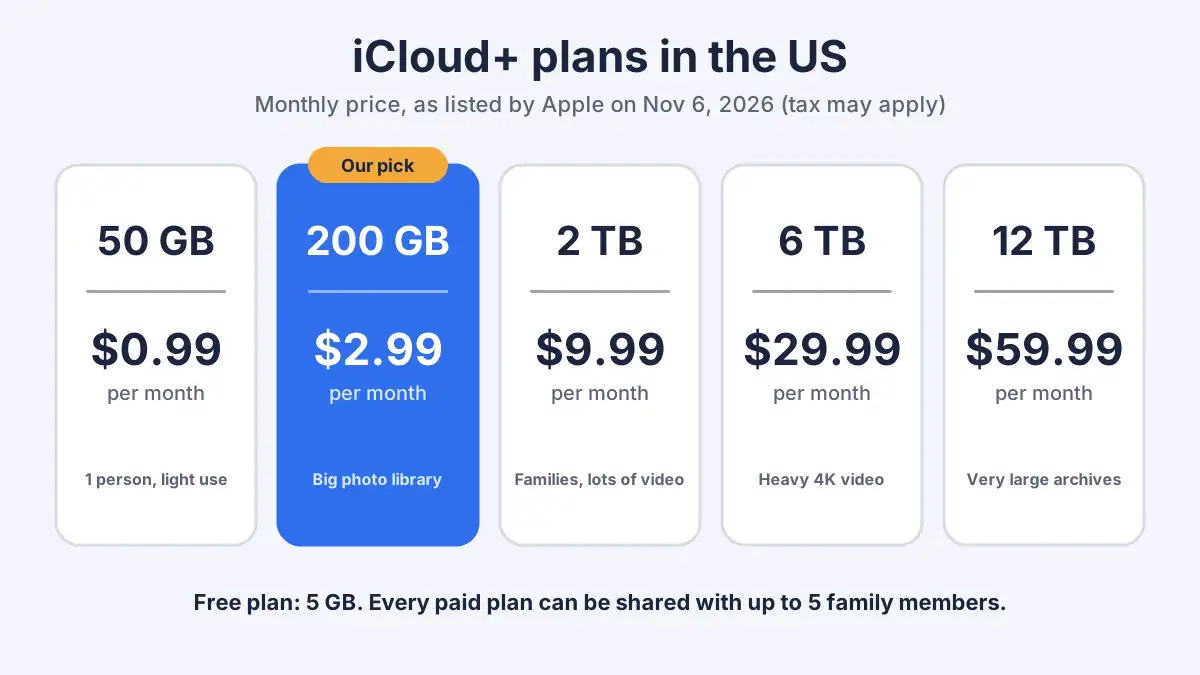
Upgrading is the right fix for iCloud storage full if your free cleanup still leaves you near 5 GB, or if you have years of photos you want backed up automatically. iCloud+ is Apple’s paid storage plan, and every tier can be shared with up to five family members.
US prices per month, as listed by Apple Support (checked November 6, 2026; some states add tax):
| iCloud+ plan | Price per month (US) | Good fit for |
|---|---|---|
| 50 GB | \$0.99 | One person with one iPhone and a modest photo library |
| 200 GB | \$2.99 | A heavy photo user or a couple sharing via Family Sharing |
| 2 TB | \$9.99 | Families with several devices and large video libraries |
| 6 TB | \$29.99 | Creators or households storing lots of 4K video |
| 12 TB | \$59.99 | Very large archives |
Every paid tier also includes iCloud Private Relay, Hide My Email and custom email domain support. To upgrade, go to Settings > [your name] > iCloud and look for the option to upgrade or change your storage plan.
A practical rule: if your storage bar is mostly Photos and you take pictures every week, the 200 GB plan usually buys you years of breathing room for less than a coffee a month. If it’s mostly backups of old devices, clean up first; you may not need to pay at all.
Sharing a plan with Family Sharing
Family Sharing lets up to six people (you plus five others) share one iCloud+ plan. Each person keeps their own private data; they just draw from the same pool of storage. Splitting a 2 TB plan across a family is often cheaper than several people each paying for 200 GB.
With a Shared Photo Library, photos count only toward the storage of the person who created the library, according to Apple.
iCloud storage full vs. iPhone storage full
iCloud storage full and iPhone storage full are two alerts that need different fixes. If your iPhone itself is full, deleting files from iCloud won’t help, and if iCloud is full, deleting apps from your phone won’t help.
Optimize iPhone Storage is the setting that links them. When it’s on, Apple keeps full-resolution photos and videos in iCloud and stores smaller, space-saving copies on your phone when space runs low (Apple Support). It’s on by default with iCloud Photos and frees phone space, but it relies on iCloud having room. That’s why iCloud storage full can also cause trouble on a phone that’s running low on space.
To check it, go to Settings > [your name] > iCloud > Photos and make sure Optimize iPhone Storage is selected (in iOS 27, this sits under iPhone Storage on the same screen).
Mistakes to avoid when your iCloud storage is full
A few common moves make things worse or lose data:
- Turning off iCloud Photos without a backup. Make sure your photos are downloaded or saved elsewhere before switching it off.
- Deleting your current iPhone backup. It also turns off iCloud Backup for that phone. Only delete backups of devices you no longer use.
- Ignoring the alert for weeks. Your phone isn’t backing up during that time. If it’s lost or broken, recent photos and data may be gone.
- Deleting photos while over the limit. They skip Recently Deleted and can’t be recovered.
- Buying a plan that’s too big. Clean up first, then pick the smallest plan that leaves you 20–30% headroom.
Frequently asked questions
What happens if my iCloud storage is full?
Your iPhone or iPad stops backing up to iCloud, new photos and videos stop uploading to iCloud Photos, and iCloud Drive and other apps stop syncing across devices. You also can’t send or receive email at your iCloud address. Nothing already stored is deleted; it simply stops updating until you free space or upgrade.
Will I lose my photos if my iCloud storage is full?
No, photos already in iCloud stay there. New photos stay on your device but won’t upload until you free space, so they aren’t protected if your phone is lost. Be careful deleting photos while you’re over the limit, because Apple says those deletions are immediate and skip the Recently Deleted album.
Why is my iCloud storage full when I deleted photos?
Deleted photos sit in Recently Deleted for 30 days, so if you still see iCloud storage full, check that album. Your space may also be taken by old device backups, Messages attachments or iCloud Drive files. Open Settings > [your name] > iCloud > Storage to see the real breakdown.
Is it safe to delete old iCloud backups?
It’s safe to delete backups of devices you no longer own or use. Deleting a backup also turns off iCloud Backup for that device, so don’t delete your current iPhone’s backup unless you back up another way, such as to a computer. Once deleted, the backup can’t be restored from iCloud.
How much is 50 GB of iCloud storage per month?
In the US, the 50 GB iCloud+ plan costs \$0.99 per month, as of November 2026. The 200 GB plan costs \$2.99 and the 2 TB plan costs \$9.99. Some states add sales tax. All paid plans can be shared with up to five family members through Family Sharing.
Does iCloud storage free up space on my iPhone?
Not directly. iCloud storage and iPhone storage are separate. However, if you turn on iCloud Photos with Optimize iPhone Storage, your phone keeps smaller copies of photos and stores the originals in iCloud, which saves device space. That only works if your iCloud account has enough room for the full-size files.
The bottom line
An “iCloud storage full” warning means backups, photo uploads, syncing and iCloud Mail have stopped, so fix it the same week. Check the storage breakdown first, delete old device backups, trim videos and Messages attachments, and clear out iCloud Drive. If you hit iCloud storage full again within a few months, the 50 GB or 200 GB iCloud+ plan is the simplest long-term fix. Then make sure your next backup actually finishes.
