
Quick Share backup is a new Google feature that automatically copies photos and videos from an Android phone to a Windows PC over your home Wi-Fi, with no cloud storage involved. Google listed it in its Google Play services v26.43 release notes on November 2, 2026, and it is rolling out gradually. If your phone and PC share a Google account and a Wi-Fi network, you can set it up from the Quick Share app for Windows once it reaches you.
That matters if your Google storage is full, you don’t want your camera roll in anyone’s cloud, or you just want a second copy of your photos on a drive you control. Below is what’s confirmed, what’s only reported, and how to back up your phone to your PC today even if the toggle hasn’t appeared yet.
What is Quick Share backup?
Quick Share backup is an automatic, phone-to-PC copy of your Android photos and videos, handled by Google’s Quick Share app on Windows. Quick Share itself is Google’s tool for sending files between nearby devices; the backup feature turns that one-off sharing into a scheduled job.
Google’s own description is one line long. Its system release notes list “Automatic backing up photos/videos from an Android to Windows using Quick Share” under Device Connectivity for v26.43 (Google System Services release notes).
Everything else we know comes from app-code teardowns first spotted in April and July 2026 and from early hands-on reports. In short, according to those reports:
- It’s local. Files go straight from your phone to your PC over Wi-Fi. Nothing is uploaded to Google’s servers, so it doesn’t use Google Photos or Google One storage.
- It’s free. No subscription is mentioned anywhere.
- It’s automatic. Backups run once a day when both devices are on and nearby, and there’s a manual “Back up now” option.
- It’s one-way. Photos travel from Android to Windows, not back.
Is Quick Share backup available yet?
As of November 8, 2026, the feature is in a staged rollout, so many people won’t see it yet. A feature appearing in Google’s release notes means the code has shipped in Play services; Google typically switches features on server-side in waves over several weeks.
A few points are still unconfirmed:
- Samsung Galaxy phones: Code found in July 2026 said the feature would not support Samsung phones (Xenospectrum, citing Android Authority’s teardown). Google’s release notes don’t mention any exclusion, so treat this as unverified until Google or Samsung comments. Galaxy owners already have Samsung’s own PC backup tools.
- Device list: Google hasn’t published one yet.
- Windows on ARM: Google’s Quick Share for Windows page is inconsistent on ARM support, so Snapdragon-based Copilot+ PCs may or may not work at launch.
Information may change as the rollout continues; we’ll update this guide when Google publishes a help page.
What you need before you start
You need an Android phone with Google Play services v26.43 or newer, a 64-bit Windows 10 or 11 PC running the latest Quick Share app, one Google account on both, and a shared Wi-Fi network. Here’s the full checklist as of November 8, 2026:
| Requirement | Details | Status |
|---|---|---|
| Android phone | Google Play services v26.43 or later | Confirmed (Google release notes) |
| Windows PC | 64-bit Windows 10 or later | Confirmed for Quick Share for Windows (android.com) |
| Quick Share for Windows | Latest version from Google | Reported |
| Same Google account | Signed in on phone and PC app | Reported |
| Same Wi-Fi network, devices nearby | Both switched on | Reported |
| Wi-Fi and Bluetooth on the PC | Required by Quick Share for Windows | Confirmed (android.com FAQ) |
| Samsung phone or Samsung PC | May be excluded | Unconfirmed |
One more detail from Google’s own page: Quick Share by Google is meant for non-Samsung PCs. Samsung laptops use Samsung’s version of Quick Share instead.
How to set up Quick Share backup on a Windows PC
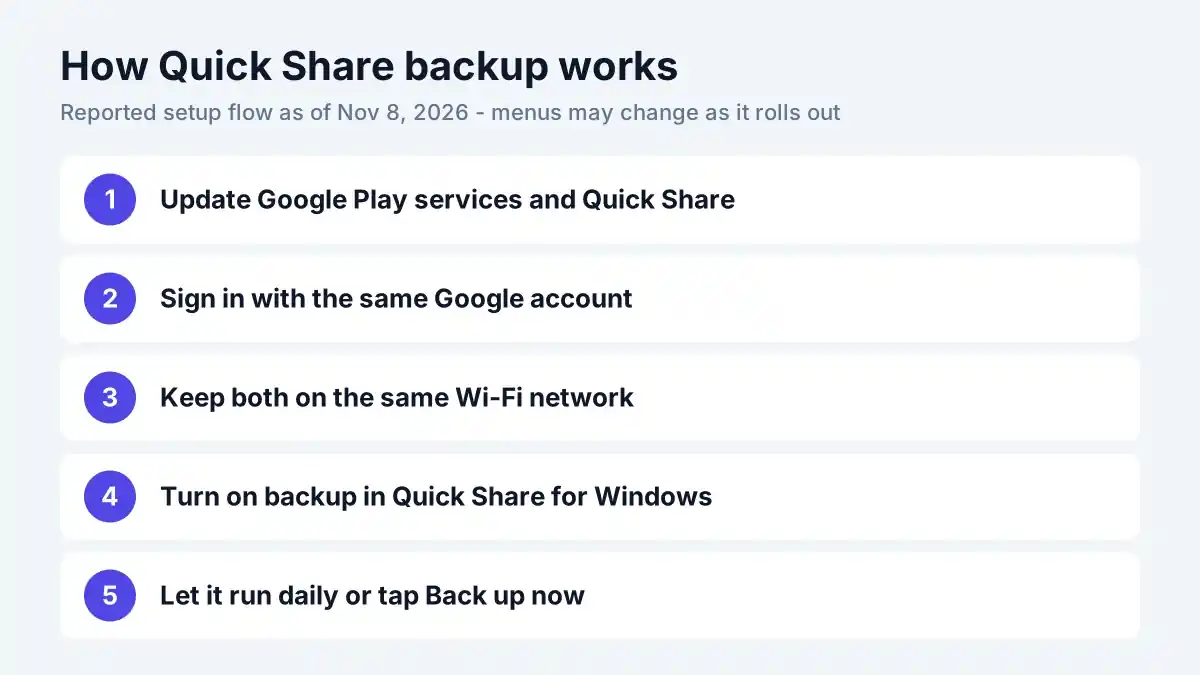
To set up Quick Share backup, update Google Play services on your phone, install or update Quick Share for Windows, sign in with the same Google account on both, and switch on backup in the PC app. Google hasn’t published official steps yet, so menu names below are based on reports and may differ slightly on your devices.
Step 1: Check your Google Play services version
- On your phone, open Settings > Apps > See all apps (wording varies by brand).
- Tap Google Play services and scroll to the bottom to see the version number.
- If it’s below 26.43, open Settings > Security & privacy > System & updates > Google Play system update (or the closest match on your phone) and install any update.
Play services updates itself in the background, so many phones will already be on v26.43 or newer.
Step 2: Install or update Quick Share for Windows
- Download Quick Share for Windows from android.com/quick-share if you don’t have it.
- If it’s already installed, open it and accept any update prompt.
- Sign in with the same Google account that’s on your phone.
- Make sure Wi-Fi and Bluetooth are both turned on in Windows.
Step 3: Turn on backup
- Keep your phone awake, nearby and on the same Wi-Fi network as the PC.
- In Quick Share for Windows, look for the backup option (reported to appear as an automatic backup setting).
- Choose which photos and videos to include.
- Switch the backup on, then tap Back up now to run the first copy straight away.
The first run can take a while with years of 4K video, so leave both devices awake and plugged in.
[ADD PERSONAL EXPERIENCE: Once the toggle appears on your test phone, note the exact menu path, the folder Windows saves files to, how long the first backup took and roughly how many GB it moved. Add one screenshot of the PC app's backup screen.]
How Quick Share backup works day to day
After setup, the backup runs about once a day whenever your phone and PC are both on and connected to the same Wi-Fi. If you’re away from home, it simply waits until you’re back.
Three behaviours are worth knowing, all based on teardown reports rather than Google documentation:
- Deleting on the phone doesn’t delete on the PC. Early code said files removed from the phone stay on the computer. That makes it a true backup rather than a sync, which is what you want if your phone is lost or wiped.
- It’s one-way. Edits or deletions on the PC won’t flow back to your phone.
- Your PC’s drive is the limit. There’s no cloud quota, but a 256 GB phone full of video can fill a small laptop SSD. Point Windows at a larger drive if you can, or check free space before the first run.
Quick Share backup vs. Google Photos vs. a USB cable
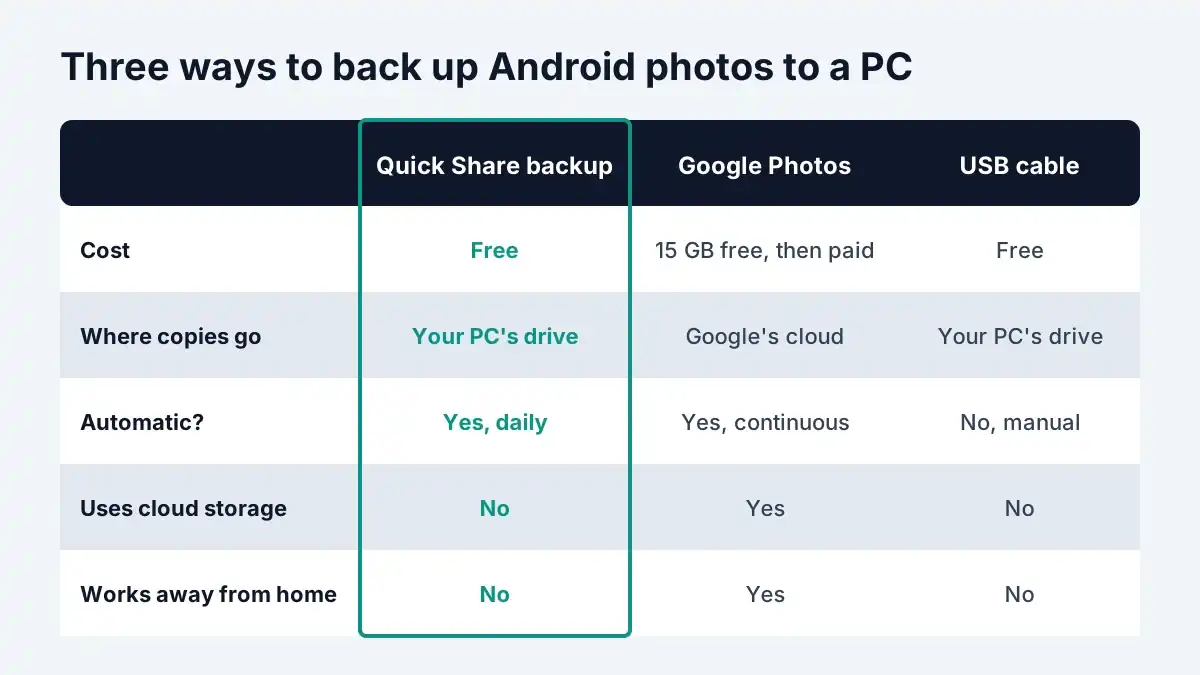
Quick Share is the best fit if you want free, automatic copies on your own PC; Google Photos suits people who want access from anywhere; a USB cable is the fallback that works on every phone today.
| Quick Share backup | Google Photos | USB cable | |
|---|---|---|---|
| Cost | Free | 15 GB free, shared across Gmail, Drive and Photos; then a paid Google One plan | Free |
| Where copies go | Your PC | Google’s cloud | Your PC |
| Automatic | Yes, daily | Yes, continuous | No |
| Uses cloud storage | No | Yes | No |
| Works away from home | No | Yes | No |
| Works on every Android phone today | No (staged rollout) | Yes | Yes |
The 15 GB figure is Google’s standard free allowance, shared across Gmail, Drive and Photos (Google One Help). Many people will want both: Google Photos for convenience and a local copy on the PC as a second safety net.
Don’t see it yet? 3 ways to back up Android photos to your PC today
If the new option hasn’t reached your phone, you can still back up Android photos to a PC right now with a cable, a manual Quick Share transfer or a Google Photos download.
1. USB cable (works on every phone)
- Wake your phone and connect it to the PC with a USB cable.
- Tap the Charging this device via USB notification and choose File transfer.
- On the PC, open File Explorer, select your phone, and open the DCIM > Camera folder.
- Copy the folder to your PC or an external drive.
Google’s file transfer help page covers this in more detail. It’s manual, but it’s fast and copies original-quality files.
2. Quick Share, one batch at a time
Already have Quick Share for Windows? Select photos in your gallery, tap Share > Quick Share and pick your PC. Fine for a weekly top-up, but it won’t catch everything.
3. Google Photos, then download
Already using Google Photos? Download albums from photos.google.com or export the whole library with Google Takeout. Handy if your phone is broken but your photos were already in the cloud.
Privacy and security: what to know
Because this backup keeps files on your local network, your photos never sit on Google’s servers, which is a plus for privacy. The trade-off is that your PC becomes the only backup, so its security matters more.
- Use a Windows account password or PIN and turn on device encryption so a stolen laptop doesn’t expose your camera roll.
- Keep a second copy elsewhere (an external drive or a cloud service), because a single drive can fail.
- Only use Quick Share on networks you trust. Home Wi-Fi is fine; a coffee-shop network isn’t the place for a full-library backup.
- Watch out for fake “Quick Share” downloads. Get the Windows app only from android.com.
FAQ
What is Quick Share backup on Android?
Quick Share backup is a Google feature that automatically copies photos and videos from an Android phone to a Windows PC over the same Wi-Fi network. It appeared in Google Play services v26.43 release notes on November 2, 2026. Files stay on your PC and are not uploaded to Google’s cloud.
Is Quick Share backup free?
Yes. Nothing in Google’s notes or early reports mentions a fee or subscription, and because files go straight to your own computer, it doesn’t use Google One storage. The only “cost” is space on your PC’s drive, so check you have enough room before running the first full backup.
Does it work on Samsung Galaxy phones?
It’s unclear. App code found in July 2026 suggested Samsung phones would be excluded, but Google’s November 2026 release notes don’t mention any restriction. Samsung owners can use Samsung’s own PC backup tools, or a USB cable, until Google confirms which devices are supported.
Do I need Google Photos for this backup?
No. The feature works without Google Photos and without uploading anything to the cloud. You only need a Google account signed in on both the phone and Quick Share for Windows, so the two devices can recognise each other on your home network.
If I delete a photo on my phone, will it disappear from my PC?
According to teardown reports, no. Files deleted from the phone are expected to stay on the PC, which makes it a true backup rather than a two-way sync. Google hasn’t confirmed this in writing yet, so check the behaviour yourself after your first backup.
Why don’t I see the backup option yet?
Google is rolling the feature out gradually. Make sure your phone has Google Play services v26.43 or later and your PC has the latest Quick Share for Windows app. If both are current and the option still isn’t there, the server-side switch simply hasn’t reached your account yet.
The bottom line
Quick Share backup gives Android users something they’ve wanted for years: free, automatic photo and video backups to a Windows PC without paying for cloud storage. Update Google Play services and Quick Share for Windows now, so you’re ready when the toggle arrives. Until then, a monthly USB copy keeps your memories safe.
