
iPhone won’t turn on? Plug it into a wall outlet with a cable you know works and charge it for one hour. Then force restart it: quickly press Volume Up, then Volume Down, then hold the side button until the Apple logo appears. This brings most “dead” iPhones back to life.
Below are seven easy fixes when your iPhone won’t turn on, based on Apple’s own support guides, plus what to do if you see a black screen, a stuck Apple logo or nothing at all.
[ADD PERSONAL EXPERIENCE: one line about the time your iPhone wouldn’t start and what finally worked.]
Table of Contents
Why Won’t My iPhone Turn On?
- Empty battery: the most common reason by far.
- Frozen software: the phone is on, but stuck on a black screen.
- Bad cable or charger: the phone never actually charged.
- Too hot or too cold: iPhones shut down in extreme temperatures.
- Damage: a drop or liquid can damage the screen or other parts.
7 Easy Fixes When Your iPhone Won’t Turn On
1. Charge it for an hour
According to Apple Support, if your iPhone won’t turn on, charge it for one hour and try again. Use a wall outlet, not a laptop USB port.
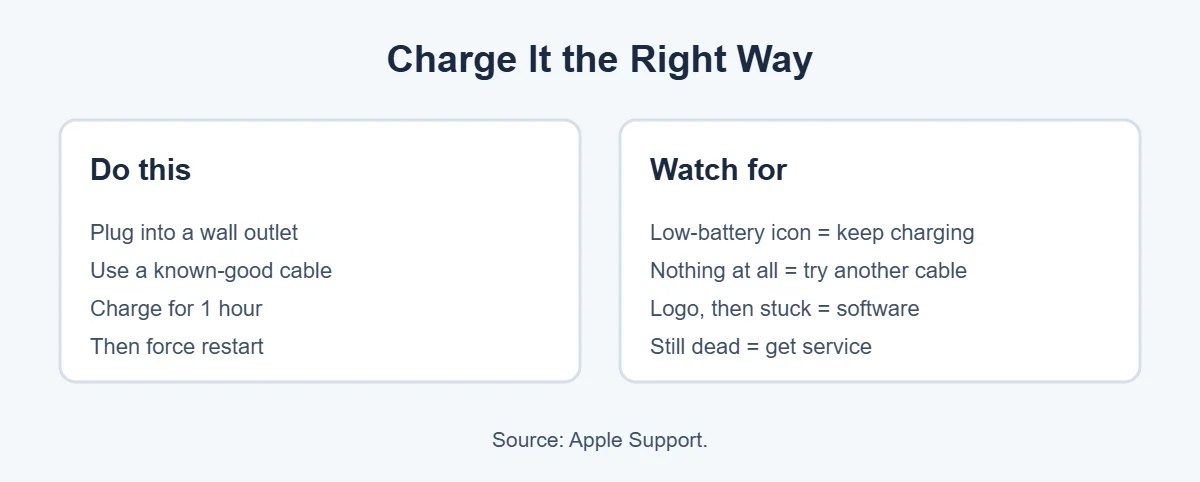
If you see a low-battery icon, the phone is charging. Keep it plugged in for another 30 minutes or until it starts.
2. Force restart your iPhone
A force restart, also called a hard restart, fixes frozen software even when the screen is black. Here’s how to hard restart iPhone models, from Apple:
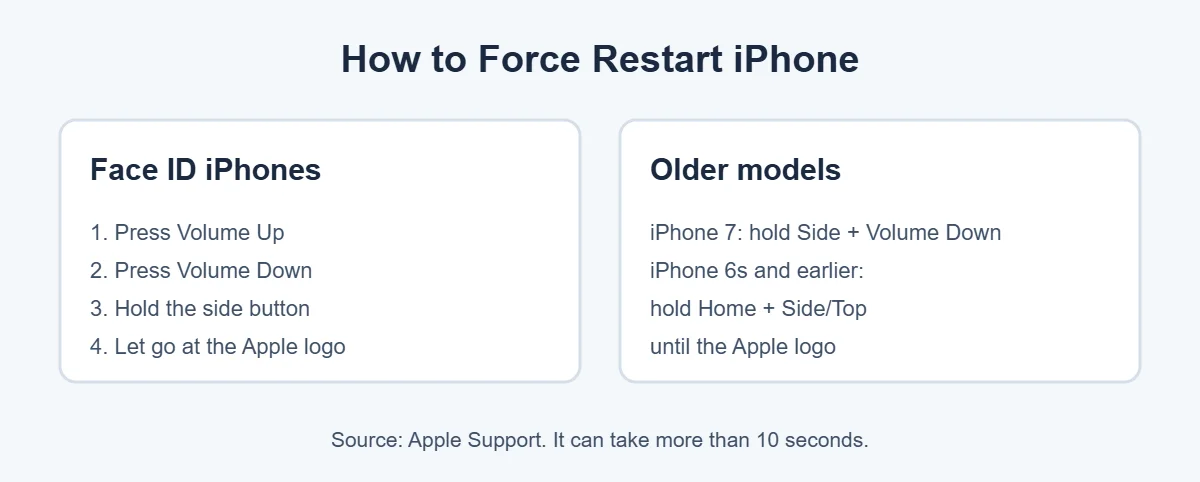
- iPhone with Face ID: press and release Volume Up, press and release Volume Down, then hold the side button until the Apple logo appears. It can take more than 10 seconds.
- iPhone 7 and 7 Plus: hold the side button and Volume Down together until the logo appears.
- iPhone 6s and earlier: hold the Home button and the side or top button for about 10 seconds.
3. Try a different cable and adapter
If your iPhone won’t turn on even after charging, the charger may be the problem. Apple recommends checking the cable and adapter for damage and trying a different outlet or accessory.
4. Clean the charging port
A dirty port is a sneaky reason an iPhone won’t turn on: lint can block the connection. Shine a light into the port and gently remove debris with a wooden toothpick. Then plug the cable in firmly.
5. Let it reach room temperature
Apple says iPhones work best between 0 and 35°C (32 to 95°F), and may turn off in extreme cold or heat. If your iPhone won’t turn on after being in a hot car or freezing weather, let it slowly return to room temperature first.
6. Check if it’s only the screen
Sometimes the iPhone is on, but the screen isn’t. Call it from another phone. If it rings or vibrates, the screen or display connection is the problem, and it needs a repair.
7. Update or restore with a computer
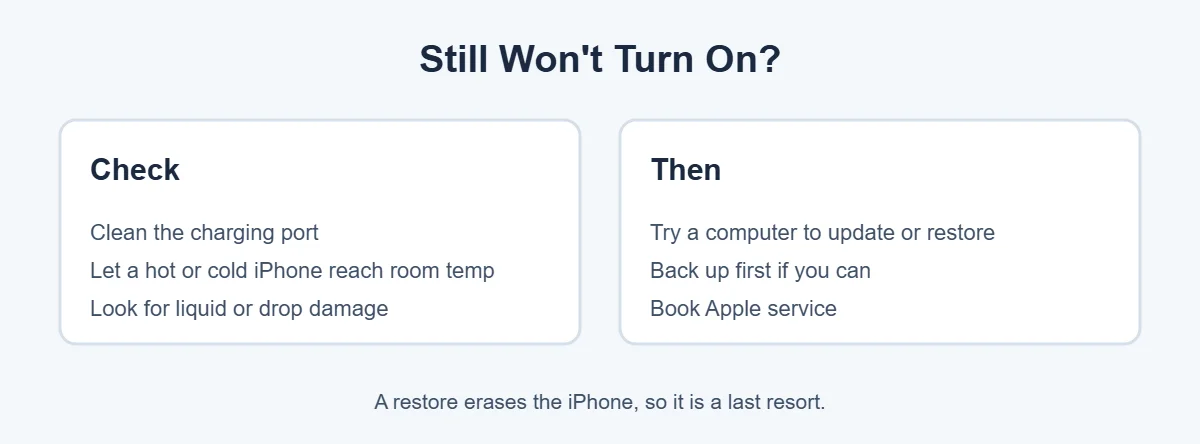
If the iPhone gets stuck on the Apple logo, connect it to a computer and use Finder on a Mac or the Apple Devices app on Windows to update the software. A restore erases the iPhone, so only do it as a last resort and only if you have a backup.
When to Get Your iPhone Repaired
If your iPhone won’t turn on after an hour of charging, a force restart and a different cable, Apple says it might need service. Book an appointment with an Apple Store or Apple Authorized Service Provider, especially if the phone was dropped or got wet.
Planning to replace an old iPhone instead? You can sell it for cash at an ecoATM kiosk. Here’s what ecoATM accepts.
Frequently Asked Questions
Why won’t my iPhone turn on?
The most common reason is a completely drained battery. Software freezes, extreme temperatures, a faulty charger or physical damage can also stop an iPhone from turning on. Charge it for an hour with a known-good cable, then force restart it.
How do I hard restart an iPhone?
On an iPhone with Face ID, quickly press and release Volume Up, then Volume Down, then press and hold the side button until the Apple logo appears. On iPhone 7, hold the side and Volume Down buttons. On iPhone 6s and earlier, hold Home and the side or top button.
My iPhone is on but the screen is black. What should I do?
Try a force restart first. If you hear sounds or feel vibrations but see nothing, the screen may be damaged. Call the phone from another device to check. If it rings but the screen stays black, book a repair.
How long should I charge a dead iPhone before it turns on?
Apple suggests charging for one hour, then trying again. If you see a low-battery icon, keep charging for another 30 minutes or until it starts. Use a wall outlet and a cable you know works.
Can a hot or cold iPhone refuse to turn on?
Yes. Apple says iPhones work best between 0 and 35°C (32 to 95°F). In extreme heat or cold, an iPhone may turn off or not charge. Let it slowly return to room temperature, then try again.
When should I take my iPhone to Apple?
If your iPhone still won’t turn on after charging for an hour, a force restart and trying another cable and outlet, Apple says it may need service. Book an appointment at an Apple Store or an Apple Authorized Service Provider.
The Bottom Line
When an iPhone won’t turn on, it’s usually just an empty battery or frozen software. Charge it for an hour with a good cable, then force restart: Volume Up, Volume Down, hold the side button.
If it still won’t start, clean the port, try another charger, let it reach room temperature, and book Apple service if nothing works.
{“@context”:”https://schema.org”,”@type”:”FAQPage”,”mainEntity”:[{“@type”:”Question”,”name”:”Why won’t my iPhone turn on?”,”acceptedAnswer”:{“@type”:”Answer”,”text”:”The most common reason is a completely drained battery. Software freezes, extreme temperatures, a faulty charger or physical damage can also stop an iPhone from turning on. Charge it for an hour with a known-good cable, then force restart it.”}},{“@type”:”Question”,”name”:”How do I hard restart an iPhone?”,”acceptedAnswer”:{“@type”:”Answer”,”text”:”On an iPhone with Face ID, quickly press and release Volume Up, then Volume Down, then press and hold the side button until the Apple logo appears. On iPhone 7, hold the side and Volume Down buttons. On iPhone 6s and earlier, hold Home and the side or top button.”}},{“@type”:”Question”,”name”:”My iPhone is on but the screen is black. What should I do?”,”acceptedAnswer”:{“@type”:”Answer”,”text”:”Try a force restart first. If you hear sounds or feel vibrations but see nothing, the screen may be damaged. Call the phone from another device to check. If it rings but the screen stays black, book a repair.”}},{“@type”:”Question”,”name”:”How long should I charge a dead iPhone before it turns on?”,”acceptedAnswer”:{“@type”:”Answer”,”text”:”Apple suggests charging for one hour, then trying again. If you see a low-battery icon, keep charging for another 30 minutes or until it starts. Use a wall outlet and a cable you know works.”}},{“@type”:”Question”,”name”:”Can a hot or cold iPhone refuse to turn on?”,”acceptedAnswer”:{“@type”:”Answer”,”text”:”Yes. Apple says iPhones work best between 0 and 35°C (32 to 95°F). In extreme heat or cold, an iPhone may turn off or not charge. Let it slowly return to room temperature, then try again.”}},{“@type”:”Question”,”name”:”When should I take my iPhone to Apple?”,”acceptedAnswer”:{“@type”:”Answer”,”text”:”If your iPhone still won’t turn on after charging for an hour, a force restart and trying another cable and outlet, Apple says it may need service. Book an appointment at an Apple Store or an Apple Authorized Service Provider.”}}]}