
You can now make a GIF in ChatGPT without a separate app or any code. Since OpenAI launched ChatGPT Images 2.6 on November 4, 2026, ChatGPT can turn a text prompt or an uploaded photo into an animated GIF, and OpenAI says you can adjust the speed and edit individual frames before you share it.
That is a big change from the old method. Until this week, most “ChatGPT GIF” tutorials relied on a workaround: ChatGPT drew a few still frames, then wrote Python code to stitch them together, and the results were often choppy. Below is how the new built-in feature works, prompts that give smoother motion, what free users get, and the limits nobody mentions.
Information current as of November 6, 2026. OpenAI is still rolling the feature out, so menus and limits may change.
What is ChatGPT Images 2.6?
ChatGPT Images 2.6 is OpenAI’s image-generation update released on November 4, 2026. It adds animated GIF creation, saved reference images you can reuse, and two new developer models called GPT-Image-2.6 Flare and GPT-Image-2.6 Sunburst. OpenAI published a system card for Images 2.6 the same day.
A GIF (Graphics Interchange Format) is a short, silent, looping animation made of a handful of still frames. That makes it ideal for reactions, product teasers, stickers and simple explainers, and it plays almost everywhere: messaging apps, Slack, email and social media.
The three headline features, according to OpenAI’s launch announcement as reposted on the OpenAI Developer Community:
- GIFs from a prompt or an image. Describe a scene, or upload a photo, and ChatGPT animates it.
- Speed and frame editing. Change how fast the animation plays and fix individual frames.
- Saved reference images. Keep pictures of yourself, your pets or recurring characters ready to reuse without uploading them again.
Can free users make GIFs in ChatGPT?
Yes. OpenAI’s announcement, as quoted by Fello AI, says Images 2.6 is available “across all subscription tiers” on desktop, mobile and web. eesel AI and Digit also report that free users can generate and download GIFs.
What OpenAI has not published is a number. As of November 6, 2026, there is no official per-plan cap for GIFs. Image generation in ChatGPT has its own allowance, and paid plans get more of it.
| ChatGPT plan | Can make GIFs? | Image generation allowance (OpenAI pricing page, as summarized by eesel AI) |
|---|---|---|
| Free | Yes | Limited |
| Go | Yes | More than Free |
| Plus | Yes | More, with more complex image creation |
| Pro | Yes | Highest allowance, faster creation |
| Business / Enterprise / Edu | Yes, per “all tiers” wording | Set by your workspace |
Free users will feel the limit first, so plan your prompts before you start rather than burning attempts on vague requests.
How to make a GIF in ChatGPT: step by step
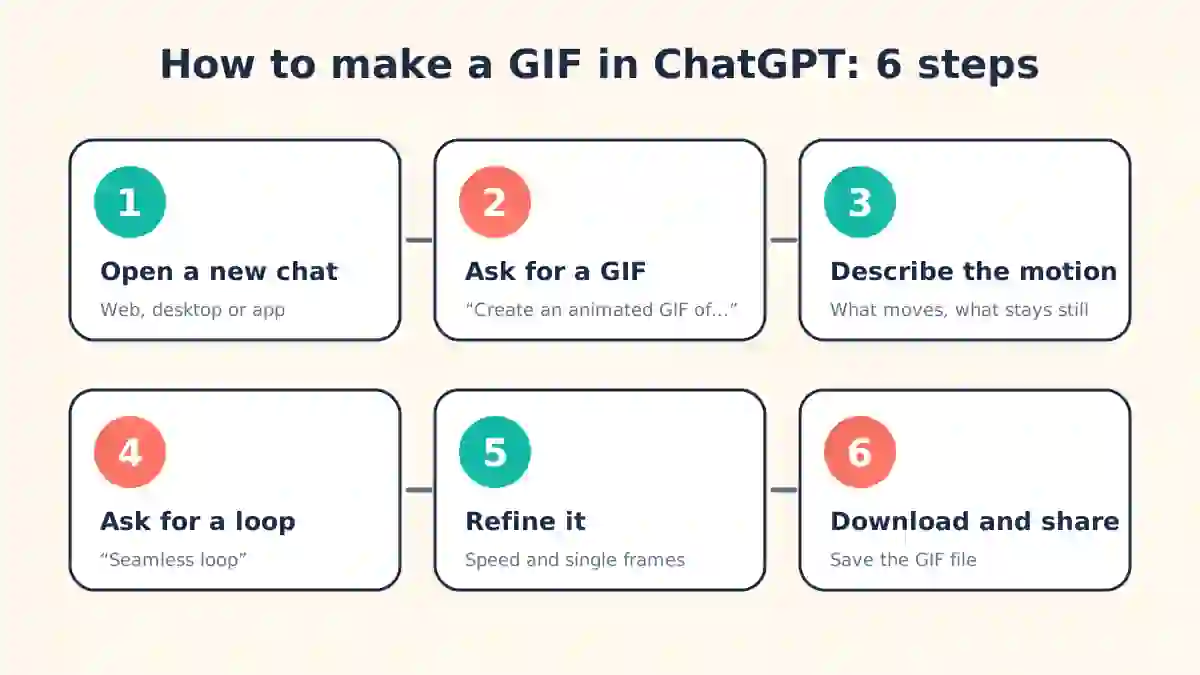
Making a GIF in ChatGPT takes about a minute: open a new chat, describe the motion (or upload a photo and describe how it should move), wait for the animation, then refine and download it. Here are both routes.
Make a ChatGPT GIF from a text prompt
- Open ChatGPT on the web, the desktop app or the iPhone or Android app, and start a new chat. Update the app first if you don’t see GIF results.
- Ask for a GIF explicitly. Start your prompt with “Create an animated GIF of…” so ChatGPT makes an animation instead of a still image.
- Describe the motion, not just the subject. “A cat” gives you little to work with. “A ginger cat slowly blinking and flicking its tail, camera still, plain cream background” tells ChatGPT what moves and what stays put.
- Ask for a seamless loop if the GIF should repeat smoothly, so the last frame flows back into the first.
- Review the result, then reply with changes in plain language: “slower,” “keep the background still,” “fewer frames.”
- Download the GIF from the image result and share it like any other GIF.
Make a ChatGPT GIF from your own photo
- Start a new chat and attach your photo with the attachment (“+”) button.
- Say what should move: “Animate this photo so the steam rises from the coffee and the rest stays still.”
- Name what must not change, such as faces, logos or text in the shot. This reduces warping between frames.
- Refine and download as above.
[ADD PERSONAL EXPERIENCE: Make two GIFs yourself, one from a prompt and one from a photo. Note how long each took, which plan you used, the file size of the download, and screenshot the exact buttons you clicked so readers can follow along.]
How to edit a ChatGPT GIF: speed and individual frames
OpenAI says Images 2.6 lets you “adjust the speed” and “edit individual frames” of a GIF. In practice, that means two kinds of fixes:
- Speed: If the animation feels frantic, ask for it to play slower, or use the speed control if your app shows one. Slower playback usually looks smoother.
- Single frames: If one frame has a glitch, such as an extra finger, a melted logo or a flickering background, ask ChatGPT to fix that frame instead of regenerating the whole GIF.
OpenAI hasn’t documented exactly where these controls sit in every app, and the layout can differ between web and mobile. If you don’t see a control, asking in the chat works.
Prompt tips for smoother ChatGPT GIFs
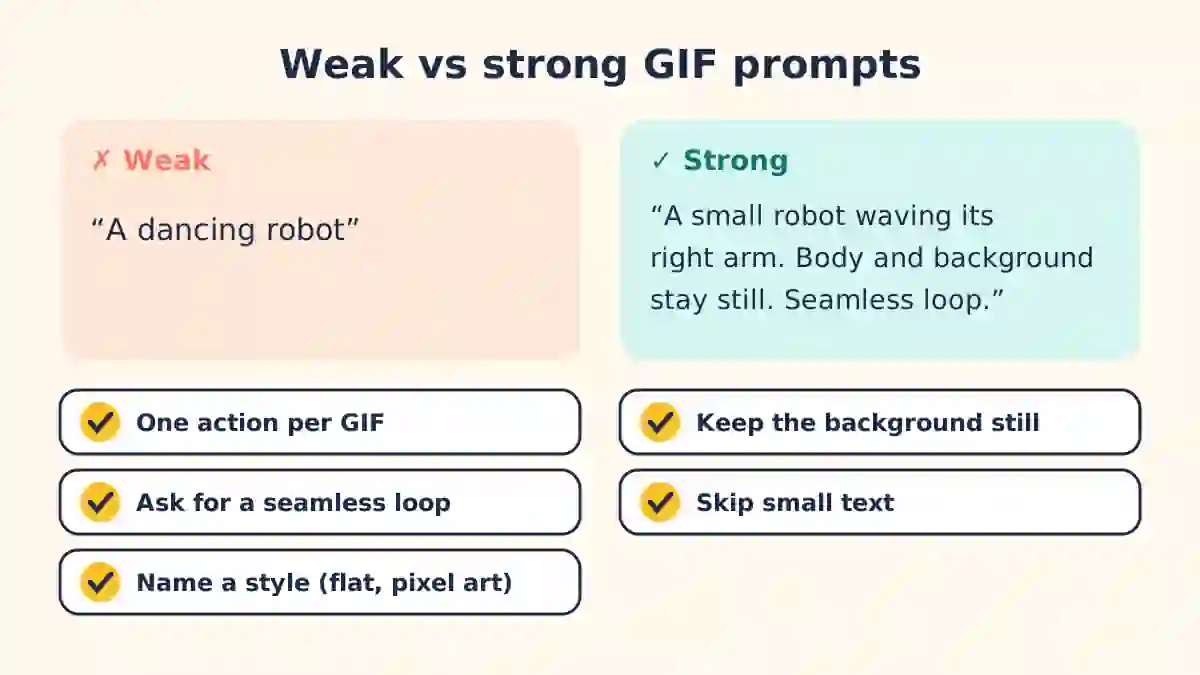
The best ChatGPT GIF prompts describe one simple motion, lock everything else in place and ask for a loop. Early testers say frame-to-frame consistency is the weakest part of Images 2.6 GIFs, so the less that changes between frames, the cleaner the result.
| Instead of this | Try this |
|---|---|
| “A dancing robot” | “A small friendly robot waving its right arm, body and background stay still, seamless loop” |
| “Make my logo move” | “Make the logo gently pulse in size, colors and shape unchanged, white background” |
| “Fireworks” | “Three gold fireworks bursting one after another over a dark city skyline, camera fixed” |
| “Animate this selfie” | “Animate this photo so the person blinks once and smiles slightly; keep the face identical” |
A few more habits that help:
- One action per GIF. Waving and walking and turning usually falls apart.
- Plain or still backgrounds hide flicker.
- Avoid small text. Words often wobble between frames. Add captions afterward in a GIF editor.
- Mention the style: “flat illustration,” “pixel art” or “clay animation” are more forgiving than photorealism.
Saved reference images: reuse yourself, pets and characters
Saved reference images let you keep photos of yourself, your pets or a recurring character in ChatGPT so you can use them again without re-uploading. OpenAI’s tagline for the feature is “Save once. Create again and again.”
That’s useful if you make a series, say a weekly GIF featuring your dog or a mascot for a small business. OpenAI hasn’t published how many references you can save or how to delete them, so check your ChatGPT settings before you store personal photos, and only save images you are comfortable keeping in your account.
Limits, rules and known problems
ChatGPT GIFs are new, and they come with clear trade-offs. Here is what we know as of November 6, 2026.
No published length limits. OpenAI hasn’t stated a maximum length, frame count or file size for GIFs made inside ChatGPT. Expect short clips, a second or two, not video.
Stricter content rules for GIFs. The Images 2.6 system card says GIF-specific rules “block some content categories more broadly” than still images. Some users on the OpenAI forum report harmless requests being refused with no explanation. If that happens, rephrase the request more plainly.
Real people. OpenAI lists fabricated or compromising depictions of real people among the harms it guards against. Animating photos of yourself is fine; making GIFs of other people without their consent is a bad idea and may be blocked.
Built-in labels. Images 2.6 output carries C2PA provenance metadata and Google DeepMind’s SynthID invisible watermark, according to the system card. Anyone can check supported files with OpenAI’s verification tool, so don’t pass AI GIFs off as real footage.
Quality is uneven. OpenAI describes still-image quality as similar to Images 2.5. Early testers have called some GIF output “splotchy,” and character consistency across frames is the most common complaint.
For developers: GIFs in the OpenAI API
Developers can generate GIFs through the OpenAI API with the new gpt-image-2.6-flare (fast) and gpt-image-2.6-sunburst (higher quality) models. Per OpenAI’s image guide, as summarized by eesel and Fello AI:
- Set
output_formattogif, withframe_count(default 9) andframe_duration_ms(20–2,000, default 200). The defaults give a 1.8-second loop. - OpenAI says the new API models generate images 50% faster, and Flare can return an image in as little as six seconds.
- Per-token prices match Images 2.5, but low and medium quality now use more tokens per image, so the real cost per image is higher.
Third-party summaries disagree on the maximum frame count and on whether GIFs work with the edits endpoint, so check OpenAI’s image generation guide before you build.
Images 2.6 GIFs vs the old ChatGPT workaround
Older tutorials, like Tom’s Guide’s earlier walkthrough, describe a workaround that still works but is now mostly unnecessary.
| Old workaround (before Nov 2026) | Images 2.6 GIFs | |
|---|---|---|
| How it works | ChatGPT draws stills, then writes code to combine them | ChatGPT generates the animation directly |
| Steps | Several prompts, sometimes code errors | One prompt plus edits |
| Speed control | Edit code values | Ask or use the speed control |
| Fix one frame | Regenerate that image and rerun code | Edit the frame directly |
| Best for | Precise, frame-by-frame control | Quick, natural-looking loops |
FAQ
Is making GIFs in ChatGPT free?
Yes. According to OpenAI’s announcement and multiple reports, Images 2.6 GIF creation is available on every ChatGPT plan, including Free. Free accounts have a smaller image-generation allowance, and OpenAI hasn’t published exact numbers, so you may hit a limit after a few attempts and need to wait before creating more.
Why can’t I see the GIF option in ChatGPT?
OpenAI rolls features out gradually, so some accounts may get it later. Update the ChatGPT app, start a fresh chat and ask directly for “an animated GIF.” If ChatGPT still returns a still image, try the web version at chatgpt.com, then check again over the next few days.
How long can a ChatGPT GIF be?
OpenAI hasn’t published a maximum length for GIFs made in ChatGPT as of November 6, 2026. In the API, the default is nine frames at 200 milliseconds each, about 1.8 seconds. Expect short loops rather than video; for longer clips, a video tool is the better choice.
Can ChatGPT animate my own photo?
Yes. Attach a photo in a new chat and describe the movement you want, such as a blink, a smile or rising steam. Name what must stay the same, like the face or background, to reduce warping. Images of other people should only be used with their permission.
Are ChatGPT GIFs watermarked?
Not with a visible logo. OpenAI’s system card says Images 2.6 output includes C2PA metadata and Google DeepMind’s SynthID invisible watermark. Neither shows up in the picture, but tools can detect them, so platforms and viewers can identify the GIF as AI-generated.
Why did ChatGPT refuse my GIF request?
GIFs have stricter safety rules than still images, according to OpenAI’s system card, and some users report false positives. Rephrase the prompt more plainly, remove anything that could read as violent, sexual or about a real person, and try again. ChatGPT usually doesn’t say which rule triggered the block.
The bottom line
If you want to make a GIF in ChatGPT, you no longer need code or a second app: open a new chat, ask for an animated GIF, describe one simple motion, lock everything else in place and ask for a loop. Start with short, simple ideas, use the speed and frame edits to clean up glitches, and keep in mind that limits and menus may shift as OpenAI finishes the rollout.
Next step: try one prompt from the table above, then compare it with your own version to see how much the motion description changes the result.
