
One UI 9 problems have hit some Galaxy owners since the update landed: Wi-Fi that drops every few hours, phones that won’t join a home network, mobile data that only works on Wi-Fi, and in a few cases a SIM card the phone can’t see. Samsung had not acknowledged the bug or released a patch as of November 6, 2026. The good news is that most people can get back online with a few safe resets while they wait.
Below you’ll find what’s actually being reported, which phones are involved, and the fixes to try in the right order, from the 30-second ones to the last resorts.
What’s going on with One UI 9 connectivity?
One UI 9 is Samsung’s Android 17-based software update, and since late October 2026 a growing number of owners say it has broken Wi-Fi, mobile data or SIM detection. The update first shipped on the Galaxy Z Fold 8 and Z Flip 8 in July 2026, then rolled out to older phones; the Galaxy S25 series was getting it in the US by early October (GSMArena reported a download of about 4 GB).
The complaints, collected from Samsung’s community forums and Reddit by Android Police and Android Headlines, fall into a few patterns:
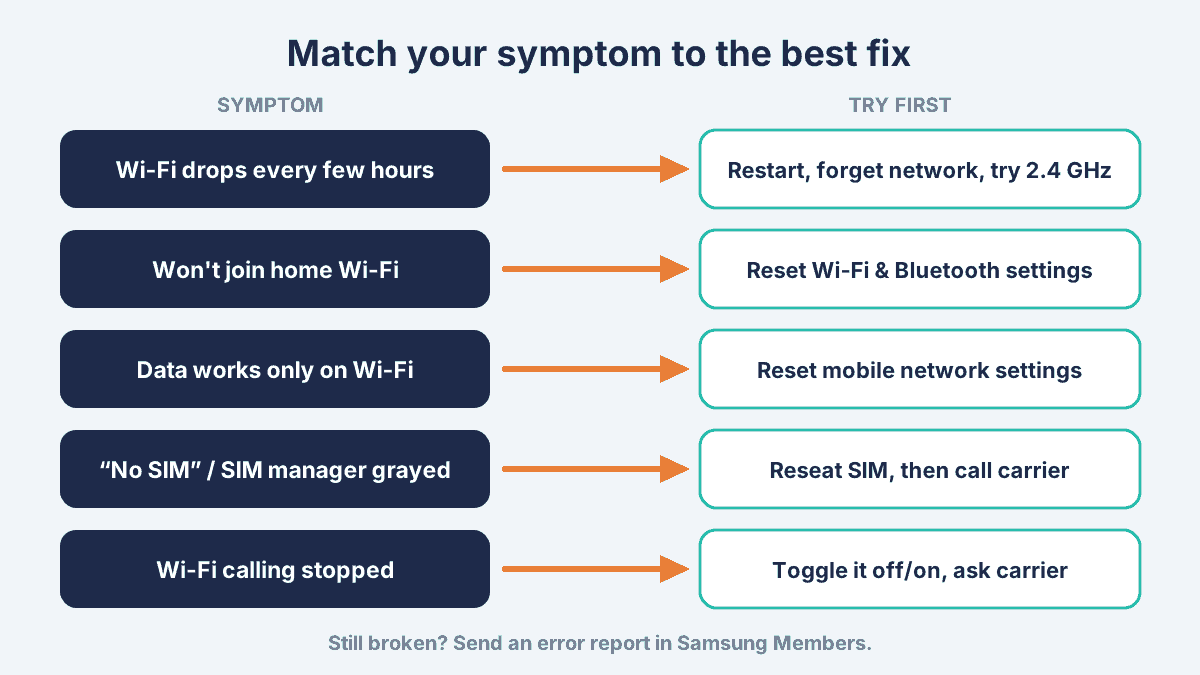
- Wi-Fi drops after a few hours. The phone connects, then shows a connection error later. Restarting or toggling airplane mode brings it back, until it drops again.
- Won’t join the home network. The phone joins other saved networks but refuses the one at home. Some phones connect on 2.4 GHz but not 5 GHz.
- Mobile data only works on Wi-Fi. Apps won’t load on cellular, even with full bars.
- SIM not detected. Mostly on Galaxy A models, the phone stops seeing the physical SIM, or SIM Manager is grayed out.
- Wi-Fi calling stops working. One T-Mobile Galaxy Z Fold 7 owner reported this after updating.
How widespread is it? That’s unclear. Android Headlines calls the bugs widespread, while SammyGuru points out that a handful of forum threads doesn’t prove a mass problem, and its writer saw no Wi-Fi issues on his own Galaxy S26 Ultra or Z Fold 8. The cause is also unconfirmed. Treat this as a real but patchy bug, not something every Galaxy phone will hit.
Which Galaxy phones are affected?
Reports so far involve the Galaxy S24 series, Galaxy Z Fold 7 and Z Flip 7, and several Galaxy A phones (A36, A55, A56, and the older A52s), all after installing One UI 9. No source we checked had confirmed reports from Galaxy S26 owners as of November 6, 2026.
| Phone | Main reported symptom | Source |
|---|---|---|
| Galaxy S24 / S24+ | Wi-Fi won’t connect or keeps dropping | Android Police, Android Headlines, SammyGuru |
| Galaxy Z Fold 7 / Z Flip 7 | Wi-Fi drops; Wi-Fi calling stopped (T-Mobile, one report) | Android Police, Android Headlines |
| Galaxy A56 / A36 / A52s | SIM not detected; SIM Manager grayed out | Android Police, Android Headlines, SammyGuru |
| Galaxy A55 | Connectivity drops | Android Police |
Reports change daily; this table reflects coverage as of November 6, 2026.
[ADD PERSONAL EXPERIENCE: If you or a reader has a Galaxy on One UI 9, note the model, carrier, and whether Wi-Fi, data or the SIM failed, plus which fix worked. One real case will make this page more useful than the news roundups.]
One UI 9 problems: fixes to try, in order
Start with the quick, non-destructive fixes, move to network resets only if needed, and leave a factory reset off the list for now. Menu names below are from Samsung’s US support pages and can vary slightly by model and carrier.
Step 1: Restart and toggle airplane mode
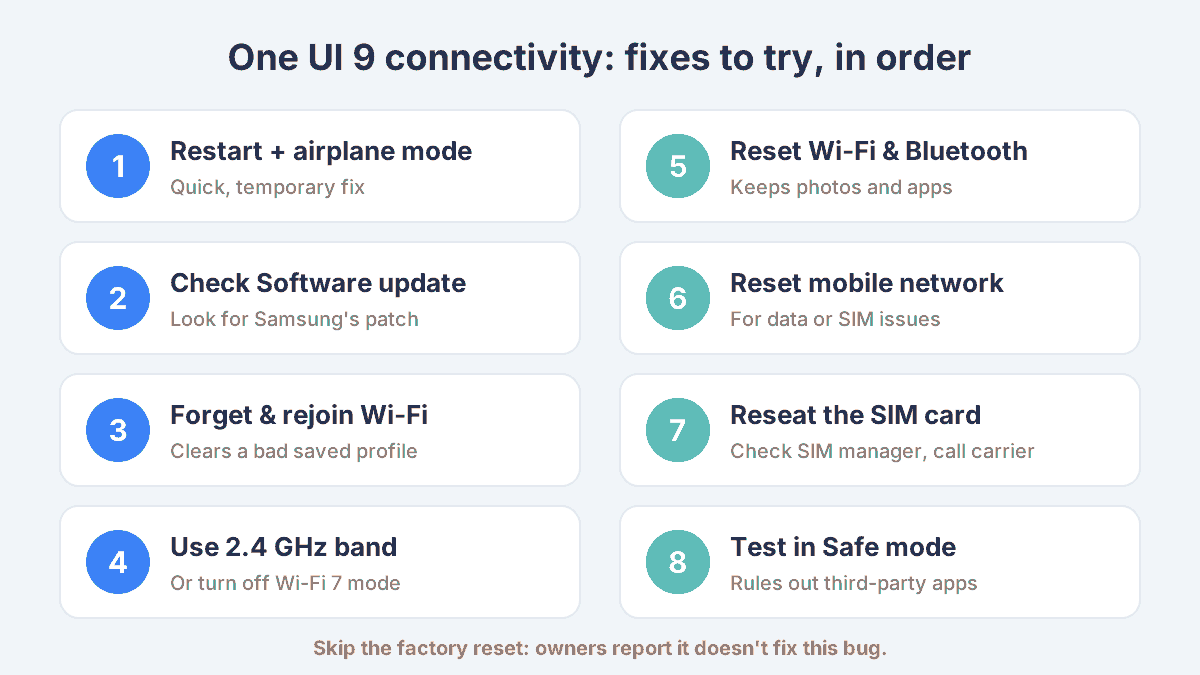
A restart is the fix every source agrees on, even if it’s temporary. Open Quick settings, tap the power icon, then Restart. If Wi-Fi or data drops again later, swipe down and toggle Airplane mode on for 10 seconds, then off. It’s a band-aid, but it gets you back online in seconds.
Step 2: Check for a newer update
Samsung often fixes bugs like this in a monthly patch. Go to Settings > Software update > Download and install. As of November 6, 2026, no fix had been announced, but Android Police expects the November firmware may address it, so check every few days.
Step 3: Forget and rejoin your Wi-Fi network
If one network (usually home) is the problem, go to Settings > Connections > Wi-Fi, press and hold the network, tap Forget, then reconnect and re-enter the password. This clears a saved profile that may not have carried over cleanly.
Step 4: Try the 2.4 GHz band, or turn off Wi-Fi 7 mode
Because some phones connect on 2.4 GHz but fail on 5 GHz, try this:
- If your router shows two network names (often ending in “-2G” and “-5G”), join the 2.4 GHz one for now. It’s slower but steadier through walls.
- If your router uses one combined name, you can often split the bands in the router’s app. Your internet provider’s app usually has this under Wi-Fi or Advanced settings.
- Wi-Fi 7 mode: Android Headlines reports that turning off a Wi-Fi 7 mode option in Developer options restored connectivity for some users. Only try this if you already use Developer options; don’t change other settings there.
Step 5: Reset Wi-Fi and Bluetooth settings
This clears every saved Wi-Fi network and Bluetooth pairing, but not your photos, apps or data. Go to Settings > General management > Reset > Reset Wi-Fi and Bluetooth settings > Reset settings. Have your Wi-Fi password ready, and expect to re-pair your earbuds, watch and car.
Step 6: Reset mobile network settings (for data or SIM problems)
If cellular data or the SIM is the issue, go to Settings > General management > Reset > Reset mobile network settings. One Galaxy S24 owner told SammyGuru that a mobile network reset plus a restart plus a Wi-Fi/Bluetooth reset fixed his phone. Be aware others say resets didn’t help, so don’t be surprised if this step does nothing.
Step 7: Reseat the SIM and check SIM Manager
For “No SIM” errors, power the phone off, eject the SIM tray, check that the card sits flush in the right orientation, and reinsert it. Then open Settings > Connections > SIM manager and make sure your SIM or eSIM is switched on. If SIM Manager stays grayed out, call your carrier: they can check whether the line is active and re-push network settings.
Step 8: Test in Safe mode
Safe mode tells you whether a third-party app (a VPN, ad blocker, or “Wi-Fi booster”) is to blame. Open the power menu, press and hold Power off until Safe mode appears, and tap it. If Wi-Fi and data work normally in Safe mode, uninstall recent apps one by one. Restart to exit.
If Wi-Fi calling stopped
Toggle Wi-Fi calling off and on in the phone app’s settings (Phone > three dots > Settings), make sure your emergency address is still saved with your carrier, then restart. If it still won’t register, your carrier can reprovision the feature remotely.
What not to do while you wait for a fix
Don’t factory reset your phone just for this bug. Android Headlines reports at least one owner who did a full reset and still had mobile data that only worked on Wi-Fi, so you’d lose time and risk your data for nothing.
- Don’t try to downgrade. Samsung doesn’t offer an official way to roll back to One UI 8.5, and unofficial flashing tools can brick a phone or void support.
- Don’t buy a new router or SIM yet. If the problem started the day you updated, the phone’s software is the likely cause.
- Don’t install “Wi-Fi fixer” apps. They can’t change system networking and some are adware.
Haven’t updated to One UI 9 yet?
If your phone hasn’t installed One UI 9, it’s reasonable to wait a week or two for Samsung’s next patch, especially if your phone is on the affected list above. Turn off automatic downloads in Settings > Software update (switch off “Auto download over Wi-Fi”) and check back for news of a fix.
There’s a trade-off. Major updates also bundle security patches, and skipping them for months leaves your phone exposed. A short wait is sensible; ignoring updates indefinitely isn’t.
How to report the bug to Samsung
Reporting through the Samsung Members app is the fastest way to get your case in front of Samsung engineers, and it includes logs they can use. Open Samsung Members > Support > Send feedback > Error reports, describe when the drop happens, and submit it right after a failure so the logs capture it. You can also run Samsung Members > Support > Phone diagnostics > Wi-Fi to rule out hardware.
FAQ
Has Samsung acknowledged the One UI 9 Wi-Fi problem?
Not as of November 6, 2026. Android Police and SammyGuru both report that Samsung hadn’t confirmed the connectivity issues or announced a timeline, although it did quickly acknowledge a separate One UI 9 setup bug on the Galaxy S26 Ultra. Watch the Samsung Members app and your Software update screen for a patch.
Will Samsung release a fix for One UI 9 connectivity problems?
Very likely, but there’s no date yet. Samsung normally patches widely reported bugs in its monthly firmware updates, and Android Police expects the November update may address it. Until then, restarts, toggling airplane mode, and the network resets in this guide are the practical workarounds.
Can I uninstall One UI 9 and go back to One UI 8.5?
No, not officially. Samsung doesn’t provide a rollback option for major One UI updates, and unofficial firmware flashing can brick the phone or affect warranty support. The safer path is to use the workarounds above and install Samsung’s fix as soon as it appears under Settings > Software update.
Why does my Samsung only connect to 2.4 GHz Wi-Fi after the update?
Some One UI 9 owners report their phones join 2.4 GHz networks but fail on 5 GHz, which points to a software bug rather than your router. As a stopgap, join your router’s 2.4 GHz network or split the bands in your router app, then switch back once Samsung releases a patch.
Will a factory reset fix One UI 9 Wi-Fi or data problems?
Probably not. At least one owner reported that a full factory reset didn’t fix mobile data that only worked on Wi-Fi. A reset wipes your phone and takes hours to restore, so skip it for this issue. Use the Wi-Fi/Bluetooth and mobile network resets instead, which keep your data.
Should I install One UI 9 now?
If your phone is working fine on One UI 8.5 and it’s a Galaxy S24, Z Fold 7, Z Flip 7 or Galaxy A model, waiting a week or two for the next patch is reasonable. Don’t delay for months, though: major updates include security fixes that protect your accounts and data.
Bottom line
One UI 9 problems with Wi-Fi, mobile data and SIM detection are real for some Galaxy owners, but they’re not universal and they don’t require drastic steps. Restart first, rejoin or switch Wi-Fi bands, then try the network resets, report the bug in Samsung Members, and keep checking Software update. This guide reflects reports as of November 6, 2026; we’ll update it when Samsung releases a fix.
