
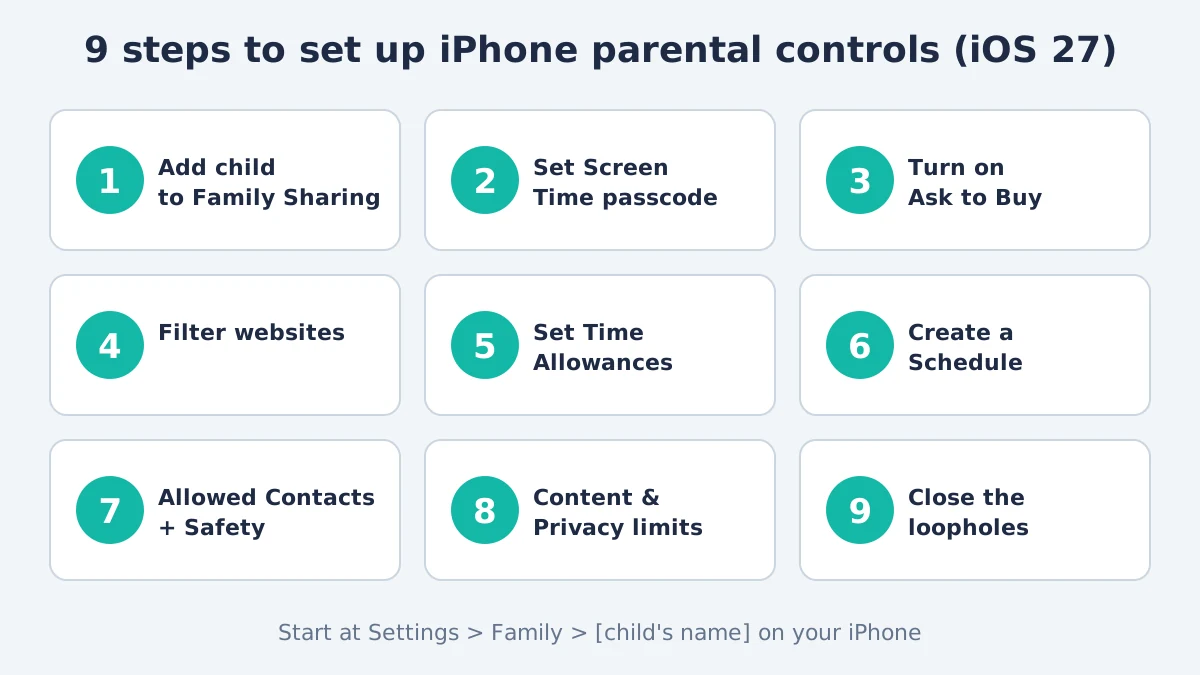
To set up parental controls on iPhone, add your child to Family Sharing, then open Settings > Family > [child’s name] on your own iPhone and choose their limits: Ask to Buy, website filtering, Time Allowances, Screen Time Schedules, Allowed Contacts and Content & Privacy Restrictions. Finish by setting a Screen Time passcode your child doesn’t know.
That is the short version of parental controls on iPhone for iOS 27, which Apple released on September 14, 2026 and which changed where most settings live. Many guides still describe the old menus, so this one covers both: the new iOS 27 layout step by step, and the older Downtime and App Limits screens for iPhones still on iOS 26 or earlier. You will also find age-based settings, the tricks kids use to get around Screen Time, and how to close each loophole.
Contents
- What are parental controls on iPhone?
- What you need before you start
- How to set up parental controls on iPhone in 9 steps
- Parental controls on iPhone with iOS 26 or older
- Recommended settings by age
- How kids get around Screen Time (and how to stop it)
- Forgot the Screen Time passcode?
- Do you need a third-party parental control app?
- FAQ
What Are Parental Controls on iPhone?
Parental controls on iPhone are Apple’s built-in tools for limiting what a child can see, buy, download and do on their device, and for how long. They are free, they come with every iPhone, and you manage them through two features that work together: Family Sharing and Screen Time.
A few terms you will see when you set up parental controls on iPhone:
- Family Sharing is Apple’s system for linking up to six people (you plus five family members) so you can share purchases and subscriptions and manage children’s accounts.
- Child Account is an Apple Account for someone under 13 (under 18 in some regions, such as Texas). A parent or guardian must create it, and it unlocks the full set of controls.
- Screen Time is the feature that tracks device use and enforces limits on apps, websites, contacts and content.
- Screen Time passcode is a separate 4-digit code that stops your child from changing the settings you choose.
Why bother? According to Pew Research Center’s 2025 data, 97% of US teens use the internet every day and about 4 in 10 say they are online almost constantly. Pew’s 2024 survey found 95% of teens have or can use a smartphone. Parental controls on iPhone won’t replace conversations with your kids, but they set sensible guardrails while those habits form.
What You Need Before You Start
You need Family Sharing set up, your child’s Apple Account in your family group, and ideally every device in the family updated to iOS 27 (or iPadOS 27 and macOS 27). If any family device can’t run version 27, the family stays on the iOS 26 version of Screen Time.
Here is a quick checklist before you turn on parental controls on iPhone:
- Your iPhone, signed in to your own Apple Account, as the family organizer or a parent/guardian.
- Your child’s iPhone, signed in to their own Apple Account (not yours). Sharing one Apple Account makes proper parental controls on iPhone impossible.
- Software updates. iOS 27 runs on iPhone 11 and newer. Check in Settings > General > Software Update. The latest version as of November 16, 2026 is iOS 27.2.1.
- A Screen Time passcode in mind that differs from your iPhone unlock code.
Apple renamed several parental controls on iPhone in iOS 27. This table maps what you will see on each version. The pairings are our explanation of how the features line up; Apple has not officially described them as renames.
| What it does | iOS 27 name | iOS 26 and earlier |
|---|---|---|
| Blocks the phone at set times (bedtime, school) | Screen Time Schedule | Downtime |
| Caps daily time on app types | Time Allowances | App Limits |
| Controls who your child can talk to | Allowed Contacts | Communication Limits |
| Filters websites, apps, purchases | Apps & Websites > Restrictions | Content & Privacy Restrictions |
| Where you manage it | Settings > Family > child | Settings > Screen Time > child |
Apple keeps an up-to-date overview on its parental controls support page, which is worth bookmarking because menu names can change with updates.
How to Set Up Parental Controls on iPhone in 9 Steps
The setup takes about 15 minutes from your own iPhone. Apple recommends managing parental controls on iPhone from the parent’s device rather than the child’s, because changes sync automatically and your child never sees the passcode being entered.
Step 1: Add Your Child to Family Sharing
Family Sharing is the foundation for all parental controls on iPhone, so start here.
- On your iPhone, open Settings > Family. (If you haven’t used Family Sharing yet, tap your name, then Family Sharing > Set Up Your Family.)
- Tap Add Member.
- For a child under 13, tap Create Child Account and follow the prompts. You will confirm you are an adult and enter your child’s real date of birth.
- For an older child with an existing account, tap Invite Others and send the invitation to their Apple Account.
Apple explains the rules in How Family Sharing works. Child-appropriate defaults apply from the moment the Child Account exists, even before you finish the rest of setup.
Step 2: Run the Parental Controls Setup and Set a Screen Time Passcode
When everyone is on iOS 27, Apple asks you to run a short setup for each child that moves over any old settings or creates new ones. It ends with choosing the Screen Time passcode.
- Go to Settings > Family and tap your child’s name.
- Follow the on-screen setup prompts if they appear.
- Create a 4-digit Screen Time passcode. Don’t reuse your phone passcode, a birthday or anything your child could guess.
- Turn on Screen Time Passcode Recovery if offered, so you can reset the code with your Apple Account later.
Later, you can change it in Settings > Family > [child] > Passcode & Management.
Step 3: Turn On Ask to Buy
Ask to Buy is one of the most useful parental controls on iPhone: it sends you a request whenever your child tries to buy or download something, including free apps and in-app purchases. You approve or decline it from your own phone.
- In Settings > Family > [child], tap Apps & Websites > Restrictions.
- Tap Ask to Buy and select Require Purchase Approval.
For children under 18, Ask to Buy is on by default in many regions and may not be switchable off. It is also how you approve a one-off exception for an app rated above your child’s age limit. If you later find surprise charges, our guide to cancelling subscriptions on iPhone walks through stopping them.
Step 4: Filter Websites
Website filtering is the part of parental controls on iPhone that limits what your child can open in Safari and other apps that use Apple’s web engine.
- Go to Settings > Family > [child] > Apps & Websites > Restrictions > Websites.
- Choose a filter:
- Limit Adult Websites blocks a broad list of adult sites and turns off Private Browsing. Apple turns this on by default for children under 18.
- Approved Websites Only lets your child visit only sites you allow, and they can ask you to add more (Apple calls this Ask to Browse). It is on by default for under-13s.
- To block one specific site or app, go back to Apps & Websites, select it and tap Block.
Step 5: Set Time Allowances
Time Allowances cap how long your child can spend each day on categories such as Games, Social Media and Entertainment. iOS 27 suggests limits based on your child’s age, which is a good starting point.
- In Settings > Family > [child], tap Time Allowances.
- Tap Add and pick a category or specific apps.
- Set the daily amount, then adjust weekends separately if you like.
Since iOS 26, children can send a request for more time when they hit a limit. You can approve it for 15 minutes, an hour or the rest of the day right from the notification.
Step 6: Create a Screen Time Schedule
A Screen Time Schedule decides which apps work at which times of day, such as school hours and bedtime. It replaces the single Downtime window of older versions with several routines.
- In Settings > Family > [child], tap Screen Time Schedule > Add Schedule.
- Choose a preset such as Before School, School or After School, or build your own.
- Pick which apps and contacts stay available during each block (phone calls to family should always stay on).
- Set different weekday and weekend routines if needed.
[ADD PERSONAL EXPERIENCE: Share the actual schedule you use for your own child (school hours, homework time, bedtime) and how they reacted in the first week — real routines help other parents more than defaults.]
Step 7: Choose Allowed Contacts and Turn On Communication Safety
Allowed Contacts controls who your child can call, message and FaceTime. Communication Safety blurs nudity, and in iOS 27 also gore and violence, in images and videos your child receives.
- In Settings > Family > [child], tap Allowed Contacts > During Screen Time.
- Choose Contacts Only, Contacts & Groups with at Least One Contact, or Everyone.
- Turn on Manage Contacts so any new contact your child adds needs your approval.
- Go back and tap Communication Safety to make sure it is on. It is on by default for children under 18.
Under rules Apple introduced in 2025, children also need your approval before messaging a new phone number. For extra protection against unwanted messages, see how to stop spam texts on iPhone.
Step 8: Set Content & Privacy Restrictions
Content & Privacy Restrictions set age ratings for apps, films, TV, books and music, and control Siri, Game Center and privacy permissions.
- In Settings > Family > [child], tap Content & Privacy Restrictions.
- Set App Store ratings to match your child’s age. Since late 2025 Apple uses five ratings: 4+, 9+, 13+, 16+ and 18+. Apps rated above the limit are hidden from the App Store’s main tabs.
- Under Siri, decide whether to allow features such as Writing Assistance and Image Creation, Apple’s AI tools. (Adults can learn more in our guide to turning off Apple Intelligence.)
- Under Game Center, limit multiplayer games with strangers and adding friends.
- Under Privacy Restrictions, lock settings such as Location Services so your child can’t change them.
Step 9: Close the Loopholes
The final step in setting up parental controls on iPhone is to stop the most common workarounds, which almost all involve changing a setting you didn’t lock. Spend two minutes on these:
- Block installing and deleting apps in the App Store section of Apps & Websites, so your child can’t delete an app and reinstall it to reset its timer.
- Lock Location Services and date and time settings so changing the time zone can’t skip a schedule.
- Turn on Share Across Devices and update any old iPads to version 27, so limits apply everywhere.
- Keep Screen Distance on. It warns children when the iPhone is closer than 12 inches to their face and is on by default for under-13s on Face ID models.
When the nine steps are done, your parental controls on iPhone are fully active. Check the weekly Screen Time report in the redesigned Family dashboard to see how the limits are working.
Parental Controls on iPhone With iOS 26 or Older
On iOS 26 and earlier, parental controls on iPhone live under Settings > Screen Time. If you manage a child through Family Sharing, tap their name there; otherwise set it up directly on their phone and choose This is My Child’s iPhone.
The main settings are:
- Downtime: set a daily schedule when only allowed apps and phone calls work. Turn on Block at Downtime so your child can’t just tap “Ignore.”
- App Limits: tap Add Limit, choose categories such as Social or Games, set a time and turn on Block at End of Limit.
- Communication Limits: choose who your child can contact during screen time and downtime.
- Always Allowed: pick apps that work at any time, such as Phone, Messages to family and Maps.
- Content & Privacy Restrictions: switch it on, then set iTunes & App Store Purchases (set Installing Apps, Deleting Apps and In-app Purchases to Don’t Allow if you want tight control), Content Restrictions for ratings and web content, and Allow Changes for passcode, account and location settings.
- Screen Time passcode: tap Use Screen Time Passcode or Lock Screen Time Settings.
Apple’s Screen Time guide for families covers both versions and is the best reference if your menus look slightly different.
Recommended Parental Controls on iPhone by Age
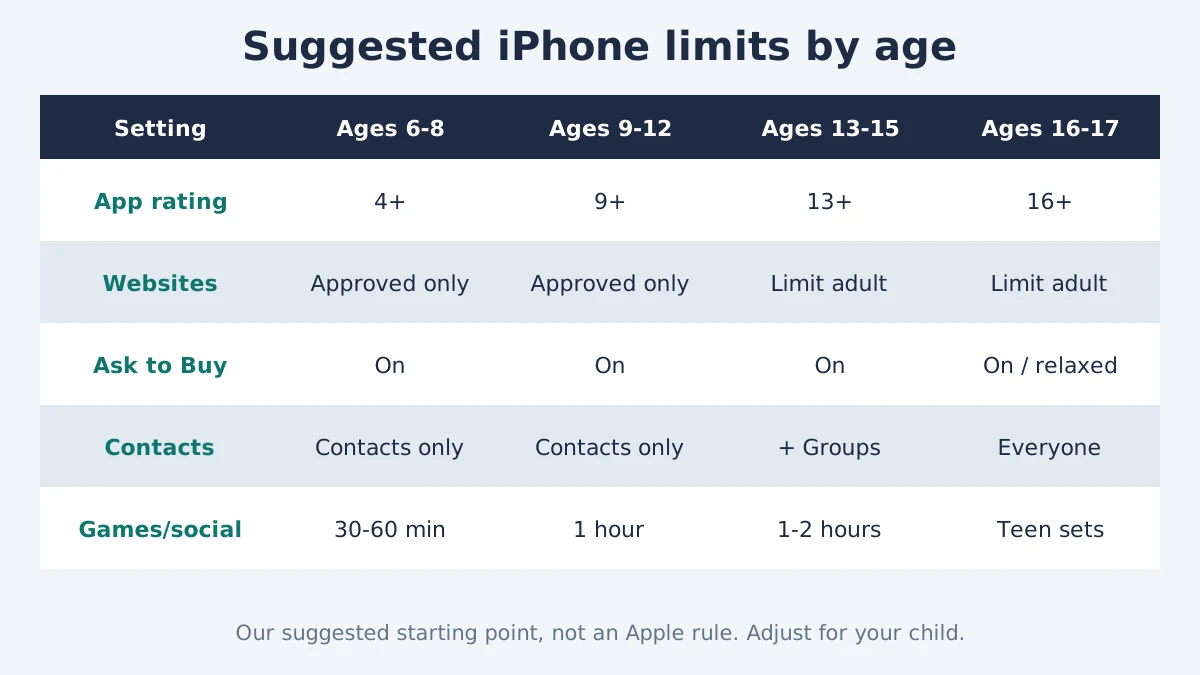
The right parental controls on iPhone depend on your child’s age and maturity: tighter for young children, then gradually looser so teenagers learn to manage their own time. The table below is our suggested starting point, not an Apple rule; adjust it to your family.
| Setting | Ages 6–8 | Ages 9–12 | Ages 13–15 | Ages 16–17 |
|---|---|---|---|---|
| App Store rating | 4+ | 9+ | 13+ | 16+ |
| Websites | Approved Websites Only | Approved Websites Only | Limit Adult Websites | Limit Adult Websites |
| Ask to Buy | On | On | On | On, or relaxed for free apps |
| Allowed Contacts | Contacts Only | Contacts Only | Contacts & Groups | Everyone, with Communication Safety |
| Time Allowances (games/social) | 30–60 min | 1 hour | 1–2 hours | Teen sets, parent reviews |
| Schedule | School + bedtime | School + bedtime | Bedtime | Bedtime (optional) |
| Installing/deleting apps | Blocked | Blocked | Ask to Buy | Allowed |
For context, Pew Research Center found in 2024 that 47% of parents of teens limit their teen’s phone time, rising to 62% among parents of 13- and 14-year-olds. Younger teens are where limits help most.
How Kids Get Around Screen Time (and How to Stop It)
Most ways around parental controls on iPhone rely on a setting the parent left unlocked, a guessed passcode or a second device. Each one has a simple fix.
| Trick | What happens | How to stop it |
|---|---|---|
| Watching you type the passcode | Child learns the code and changes limits | Use a unique code, manage from your own phone, block screen recording |
| Changing the time zone | Schedule thinks it is daytime | Lock Location Services and set date and time to automatic |
| Deleting and reinstalling apps | App time limit resets | Block installing and deleting apps; keep Ask to Buy on |
| Videos sent in Messages | Links play inside Messages | Use Allowed Contacts, block the website |
| Asking Siri to send messages | Messages sent during a schedule | Restrict Siri in Content & Privacy Restrictions |
| Using an old iPad or second phone | Limits don’t apply there | Turn on Share Across Devices and update all devices |
| Private Browsing or other browsers | Web history hidden | Limit Adult Websites disables Private Browsing; block other browser apps |
Tech outlets including TechRadar report the time-zone and reinstall tricks as the most common. If your teen uses a VPN app to dodge filters, read our guide to how a VPN works on iPhone so you know what to look for in Settings.
Forgot the Screen Time Passcode?
If you set up Screen Time Passcode Recovery, you can reset a forgotten code with the Apple Account you used for recovery. Without it, Apple offers no simple way to reset a child’s Screen Time passcode, which locks you out of changing parental controls on iPhone. That is why Step 2 matters.
To change or reset it on iOS 27:
- On your own device: Settings > Screen Time > Passcode & Management > Change Screen Time Passcode, then verify with Face ID or your device passcode, and your Apple Account if asked.
- For your child: Settings > Family > [child] > Passcode & Management > Change Screen Time Passcode.
- If you have forgotten it, tap Forgot Passcode? and sign in with the Apple Account linked to recovery.
Apple’s Screen Time passcode support page has the latest steps. Change the code straight away if you think your child has seen it.
Do You Need a Third-Party Parental Control App?
Most families don’t need extra apps on top of parental controls on iPhone. Apple’s built-in parental controls on iPhone cover time limits, content filters, purchase approval and contact limits for free, and as Apple’s own system they are harder to remove than any app.
A third-party app can still make sense if you want:
- Alerts about message content on social apps such as signs of bullying, which Screen Time doesn’t scan for.
- One dashboard for mixed families where children use both iPhone and Android.
- Location history beyond what Find My shows.
If you choose one, read its privacy policy carefully: these apps can see a lot of your child’s data. Weigh that against the extra features, and remember that no app replaces regular conversations about what your child sees online.
Frequently Asked Questions
Can I set parental controls on my child’s iPhone from my iPhone?
Yes. Apple recommends it. Add your child to Family Sharing, then on your iPhone go to Settings > Family > [child’s name] to set Time Allowances, Screen Time Schedules, website filters and Ask to Buy. Changes sync to your child’s iPhone automatically, and your child never sees you enter the Screen Time passcode.
Are parental controls on iPhone free?
Yes. Parental controls on iPhone, including Screen Time, Family Sharing, Ask to Buy, Communication Safety and Content & Privacy Restrictions are all built into iOS at no cost. You don’t need a subscription. Some families add paid third-party apps for message monitoring or mixed iPhone and Android households, but the core controls work fully without them.
What age can a child leave Family Sharing?
In most regions, including most of the US, children 13 or older can leave a family group or be removed, but for ages 13 to 17 the organizer must turn off Screen Time first. Children under 13 can’t simply leave; their account must move to another family. Some regions, such as Texas, require family membership until 18.
Why did my iPhone parental controls menu change?
iOS 27, released September 14, 2026, moved parental controls on iPhone to Settings > Family > [child’s name] and added Screen Time Schedules, Time Allowances and Allowed Contacts. The new menus only appear when every device in your family runs version 27. If one device can’t update, your family keeps the older Screen Time menus.
Can my child turn off Screen Time?
Not if you set parental controls on iPhone with a Screen Time passcode they don’t know and manage the account through Family Sharing. Without the passcode, a child can’t change limits or switch Screen Time off. For ages 13 to 17, a child can’t leave Family Sharing while Screen Time is on, so keep the passcode private and change it if it leaks.
How do I block YouTube or another app on my child’s iPhone?
On iOS 27, go to Settings > Family > [child] > Apps & Websites, select the app and tap Block. To block the website version too, block youtube.com in the same list or choose Approved Websites Only. On iOS 26, set a one-minute App Limit or lower the App Store age rating.
Does Screen Time work on my child’s iPad and Mac too?
Yes, if Share Across Devices is on and the devices use the same Apple Account. Time Allowances and Schedules then count total use across iPhone, iPad and Mac. For the iOS 27 controls, every device must run version 27; older devices stay on the previous Downtime and App Limits system.
Final Thoughts
Setting up parental controls on iPhone takes about 15 minutes: add your child to Family Sharing, set a private Screen Time passcode, then work through Ask to Buy, website filters, Time Allowances, Schedules, Allowed Contacts and content ratings from your own phone. Lock the loopholes, review the weekly report, and loosen the limits as your child shows they can manage their own time. Apple updates parental controls on iPhone regularly, so check its support pages after major iOS updates.
